
How to Transfer Contacts from Samsung to Motorola? 4 Effortless Ways
Contacts include phone numbers, emails, and other personal or professional details that are essential for daily communication, making them one of the most important types of data on any smartphone. When upgrading from a Galaxy phone to a Moto device, users often want to ensure that none of this vital information is lost.
Learning how to transfer contacts from Samsung to Motorola can save time, prevent mistakes, and maintain seamless communication. This article will guide you through four practical ways to complete the transfer efficiently.
Option 1: Transfer Contacts from Samsung to Motorola Easily & Seamlessly
A desktop-based solution can move contacts directly between two Android phones with minimal effort, making it ideal for users who prefer a guided process. By connecting both devices to a computer, contacts can be detected and transferred in one operation without relying on cloud services.
Compatibility across major Android brands ensures Samsung and Motorola phones work smoothly together. This approach is exactly what MobiKin Transfer for Mobile (Windows/Mac) is designed to provide.
|
Feature
|
Main Details
|
|
Cross-Platform Transfer |
Transfers data seamlessly between Android devices such as Samsung and Motorola, and also supports Android-to-iOS and iOS-to-Android transfers. |
|
Contacts Transfer |
Moves contacts directly from Samsung to Motorola Edge, Moto G, and Moto E series (e.g., Edge 50 Ultra/50 Pro, G Power 5G/G Stylus, E32/E22, etc.) without overwriting existing data on the target device. |
|
Multiple Data Types |
Supports transferring contacts, SMS, call logs, photos, videos, music, apps, and other common file types in one process. |
|
Selective Transfer |
Allows users to choose specific data types (for example, only contacts) instead of transferring everything. |
|
Fast & Stable Performance |
Provides quick transfer speeds while maintaining data integrity throughout the process. |
|
Computer-Based Control |
Uses a Windows or Mac computer to manage and execute transfers, offering a stable and guided environment. |
|
User-Friendly Interface |
Features a clean, step-by-step interface that is easy to follow even for non-technical users. |
How to use MobiKin Transfer for Mobile to move contacts from Samsung to Motorola?
- Install and launch MobiKin Transfer for Mobile after the free and secure download on your Windows or Mac computer. (Is the official Motorola Migrate discontinued?)
- Connect both Samsung and Motorola phones to the computer using USB cables and enable USB debugging on both devices.
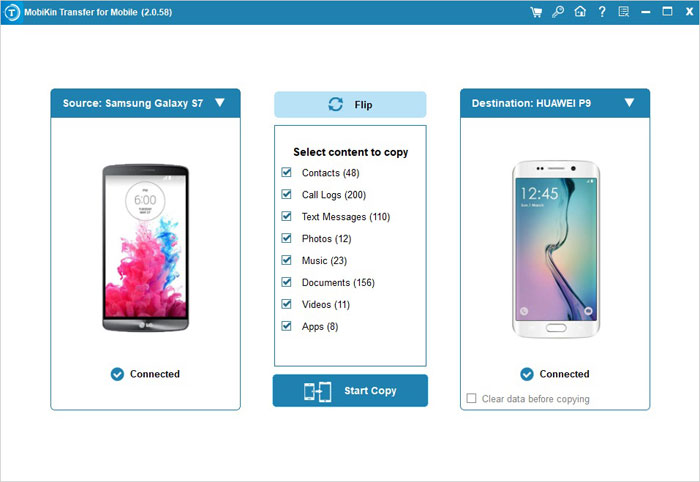
- Ensure Samsung is the Source and Motorola is the Destination, and use the "Flip" button if needed.
- Select Contacts in the data panel to transfer only contacts.
- Click Start Copy to begin the transfer process.
- Keep both devices connected until the transfer completes.
- Open the Contacts app on Motorola to verify that all contacts have been successfully transferred.



Video Directions:
Tips: Is it possible to transfer contacts from a broken Samsung phone to Motorola? Yes, if the contacts are backed up to a Google account or Samsung Cloud, you can restore them to your Motorola device. Specialized software like Android Data Recovery can help you recover your lost contacts from a broken Samsung directly.
Option 2: Sync Contacts from Samsung to Motorola via Google Account
Cloud syncing offers a wireless and familiar way to keep contact lists consistent across devices. Once contacts are synced on the old phone, they can automatically appear on the new one after signing in. The process works well during initial setup or even after the phone is already in use. This convenience is why many users rely on the Google Account method for transferring contacts from Samsung to Motorola.
Phase 1: On your Samsung phone
- Open the Contacts app.
- Tap Menu or three dots.
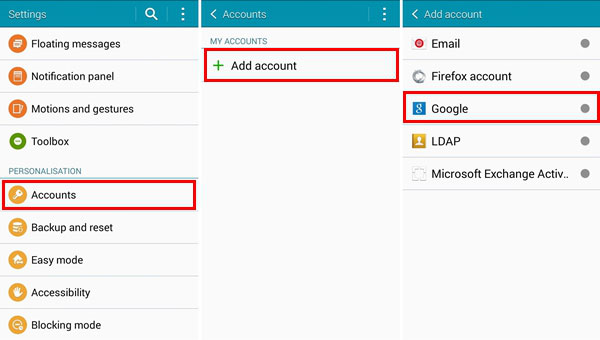
- Go to Settings > Accounts/Add account.
- Select or create your Google account.
- Make sure Contacts sync is turned ON.
- Wait a moment to ensure all contacts finish syncing.
Phase 2: On your Motorola phone (during initial setup):
- Power on the Motorola device and begin the setup process.
- When prompted, sign in with the same Google account used on your Samsung.
- Choose "Backup from the cloud".
- Select Contacts (and any other data you want) to restore.
- Continue setup and allow the restore process to complete.
Phase 3: On your Motorola phone (after setup is completed)
- Open Settings.
- Tap Accounts > Google.
- Select the same Google account.
- Go to Account sync.
- Toggle Contacts ON.
- Wait a few minutes for contacts to appear in the Contacts app.
Note: If syncing contacts via Google Account fails, first ensure both devices are connected to a stable internet connection and that you're signed in to the same Google account on both phones. Next, check that contact sync is enabled in your Samsung's Settings > Accounts > Google > Account sync, and force a manual sync. If it still doesn't work, consider using a reliable transfer tool like MobiKin Transfer for Mobile.
Option 3: Export Contacts from Samsung to Motorola via Export/Import (.vcf File)
Manual file-based transfer is useful when internet access is limited or when cloud sync is not preferred. Contacts are first saved as a single file and then shared through email, Bluetooth, or storage services. After importing the file, all saved numbers appear in the Contacts app at once. This flexibility is the key advantage of using the Export/Import (vcf file) method.
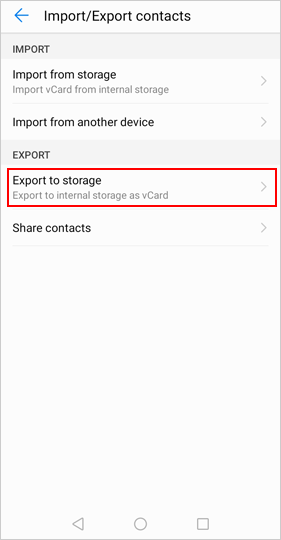
- On Samsung: Open Contacts > Menu > Settings > Import/Export contacts > Export, choose Internal storage (or SD card), and save the contacts as a .vcf file.
- Transfer the .vcf file: Send the exported .vcf file from Samsung to Motorola using Bluetooth, email, USB cable, or cloud storage (Google Drive, etc.)
- On Motorola: Open Contacts > Menu > Settings > Import, select .vcf file, locate the transferred file, and confirm to import all contacts.
You May Also Like: 5 Easy Tactics to Delete Everything on Your Phone Samsung Galaxy
Option 4: Transfer Contacts from Galaxy to Motorola with Transfer Contacts
A phone-to-phone app can simplify the process by handling connections and transfers automatically. With both devices running the same app, contacts are sent directly without a computer. The guided interface reduces setup errors and speeds up the process. This straightforward experience is what users get when using the Transfer Contacts app.
- Install the app: Download and install Transfer Contacts from Google Play on both your Samsung Galaxy and Motorola Edge/G/E series.
- Open the app on both devices: Launch Transfer Contacts on each phone and grant the required permissions (Contacts, Network, etc.)
- Choose send/receive roles: On the Samsung phone, select Send; on the Motorola phone, select Receive.
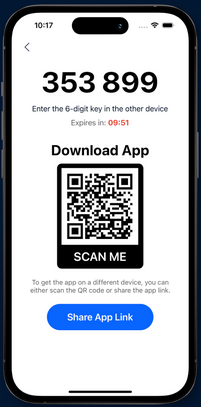
- Connect the phones: Follow the on-screen instructions to connect the devices (usually via Wi-Fi or a generated connection code).
- Select contacts: On the Samsung phone, choose Contacts as the data type to transfer
- Start the transfer: Tap Send/Transfer and wait for the process to complete.
Words in the End
With the right method - be it cloud magic with Google, the trusty .vcf file, a smart little app, or the power of MobiKin Transfer for Mobile - your phone numbers, emails, and professional contacts can leap from one device to the other almost like teleportation. Each method has its quirks, so pick the one that suits your tech style, whether you're a click-and-go minimalist or a detail-oriented planner. In the end, your Motorola will greet you with all the connections you've carefully built, ready for the next call, text, or email adventure.
Related Articles:
4 Intelligent Solutions to Transfer Contacts from realme to realme
4 Popular Options: How to Bypass FRP Lock on Motorola Phone
Best Samsung Galaxy Desktop Manager: Unlock the Main Features Here
Where Is the Recycle Bin on Samsung Galaxy? Comprehensive Analysis 2026
