
How to Transfer Data from HONOR to iPhone [2026 Guide]
With the release of the iPhone 17, a large number of users decided to upgrade their devices. You may also be planning to switch from a HONOR phone to the new iPhone. However, migrating data from Android devices like HONOR to iOS is not easy, and many users encounter problems during this process.
If you have similar thoughts, then this guide may be all you need. This concise and practical article will introduce five efficient methods to help you easily and confidently transfer data from your HONOR phone to your new iPhone.
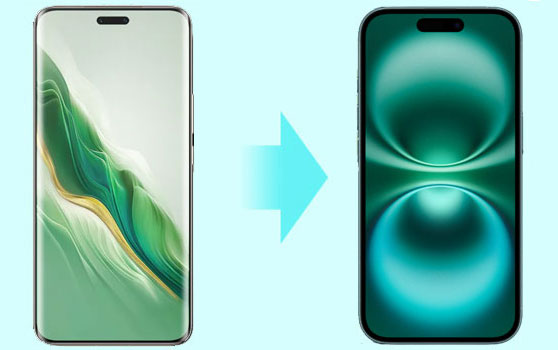
Part 1: Transfer Data from HONOR to iPhone in One Click
With just one click, you can move your data from HONOR to iPhone effortlessly by using MobiKin Transfer for Mobile. This tool is designed to work with thousands of devices and makes cross-platform transfers between Android and iOS simple and reliable. Whether it's photos, videos, music, contacts, text messages, call history, or other files, the tool supports a wide range of data types. Most importantly, everything is transferred without compression or quality loss. Just choose the data you want to move, and let the software handle the rest smoothly.
Key Highlights of Transfer for Mobile:
- Transfer data from HONOR to iPhone, or from iPhone to HONOR, with one click.
- Transfer data between iOS and Android, iOS and iOS, and Android and Android.
- Support to transfer contacts, messages, music, photos, videos, apps, notes, eBooks, and more.
- Selectively transfer data between two devices without any quality loss.
- It is compatible with thousands of phone models, including the iPhone 17/16/15/14/13/12/11/X/8/7/6, HONOR Magic 7/6/5/4, HONOR 200/100/90/80, HONOR X50/X40/X30, HONOR Play 40/30/20.
- The process is simple and easy to use even if you are not tech-savvy.


Here are the detail steps to switch from HONOR to iPhone by using Transfer for Mobile.
Step 1: Install and launch Transfer for Mobile
Download and install the HONOR to iPhone transfer software on your computer. Open the program and connect both your HONOR phone and iPhone to the computer using USB cables.

Step 2: Select the data for transfer
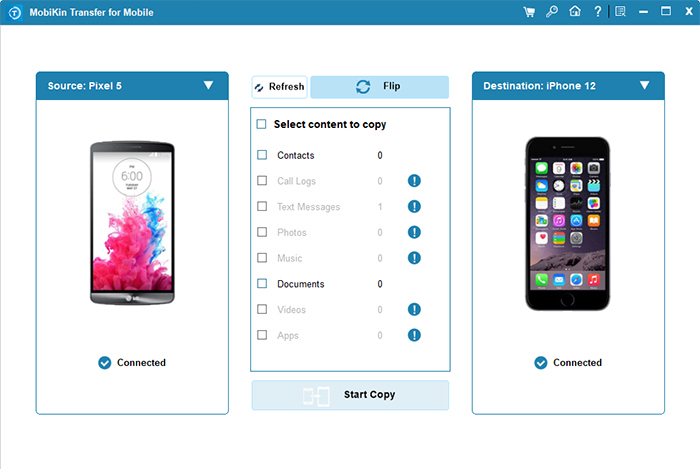
After the devices are recognized, you'll see them displayed on the screen. Confirm that the HONOR phone is listed as the source device and the iPhone as the destination. If their positions are reversed, simply click "Flip" to swap them.
Step 3: Start the HONOR to iPhone transfer
Select the data types you want to move, such as contacts, documents, and other files. Once everything is selected, click "Start Copy" to transfer the data from your HONOR phone to your iPhone.
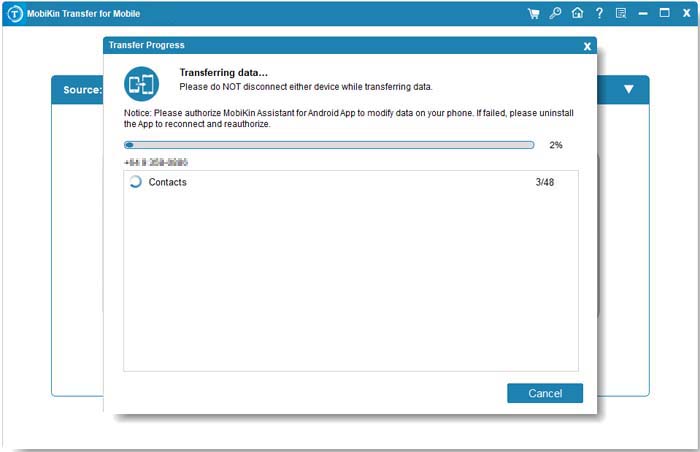
Make sure both devices stay connected to the computer throughout the transfer and allow the process to finish without interruption. Once it's done, all selected data will be safely moved from your HONOR phone to your iPhone.
Video Guide:
Part 2: Switch HONOR to iPhone Using Move to iOS
If you prefer using an official Apple solution, Move to iOS is a common option worth considering. This Android app is designed to help users move basic data from an HONOR phone to an iPhone during the iPhone's first-time setup. Once selected, it can transfer items such as photos and videos from the camera roll, contacts, text messages, browser bookmarks, and Google account data. However, it does not support all file types or app data, so some information may not be carried over.
Below is a general overview of how Move to iOS works when transferring data from HONOR to iPhone.
Step 1. Install the "Move to iOS" app from the Play Store on your HONOR phone. At the same time, power on your new iPhone and choose the option to transfer data from an Android device during the setup process.
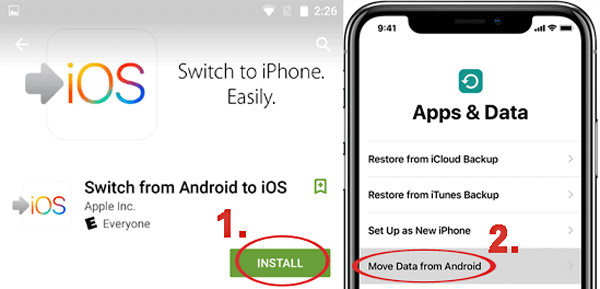
Step 2. On the iPhone, proceed until a transfer code appears. On your HONOR phone, open Move to iOS, accept the terms, and make sure Wi-Fi is enabled on both devices.
Step 3. Enter the one-time code shown on the iPhone into the Move to iOS app on your HONOR phone to create a secure connection.
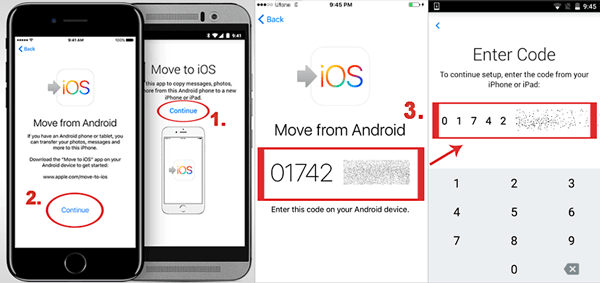
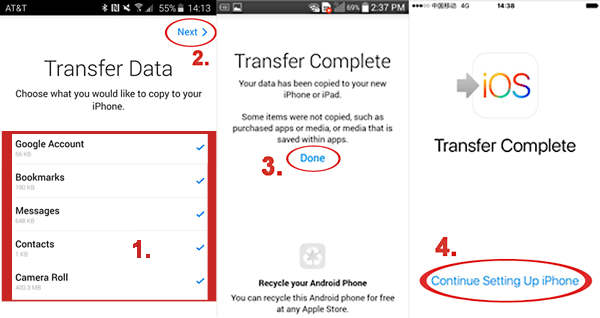
Step 4. Select the data categories you want to move and keep both devices nearby. The transfer will begin automatically and complete after a short wait, depending on the data size.
Read If You Like:
Part 3: Move Data from HONOR to iPhone with iTunes
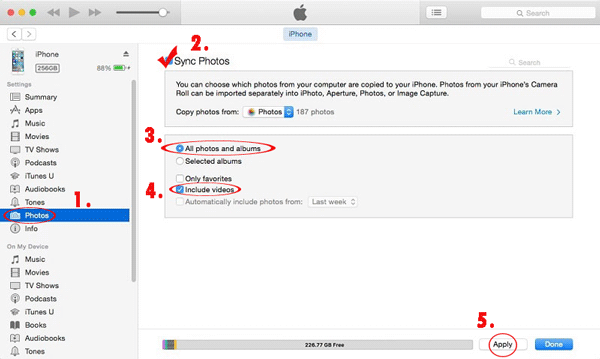
iTunes provides a free workaround for moving certain data from an HONOR phone to an iPhone. Since Android and iOS don't communicate directly, this method uses a computer as the middle step. You'll first copy files from your HONOR device to the computer, then sync them to your iPhone through iTunes. It works best for media files and lets you handle different data categories one at a time.
Step 1: Connect your HONOR phone to the computer and manually copy the files you want (such as photos, videos, or music) to a local folder.
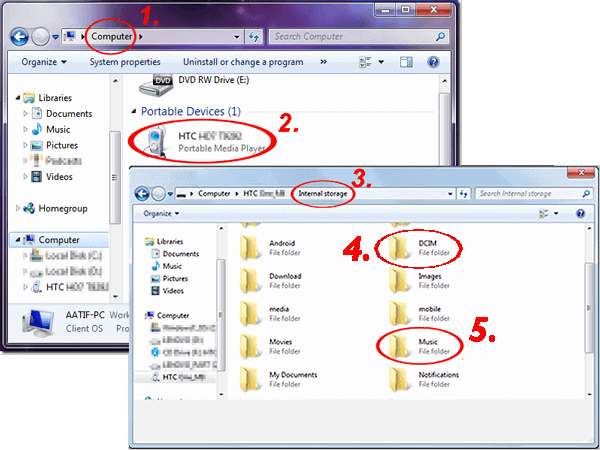
Step 2: Open iTunes and add the transferred media files to your iTunes library.
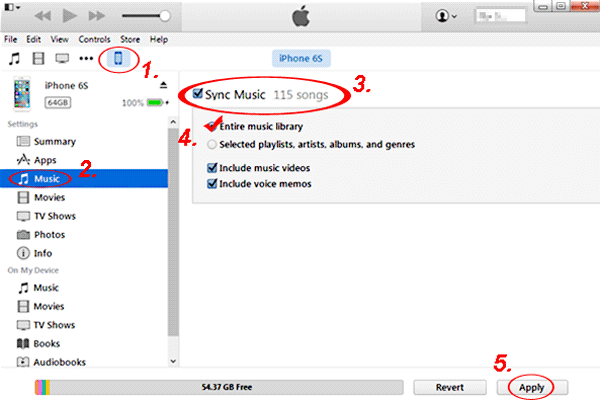
Step 3: Plug in your iPhone, then use iTunes to sync the selected content from the library to your device.
Part 4: Transfer Data from HONOR to iPhone via Google Drive
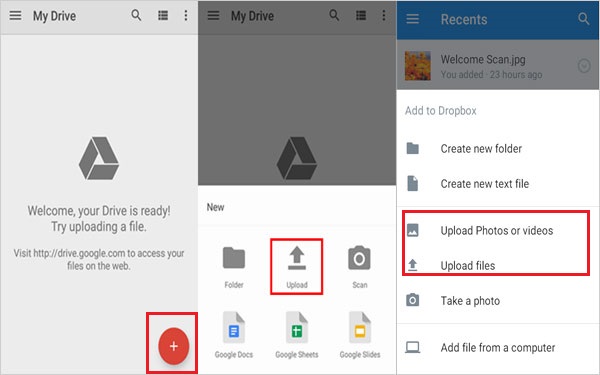
Google Drive provides a simple wireless solution for moving data from an HONOR phone to an iPhone. This method relies on cloud storage, making it convenient if you don't want to use a computer. It works well for contacts, photos, videos, and documents, but the transfer speed depends on your internet connection, and free storage space may be limited. (Is Google Drive Secure?)
Step 1: On your HONOR phone, sign in to your Google account and upload the data you want to transfer to Google Drive.
Step 2: Install the Google Drive app on your iPhone and log in with the same Google account.
Step 3: Download or access the uploaded files on your iPhone, or enable syncing for supported data types like contacts and calendars.
Part 5: Sync Data from HONOR to iPhone via iCloud Sync
iCloud Sync is a wireless way to move certain data from an HONOR phone to an iPhone. This method works by syncing data from HONOR to a cloud service first (such as Google or iCloud-supported services), then downloading the same data to your iPhone through iCloud. It is best for contacts, calendars, photos, and notes, but not suitable for apps or local app data.
Step 1: On your HONOR phone, sync important data (such as contacts, calendars, or photos) to a cloud account that supports cross-platform access. (How to Back Up to iCloud from Android?)
Step 2: Sign in to the same account on your iPhone and enable the corresponding iCloud or account sync options.
Step 3: Keep your iPhone connected to a stable Wi-Fi network and wait for the data to sync automatically to your device.
The Bottom Line
I hope this guide has made it easier for you to move your data from HONOR to iPhone. As you've seen, with MobiKin Transfer for Mobile, the entire switching process can be completed in just one click. This powerful tool transfers data directly between two phones, even when they run on different operating systems, saving both time and effort.
If you found this article useful, feel free to share it with others who may also be looking for a simple way to transfer data from HONOR to iPhone.
Related Article:
How to Transfer Data from POCO to iPhone [Updated Guide]
How to Transfer Contacts from Android to iPhone? (4 Quick & Safe Ways)
Best 5 Ways to Transfer Music from Android to iPhone In Minutes
[Fast Transfer] Top 8 Ways to Send Video from Android to iPhone
