
How to Transfer Data from realme to iPhone: Easy Guide 2026
Switching from a realme phone to an iPhone can feel exciting, but transferring your data might seem challenging at first. Fortunately, there are several simple and effective ways to move your important files, including contacts, photos, messages, and more. Whether you are setting up a brand-new iPhone or already using one, tools like Move to iOS and other practical solutions can make the process smooth and hassle-free.
In this guide, we will walk you through the best methods to transfer data from realme to iPhone quickly and safely.
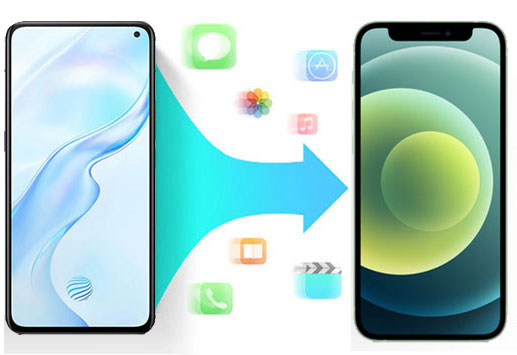
Method 1: Switch from realme to iPhone Using Move to iOS App
If you're setting up a new iPhone, Move to iOS is one of the simplest ways to transfer data from a realme phone. As an official Apple app, it allows you to move important content wirelessly without using a computer. (Move to iOS Not Working/Connecting?)
You can transfer contacts, messages, photos, videos, calendars, mail accounts, and bookmarks, making it a practical all-in-one solution.
- Turn on your new iPhone and follow the setup process until you reach the "Apps & Data" screen. Then select "Move Data from Android".
- On your realme phone, download and open Move to iOS. Tap "Continue" and agree to the terms.
- A verification code will appear on your iPhone. Enter this code on your realme device to connect the two phones.
- Choose the types of data you want to transfer, such as contacts, messages, and photos.
- Tap "Next" to start the transfer. Keep both devices close and connected to Wi-Fi.
- Wait until the process is complete, then finish the iPhone setup.
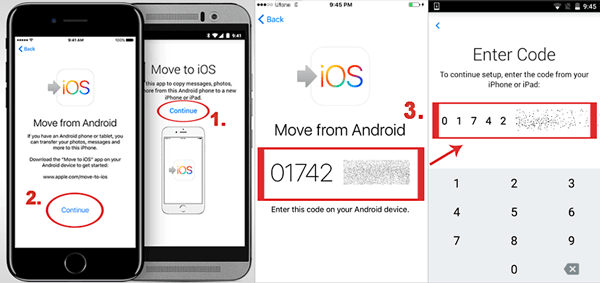
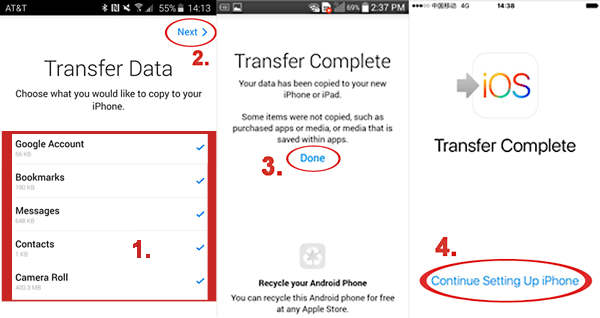
This method is free, secure, and beginner-friendly. The only limitation is that it works only during the initial setup of your iPhone, and the speed may vary depending on your Wi-Fi connection.
You May Need:
Method 2: Transfer Data from realme to iPhone with Transfer for Mobile
If your iPhone is already set up or you want a more flexible way to transfer data, MobiKin Transfer for Mobile (available for both Windows and Mac) is a great choice. This desktop tool allows you to move data directly between realme and iPhone in one click, without resetting your device. It's especially useful for transferring large files or multiple data types quickly and securely.
Key Features of Transfer for Mobile:
- Transfer data from realme to iPhone without worrying about data loss.
- You can transfer data between iOS and Android, Android to Android, and iOS to iOS.
- Transfers contacts, SMS, photos, videos, music, and more.
- The tool is compatible with thousands of phone models, such as iPhone 17/16/15/14/13/12/11/X/8/7/6, as well as popular realme devices like realme P3/P2/P1, C75/C67/C65/C61/C55/C53/C51, etc.
- No need to root or jailbreak your phone.
- Fast and stable transfer, even for large files.


Here's how to use Transfer for Mobile to easily transfer data from your iPhone to your realme phone in just one click:
Step 1: Open Transfer for Mobile
Download and install MobiKin Transfer for Mobile on your computer. Launch the program. Connect both your realme phone and iPhone to the computer using USB cables.
Enable USB debugging on your realme device and tap "Trust This Computer" on your iPhone if prompted.

Step 2: Connect your devices
Once both devices are detected, make sure the realme phone is set as the source device. You can click "Flip" if needed.
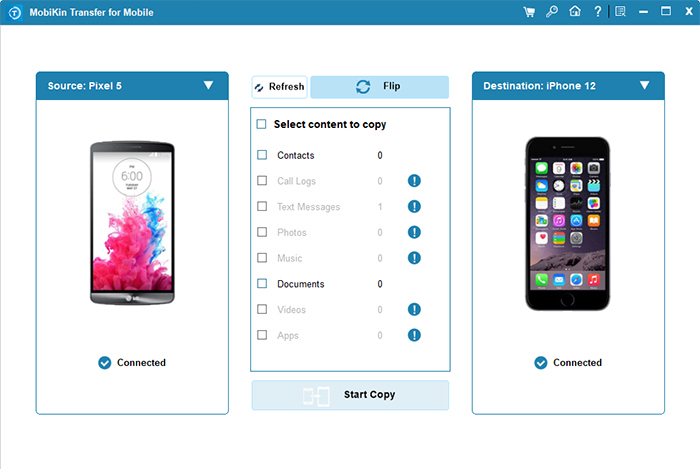
Step 3: Start the transfer
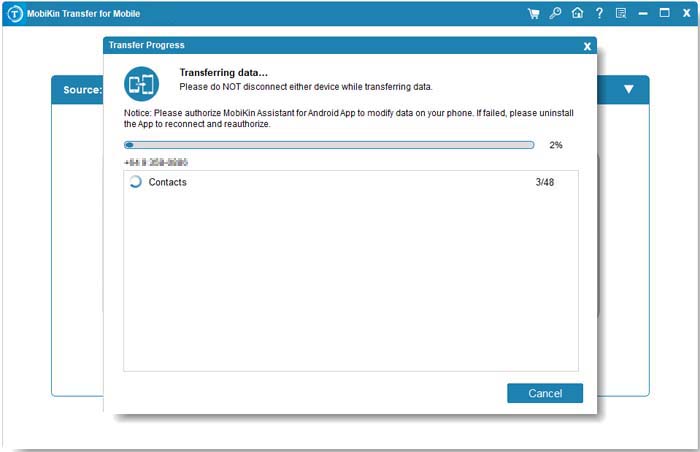
Select the data types you want to transfer, such as contacts, messages, or media files. Click "Start Copy" to begin the transfer. Wait until the process is completed.
Video Guide:
You May Need:
Method 3: Sync Data from realme to iPhone with Google Drive
If you prefer a wireless method without using a computer, Google Drive offers a simple way to sync data between your realme phone and iPhone. This method is especially useful for backing up and accessing files like contacts, photos, videos, and documents across devices.
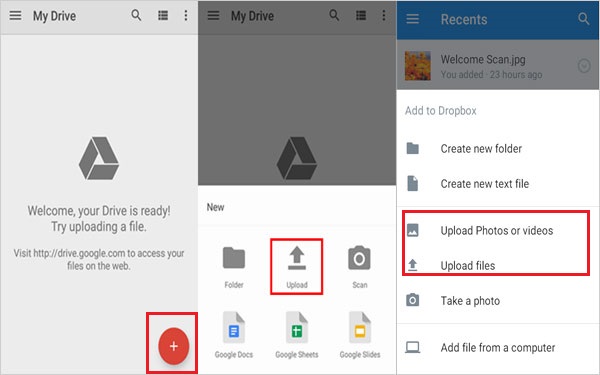
- On your realme phone, install and open Google Drive. Sign in with your Google account.
- Tap the "+" icon and choose "Upload" or go to "Settings > Backup" to back up your data.
- Select the files you want to upload, such as photos, videos, or documents, and wait for the upload to finish.
- On your iPhone, download and open Google Drive, then sign in with the same Google account.
- Browse your uploaded files and download them to your iPhone.
- Save the files locally or open them with compatible apps on your iPhone.
This method is convenient and flexible, but the transfer speed depends on your internet connection, and free storage space may be limited.
Method 4: Copy Files from realme to iPhone Manually via USB
If you want a direct and reliable way to transfer files without using apps or cloud services, manually copying files via USB is a solid option. This method is especially suitable for large photos, videos, music, and documents. By connecting both devices to a computer, you have full control over which files to transfer, and the process doesn't rely on internet speed or extra software.
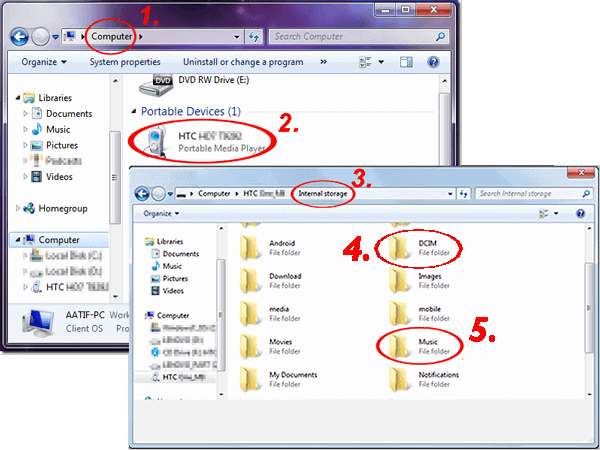
- Connect your realme phone to the computer using a USB cable and enable "File Transfer (MTP)" mode.
- Open the phone's storage on your computer and locate the files you want to transfer, such as Photos or Videos.
- Copy the selected files from the realme device to a folder on your computer.
- Connect your iPhone to the computer using a USB cable. Open iTunes (or Finder on Mac) and select your iPhone. (iPhone Cannot Connect to iTunes?)
- Drag and drop the copied files from your computer into the iPhone's storage via iTunes or the Photos app.
- Wait for the transfer to finish, then safely eject both devices.
Final Words
Transferring data from realme to iPhone can be simple and stress-free if you choose the right method. For new iPhones, Move to iOS provides a quick, wireless solution, while MobiKin Transfer for Mobile works perfectly for already set-up devices or large transfers. Google Drive is ideal for wireless backups, and manual USB transfer gives full control over files. By picking the method that suits your needs, you can move contacts, photos, messages, and more safely and efficiently.
Related Articles:
4 Methods to Transfer Contacts from iPhone to realme
4 Methods: How to Transfer Data from realme to realme
