
How to Transfer Text Messages from TECNO to iPhone: 4 Best Ways
When a new iPhone comes out or you switch from an Android device, the first thing you usually do is move your data. For TECNO users, it's important to know how to transfer content from your TECNO phone to your new iPhone before the setup begins, especially if you want to bring your text messages.
Since Android and iOS are built differently, tools like Bluetooth or Windows File Explorer cannot copy text messages between them. This often leaves users confused about where to start. If you want a simple and reliable way to move your messages from a TECNO phone to an iPhone, the guide below introduces four practical methods that make the process much easier.
Way 1: Transfer SMS from TECNO to iPhone Using Move to iOS App
Move to iOS is a dedicated mobile app that helps you move data from an Android phone to an iPhone during setup. The tool is completely free on supported devices and can transfer several types of files such as text messages, photos, contacts, and even WhatsApp data. If you want to send your SMS messages from TECNO to your new iPhone, follow these steps:
- Install the Move to iOS app from the Play Store on your TECNO device.
- Turn on your new iPhone and proceed through the setup until you reach the screen labeled "Apps & Data". Select "Move Data from Android".
- Tap Continue and your iPhone will display a six-digit or ten-digit code.
- Open the Move to iOS app on your TECNO phone, tap "Continue", and review the terms and conditions.
- Choose "Agree" and then tap Next in the upper-right corner of the "Find Your Code" page.
- Enter the code shown on your iPhone. When the "Transfer Data" screen appears, select "Messages".
- On your TECNO phone, tap "Next" and the transfer process will begin.
- Once the progress bar finishes on your iPhone, the transfer is complete.
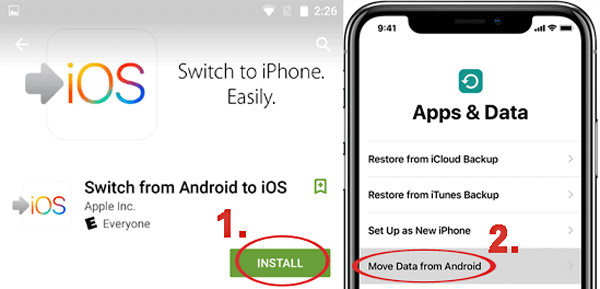
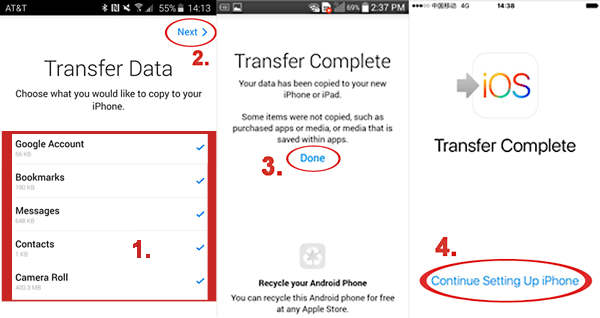
This approach works best when setting up a new iPhone and wanting to bring over your Android messages. If your iPhone is already in regular use, other options are available to move SMS. You can also review solutions for situations where Move to iOS Taking Forever.
Way 2: Transfer Text Messages from TECNO to iPhone After Setup
If your iPhone is already set up and you prefer not to use Move to iOS, you can still bring over your TECNO text messages with a third-party tool such as Phone Transfer. This program lets you copy your messages to your iPhone even after the initial setup is complete. Besides SMS, this method also allows you to transfer other important files like music, photos, contacts, videos, and call logs from your old Android phone to your new iPhone.
Main Features of Phone Transfer:
- You can move your messages without factory reset your iPhone.
- Phone Transfer keeps your existing data safe and does not overwrite anything.
- Speeds can reach up to 15M/S, although performance may vary based on your computer and USB cable.
- The interface is simple and friendly, so anyone can complete the transfer without technical knowledge.
- Move files from your phone to computer, and vice versa.
- Compatible with all iOS devices, including the latest iPhone 17/17 Pro (Max)/Air.


Here's how you can use Phone Transfer to move text messages from your TECNO phone to your iPhone:
Step 1: Export SMS from Your TECNO and iPhone to the Computer
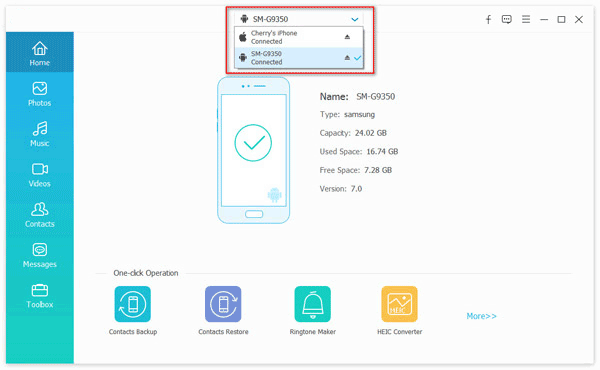
- Start by downloading and installing Phone Transfer on your computer. Connect your TECNO device and your iPhone to the computer using their USB cables.
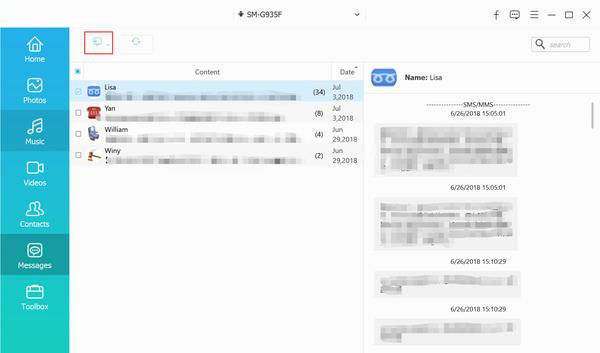
- Select your TECNO phone as the source in the program. The software will display your data in different categories. Choose "Messages" so you can preview all the texts stored on the phone.
- Give the program a moment to load everything. When the messages appear, pick the ones you want to export and choose "Export to PC." You can save them as CSV, HTML, or TXT files. CSV is the most convenient option.
- After finishing with the TECNO device, switch the source device to your iPhone and export the text messages again. Make sure to save them in CSV format as well.
Step 2: Combine TECNO and iPhone Messages into a Single File
- When both sets of messages are saved on your computer, open the two CSV files. Copy all the TECNO messages and paste them into the CSV file that contains your iPhone messages.
- Save the combined file under a new name and keep the format as CSV. You will need this file when transferring everything back to your iPhone.
Step 3: Import the Combined Messages Back to Your iPhone
- Install iTools on your computer and connect your iPhone.
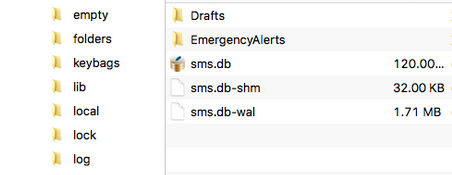
- After the device appears in iTools, go to the "Toolbox" section, choose "iTunes Backup/Restore," select your phone, and click "Messages" in the side menu. Open the file named "sms.db."
- In the toolbar, select "Import" and then "Import from CSV." Choose the merged CSV file that contains both TECNO and iPhone messages, and the tool will bring them onto your iPhone.
Read Also:
Way 3: Transfer Messages from TECNO to iPhone Using SMS Transfer App
Does SMS Backup & Restore work when moving texts from Tecno to iPhone? The answer is yes. Although Tecno and iPhone use completely different operating systems and cannot exchange data directly, you can still move your Tecno messages by syncing them to your Gmail account with the SMS Backup & Restore app. After the backup is complete, you can open the saved message file on your iPhone.
Once everything is synced, just sign in with the same Gmail account or use a tool that can read the exported file. Download SMS Backup & Restore from Google Play on your Tecno device and follow these steps to bring your Tecno messages into your iPhone:
- Install and open the SMS Backup & Restore app.
- Select the "Backup" option, then check "Text Messages."
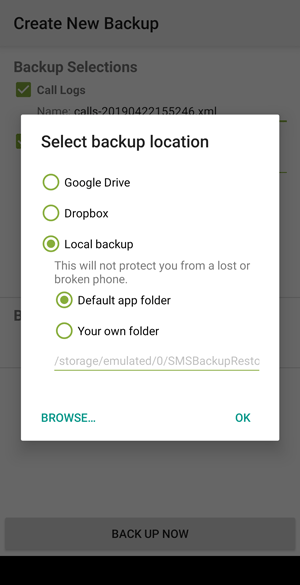
- Go to "Backup Location" and choose "Google Drive." Sign in to your account and tap "Save."
- Tap "Back Up Now" at the bottom to upload your Tecno messages to Gmail as an XML file. (How to View SMS Backup on Google Drive?)
- Add the Gmail account to your iPhone and view the messages that were backed up from your Tecno.
Way 4: Transfer SMS from TECNO to iPhone with Email
If you only need to move a small number of messages and prefer not to reset your iPhone for the Move to iOS app, you can simply capture the chats as images and email them to yourself. Follow these steps:
- Open the Messages app on your Tecno phone and select the conversation you want to keep.
- Capture screenshots of the messages, saving each part of the chat you want to transfer.
- Send the screenshots to your own email address.
- Open the email on your iPhone and save the attached images.
Summary
Moving messages from Tecno to an iPhone can be straightforward when using the Move to iOS app, although it does have some limitations. Your iPhone must be completely fresh and set to its original state for the app to work. If you prefer not to wipe your device, tools like Phone Transfer or SMS Backup & Restore are better choices. Another simple method is to capture screenshots of important conversations and send them to your email. Pick the option that works best for you and start transferring your messages with ease.
Related Articles:
How to Transfer Text Messages from Android to Android? 7 Latest Options
5 Simple Tactics: How to Delete Text Messages on Android Phone
[3 Methods] How to Backup Text Messages on iPhone Effectively?
SMS Recovery Apps for Android That Rank in the Top 10 List [2025]
