
5 Simple Tactics: How to Delete Text Messages on Android Phone
TL;DR:
In short, before you trade in, retire, or try to speed up an older Android phone, you should remove its text messages. Doing so can free up space on the SIM card or built-in storage and may help the device run better. This guide presents five ways to delete Android texts - via the default Messaging app, MobiKin Assistant for Android, Google Messages, Textra SMS, or a factory reset - so you can compare them and pick the option that fits you best.
"I have had this single text message on my phone since June. It simply won't delete. It comes through my Twitter account and is sent to my SMS, but all other such texts delete easily." -- from StackExchange
Prior to discarding or speeding up your old phone, it is crucial to erase SMS messages from within. This action will not only assist you in clearing up space on the SIM card or internal memory but also enhance the device's performance. In this complete guide, we will provide 5 techniques for how to delete text messages on Android. You can compare them and opt for the one that suits you best!
- Way 1: How to Delete Texts on Android via Messaging App
- Way 2: How to Delete Text Messages Android Flexibly
- Way 3: How to Delete Messages on Android with Google Messages
- Way 4: How to Delete Text Messages from Android via Textra SMS
- Way 5: How to Delete Sent Text Messages on Android by Factory Reset
- FAQs about Text Message Deletion on Android
Way 1: How to Delete Texts on Android via Messaging App
The default Messaging app on Android is versatile and user-friendly when it comes to managing your text messages. It allows you to delete individual messages, multiple messages, or entire conversations with ease. This keeps your messaging organized and your inbox clutter-free. Learn how to delete text messages on an Android phone using this simple method:
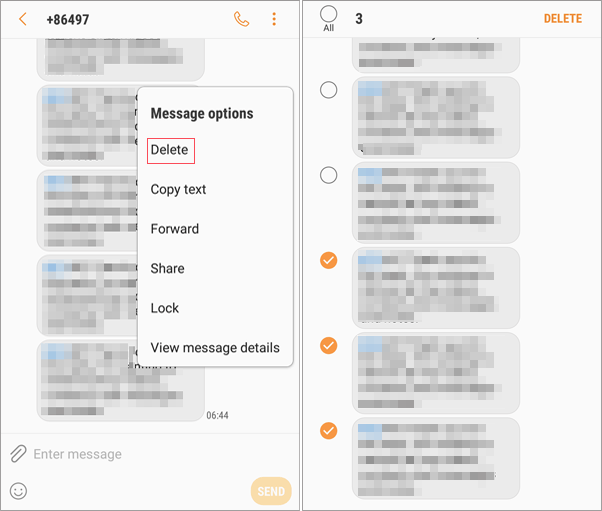
Delete a Single Text:
- Unlock your Android device and open the messaging app.
- Find and open the conversation containing the text message you want to delete.
- Tap and hold the text message you wish to delete until a menu appears.
- Choose "Delete" from the menu and confirm by tapping "OK" or "Delete."
Delete Multiple Messages:
- Unlock your Android phone and open the messaging app.
- Open the conversation with the messages you want to delete.
- Tap and hold one message, then select additional messages with checkboxes.
- Click "Delete" and confirm by tapping "OK" or "Delete."
Delete Entire Text Messages:
- Unlock your device and open the messaging app.
- Locate the conversation you want to delete from the list and tap and hold it.
- Select "Delete" from the menu and confirm by tapping "OK" or "Delete."
Note: On some mobile phones, like Samsung Galaxy, deleted SMS may go to Trash. To remove them from Trash: 1. Swipe up on the Home screen to access apps. 2. Tap "Messages > Menu > Trash". 3. Touch and hold the message to delete. Tap "Delete all", then confirm by tapping "Delete".
Way 2: How to Delete Text Messages Android Flexibly
Take a look at MobiKin Assistant for Android (Win and Mac), a powerful and expert tool that meets your needs and offers more functions than expected. This utility automatically detects your device, deeply scans various Android files, and displays them clearly for easy management. With its assistance, you can delete, transfer, or organize items, including SMS, apps, music, photos, videos, contacts, and more, with just a few clicks.
Notable features of MobiKin Assistant for Android:
- Delete one, multiple, or all text messages on Android handily.
- Easily add, export, import, resend, or forward SMS on a computer.
- Manage texts and other files on a computer in a direct manner.
- Copy files between Android and computer selectively.
- Back up and restore Android data easily and entirely.
- Support various Android data types.
- Perform tasks on almost all Android phones and tablets.
- It doesn't interfere with your privacy.
Safe Download (No ads, no bundles, no background uploads):


How to delete phone messages on Android phones using MobiKin Assistant for Android?
Step 1. Initiate the program - Open the installed software on your computer. Connect your Android phone via USB and enable USB debugging on the phone as prompted to establish detection.
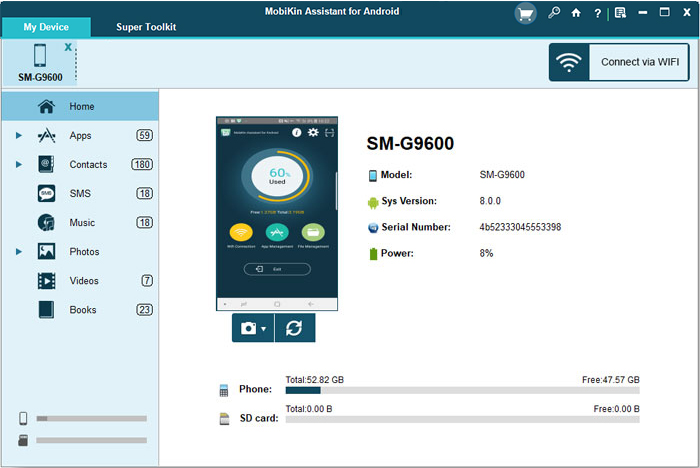
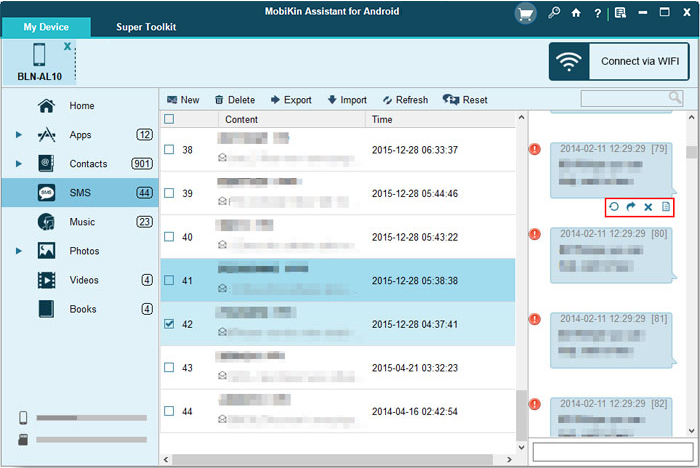
Step 2. Delete text messages - Once connected, select "SMS" from the left sidebar. The program will display all your text messages on the right. Choose the messages you want to delete and click "Delete" to remove them from your phone.
Video Guide: How can you use this software comprehensively? Please check out the video below.
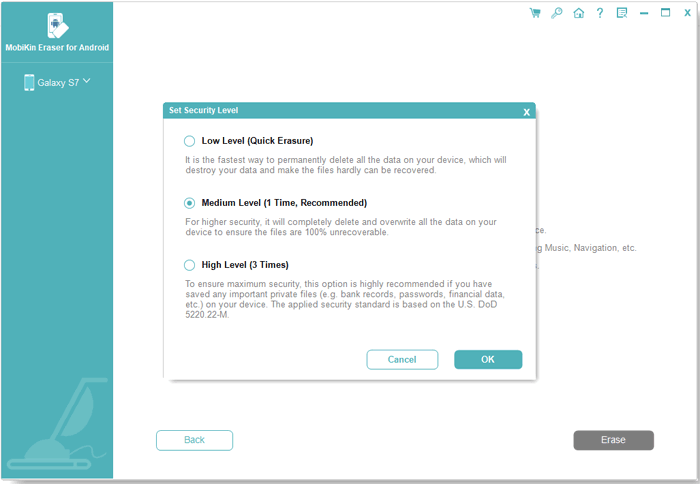
Once text messages are deleted from an Android device, they are typically not permanently removed right away. Instead, they are labeled as deleted and stored in the device's memory until the space they occupy is required for new data. To permanently delete SMS, it is recommended to utilize the MobiKin Eraser for Android (Windows/Mac).
Way 3: How to Delete Messages on Android with Google Messages
On most Android smartphones, Google Messages is the default text messaging app. It allows you to easily delete individual or multiple texts. Beyond that, it also offers flexible options for managing your texts. How do you erase a text message on Android using Google Messages?
- Begin by launching the Google Messages application on your Android device.
- Hold down on a message thread to choose it.
- Proceed to tap on additional conversation threads to select them as well.
- A selection mark will appear next to the chosen chats.
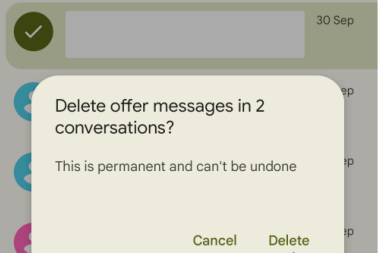
- Once you have selected multiple messages, click on the trashcan icon at the top.
- Press the "Delete" button in the pop-up window.
If you use a cloud service like Google Drive or Samsung Cloud, messages deleted from your phone may remain in the backup until it's updated. Check your backup settings to ensure they meet your needs.
Way 4: How to Delete Text Messages from Android via Textra SMS
Textra SMS provides a substitute for your default SMS/MMS application, delivering improved speed, enhanced personalization, and functionalities such as text message scheduling. Additionally, it enables you to delete outdated messages either manually or through automatic settings. How do I delete text messages on this phone via Textra?
- Open the conversation containing the message, then tap and hold the message until a green tick appears.
- You can select multiple messages by tapping on them.
- Tap the Trash icon at the top right to delete.
- Confirm by tapping the open-lid Trash icon.
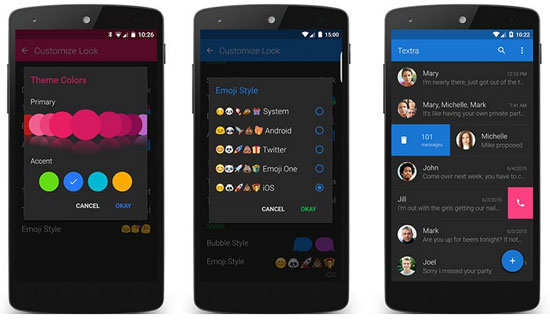
Notice: Textra allows you to automatically delete text messages. To use it, launch the Textra app on your device, tap the three-dot menu icon, select "Customization", look for "Message Settings" or "Auto-Delete" within the customization menu, and choose the duration after which messages should be automatically deleted.
Way 5: How to Delete Sent Text Messages on Android by Factory Reset
If you have an Android phone with a responsive screen, you can directly restore the device to factory settings from the Settings option. However, it is important to note that this action will erase everything from the phone, including text messages. How to delete one text message or more on an Android phone by factory reset?
- Open the "Settings" app: You can find this in your app drawer or by swiping down and tapping the gear icon.
- Navigate to "System": Scroll down and tap on "System."
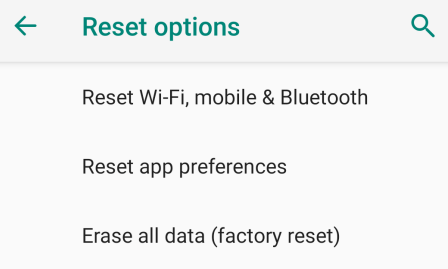
- Select "Reset options": Tap on "Reset options."
- Choose "Erase all data (factory reset)": This option might also be labeled as "Factory data reset."
- Confirm your action: You may need to enter your PIN, pattern, or password to proceed.
- Tap "Erase all data": This will start the factory reset process.
FAQs about Text Message Deletion on Android
Q1: What happens if I delete a message from a group chat?
Deleting a message from a group chat removes it from your view. Other participants may still see it unless the app allows you to delete it for everyone, often within a time limit.
Q2. Can I recover deleted text messages on Android?
Yes, recovery may be possible if the messages are still in the Trash or included in a previous backup. Without a backup, recovery becomes more difficult.
Q3. Can I recover deleted text messages after a factory reset?
Recovery is generally much harder after a factory reset, especially if no backup exists. Restoring from a suitable backup is usually the most practical option.
Q4. Where do deleted text messages go on Android?
It depends on the messaging app. Samsung Messages, for example, may keep deleted messages in the Recycle Bin for a limited period.
Q5. How long do deleted text messages stay in the Trash?
The retention period varies by device and messaging app. Check the app's Trash or Recycle Bin settings for the exact period.
Q6. Can I delete a text message from both phones?
Usually, no. Deleting a message from your phone does not normally remove the copy stored on the recipient's device.
Q7. How can I prevent accidentally deleting important text messages?
Back up important conversations regularly and check whether your messaging app provides a Trash or recovery feature before permanently deleting them.
Verdict
- For Textra SMS newcomers, deleting messages can be confusing, and the feature may vary across Android devices and versions.
- Google Messages requires a Google account, and deleted messages without a backup are gone permanently.
- Although deleting a text in an app seems simple, locating and selecting the right message across multiple screens can be difficult.
- A factory data reset deletes all data indiscriminately, so you cannot choose specific messages to remove.
- To make SMS deletion more convenient and flexible, MobiKin Assistant for Android is the reason for the decision. It promises comprehensive data management while helping your phone easily browse, select, and delete almost all kinds of data as required.
Related Articles:
6 Proven Methods to Retrieve Text Messages from Old Phone Number [Android & iPhone]
How to Unsend/Recall Text Messages on Android Phone? Unlock the 7 Solutions
How to Archive/Unarchive Text Messages on Android? 6 Tested Ways
How to Transfer Text Messages from Android to Android? 7 Latest Options
