
How to Transfer Text Messages from OnePlus to OnePlus? [4 Tactics]
When upgrading to a new OnePlus phone, ensuring your SMS history moves with you is crucial. Learning how to transfer text messages from OnePlus to OnePlus helps users keep important SMS when switching to a new device, avoid losing conversations, and save time manually copying messages. This article covers 4 proper message migration solutions, ensuring your communication history stays complete and organized.
- Way 1: Transfer Text Messages from OnePlus to OnePlus via MobiKin Software (Trustworthy)
- Way 2: Move SMS from One OnePlus Phone to Another via OnePlus Clone Phone
- Way 3: Back Up OnePlus Text Messages to New OnePlus via SMS Backup & Restore
- Way 4: Transfer SMS Messages from OnePlus to OnePlus via Super Backup & Restore
Way 1: Transfer Text Messages from OnePlus to OnePlus via MobiKin Software (Trustworthy)
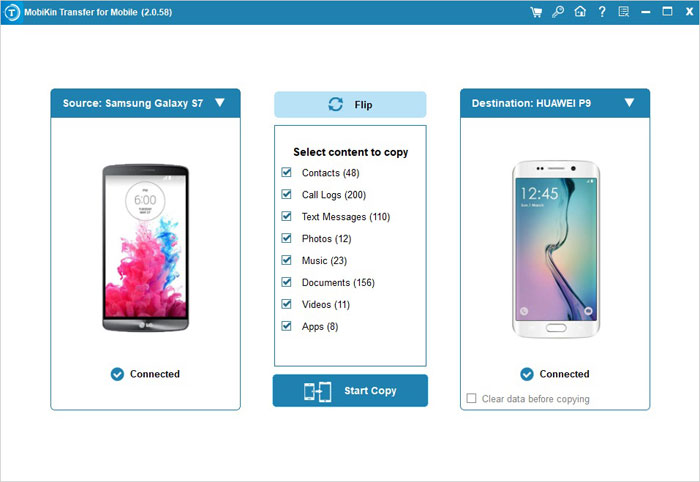
Many users prefer using MobiKin Transfer for Mobile (Windows/Mac) when they want a stable way to move text messages between two OnePlus phones. This software connects both devices to a computer and transfers SMS directly without relying on cloud storage. It keeps message threads, timestamps, and attachments intact during the process. For people who value offline control and data accuracy, this method offers a dependable option.
|
MobiKin Transfer for Mobile - Main Features
|
Further Explanation
|
|
Cross-Device Transfer |
Moves SMS, contacts, photos, and more between OnePlus phones in one click. |
|
SMS Support |
Transfers text messages while keeping threads and timestamps. |
|
USB Connection |
Ensures fast and stable data transfer. |
|
Simple Interface |
Makes phone connection and data selection easy. |
|
Wide Compatibility |
Supports most OnePlus models and Android versions, including OnePlus 15/14/13/12 (Pro)/11/10/9/8/7/Nord/6/5/4/3, etc. |
|
No Overwrite Risk |
Keeps existing data on the target device safe. |
|
Selective Transfer |
Allows choosing only the data types you want to move. |
Best OnePlus-to-OnePlus SMS transfer free download:


How to Use?
- Begin by downloading and installing the software on your computer.
- Launch the program and connect both your old and new OnePlus devices using USB cables.
- Ensure USB debugging is enabled on both phones for proper connection.
- After the recognition, select SMS from the list of data types (Text Messages) to transfer.
- Click Start Copy to move all your messages securely and efficiently.

Video Tutorial:
Way 2: Move SMS from One OnePlus Phone to Another via OnePlus Clone Phone
When setting up a new OnePlus device, some users turn to OnePlus Clone Phone for quick message migration. Built into the OnePlus ecosystem, it creates a local wireless connection to move SMS without consuming mobile data. The app works well during first-time setup and requires only basic permissions. Its simple interface makes message transfer easy even for less experienced users.
How to Use?
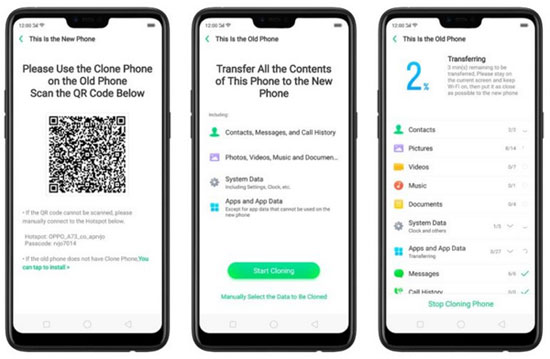
- On both phones, install and open OnePlus Clone Phone from Google Play.
- On the new OnePlus, tap "This is the new phone."
- On the new phone, select Old Phone Type > Android/OnePlus and show the QR code.
- On the old OnePlus, open Clone Phone and tap "This is the old phone."
- Scan the QR code on the new phone to connect the devices.
- On the old phone, grant all permissions, especially SMS access.
- In the data list, check/select "Messages (SMS)".
- Tap Start Cloning/Begin transfer.
- Wait until the transfer completes fully (don't close the apps).
- On the new phone, open your SMS app and confirm your messages are there. (Learn more about the Clone Phone app.)
If OnePlus Clone Phone fails to transfer SMS, first ensure both devices have enough battery and are connected via the same Wi-Fi network or using the QR code method. Restart the app and try reconnecting, making sure SMS is selected for transfer. If it still doesn't work, consider using a third-party tool like MobiKin Transfer for Mobile to move messages securely.
You May Also Like: 5 Best OnePlus Sync Software/Tools That Hold Your Attention
Way 3: Back Up OnePlus Text Messages to New OnePlus via SMS Backup & Restore
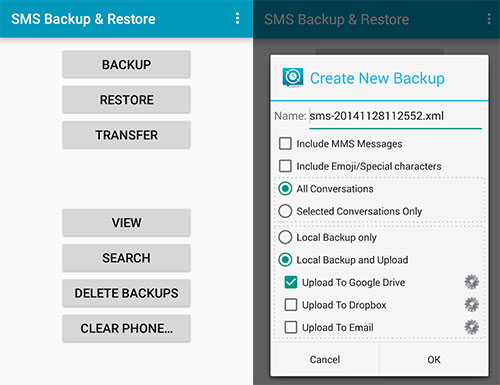
If cloud backup is part of your daily routine, SMS Backup & Restore can be a practical choice for transferring text messages. It saves OnePlus SMS to Google Drive, Dropbox, or local storage before restoring them on another phone. Users can schedule automatic backups to avoid accidental data loss. This approach is especially helpful for those who change devices frequently.
How to Use?
- Install SMS Backup & Restore on both your old and new OnePlus phones from Google Play.
- Open the app on the old phone and allow all requested permissions.
- Tap Set up a backup and make sure Messages (SMS) is selected.
- Choose a backup location (Google Drive, cloud service, or local storage).
- Tap Back up now and wait for the process to finish.
- If you saved locally, transfer the backup file to the new phone (USB or cloud).
- Open the app on the new phone and sign in to the same cloud account if needed.
- Tap Menu ≡ > Restore and select your backup file.
- Check Messages and start the restore process.
- Set the app as the default SMS app if prompted, then switch back after restoring.
- Open your Messages app to confirm your texts have been restored. (What if SMS Backup & Restore doesn't work?)
Way 4: Transfer SMS Messages from OnePlus to OnePlus via Super Backup & Restore
For people who prefer lightweight tools, Super Backup & Restore provides a straightforward way to move SMS between OnePlus phones. It creates local backup files that can be shared through USB, Bluetooth, or cloud services. The restore process is simple and does not require complicated settings. With its focus on essential functions, it suits users who want quick and basic message transfers.
How to Use?
- Install Super Backup & Restore on both OnePlus phones from Google Play.
- Open the app on the old phone and allow all required permissions.
- Tap SMS > Backup and choose a location to save the backup file.
- Wait until the SMS backup is completed.
- Transfer the backup file to the new OnePlus (via USB, Bluetooth, or cloud).
- Open the app on the new phone and grant SMS permissions.
- Tap SMS > Restore and select the transferred backup file.
- Start the restore process and wait for it to finish.
- Set the app as the default SMS app if prompted.
- Open your Messages app to confirm that all SMS messages have been restored.
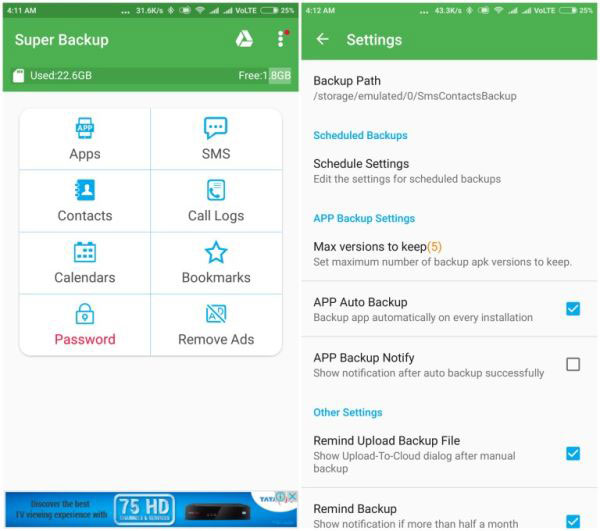
Backing up and restoring SMS using local storage does not require an internet connection. Only cloud backup requires internet. What's more, most messages will be restored, but if the backup file is corrupted or incomplete, some messages may be missing. It's recommended to check the backup before transferring.
In the End
Messages often carry more than words - they capture moments, reminders, and connections. Moving them safely between devices is less about technology and more about preserving fragments of daily life. Treat your SMS history like a digital scrapbook, and let it travel with you, untouched and ready for the next chapter.
Finally, a side note here - Before the migration, you might as well back up your messages, either through the cloud or a computer, to prevent accidental loss during the process.
Related Articles:
How to Transfer Photos from realme to realme? 5 Clever Strategies
Top 5 Best OnePlus Data Erasers to Wipe OnePlus Files Easily
5 Ingenious Methods to Recover Deleted Photos from OnePlus
Locked Out of OnePlus? 6 Options to Unlock OnePlus Phone without Password
