
SMS Backup & Restore Not Working? Possible Reasons & 9 Solutions
TL;DR:
SMS Backup & Restore is a useful tool for safeguarding SMS, but it can sometimes run into errors due to permissions, system restrictions, or backup limitations. By understanding the common causes and applying the fixes provided above, most issues can be resolved effectively. If problems persist, switching to a productive PC-based backup tool - MobiKin Backup Manager for Android would offer a more reliable long-term solution.
Many Android users rely on SMS Backup & Restore to safeguard their important messages, but it's not uncommon to encounter issues where scheduled or manual backups don't complete, or the app fails unexpectedly. In some cases, the app itself can break certain features, making backups or restores fail unexpectedly.
Fret not! This passage explores the common causes behind SMS Backup & Restore not working and provides 9 practical solutions to help you successfully back up and restore your SMS messages.
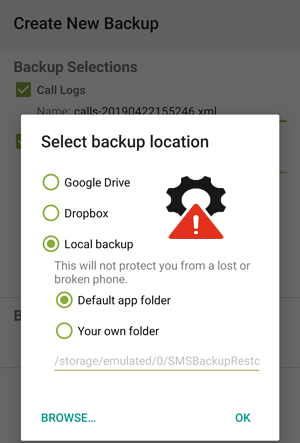
Watch the video below for a visual explanation of this topic.
Part 1: Why Is SMS Backup & Restore Not Working
SMS Backup & Restore may stop working due to issues like outdated app versions, missing permissions, expired cloud access, or system restrictions that interrupt the backup or restore process. Problems such as large message databases, corrupted files, unstable networks, or Android updates can further prevent the app from completing tasks successfully. Next, let's check out the full list of reasons:
- The app is outdated and incompatible with the current Android version.
- Required permissions (SMS, Storage, Contacts, Call Logs) are denied.
- The app is not set as the default SMS app during restore.
- Cloud authorization for Google Drive or OneDrive has expired or failed.
- Insufficient storage space for creating or restoring backup files.
- Backup files are corrupted or incomplete.
- Large SMS/MMS databases cause the app to freeze or time out.
- An unstable or restricted internet connection affects cloud backups.
- Battery optimization or background restrictions stop the app mid-process.
- Conflicts with other messaging apps interfere with restore operations.
- Android system updates changed SMS permissions or broke compatibility.
- Backup files are stored in a location the app no longer has access to.
- The phone's date/time is incorrect, causing cloud-sync errors.
- The app installation is corrupted or improperly configured.
Part 2: How to Fix SMS Backup & Restore Not Working [9 Ways]
Fix 1. Update SMS Backup & Restore to the Latest Version
Keeping the app current also resolves many hidden issues caused by outdated components that no longer work well with modern Android versions. Outdated versions often cause crashes, permission bugs, or failed cloud uploads. To fix this, go to Google Play > Search "SMS Backup & Restore" > Update.
If you've installed the latest app version, uninstalling and reinstalling fixes corrupted installations. After reinstalling, re-add your cloud account and retry the backup or restore.
Fix 2. Grant All Required Permissions
Missing permissions can prevent the app from accessing messages, call logs, or storage. You can enable: SMS, Contacts, Call Logs, Notifications, Photos/Media/Files, Background Data under: Settings > Apps > SMS Backup & Restore > Permissions.
Fix 3. Check Internet Connection for Cloud Backups
If backups to Google Drive/OneDrive fail, please ensure:
- Wi-Fi is stable;
- Background data is allowed;
- VPN is disabled (VPNs often block cloud APIs);
- Try switching to mobile data temporarily.
You May Also Like: 3 Well-tried Methods to Restore SMS from Google Drive [2026]
Fix 4. Clear App Cache and Data
Corrupted app data may cause crashes or incomplete backup files.
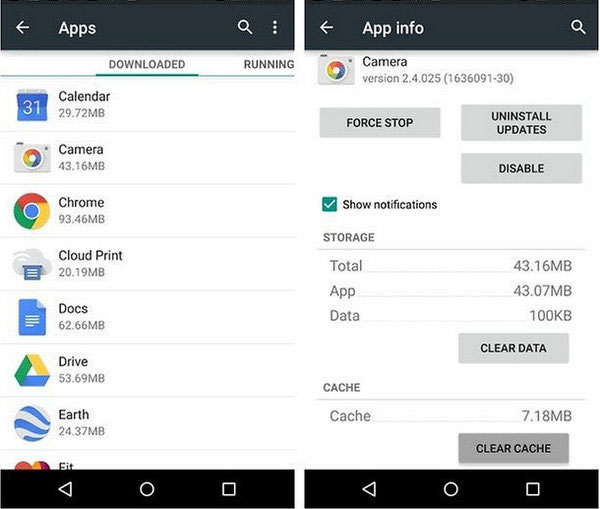
- Go to: Settings > Apps > SMS Backup & Restore > Storage > Clear Cache/Clear Data.
- Reopen the app and set it up again.
Fix 5. Reconnect or Re-authorize Cloud Storage
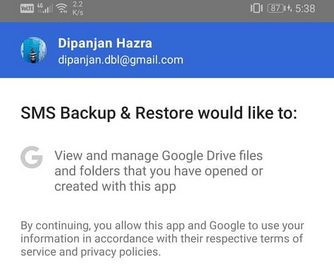
Cloud backups may fail because the authorization token has expired. To resolve it: Disconnect and reconnect your Google Drive/OneDrive by going to Menu > Backup > Turn Off Cloud > Add Cloud Account Again.
Password changes, security updates, revoked permissions, or switching phones can break the connection between the app and your cloud account. You can also reinstall stored tokens to fix this. Furthermore, check your Google Drive or OneDrive storage - if full, delete unwanted files or upgrade your plan before retrying.
Fix 6. Ensure Your Phone Has Enough Storage
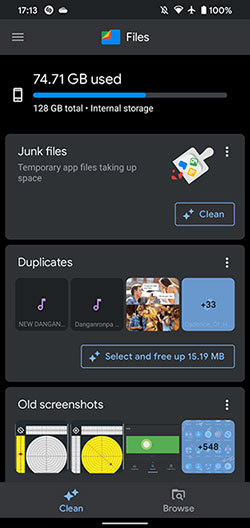
Large SMS+MMS backups (especially with pictures) require free internal storage. You can delete unused files or apps and ensure you have at least 1-2 GB free space.
Fix 7. Break Up Large Backups Into Smaller Parts
Huge message databases can freeze or fail during backup. You can try to: 1. Back up SMS only first; 2. Then back up MMS only; Choose Selected Conversations instead of all messages (This helps prevent timeout or memory overflow errors.)
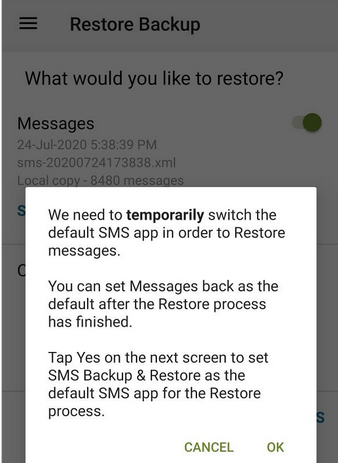
Fix 8. Make It the Default SMS App (For Restores)
Android requires the app to be the default SMS handler during restore. To fix this:
- Go to Settings > Default Apps > SMS App > SMS Backup & Restore.
- Switch back to your regular SMS app after restoring.
Fix 9. Disable Battery Optimization for the App
Battery optimization can kill the app during backup or restore. Go to Settings > Battery > App Battery Management > SMS Backup & Restore > Don't Optimize. This prevents the OS from stopping the app during long backups.
Part 3: FAQs about SMS Backup & Restore Errors
Q1. Why are some messages missing after restore?
Messages may be excluded if they were not included in the backup file, or if multiple messaging apps are conflicting on the device.
Q2. Why does the app show "No SMS found" during backup?
This can occur if the app lacks SMS permission or if the default messaging app is not properly set.
Q3. Why are MMS messages not backed up?
MMS backup depends on network settings and APN configuration; if disabled, media messages may be skipped.
Q4. Why does restore overwrite existing messages?
The app restores messages into the default SMS database, which may replace duplicates depending on device behavior.
Q5. Why does the app ask for so many permissions?
It needs SMS, contacts, and storage permissions to read, back up, and restore message data accurately.
Q6. Why is SMS restore very slow?
Speed depends on message volume, device performance, and whether MMS data is included.
Q7. Why does backup show "0 messages found"?
This typically means the app cannot access SMS due to permission denial or a restricted system policy.
Q8. Why does restore fail on a new phone setup?
If the app is not set as the default SMS app during restore, Android may block message insertion.
Q9. How do I fix repeated backup errors in the app?
Try clearing cache, updating the app, re-granting permissions, disabling battery optimization, and re-linking your Google Drive account.
Part 4: Choose a More Reliable Tool When SMS Backup & Restore Fails to Work
SMS Backup & Restore can fall short due to issues like failed cloud authorization, large backup crashes, and incomplete SMS/MMS restoration on certain Android versions. Its dependence on system permissions and unstable storage access also leads to frequent errors that frustrate users during backup or restore tasks.
In contrast, MobiKin Backup Manager for Android (Windows/Mac) (Called Android Backup & Restore) provides a more stable, PC-based backup method that avoids these limitations and serves as a reliable alternative when SMS Backup & Restore doesn't work.
Why Is MobiKin Android Backup & Restore Advisable?
- One-click backup and restore for all major Android data types, including SMS messages, contacts, call logs, photos, videos, music, apps, and documents.
- Selective backup and restore, allowing you to choose specific data categories instead of backing up almost everything.
- No data overwriting, ensuring existing files on your device stay safe during restoration.
- Works without root, making it safe and convenient for regular Android users.
- Fast and stable USB and Wi-Fi connection modes for secure data transfer.
- Keeps backup files readable and exportable, giving you control over your data anytime.
- Compatible with 8,000+ Android models, including Samsung, Huawei, Xiaomi, OPPO, vivo, OnePlus, Google Pixel, and more.
How to use the best SMS Backup & Restore alternative to back up & restore Android phone?
- Download the program and install it on your computer.
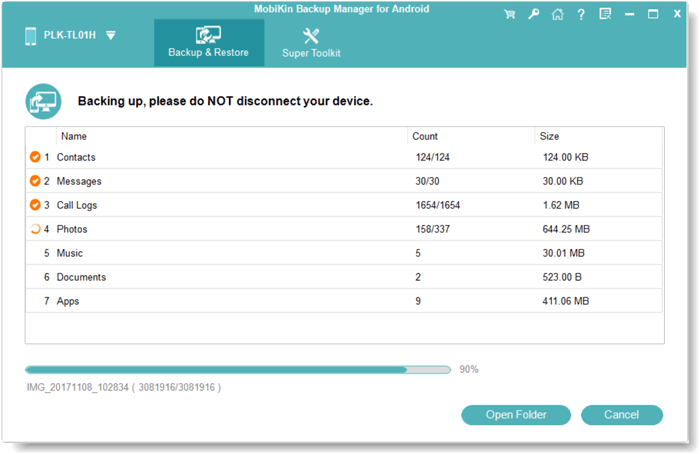
- After installation, launch the program and connect your Android device to the computer using a USB cable.
- Next, follow the straightforward guide to ensure that the software recognizes your phone.
- Once your device is detected, select the "Backup" option from the main interface.
- Shortly thereafter, a list of data types will appear on the screen.
- At this point, you can select any file types and click on "Browser" to choose the location on your PC or Mac.
- Finally, click on "Back Up" to save the data to your computer.


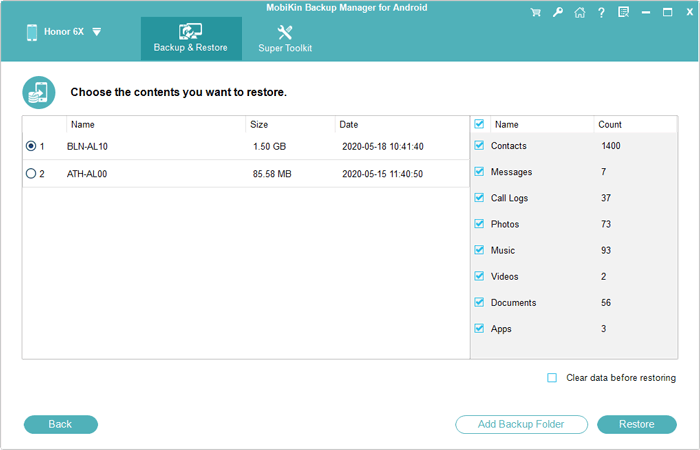
- If you need to restore your phone using a previously created backup, simply open the program's main interface, select "Restore," and pick the data categories you want from the backup list. Then click "Restore" once more to transfer the selected items from your computer back to your Android device.
The End
It's evident that SMS Backup & Restore can sometimes be unreliable. In contrast, MobiKin Backup Manager for Android offers a more stable and user-friendly alternative. This product ensures smooth backups and restores without unexpected failures, supports multiple file types, and provides better compatibility across Android devices, making it a superior choice for securely managing your SMS data.
Related Articles:
iPhone SMS Backup & Restore Apps, Software or Services (Ways Included)
7 Easy Tactics to Recover Deleted Text Messages on Android Device
SMS Backup & Restore Review 2026: Is This Tool Helpful?
How to Transfer Text Messages from Android to Android? 8 Latest Tactics
