
4 Effective Practices: Transfer Text Messages from Redmi to Redmi
When upgrading to a new Redmi device, one of the main concerns is how to keep previous conversations on the new phone. Some messages may serve as records of transactions, confirmations, or agreements, making it essential to preserve them during the switch.
Fortunately, there are 4 feasible and effective ways to transfer text messages from Redmi to Redmi, ranging from built-in apps to third-party tools. This guide walks you through these methods.
Way 1: Transfer Text Messages from Redmi to Redmi via MobiKin Software [Swift]
Moving SMS between two Redmi phones can be done efficiently with MobiKin Transfer for Mobile (Windows/Mac), a desktop program designed for direct phone-to-phone migration. After connecting both devices to a computer via USB, the software detects them and allows the user to choose text messages as the transfer content.
The copying process happens directly between the devices without creating a backup file first. It also supports other data types like contacts, photos, and call logs, making it suitable for a full device switch. (Is there a MobiKin Transfer for Mobile crack?)
|
Feature - MobiKin Transfer for Mobile
|
Description
|
|
SMS transfer |
Copy text messages directly from one Redmi to another via USB/WiFi. |
|
Multi-data support |
Transfer contacts, call logs, apps, photos, videos, and music. |
|
Cross-platform |
Move data between Android and iOS devices. |
|
Selective transfer |
Choose specific data types like SMS only. |
|
One-click migration |
Connect devices and start transfer easily. |
|
No data loss |
Maintains original quality and content. |
|
Device compatibility |
Works with Redmi/POCO/Xiaomi, Samsung, Huawei, OPPO, and more. |
|
Clear target option |
Erase destination phone data before transfer. |
|
Fast speed |
Transfers data quickly via USB connection. |
|
OS support |
Compatible with the latest Android and iOS versions. |
How to copy SMS from Redmi to Redmi with MobiKin Transfer for Mobile?
- After downloading and installing the software, you should launch it directly on your desktop or laptop.
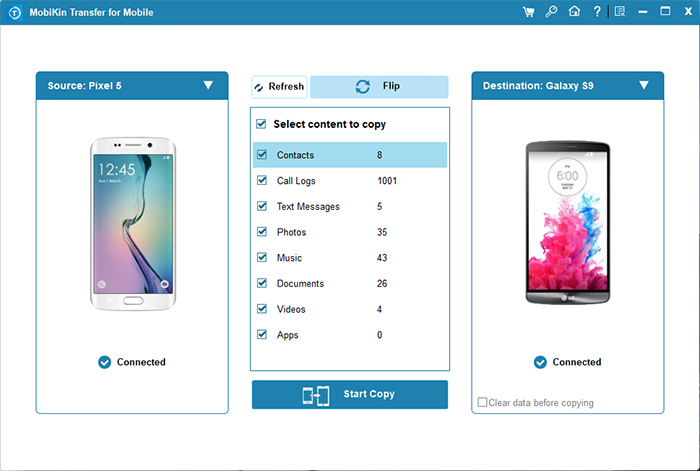
- The main interface will be displayed as illustrated below.
- Connect both of your Redmi smartphones to the computer using two USB cables simultaneously.
- Ensure they are correctly positioned in the designated source and destination areas, adhering to the on-screen instructions for detection.
- If they are not positioned correctly, select 'Flip'.
- Choose the items you wish to transfer from the options available in the center of the panel.
- Click the 'Start Copy' button to commence the data transfer between the two Redmi devices.
- Keep the cables connected until the transfer process is complete.


Video Guide:
Way 2: Transfer Messages from Redmi to Redmi via Mi Mover
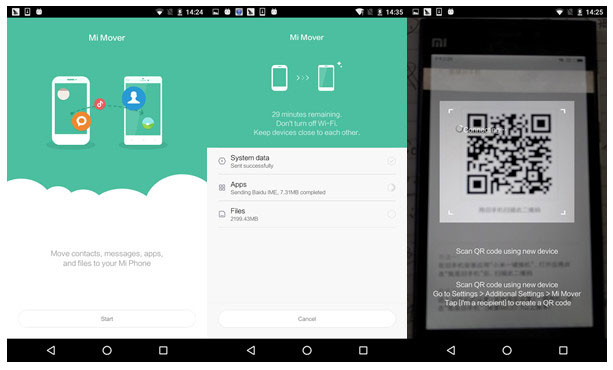
For Redmi users who prefer a built-in solution, Mi Mover provides a convenient wireless method for sending text messages to another Xiaomi or Redmi Note, Redmi K, Redmi A, Redmi Turbo series. The app connects two phones through a temporary Wi-Fi hotspot or QR code pairing.
Once the connection is established, messages can be selected together with contacts, apps, or media files. Because everything happens directly between the phones, the transfer normally finishes quickly without using mobile data. (What if Mi Mover doesn't work?)
How to send text messages from Redmi to Redmi with Mi Mover?
- Open Mi Mover on both Redmi phones (Settings > Additional settings > Mi Mover if the app is not on the home screen).
- On the new Redmi phone, tap "I'm a recipient" and then choose Start transfer.
- On the old Redmi phone, tap "I'm a sender."
- Use the old phone to scan the QR code displayed on the new phone or connect to the hotspot created by the new device.
- After the two devices are connected, select Messages (SMS) from the list of transferable data.
- Tap Start transfer to begin moving the text messages.
- Wait until the process finishes, and the SMS messages will appear on the new Redmi phone.
What should I do if the transfer fails? Check that both devices have enough battery, the correct connection type is selected, and permissions are granted. Restarting the app or device usually resolves minor issues. For persistent problems, using a desktop tool like MobiKin Transfer for Mobile often ensures a smoother transfer.
Way 3: Transfer Text Messages to a New Redmi via SMS Backup & Restore
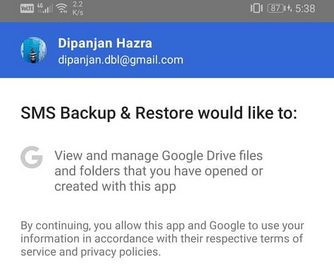
When a backup-based approach is preferred, SMS Backup & Restore offers a practical way to move conversations between Redmi devices. The app first creates a backup file containing all SMS and MMS messages from the source phone.
That file can be saved locally or uploaded to cloud storage such as Google Drive or Dropbox. After installing the app on the new phone, the backup can be restored to bring the messages back into the messaging database. (How to fix SMS Backup & Restore not working?)
How to move messages from Redmi to Redmi with SMS Backup & Restore?
- Install SMS Backup & Restore on both the old Redmi phone and the new Redmi phone from the Google Play Store.
- Open the app on the old Redmi phone and tap Set Up a Backup.
- Select Messages (SMS/MMS) and choose where to save the backup file (such as Google Drive, Dropbox, OneDrive, or local storage).
- Tap Back Up Now and wait until all text messages are saved in the backup file.
- Install and open SMS Backup & Restore on the new Redmi phone.
- Tap Restore, then sign in to the same cloud account or locate the transferred backup file.
- Select the backup containing the messages and enable the Messages option.
- When prompted, temporarily set SMS Backup & Restore as the default SMS app so it can restore the messages.
- Tap Restore and wait for the process to complete.
- After the restore finishes, open the messaging app on the new Redmi phone to view the transferred text messages.
Way 4: Export SMS from Redmi to Redmi via Smart Transfer: File Sharing
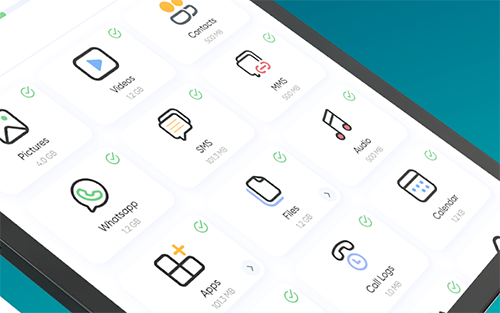
Another option is to rely on Smart Transfer: File Sharing, which focuses on wireless data migration between Android devices. The app connects two phones through a direct Wi-Fi connection created inside the program. After pairing the devices, users can choose text messages along with other content categories for transfer. The selected SMS data is then exported from the old Redmi and imported to the new one within a few minutes.
How to migrate text messages from Redmi to Redmi with Smart Transfer: File Sharing?
- Install Smart Transfer: File Sharing from the Google Play Store on both Redmi phones.
- Open the app on both devices and grant the required permissions for accessing messages and files.
- On the old Redmi phone, tap Send to start the transfer process.
- On the new Redmi phone, tap Receive to prepare for incoming data.
- Connect the two phones using the QR code scan or the Wi-Fi hotspot created by the app.
- After the connection is established, select SMS from the list of transferable data.
- Tap Transfer/Send to begin exporting the SMS from the old Redmi phone.
- Wait for the transfer to complete, and the text messages will be imported to the new Redmi device.
In Conclusion
By following one of the four methods, you can retain messages that serve as records of transactions, confirmations, or agreements, while keeping their conversation history intact on the new device.
Before starting any transfer, make sure both devices are fully charged and connected to a stable Wi-Fi or USB connection. Additionally, backing up your messages to cloud storage or a local file can provide an extra layer of security in case of interruption during the process.
Additional Tips:
How long does it take to transfer SMS? The duration depends on the number of messages. Small transfers take a few minutes, while larger backups or hundreds of messages may take longer. USB-based tools like MobiKin usually complete faster than wireless methods.
Related Articles:
10 Proven Ways to Fix Redmi Phone Frozen [Easy & Efficient]
How to Recover Deleted WhatsApp Messages on Redmi/Xiaomi? 5 Proven Tactics
Redmi Backup & Restore: 4 Ways to Back Up & Restore Redmi without Difficulty
My Text Messages Disappeared on My Android? 13 Ultimate Solutions Here
