
Hisense FRP Bypass: 5 Most Productive Ways to Bypass FRP on Hisense
When dealing with a Hisense FRP bypass, many users find themselves unable to access their device after a hard reset, especially in situations where they have received a used Hisense phone that is still linked to the previous owner's account. In such cases, FRP activates automatically and blocks normal setup.
This article explains Hisense FRP bypass with 5 scientific ways, helping users understand different methods that may restore access under specific conditions.
- Part 1: Check Phone Chipset before Hisense FRP Bypass
- Part 2: Bypass Hisense FRP with Android Lock Wiper [Skillful]
- Part 3: Perform Hisense FRP Bypass via TalkBack
- Part 4: Bypass Hisense FRP Lock with SP Flash Tool
- Part 5: Unlock Hisense FRP with SIM-Card Notification
- Part 6: Bypass Hisense Google FRP via Emergency Call
- FAQs for Hisense FRP Bypass
Part 1: Check Phone Chipset before Hisense FRP Bypass
Before attempting any manual FRP bypass on a Hisense phone, identifying the device's chipset is an important step. The following points explain how to check the chipset so you can choose the correct bypass method and tools.
- Find the exact phone model first: Look for the model name on the phone's back, box, or SIM tray.
- Search the model specifications online: Type the model name plus "specs" or "chipset" in a browser.
- Check the chipset section: Open a trusted spec page and locate the Platform or Chipset information.
- Confirm the processor type: Most Hisense phones use MediaTek (MTK) or Unisoc (SPD) processors.
- Choose the correct bypass method: Different chipsets require different FRP tools and USB drivers.
Part 2: Bypass Hisense FRP with Android Lock Wiper [Skillful]
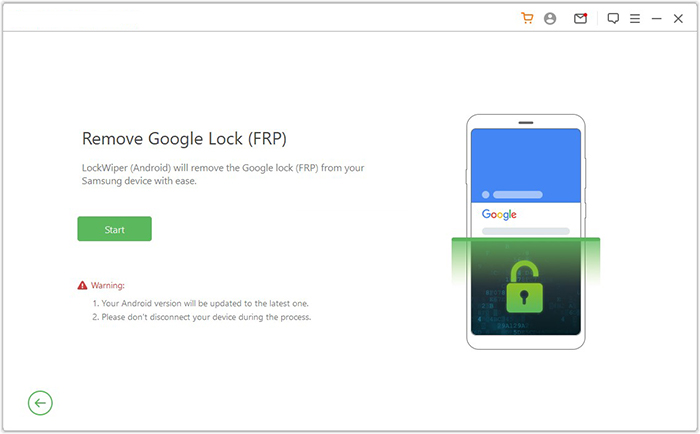
A professional unlocking utility like Android Lock Wiper can help remove Google FRP lock on Hisense devices by guiding the system through a controlled bypass process. It is commonly used when normal login credentials are unavailable after a reset. The tool supports different Android brands and versions, making it suitable for various Hisense models. With a PC connection, it automates much of the FRP removal procedure.
What Are the Key Functions of Android Lock Wiper?
- FRP Bypass Function: Removes Google FRP lock on Hisense and other Android devices without the original account, covering the latest Infinity H60 5G, H60 Zoom, H60 Lite, H60 Smart, H50S 5G, H50, H50 Zoom, H50 Lite, E60, and E60 Lite.
- Easy Operation: Offers step-by-step guidance for simple PC-based unlocking.
- Multiple Lock Removal: Unlocks FRP as well as PIN, pattern, password, and fingerprint locks.
- Safe Process: Reduces risk of system damage when used properly.
- Fast Unlocking: Completes FRP removal in a shorter time than manual methods.
- USB Connection: Requires a computer and USB link for device detection and control.
How-to Guide:
- Begin by downloading and installing the software on your PC Windows.
- After the installation is finished, select "Remove Google Lock (FRP)" > "Advanced Mode."
- Connect your Hisense to the computer using a USB cable, then click "Start."
- Back up your device to prevent any potential data loss during the FRP bypass process.
- Follow the instructions to enter the necessary info regarding your Hisense and click "Next."
- Follow the on-screen instructions to access recovery mode on Hisense.
- On the subsequent screen, select the appropriate PDA, country, and carrier, then click "Download" to obtain the required data package.
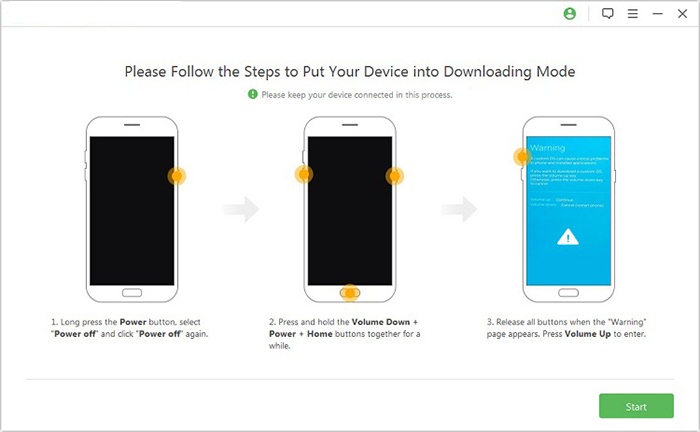
- Next, click "Start to Extract," and follow the on-screen instructions to place your device into Download Mode.
- Enable USB debugging, turn on OEM unlock, extract the firmware along with other critical tasks, and begin the FRP bypass task.

Part 3: Perform Hisense FRP Bypass via TalkBack
Accessibility-based entry methods rely on Talkback to trigger system navigation during the initial setup screen. Once activated, hidden gestures and voice commands can be used to reach browser or settings access points. This allows users to move beyond the FRP verification page in some older Android versions. However, its success depends heavily on system security patches.
How-to Guide:
- Connect the phone to Wi-Fi: Turn on the Hisense device and connect it to a wireless network on the setup screen.
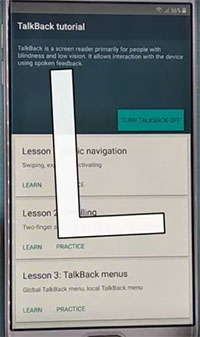
- Enable TalkBack: Press and hold Volume Up + Volume Down for a few seconds or go to Vision Settings > TalkBack > Turn on.
- Open the TalkBack menu: Draw a reverse "L" gesture on the screen (swipe down, then right) to access the TalkBack context menu.
- Activate voice commands: Choose Use Voice Command and say "Open Google Assistant."
- Access system apps: Use Assistant to say "Open Chrome" or "Open Settings" to reach device settings or the browser.
- Adjust system apps: Inside Settings > Apps, disable certain apps such as Android Auto, Google App, or Google
- Play Services to bypass verification.
- Return to the setup screen: Go back to the Hello/Start page, then continue the setup process and skip Google sign-in when possible.
- Finish the setup: Turn off TalkBack and complete the device configuration without the Google verification page appearing.
Note: A stable internet connection (Wi-Fi or mobile data via setup access) is required so the system can load accessibility services and related system pages. The method also depends heavily on firmware version and security patch level, as newer Android updates may restrict or block accessibility-based workarounds.
Part 4: Bypass Hisense FRP Lock with SP Flash Tool
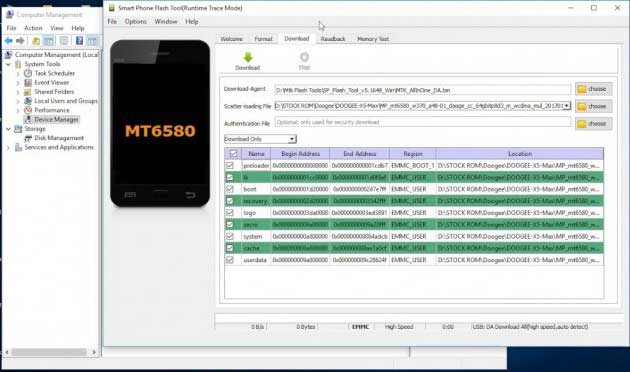
Flashing software such as SP Flash Tool works by interacting directly with the device firmware through a computer connection. It can modify or reinstall system partitions that control FRP verification on MediaTek-based Hisense phones. This approach is often used when software-level bypass methods fail. Proper firmware matching is required to avoid device issues.
How-to Guide:
- Install SP Flash Tool, Hisense USB drivers, and download the correct Hisense firmware (with scatter file) for your model.
- Installing USB drivers allowing the PC to detect the Hisense device in MediaTek download mode.
- Unzip the firmware files and locate the scatter-loading file used by SP Flash Tool.
- Open the program on the PC and go to the Download tab, then click Scatter-loading to import the firmware file.
- Load the firmware components and prepare the tool to modify the device partitions that contain the FRP lock.
- Turn off the device completely before connecting it to the computer.
- While connecting, press Volume Up or Volume Down so the computer detects the MediaTek device.
- Click Download in SP Flash Tool to begin removing the FRP-related partition.
- Once the process finishes, disconnect the phone and restart it to set up the device without the Google account verification screen.
Part 5: Unlock Hisense FRP with SIM-Card Notification
SIM-based tricks involving SIM Card Notification take advantage of temporary system prompts during SIM PIN verification. When the notification panel becomes accessible, it may open shortcuts to settings or apps. This creates a window where account settings can sometimes be adjusted. The method is limited to certain device versions and timing conditions.
How-to Guide:
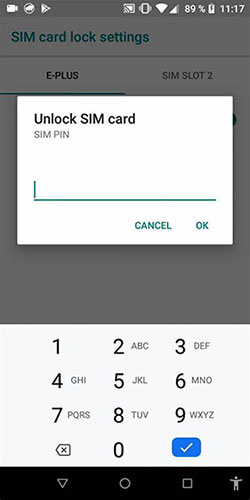
- Insert a SIM card with a PIN lock enabled into the Hisense phone while on the setup screen.
- Connect the phone to Wi-Fi and return to the main "Hello/Start" setup page.
- Enter the SIM PIN when the device prompts for it on the screen.
- Tap the checkmark to confirm the PIN, and immediately press the Power button to turn off the screen.
- Turn the screen back on quickly with the Power button. This may create a short moment where the notification panel can be accessed.
- Swipe down from the top to open the notification panel before the lock screen appears.
- Tap the Settings icon from the notification panel to enter the phone's system settings.
- Add a new Google account in Settings, then restart the phone and continue the setup without the previous FRP verification screen.
A working SIM card with active network service (calls or mobile data) is required to trigger system notifications or emergency access features. In some cases, access to another phone or pre-prepared setup resources may also be needed depending on the Android version and security patch level.
You Might Also Like: Forgot Android PIN? Try the 6 Basic Solutions & 1 Ultimate Way
Part 6: Bypass Hisense Google FRP via Emergency Call
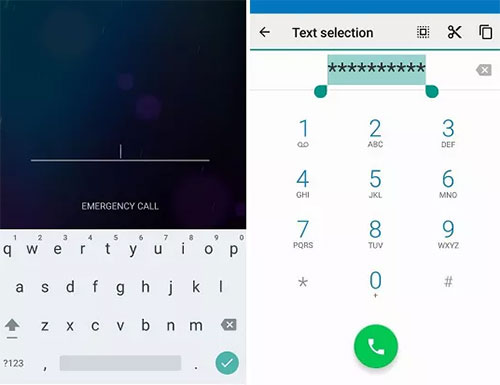
Emergency screen access through Emergency Call uses built-in dialer functions to reach hidden system options. From emergency information or contacts, it may be possible to trigger links that lead to system settings. These pathways can sometimes redirect to browser access on older Android builds. Newer security updates often restrict this behavior, reducing its effectiveness.
How-to Guide:
- Turn on the phone and connect to Wi-Fi, then return to the first Welcome/Start screen.
- Tap "Emergency Call" on the setup screen.
- Select Emergency Information and tap the Edit (pencil) icon.
- Tap Add Contact and choose any contact from the list or SIM card.
- Open the added contact and tap the three-dot menu > Share to access app options.
- Long-press Gmail or another app and select App Info to open system settings.
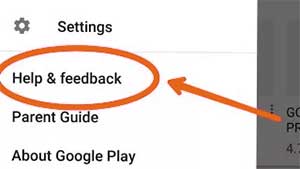
- Go to Help & Feedback from the menu and search for a help article that links to Application Settings or YouTube.
- Tap a link such as YouTube Terms of Service, which redirects to the Chrome browser.
- From the browser, download the required FRP bypass tools (APK files) and install them.
- Sign in with a new Google account, restart the device, and complete the setup to finish the FRP bypass.
FAQs for Hisense FRP Bypass
Q1: What is FRP on a Hisense phone?
Factory Reset Protection (FRP) is a security feature that activates after a Google account is added to the device. If the phone is reset without removing the account, the system requires the original Google credentials during setup.
Q2: Why does my Hisense phone ask for the previous Google account after a reset?
This happens because FRP is enabled. The phone detects that it was reset without properly removing the linked Google account, so it requests the original login information to verify ownership.
Q4: Does FRP bypass work on all Hisense phones?
Not always. The success rate depends on the Android version, security patch level, and the phone's chipset, so some methods may not work on newer systems.
Q5: Will bypassing FRP delete the data on the phone?
Most bypass methods occur after a factory reset, so the device usually starts as a clean system without previous data.
Q6: Is there a safer way to avoid FRP problems in the future?
Yes. Before resetting a phone, remove the Google account from Settings > Accounts and disable screen locks to prevent FRP from activating after the reset.
Concluding Thoughts
FRP protection is built to secure Android devices, but it can also create barriers when ownership changes or login details are unavailable. Exploring different bypass approaches helps users understand how system verification works and what options may exist in restricted situations.
Ultimately, a side note here - Try to remove the Google account from Settings before resetting the phone, as this simple step can prevent FRP from activating and save you from being locked out later.
Related Articles:
9 Best iPhone Unlock Software to Unlock Passcode [2026]
FRPFile FirmwareBD Review 2026: Rational Analysis & Substitute
How to Recover Data after Factory Reset Android? 5 Ingenious Ways
How to Transfer Data from Android to Android? 8 Tested Methods
