
4 Tested Ways for Screen Mirroring Motorola to PC/TV [Latest]
Motorola phones are often used for both personal and work tasks, but smaller screens can limit how content is viewed or shared. Screen mirroring Motorola helps make content easier to view and interact with on a larger screen, especially when switching between devices like PCs, Macs, or TVs. This guide explains screen mirroring motorola to PC/Mac/TV in 4 proven methods that work across different connection setups.
Part 1: Screen Mirroring Motorola to PC/Computer
> 1.1 Using Screen Mirror
For Screen Mirroring Motorola PC/Smart TV, Screen Mirror offers a direct path for displaying a screen for Motorola including models like 70/60/50/40, G Power/G Stylus/G100, and E32/E22/E20, etc., on a computer or television. The connection typically runs through USB or stable Wi-Fi, depending on setup preference.
Overall, this tool provides a practical way to share iOS and Android screens on a computer in real time with smooth visual output. With added support for Android/iPhone control, multiple connection methods, and synced audio-video performance, it fits both entertainment and productivity needs. Features like gaming support, keyboard mapping, and the new whiteboard tool further extend its use for work, study, and interactive presentations.


How can you mirror a Motorola phone to a PC using Screen Mirror?
Step 1: Install and connect the device
- Download and install Screen Mirror on your computer.
- Launch the program after installation completes.
- Connect your Motorola phone using a USB cable.
- When prompted, select your device and choose "Transfer files" mode.
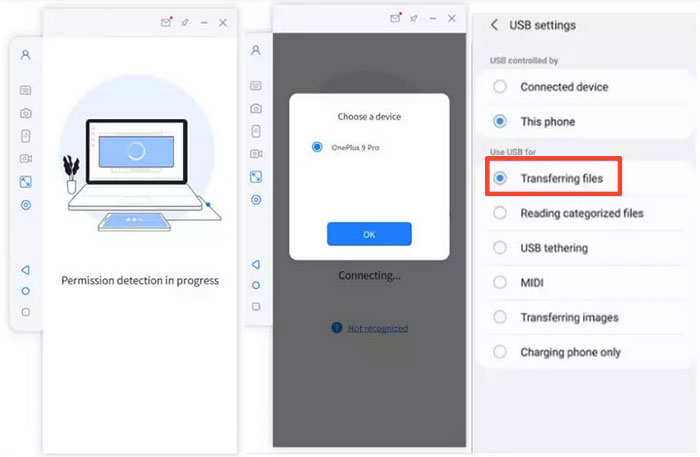
Step 2: Enable Developer Options and USB debugging
- Open Settings on your Motorola device.
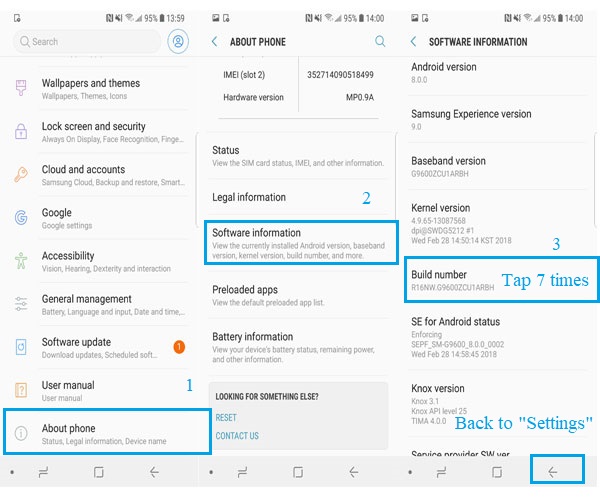
- Go to About phone > Software information.
- Tap "Build number" seven times to unlock Developer options.
- Return to Settings, enter Developer options, and activate USB debugging while still connected.
Step 3: Allow access and complete setup
- Approve the permission request on your phone.
- Allow the app to access and display your device screen.
- Tap "Turn on" to install the Screen Mirror APK.
- Once finished, control Android apps from your Windows or macOS computer.
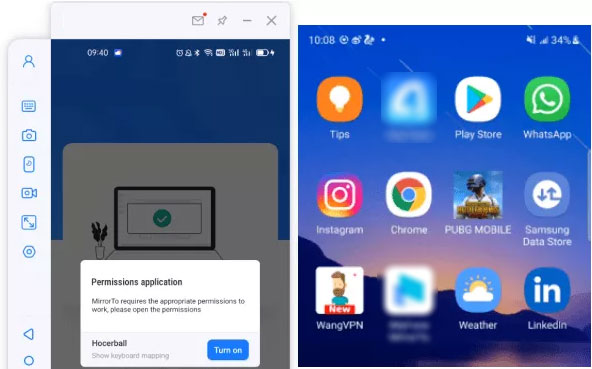
This tool allows users to control Motorola apps using a keyboard and mouse on the PC. This includes navigating apps, typing messages, and interacting with games. The experience feels similar to using a desktop application. For the smoothest experience, keep your Motorola phone close to the router or use a 5GHz Wi-Fi network (when using WiFi connection) to minimize lag during screen mirroring.
You Might Also Enjoy: 4 Easy Options: How to Screen Mirror realme to PC [Latest]
> 1.2 Using Vysor
A browser-based mirroring approach allows Vysor to project a Motorola device onto a PC or Smart TV environment with simple installation steps. It relies mainly on USB for stability, while wireless use is available with certain configurations.
The interface stays lightweight, which helps keep the mirrored screen responsive during everyday tasks. Users often turn to it when they want quick access without dealing with complex setup procedures. Learn how it works:
- Install the Vysor app on your Windows or Mac computer and open it after setup.
- Enable Developer Options on your Motorola phone by tapping the Build Number several times in Settings.
- Turn on USB Debugging inside Developer Options to allow the phone to connect with the PC.
- Connect your Motorola phone to the computer using a USB cable and accept the debugging permission prompt on your phone.
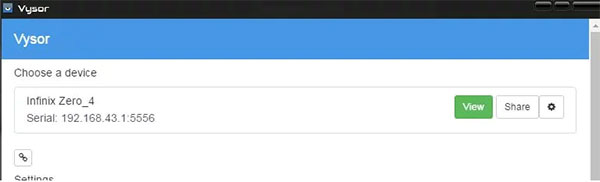
- Launch Vysor on the PC, select your device, and click View Device to start screen mirroring.
- Your phone screen will then appear on the computer, allowing control with a mouse and keyboard.
Part 2: Screen Mirroring Motorola PC/Smart TV
> 2.1 Using Smart Connect
Seamless device linking on Motorola phones is enhanced by Smart Connect, which focuses on integrating phone activity with PCs and compatible displays. It supports screen sharing that extends Motorola content onto a larger monitor or Smart TV with consistent performance.
File movement and notification syncing can run alongside mirroring, keeping everything connected in one workflow. This combination is useful for users who want both display casting and device continuity at the same time. Below is how:
- Install the Smart Connect app on both your Motorola phone and Windows PC from the Microsoft Store or Google Play.
- Make sure your phone and PC are connected to the same Wi-Fi network and Bluetooth is enabled.
- Open Smart Connect on your PC, go to the Home tab, and select Screen share.
- Tap the Mirror phone on your PC screen setup page, then click Start screen share.
- Confirm the connection prompt on your Motorola phone to begin mirroring to the PC display.
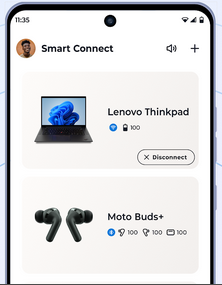
* To mirror to a Smart TV, ensure the TV supports wireless display (Miracast or casting). Use Smart Connect or your phone’s cast option to select the TV as the display target and start mirroring. You can stop mirroring anytime by selecting Stop screen share on the PC or disconnecting from the TV.
Note: Control features depend on the device and system compatibility, but some Motorola models allow limited interaction from a PC. This can include navigation and app access through the mirrored screen. Smart TVs usually focus more on display sharing than full control. Further, performance depends on device and connection quality. A strong Wi-Fi signal helps maintain audio-video synchronization.
You Might Also Enjoy: 5 Best Smart Connect Alternatives & Similar Apps [Tried-and-true]
> 2.2 Using LetsView
Wireless casting for Screen Mirroring Motorola PC/Smart TV is handled efficiently by LetsView through Wi-Fi-based screen transmission. The tool avoids cables and connects devices on the same network for quick pairing.
It supports mirrored viewing of apps, videos, and presentations with fairly smooth image output on larger screens. Many users prefer it for casual streaming or sharing content across Motorola devices and TVs without extra hardware. Here are the steps:
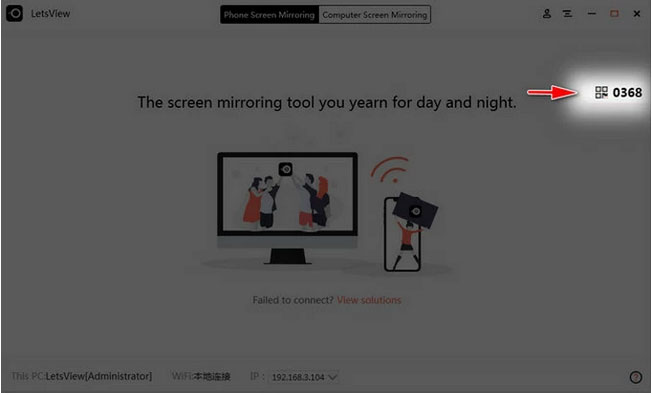
- Install the LetsView app on your Motorola phone and also download the desktop version on your PC or install the LetsView TV app if your Smart TV supports it.
- Connect your Motorola phone, PC, and Smart TV to the same Wi-Fi network to allow device detection.
- Open LetsView on both devices and wait until your PC or TV name appears on the available device list.
- On your Motorola phone, tap the target device (PC or TV) and choose Screen Mirroring/Screen Cast.
- Confirm the connection request on your phone to start displaying your screen on the selected device.
- For Smart TV, ensure it supports wireless display or LetsView TV installation for successful mirroring.
Q&A about Screen Mirroring Motorola to PC/TV
Q1. Can I mirror Motorola to a TV without internet?
Yes, if your TV supports Miracast or direct screen casting, you can mirror without internet using local wireless display.
Q2. Why is my Motorola not connecting to PC for mirroring?
It may be due to disabled USB debugging, outdated drivers, weak Wi-Fi, or incompatible mirroring software.
Q3. Why is screen mirroring lagging or delayed?
Lag often happens due to weak Wi-Fi, network congestion, or running too many background apps on the phone.
Q4. Do I need special hardware for mirroring to TV?
Some TVs support built-in casting, but others may require a Chromecast, Miracast dongle, or HDMI adapter.
Q5. Is screen mirroring safe for my Motorola phone?
Yes, it is generally safe when using trusted apps and official features, but avoid unknown third-party tools.
Q6. Why does my TV not show up when trying to cast?
This usually happens if the TV and phone are not on the same Wi-Fi network or if the TV does not support screen casting.
Q7. Do all Motorola phones support screen mirroring?
Most modern Motorola phones support casting features, but availability may vary slightly by model and Android version.
Q8. Can I use multiple apps for mirroring at the same time?
No, running multiple mirroring apps together can cause conflicts, lag, or connection failure.
Q9. What is the smoothest way to mirror Motorola to a PC?
By and large, the smoothest way to mirror Motorola to a PC is by using a stable, low-latency connection that keeps the display in real time without lag or drops. Screen Mirror is often considered the most fluent option because it delivers smooth screen mirroring while maintaining strong performance during daily use or gaming.
It also goes beyond basic mirroring by allowing users to control Moto devices, and even iPhones, directly from a Windows PC or Mac.
Related Articles:
Recover Data on Moto with 6 Best Motorola Data Recovery Software
How to Back Up Motorola Phone to Different Platforms? 6 Options
4 Popular Options: How to Bypass FRP Lock on Motorola Phone
How to Recover Data from Broken Motorola Phone? 5 Possible Solutions
