
Kingshiper Screen Mirroring Review? Is It a Worthwhile Expenditure?
When considering a tool to cast your device screen to a larger display, many users want to know if it truly works as promised. This Kingshiper Screen Mirroring review explores how reliable the software is, whether it delivers smooth performance, and if it justifies its cost. By looking closely at its features, compatibility, and user feedback, you can make an informed decision before downloading or purchasing.
- Part 1: What Is Kingshiper Screen Mirroring
- Part 2: Kingshiper Screen Mirroring: Main Features
- Part 3: Kingshiper Screen Mirroring: Requirements & Use
- Part 4: Kingshiper Screen Mirroring: Pricing & Security
- Part 5: FAQs about Kingshiper Screen Mirroring
- Part 6: Kingshiper Screen Mirroring: Pros & Cons
- Part 7: Kingshiper Screen Mirroring: Ratings & Alternative
Part 1: What Is Kingshiper Screen Mirroring
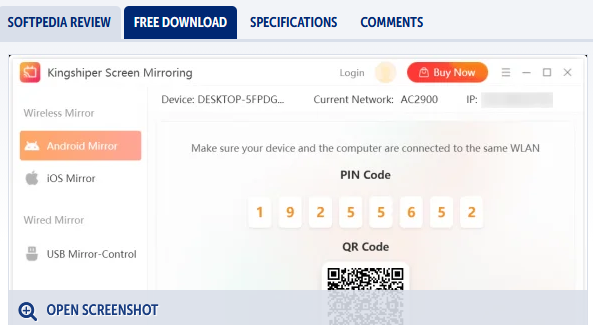
Kingshiper Screen Mirroring is a desktop app that lets you cast or "mirror" the screens of iPhone and Android devices onto a Windows PC, so you can view your phone's display on a larger screen. It supports both wireless (like AirPlay for iPhone or Wi-Fi for Android) and USB connections, and also offers extras like controlling your Android device from the computer, taking screenshots, and recording the mirrored screen.
The app can mirror multiple devices at once and includes features such as full-screen display and whiteboard editing during mirroring.
Part 2: Kingshiper Screen Mirroring: Main Features
Before choosing a screen-mirroring tool, it's important to understand what features it offers and how well it fits your daily needs. Based on reliable reviews and product information, the table below summarizes the main features of Kingshiper Screen Mirroring for easy reference:
|
Feature
|
Description
|
|
Device Compatibility |
Mirrors both Android and iOS screens to a Windows PC with minimal setup. (Can I screen mirror an Android phone to a Mac?) |
|
Multiple Connectivity Options |
Supports wireless (Wi-Fi/AirPlay) and USB mirror methods, including QR code and PIN code for easy connection. |
|
Control Android from PC |
Enables control of Android devices using keyboard and mouse once mirrored. |
|
Screen Recording & Screenshots |
Lets users capture screenshots or record their mirrored screen for sharing or save locally. |
|
Whiteboard & Annotation Tools |
Offers a whiteboard feature for drawing or annotating on the mirrored screen. |
|
Mirror Multiple Devices |
Allows mirroring of more than one phone/tablet simultaneously on the same PC. |
|
Custom Resolution & Full-Screen Mode |
Provides options to adjust screen resolution and view the mirrored device in full screen. |
|
Audio Support |
Can mirror audio along with video from mobile devices to the PC. |
Part 3: Kingshiper Screen Mirroring: Requirements & Use
System & Device Requirements:
- PC: Windows (32-bit or 64-bit) desktop or laptop.
- Phone/Tablet: Android (typically Android 7.0 or later) and iOS devices are supported for mirroring.
- Network: For wireless mirroring, both your phone and the PC must be connected to the same Wi-Fi network.
- USB Mirroring (Android): Requires enabling USB debugging on the Android device and a compatible USB cable.
How to Use?
- Download & Install Kingshiper Screen Mirroring on your Windows PC and (for Android) install the companion app on your phone.
- Wireless (Wi-Fi) Connection: Launch the app on both devices, ensure they share the same Wi-Fi, and select your PC's name on the phone to start mirroring.
- QR Code/PIN Code (Android) Connection: Scan the QR code or enter the PIN shown on the PC app to link devices quickly.
- USB (Android) Connection: Enable USB debugging on your phone, connect via cable, then choose the USB mirror option in the PC app.
- Start Mirroring: After connection, your phone screen will display on the PC, and you can use additional features like screen control (Android), screenshots, or recording.
If Kingshiper Screen Mirroring doesn't work, first ensure your devices are compatible and connected to the same Wi-Fi network. Restarting both your phone and TV/PC or reinstalling the app can often fix minor glitches. If problems persist, consider using alternative screen-mirroring tools like Screen Mirror or built-in casting features for a more stable connection.
You May Also Like: Screen Mirroring Not Working? – Top 11 Fixes to Try!
Part 4: Kingshiper Screen Mirroring: Pricing & Security
Understanding both pricing and security is essential before investing in any screen-mirroring software. Now, we outline Kingshiper Screen Mirroring's cost options and privacy-related practices based on available user and platform information in a table:
|
Aspect
|
Details
|
|
Pricing Options |
You can choose a monthly plan at $7.95, an annual plan at $19.95, or a lifetime plan for $39.95, all for a single PC. A free trial is also available, letting you test core features before committing. |
|
Security Features |
The official product claims secure data protection and encryption, with privacy safeguards and customer support; specifics beyond general privacy protection aren't detailed. |
|
User Trust & Compliance |
Terms of Service require users to comply with applicable laws when sharing content, indicating a compliance commitment but also placing responsibility on users for lawful use. |
Learn More: [Updated Guide] How to Make Screen Mirroring Full Screen (For Smart TV and PC)
Part 5: FAQs about Kingshiper Screen Mirroring
Q1: How do I mirror an iPhone to my PC?
On your iPhone, open the Control Center, tap "Screen Mirroring," and select your PC's name shown in the Kingshiper software; the phone's screen should then appear on your computer display.
Q2: Why won't my phone connect via USB?
Common causes include USB debugging not being enabled, the USB connection mode set to "charge only," missing device drivers, a faulty cable/port, or needing to restart the app on both devices.
Q3: Can I adjust how the mirrored screen looks on my computer?
Yes - once your phone is mirrored, you can adjust display options such as switching between portrait and landscape orientation or using full-screen mode for better visibility.
Q4: Can I record or take screenshots of the mirrored screen?
Yes - the software provides built-in recording and screenshot tools, so you can capture still images or video of your phone's screen while mirroring to the PC.
Part 6: Kingshiper Screen Mirroring: Pros & Cons
The Good:
- Wide device support: Mirrors both Android and iOS screens to a Windows PC using wireless (Wi-Fi/AirPlay) or USB methods, offering flexibility for different setups.
- Multiple connection options: Includes QR code scanning, PIN code pairing, and USB mirroring — useful when network conditions vary.
- Extra tools included: Offers screen recording, screenshots, whiteboard annotation, and full-screen mode, which can enhance presentations or content creation.
- Control Android from PC: USB connection allows keyboard and mouse control of Android devices, improving usability for demos or gaming.
- Multi-device mirroring: Can mirror several devices at once to the same PC, boosting productivity for meetings or comparisons.
The Bad:
- Free version limitations: The free trial may impose time limits, watermarks, or feature restrictions, requiring payment for full use.
- Mixed reliability: Some users report occasional, slight delays or connection hiccups, especially on wireless connections, affecting smoothness.
- Setup complexity: Initial setup (network configuration, USB debugging) might be confusing for non-technical users compared with simpler casting alternatives.
- Windows-only receiver: The PC mirroring target is Windows; no built-in support for macOS, Linux, or smart TVs without extra apps.
Part 7: Kingshiper Screen Mirroring: Ratings & Alternative
Ratings:
User feedback and expert reviews can provide valuable insight into how well a screen-mirroring tool performs in real-world use. The table below summarizes available ratings for Kingshiper Screen Mirroring across multiple platforms to help gauge its overall reliability and user satisfaction.
|
Source/Platform
|
Rating
|
Notes
|
|
Trustpilot (general company reviews)
|
3.8/5 Stars |
Based on a small number of user reviews about Kingshiper software, indicating generally positive feedback but limited sample size. |
|
Uptodown (Windows app)
|
4.5/5 Stars |
Uptodown users gave a relatively high score (editorial review) for the Windows version of the mirroring tool. |
|
Android APK (Uptodown Android)
|
- |
No explicit rating shown for Android; downloads show usage but no scored reviews. |
|
G2
|
0/5 Stars |
No authentic user reviews on G2 yet, so rating shows as zero. |
|
AppBrain/Android (Google Play alternative data)
|
- |
Although data exists, there are no official public ratings shown on AppBrain. |
The Best Alternative:
Screen Mirror is a versatile screen-mirroring tool that allows users to cast Android and iOS devices to a Windows or Mac computer effortlessly. It supports both wireless and USB connections, enabling full control of your mobile device via keyboard and mouse, just like Kingshiper Screen Mirroring.
With additional features like screen recording, screenshot capture, and multi-device mirroring, it serves as a reliable alternative for users seeking similar functionality with smooth performance.
Screen Mirror - Core Features:
- Mirror iOS and Android screens to Windows or Mac in real time.
- Control your phone from the computer using keyboard and mouse.
- Keyboard mapping for smoother mobile gaming.
- 1080p HD mirroring with high frame rates.
- Screen recording and screenshots during mirroring.
- Stream phone screen to conferencing platforms or live broadcasts.
- Annotate on the mirrored screen for presentations or tutorials.
- File transfer between Android devices and PC.
- Supports USB or Wi-Fi connections.
- Offers reliable performance and smooth operation.


How to mirror your Android device to a PC using Screen Mirror? (For this guide, we'll focus on Android devices and show how to display them on a computer.)
Step 1: Download and install Screen Mirror on your computer. Once installed, connect your Android device using a USB cable. When prompted, choose your smartphone and select the "Transfer files" option.
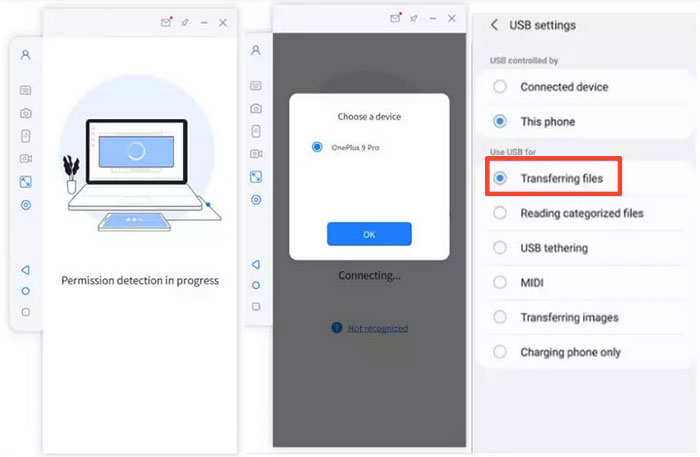
Step 2: On your phone, go to Settings > About phone > Software information, then tap Build number seven times to activate Developer options. Return to Settings and enable USB debugging while your device remains connected via USB.
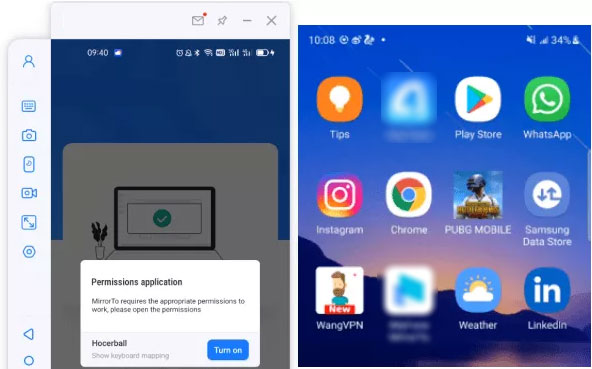
Step 3: Allow the app to access your device so it can display your phone's contents. Click "Turn on" to install the Screen Mirror .apk on your device. After setup, you can easily control Android apps directly from your Windows or macOS computer.
Cons:
- Requires a stable USB or Wi-Fi connection for smooth operation.
- The free trial version has limited mirroring time before prompting an upgrade.
In Conclusion
After testing its capabilities, Kingshiper Screen Mirroring performs reasonably well but may have occasional glitches and connection delays. For a more seamless experience, Screen Mirror is a recommended alternative, offering smoother mirroring and additional control features. For the best results, ensure both your computer and mobile device are on the same stable Wi-Fi network to minimize lag or disconnections.
Related Articles:
Fix "Android Touch Screen Not Working - Can't Unlock" Issues in 12 Methods
How to Recover Data from Phone That Won't Turn on? Solved with 4 Solutions
5 Popular Ways to Mirror iPhone/iPad to Windows 11/10 [2026 Latest]
8 Best Screen Share Apps to Share Screen or Control Your Device Remotely
