
How to Screen Mirror without WiFi? 5 Most Admirable Methods 2026
"I want to be able to screen mirror my phone to watch movies when camping. I want to be able to plug it into a projector or TV. Is there an update or cord that will do this? Am I able to screen mirror without WiFi?" -- from Pixel Phone Help
Many users assume screen mirroring always depends on a stable internet connection, yet there are practical ways to bypass that requirement. In fact, you can screen mirror an Android or iOS device to a PC/Mac/TV without WiFi by relying on wired links or direct device-to-device technologies.
A wired connection provides extremely low latency and is almost perfect for real-time activities like mobile gaming. This article will walk through how to screen mirror an Android or iOS device to a PC/Mac/TV without WiFi via 5 smart strategies in different scenarios.
- Section 1: Screen Mirror Phone to PC without WiFi (Android/iPhone)
- Section 2: Screen Mirror Phone to TV via HDMI Cable (Android/iPhone)
- Section 3: Screen Mirror Phone to PC/TV without WiFi via Miracast (Android)
- Section 4: Screen Mirror Device to PC Wirelessly via Phone Link (Android)
- Section 5: Screen Mirror Phone to Mac/TV without WiFi via AirPlay (iPhone)
- FAQs about Screen Mirroring without WiFi
Section 1: Screen Mirror Phone to PC without WiFi (Android/iPhone)
Screen mirroring from a phone to a PC or TV can be done smoothly using Screen Mirror, which allows wireless casting from Android or iPhone to a computer screen. It supports real-time display with relatively low delay, making it useful for gaming, presentations, or app demonstrations.
The tool works through a USB or Wi-Fi connection depending on setup, and the PC can also be used to control the phone in some cases. When using it, keeping both devices on the same network or using a stable USB connection helps avoid lag.
Core Features of Screen Mirror:
> Keyboard Mapping - Customize game controls on PC Windows/macOS via USB or WiFi.
> Live Streaming - Broadcast to YouTube, Twitch, or Zoom.
> High-Quality Mirroring - Up to 1080P (or 2K) at 60 FPS with synced audio.
> Annotation Tools - Draw or mark directly on the screen.
> File Transfer - Move contacts, photos, and media quickly.
> Stable Connection - Lag-free performance on any PC.
> Versatile Use - Ideal for gaming, work, or streaming.
> Works for 8,000+ Android/iOS devices.
> Multi-Screen Mirroring - Mirror multiple mobile screens to PC simultaneously.
> Screen Recording - Record phone screen in 1080P HD with internal audio.
Best Screen Mirroring Software Free & Secure Download:


How Does It Work? (Let's say you are using an Android phone)
Step 1: Install the app and connect your phone - Download and install the application on your computer, then connect your smartphone via a USB cable. When prompted, choose "Transfer files" to allow the tool to recognize your device.
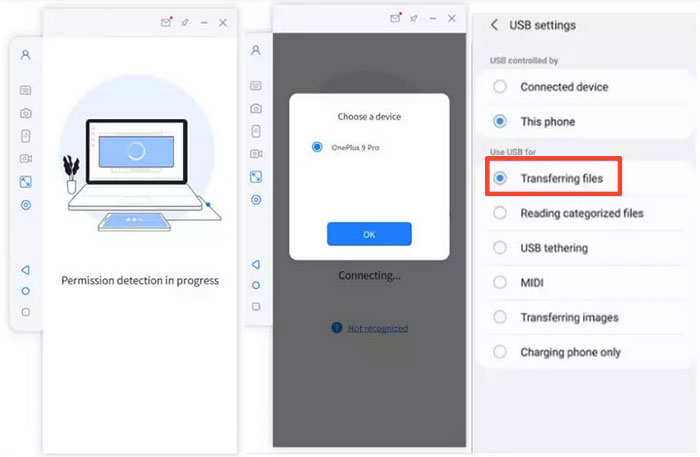
Step 2: Enable developer options and USB debugging - On most Android devices, go to Settings > About phone > Software information, tap Build number seven times until you see the developer mode notification. Return to Settings and enable USB debugging.
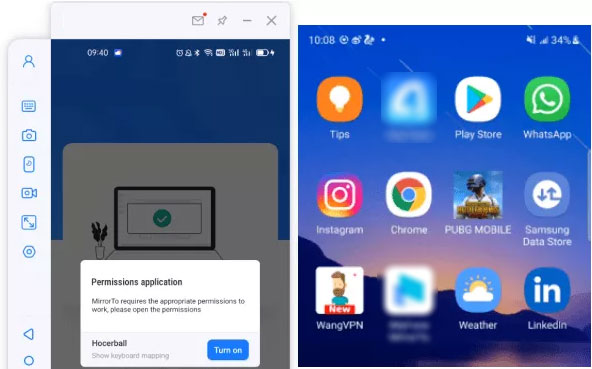
Step 3: Install the mirroring APK and start mirroring - Permit the program to show its interface on your PC, then click "Turn on" to install the Screen Mirror .apk on your device. After installation, you can begin mirroring your phone screen to your computer. (How to use this product to mirror an iPhone to a PC?)
You Might Also Enjoy: 3 Proven Ways to Record Screen on iPhone [2026 Updated]
Section 2: Screen Mirror Phone to TV via HDMI Cable (Android/iPhone)
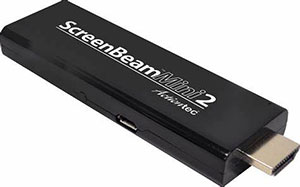
A wired connection using HDMI Cable is one of the most stable ways to mirror a phone directly to a TV. With the right adapter, both Android and iPhone devices can output their screen to a TV without needing internet access.
This method does not naturally support PCs since most computers cannot receive HDMI input without extra hardware like a capture card. To improve performance, using certified adapters and high-quality HDMI cables reduces signal issues and display flickering.
How Does It Work?
- Plug one end of the HDMI cable into the TV and turn it on.
- Use the remote to select the correct HDMI input source (HDMI 1, HDMI 2, etc.).
- Connect the other end of the HDMI cable to a USB-C to HDMI adapter (Android or iPhone 15+) or Lightning to HDMI adapter (older iPhones).
- Plug the adapter into your phone's charging port.
- Wait a few seconds for the phone screen to automatically appear on the TV.
- If prompted, tap "Trust" (iPhone) or allow display output permissions (Android, depending on device).
- Adjust screen orientation or volume as needed for better viewing.
Section 3: Screen Mirror Phone to PC/TV without WiFi via Miracast (Android)
Wireless display through Miracast allows Android devices to mirror their screen to compatible TVs or Windows PCs without using mobile data or a router. It works through a direct wireless link, so both devices need to support Miracast for successful connection.
This method is commonly used for casting videos, apps, or presentations to larger screens. (Can I extract data from a phone with a broken screen?) For better stability, reducing distance between devices and disabling background network-heavy apps can help maintain a steady connection.
How Does It Work?
- Turn on your TV or PC and make sure it supports Miracast (often labeled as "Screen Mirroring", "Wireless Display", or "Cast")
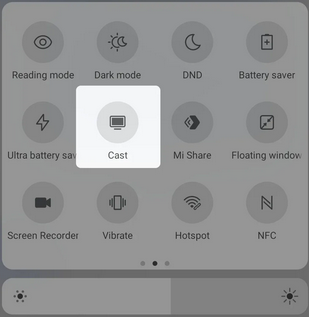
- On your Android phone, open Settings and go to Cast/Screen Cast/Wireless Display (name may vary by brand).
- Enable Wireless Display or tap Cast. (If connecting to a PC, on Windows, open Settings > System > Projecting to this PC and enable it; ensure "Available everywhere" or "Available on secure networks" is turned on; then connect from your Android Cast menu as above.)
- Select your TV or PC from the list of available devices.
- Wait a few seconds for the connection to establish.
- Your phone screen will now appear on the TV or PC.
Section 4: Screen Mirror Device to PC Wirelessly via Phone Link (Android)
Phone Link enables Android users to mirror their phone screen to a Windows PC through a Microsoft-based connection. It is mainly designed for PC viewing, allowing users to interact with apps, messages, and notifications directly from the computer.
Full TV support is not part of its core function, so it is more PC-focused than multi-screen casting tools. When using it, signing in with the same Microsoft account and keeping both devices on a stable wireless network improves responsiveness.
How Does It Work?
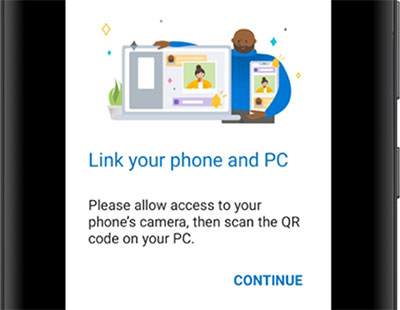
- Install and open Phone Link on your Windows PC.
- Install or open Link to Windows on your Android phone.
- Sign in with the same Microsoft account on both devices.
- Scan the QR code on the PC to pair the devices.
- Grant required permissions on your phone (screen access, notifications, etc.).
- Open Phone Link on the PC and select your connected device.
- Click the phone screen/screen mirroring option.
- Tap Start now on your Android phone when prompted.
- Your phone screen will appear on the PC wirelessly.
More to Explore: 7 Best Microsoft Phone Link Alternatives [Easier Control]
Section 5: Screen Mirror Phone to Mac/TV without WiFi via AirPlay (iPhone)
AirPlay provides iPhone users with a way to mirror their screen to compatible TVs, Macs, or AirPlay-enabled devices. It can work without traditional internet when using peer-to-peer mode, which connects devices directly. (PCs with Windows are not natively supported). For smoother performance, enabling Bluetooth and keeping devices close together helps reduce connection drops and latency.
How Does It Work?
- Turn on your TV, Apple TV, or AirPlay-compatible Mac.
- Enable Bluetooth and Wi-Fi on your iPhone (no internet connection required).
- Make sure the receiving device also has Bluetooth and Wi-Fi turned on.
- Bring both devices close together for pairing.
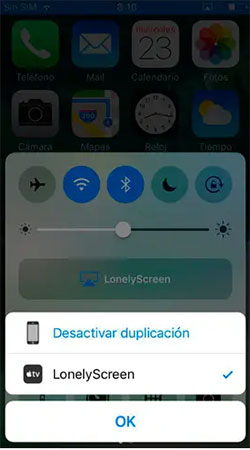
- Open Control Center on your iPhone.
- Tap Screen Mirroring.
- Select your TV, Apple TV, or Mac from the device list.
- Wait a few seconds for the connection to establish.
- Your iPhone screen will now appear on the TV or Mac/PC display.
FAQs about Screen Mirroring without WiFi
Q1. Why is screen mirroring not working without Wi-Fi?
It may be due to incompatible devices, missing adapters, disabled casting features, or unsupported protocols.
Q2. What devices support screen mirroring without Wi-Fi?
Most modern Android phones, iPhones, and smart TVs support some form of no-Wi-Fi mirroring. Android often uses Miracast or HDMI, while iPhone relies on HDMI adapters or peer-to-peer AirPlay. Compatibility depends on both the sending and receiving device.
Q3. Is screen mirroring without Wi-Fi slower?
Not necessarily. HDMI is actually faster and more stable because it is wired. Wireless methods like Miracast or AirPlay may have slight delay depending on signal strength and device performance.
Q4. Can I charge my phone while using HDMI mirroring?
Yes, many HDMI adapters include a charging port. This allows you to power your phone while mirroring. It is useful for long viewing sessions or presentations.
Q5. Why does my screen not show after connecting HDMI?
This may happen if the adapter is not compatible or the TV input is incorrect. Some phones also require DisplayPort Alt Mode support. Checking hardware compatibility usually resolves the issue.
Q6. Can I mirror apps like Netflix without Wi-Fi?
Yes, but playback still depends on whether the content is already downloaded. HDMI simply displays your phone screen, so offline videos will work normally. Streaming apps will still need internet for online content.
Q7. What is the most stable method for no-Wi-Fi mirroring?
Based on our tests, Screen Mirror is generally the most stable when you intend to mirror your Android or iOS device to a PC or Mac, because it provides a direct wired connection with minimal lag. And it is the best choice for gaming not just because it offers the lowest latency.
Related Articles:
Kingshiper Screen Mirroring Review? Is It a Worthwhile Expenditure?
Top 4 Picks: Mirror Pixel Phone to PC/TV without Difficulty
How to Fix Screen Mirroring Not Working? 16 Smart Strategies Here
How to Fix Android Flickering Screen? Reasons & 14 Solutions
