
Droid Transfer Review: Features, Feedback, Pricing, FAQs, Cons, etc
TL;DR:
Droid Transfer is a safe and private tool for basic Android-to-PC file management, but its free version severely limits message exports and media transfers. Many users also report reliability issues with Wi-Fi connections and incomplete message histories after updates.
For a more flexible and feature-rich experience without these restrictions, MobiKin Assistant for Android offers a stronger alternative with comprehensive backup and file organization capabilities.
Looking for a Droid Transfer review to know whether the software is reliable and safe before installing it on your computer? With so many Android management tools available, it's important to understand their real performance, limitations, and value so you can decide if Droid Transfer is worth paying for or if you should consider a better alternative.
This review will walk you through everything you need to know, helping you make a confident and informed choice.
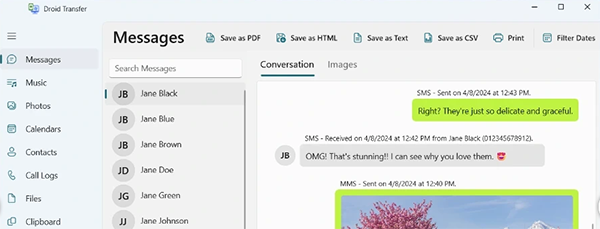
Watch the video below for a visual breakdown of this topic.
Part 1: What Is Droid Transfer
Droid Transfer is a software tool that allows you to manage and transfer data between your Android device and PC. It lets you back up contacts, messages, photos, music, and other files, as well as send and print text messages directly from your computer. With Droid Transfer, you can easily organize and secure your mobile data without relying solely on cloud services.
Part 2: Droid Transfer: Features & User Feedback
Here's a quick overview of Droid Transfer's key features and capabilities. The table below summarizes what the software can do to manage and transfer your Android data efficiently.
|
Key Feature
|
Description
|
|
SMS & MMS Management |
View, save, and print text messages from your Android device on a PC. |
|
Photo & Video Transfer |
Copy photos and videos from your phone to your computer for backup or sharing. |
|
Music Transfer |
Transfer music files between Android devices and PCs easily. |
|
Contacts Backup |
Export and back up contacts from your phone to the computer. |
|
Call Logs Management |
View, save, and export call history from your Android device. |
|
App Data Access |
Access certain app data for backup or transfer purposes. |
|
User-Friendly Interface |
Simple and intuitive interface for smooth file management between devices. |
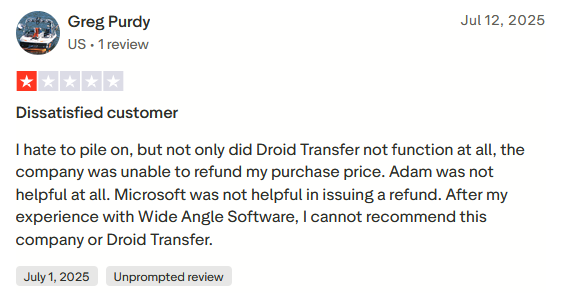
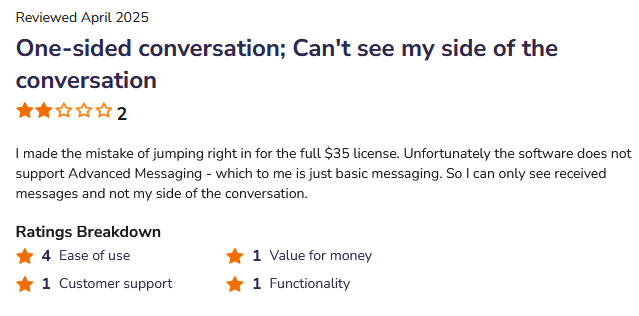
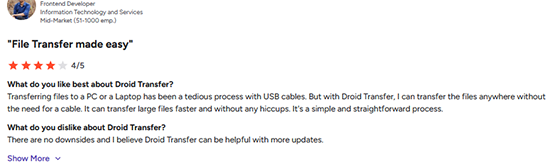
User Feedback - Here's a summary of user feedback for Droid Transfer from sources like G2, SoftwareAdvice, and Trustpilot:
- Many users praise Droid Transfer for being easy to use and fast at transferring files like photos, messages, and videos from Android to PC-particularly over wireless connection rather than USB cables.
- On the downside, some users report limitations of the free/trial version, and issues such as failure to transfer full message histories (especially with advanced messaging formats), or complete breakdown after software updates.
User Review 1:
User Review 2:
User Review 3:
Part 3: How Does Droid Transfer Work
Using Droid Transfer is simple and allows you to back up or transfer data between your Android device and PC efficiently. The steps below guide you through installation, connection, and managing data such as messages, contacts, photos, and more.
User Manual:
- Visit the Microsoft Store to purchase Droid Transfer or start the free trial, and install the Transfer Companion app on your Android device from the Play Store.
- Ensure your Android device has USB Debugging mode enabled.
- Connect your phone to the PC via USB or Wi-Fi, then open the Droid Transfer software on your computer.
- Wait for the software to detect your Android device, then access the dashboard.
- From the dashboard, select the type of data you want to manage - Calendar, Call Logs, Contacts, Files, Messages, Music, or Photos.
- Use the available options to sync, back up, or transfer data between your Android device and PC.
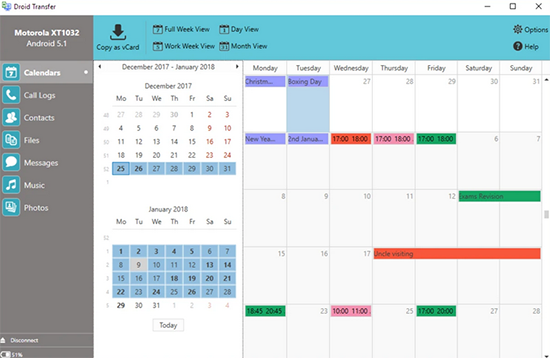
Part 4: Is Droid Transfer Safe & Free
The table below provides an overview of Droid Transfer's safety, cost, and free version limitations. It summarizes whether the software is secure, if downloading it is safe, and what features are restricted in the trial version.
|
Safety, Security, etc
|
Summary/Notes
|
|
Is Droid Transfer safe? |
Yes - the software is digitally signed, its installer has been scanned by antivirus engines with no malware/adware/spyware detected, and data transfers occur locally (your data is not uploaded to external servers). |
|
Is downloading it safe? |
Yes - the official installer has passed security checks, and third-party scan reports also mark it "clean." |
|
Is it completely free? |
No - Droid Transfer offers a free trial version, but many features (e.g., full message export, photo/music transfer beyond limited quotas, contact export) require purchasing a license. |
|
What are the limitations of the free version? |
Free trial lets you view device contents and copy limited files; e.g. only first 5 messages, up to 100 photos/music copies, no full exports or file transfers. |
Part 5: FAQs about Droid Transfer
Q1: What types of support does Droid Transfer offer?
Droid Transfer offers multiple support options, including an online user guide and FAQs to help with features like message and file transfers. It also provides a knowledge base with troubleshooting articles for common issues, such as connection problems or activation errors. Additionally, users can contact technical support via email and access software updates to ensure compatibility and software bug fixes.
Q2: Does Droid Transfer support wireless transfer?
Yes, you can transfer files and manage your device over Wi-Fi without needing a USB connection, though wired connections are also supported.
Q3: Can Droid Transfer recover deleted messages or files?
No, Droid Transfer is designed for managing and transferring existing data; it does not provide recovery for deleted messages or files.
Q4: Can I use Droid Transfer to manage multiple Android devices at once?
Yes, you can connect multiple devices, but only one device can be actively managed or transferred at a time.
Part 6: Droid Transfer: Pros & Cons
Advantages:
- Easy and quick to transfer files - move photos, messages, music, contacts, and more from Android to PC reliably and with simple steps.
- Supports local, private transfers - data is transferred directly between your device and computer without uploading to external servers, preserving privacy.
- Offers useful backup and export options - export messages (SMS/MMS), call logs, media files, contacts, and save texts as PDFs for archiving or record-keeping.
- Works without root and supports many Android devices - compatible across a wide range of Android models without requiring rooting.
- Offers a free trial version - browse your device's content before deciding to buy, helping evaluate if it meets your needs.
Disadvantages:
- Limited functionality in the free/trial version - message export is capped, and photo/music transfers are limited.
- Some features are restricted to the paid license - full exports, printing messages, and transferring apps/files beyond basics require an upgrade.
- Potential compatibility or reliability issues - message export may be incomplete for non-standard messaging formats, or software may slow down over time.
- Not always ideal for advanced messaging formats - proprietary messaging protocols may prevent full conversation history from being exported.
- Not all functionality works over wireless - some users report Wi-Fi transfer or message export issues unless using a USB connection.
Part 7: A More Reliable Alternative to Droid Transfer
Droid Transfer has some notable limitations, such as its free trial restricting message exports to only a few items and limiting photo or music transfers, while many key features require a paid license. It also lacks flexible file management options, making it harder to rename, move, or organize files directly on the device.
In contrast, MobiKin Assistant for Android (Windows/Mac) serves as a stronger alternative, offering comprehensive data transfer, backup, and selective export/import of contacts, messages, media, and more. With greater flexibility and fewer restrictions, it provides a smoother and more complete solution for managing Android devices.
How does MobiKin Assistant for Android excel compared to Droid Transfer?
|
Feature
|
Droid Transfer
|
MobiKin Assistant for Android
|
|
Data Management
|
Limited file management; cannot rename/move files directly on device |
Full file management; rename, move, delete, and organize files on device from PC easily |
|
Data Transfer
|
Supports messages, photos, music, contacts, but limited for bulk transfers |
Comprehensive transfer for contacts, messages, photos, videos, music, apps, and more |
|
Selective Backup/Export
|
Limited selective export options |
Flexible selective backup and export for messages, contacts, media, and files |
|
User Interface & Ease of Use
|
Simple but some functions not intuitive |
Intuitive interface with smooth navigation and drag-and-drop support |
|
Connectivity
|
USB or Wi-Fi, but Wi-Fi transfers can be unstable |
Stable USB and Wi-Fi transfers with better reliability for large data |
|
Additional Features
|
Basic backup and printing messages |
Advanced features: full device backup, app management, and one-click restore |
Best Droid Transfer alternative free download:


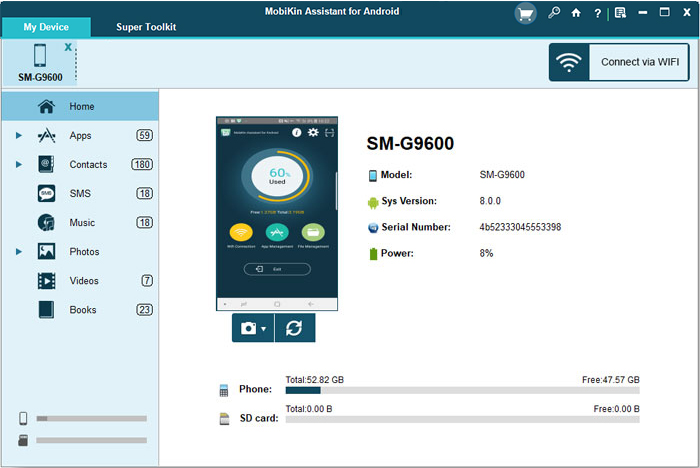
Launch the program and connect your Android device to your computer with a USB cable. Enable USB debugging and follow the on-screen prompts to complete the necessary driver installation. Once your phone is recognized, you can easily transfer, back up, restore, and manage your Android data without any hassle.
Video Instructions:
Conclusion
After comparing features, performance, and overall user experience, it's clear that MobiKin Assistant for Android offers a smoother, more flexible, and more complete device-management solution than Droid Transfer. If you want something faster, more stable, and packed with powerful functions, give MobiKin Assistant for Android a try - it's simply the better option.
Related Articles:
9 Best Wi-Fi Transfer Apps/Tools to Transfer Data between Android & PC
Top 11 Apps to Transfer Data from Android to Android [Updated]
Top 9 Android File Transfer Alternatives For Mac [Free & Paid]
4 Techniques to Recover Deleted Files from Internal Memory Android 2026
