
Huawei HiSuite Not Connecting? Key Reasons & 6 Proven Solutions
TL;DR:
When Huawei HiSuite fails to connect, the issue usually stems from overlooked settings, outdated drivers, or unstable connections. This passage explains the common causes and provides six practical fixes to restore functionality. When you wish to seek a smoother experience, MobiKin Assistant for Android offers a reliable alternative, enabling secure backups and efficient data management across Huawei and other Android devices.
When users try to manage their Huawei devices on a computer, encountering Huawei HiSuite Not Connecting can be frustrating.
Before that, let's see how to connect your phone to HiSuite:
- Firstly, install HiSuite on your PC and use a USB cable to link your Huawei device.
- Enable USB debugging on your phone if prompted and grant permission to allow the PC to access your device.
- Once the connection is recognized, HiSuite will display your phone's data, allowing you to manage, backup, or transfer files.
If the issue occurs, move on to the end of this passage. It explores the common reasons behind the issue and offers 6 quick fixes, along with 1 smooth alternative to HiSuite for seamless data backup/management when HiSuite fails to connect.
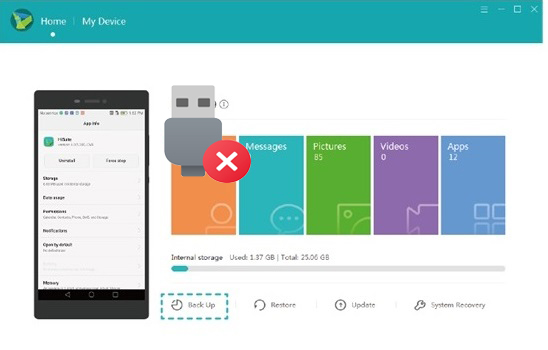
The following video provides a visual overview of the topic.
Part 1: Why Is My Huawei Not Connecting to HiSuite
When your Huawei phone fails to connect to HiSuite, the issue is usually caused by a few overlooked settings or technical factors. Before trying any fixes, it's helpful to understand the common reasons behind this problem listed below.
- HDB ("Allow HiSuite to use HDB") is not enabled.
- USB cable does not support data transfer (charging-only cable).
- USB mode is set to Charging instead of File Transfer (MTP/PTP).
- USB debugging is disabled when needed.
- HiSuite drivers are missing or corrupted on the computer.
- HiSuite version is outdated.
- Huawei phone's EMUI system is outdated or incompatible.
- Connection authorization was not allowed on the phone.
- USB port is faulty or connection is unstable.
- Other phone management software is causing conflicts.
- Antivirus or firewall is blocking HiSuite.
- Temporary system glitch on phone or computer.
- HiSuite companion app failed to install on the phone.
- The computer system is not fully compatible with HiSuite.
You Might Also Enjoy: How to Fix Huawei USB File Transfer Not Working in 9 Quick Ways?
Part 2: How to Fix Huawei HiSuite Not Connecting with 6 Basic Solutions
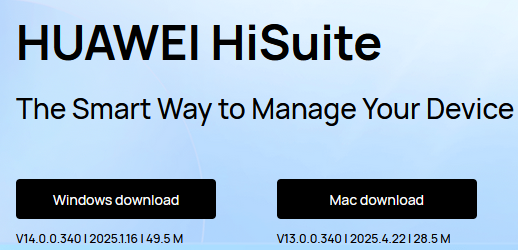
Trick 1: Ensure HiSuite's version is 9.0.2.300_OVE or later
- Open HiSuite on your PC, go to Settings > About, and check the version number.
- If it's outdated, download and install the latest version from the official Huawei website.
- If the update doesn't work, uninstall HiSuite and reinstall the newest version to ensure proper drivers and compatibility.
Trick 2: Activate USB debugging
Enabling USB debugging allows your phone to connect to HiSuite in ADB mode, which can potentially resolve connection failures when normal detection doesn't work. To do it:
- Open Settings on your Huawei phone.
- Go to System > About phone.
- Tap Build number repeatedly (about 7 times) until Developer mode is enabled.
- Go back to System, then enter Developer options.
- Turn on USB debugging and confirm.
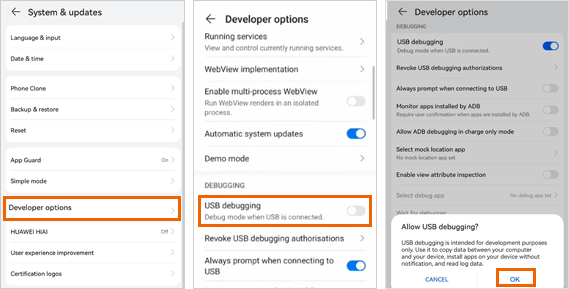
Enable 'Always prompt when connecting to USB' if necessary. Quick Guide: At first, unlock Developer options by going to Settings > About phone and tapping the Build number multiple times until you see a confirmation. Then go to Settings > System > Developer options and turn on Always prompt when connecting to USB. After that, reconnect the USB cable and choose the appropriate USB connection option when the prompt appears.
Trick 3: Ensure the HDB mode is enabled
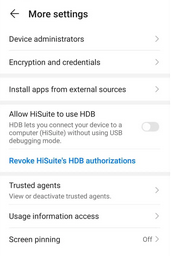
To fix Huawei HiSuite not connecting, you must ensure HDB mode is enabled on your phone so the software can communicate properly with your PC. According to Huawei's official support instructions:
- Open Settings on your Huawei device and use the search box at the top to type "hdb".
- Tap "Allow HiSuite to use HDB" from the search results and turn it on.
- When the confirmation dialog appears, choose "Always allow HiSuite connection from this computer" and tap OK to grant permission.
Trick 4: Verified the USB cable & ports
At the very beginning, ensure you are using the original Huawei USB cable or a high-quality replacement. Next, try connecting the cable to different USB ports on your computer to rule out faulty ports. Finally, check the cable for any visible damage, fraying, or loose connectors that could interrupt the connection. Replace the cable if necessary. (Want to retrieve data from Huawei with a broken screen?)
Trick 5: Inspect the ADB or HDB driver
First, connect your Huawei device to the PC, then open Device Manager (right-click This PC > Manage > Device Manager) and look for an ADB or HDB entry in the list. If the driver shows a question mark or exclamation mark, it isn't installed correctly - uninstall HiSuite and reinstall it so the correct driver gets installed automatically.
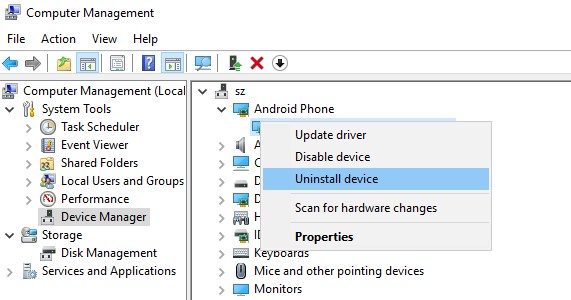
Update the driver as follows when the failure persists. Open Device Manager, right-click your Huawei device, and select Update driver. Alternatively, in HiSuite, go to Menu > Settings > General and use the Install USB driver option to reinstall the driver manually. If needed, reinstall HiSuite or download the official Huawei USB drivers. Updating ensures a proper connection between your phone and PC.
Trick 6: Restart your phone and PC
To fix HiSuite not connecting, simply restart both your Huawei phone and your PC. This refreshes system processes, clears temporary glitches, and can resolve driver or connection conflicts. After rebooting, reconnect your phone via USB and try launching HiSuite again.
FAQs for Huawei HiSuite Not Connecting (Best Alternative Included)
Q1. What is HDB and why is it important?
HDB (Huawei Debug Bridge) is a permission that allows HiSuite to communicate with your phone. Without enabling "Allow HiSuite to use HDB," your device won't be recognized by the software.
Q2. Why does my phone only charge when connected to HiSuite?
This usually means: You're using a charging-only cable, or the USB mode is not set to File Transfer (MTP). To fix it, switch the USB mode from the notification panel after plugging in.
Q3. Does HiSuite work over Wi-Fi?
Yes, but initial setup usually requires a USB connection. If the USB connection fails, Wi-Fi pairing may also not work properly.
Q4. Can antivirus or firewall block HiSuite connection?
Yes. Some security software may block HiSuite services or drivers. Temporarily disable your antivirus/firewall and try reconnecting.
Q5. Is HiSuite compatible with all Huawei phones?
Most Huawei devices support HiSuite, but older models or very new system updates may cause temporary compatibility issues.
Q6. Will resetting my phone fix HiSuite connection issues?
A factory reset can fix deep system problems, but it should be your last resort after trying all other solutions - and only after backing up your data.
Q7: How to manage your phone data with the best HiSuite alternative?
When HiSuite fails to connect, MobiKin Assistant for Android (Windows/Mac) serves as a reliable data manager for Huawei and Honor devices. It lets users back up important files such as contacts, messages, photos, and videos to a computer easily. This tool is now compatible with 8,000+ Android phones/tablets, covering the latest Huawei Pura 80/70/Mate 70.
Users can also restore data from previous backups and transfer files seamlessly between their phone and PC or other devices. In addition, it provides overall management, allowing you to organize, edit, delete, or export files for better control of your device.


How to connect and use the best alternative to Huawei HiSuite?
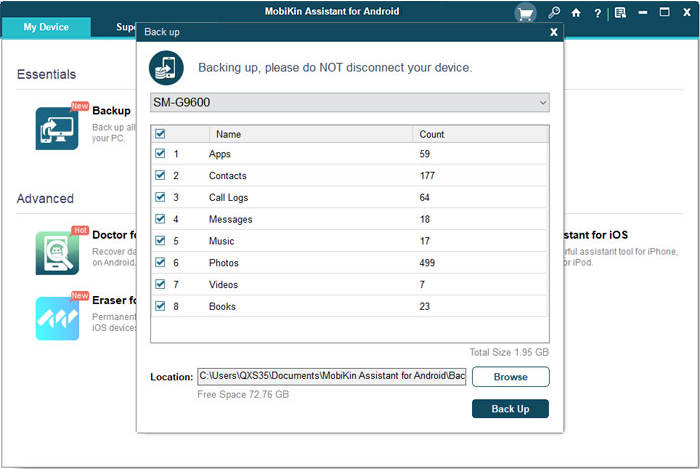
First, launch the program and connect your Android device to the PC via USB, enabling USB debugging when prompted. Follow the on-screen instructions to let the program recognize your device. When connected, you can use this product with ease. For instance, to back up files, go to Super Toolkit > Backup, choose a local folder, tap Back Up, and your Android data will be copied to the PC for future restoration.
For more reference, please click the video below:
Related Articles:
6 Easy Solutions to Huawei Phone Clone Not Working [Proven]
Top 9 Options to Unlock Huawei Phone without Resetting/Password
5 Most Productive Ways to Hard/Factory Reset Huawei Phone
Top 4 Methods to Transfer WhatsApp from Huawei to Xiaomi/Redmi
