
How to View OnePlus Text Messages on Computer? 4 Optimal Methods
TL;DR:
Multiple reliable options make it easy to view OnePlus text messages on a computer, from web-based tools like Google Messages and MightyText to system-integrated solutions like Microsoft Phone Link. For users who need the most complete control, MobiKin Assistant for Android offers the best solution with its USB-based stability, offline access, and advanced features for exporting, backing up, and managing SMS beyond simple viewing.
Text messages on a small phone screen can often feel cramped, especially when conversations are long or important. Learning how to read and reply to SMS on a larger screen makes it easier to manage long conversations. Viewing messages on a computer improves productivity by letting you handle texts alongside work on your computer.
This guide introduces 4 productive ways to view OnePlus text messages on a computer, helping users choose the most convenient method for their workflow.
- #1: View OnePlus Text Messages on Computer via Assistant for Android [Convenient]
- #2: View OnePlus SMS on PC Using Microsoft Phone Link
- #3: View OnePlus Text Conversations on PC via Google Messages for Web
- #4: View My OnePlus Text messages on my PC via MightyText
- FAQs about View OnePlus Text Messages on Computer
#1: View OnePlus Text Messages on Computer via Assistant for Android [Convenient]
Viewing and exporting SMS from an Android device can be handled through a desktop management program such as MobiKin Assistant for Android (Windows/Mac). After connecting the OnePlus phone to the computer with USB debugging enabled, the software scans the device and loads its text messages.
Conversations can then be read on the computer screen and selected messages may be backed up or exported. The program also allows users to organize other phone data while keeping a copy of important SMS records on the PC.
MobiKin Assistant for Android - Main Features:
- View SMS on PC - Read and reply to OnePlus text messages from your computer.
- Export & Backup - Save conversations as TXT, CSV, or HTML files.
- Manage Contacts - Add, edit, delete, and organize contacts.
- File Transfer - Move photos, videos, music, and documents via USB.
- Full Data Access - View call logs, apps, and other phone data.
- Stable Connection - Reliable USB or Wi-Fi syncing without data loss.
- Organize & Restore - Restore backups or manage data selectively.
- User-Friendly - Intuitive interface for easy SMS and data management.
- Multiple Device Support - Works with OnePlus Number (15T/13/12R/12/11R/11/10T/10 Pro/10R/9), Nord (CE 4/4/CE 3 Lite 5G/3 5G/CE 3 5G/N30 5G/CE 2 Lite 5G/2T 5G/CE 2 5G), and R Series (Ace 3V/3/2 Pro/2V/2), etc.
- Fast Performance - Quick setup and fast scanning of all phone data.
User Manual:
- Open the program and link your OnePlus device to your computer using a USB cable.
- Then, make sure to enable USB debugging on your OnePlus phone.
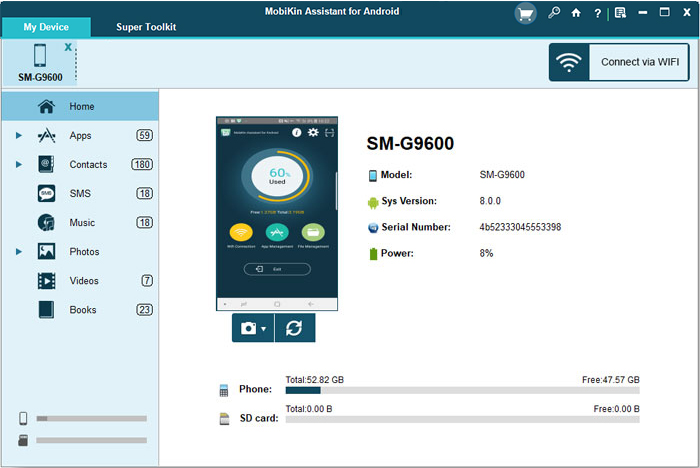
- Once your device is connected, the interface will appear as shown below.
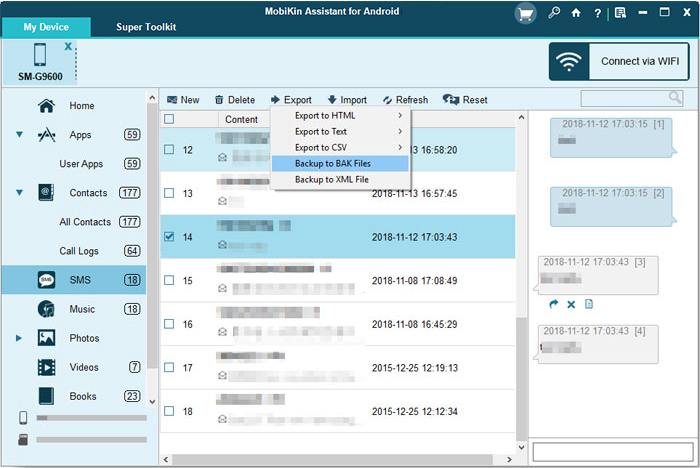
- You'll see all file types displayed on the panel. Now, locate and select the "SMS" folder.
- Within the interface, you'll find comprehensive details about your messages.
- You can read them directly or select specific messages by checking the box next to them.
- Plus, you can even click "Export" to save them onto this PC.


You May Also Like: How to Transfer Text Messages from OnePlus to OnePlus? [4 Tactics]
#2: View OnePlus SMS on PC Using Microsoft Phone Link
A Windows computer can display and manage SMS from a OnePlus phone after pairing it through Microsoft Phone Link. Once the connection is established, text conversations from the mobile device appear in the Messages section on the desktop interface.
Users are able to read incoming texts and send replies without picking up the phone. In addition, the tool synchronizes notifications and recent photos, making phone access easier from the PC.
User Manual:
- Open Phone Link on your Windows PC. Click the Start menu, search for Phone Link, and launch the app. Choose Android and click Get started.
- Install the Link to Windows app on your OnePlus phone. Open Google Play Store, search for Link to Windows, install it, and sign in with your Microsoft account.
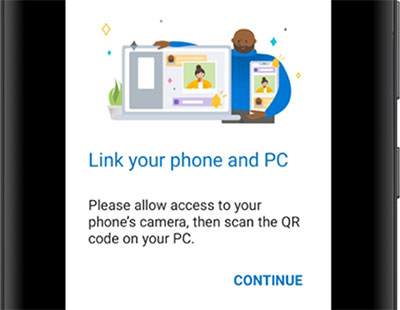
- Pair your devices. A QR code will appear in Phone Link on your PC. Open Link to Windows on the OnePlus phone and scan the QR code to connect both devices.
- Allow required permissions on the phone. Grant access to SMS, contacts, and notifications so the computer can read and send messages.
- View and reply to text messages on the PC. In the Phone Link window, click Messages to see your OnePlus SMS conversations and send replies directly from your computer.
More to Explore: Top 5 Best OnePlus Data Erasers to Wipe OnePlus Files Easily
#3: View OnePlus Text Conversations on PC via Google Messages for Web
Accessing text conversations through a browser is possible when the phone is linked with Google Messages for Web. After scanning a QR code from the OnePlus device, the browser loads the full message history associated with the phone number. From there, conversations can be opened, read, and replied to directly on the computer. The synchronization remains active as long as the phone stays connected to the internet.
User Manual:
- Open Google Messages on your OnePlus phone and make sure it is your default SMS app.
- Tap your profile icon or the three-dot menu in the Messages app and select Device pairing (or Messages for web).
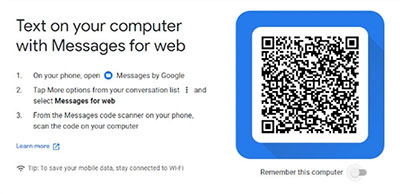
- Open a browser on your computer and go to messages.google.com/web, where a QR code will appear.
- Tap "QR code scanner" on the phone and scan the QR code displayed on the computer screen.
- Wait for the devices to pair automatically, and your OnePlus SMS conversations will appear in the browser so you can read and reply to messages from the PC.
#4: View My OnePlus Text messages on my PC via MightyText
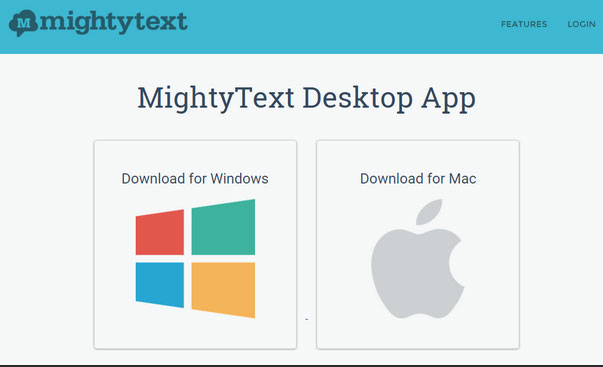
Managing Android SMS from a desktop environment can also be done through MightyText. The service connects the OnePlus device with a browser after signing in with a Google account. Once synced, text threads become visible on the computer interface and new messages appear in near real time. Sending replies or starting new SMS conversations is also possible without touching the phone.
User Manual:
- Install the MightyText app on your OnePlus phone from Google Play and open it.
- Sign in with your Google account inside the app to complete the initial setup.
- Open a browser on your PC and go to mightytext.net/app (or install the MightyText Chrome extension)
- Log in with the same Google account you used on your OnePlus phone to connect the devices.
- Wait for MightyText to sync your SMS, and your OnePlus text conversations will appear in the web interface where you can read, send, and reply to messages from your computer.
FAQs about View OnePlus Text Messages on Computer
Q1. Can I reply to OnePlus text messages from my computer?
Yes. Many tools such as Google Messages for Web, MightyText, and AirDroid allow you to send and reply to SMS from a PC.
Q2. Do I need an internet connection to view OnePlus messages on my computer?
In most cases, yes. Apps that sync SMS between devices usually require an internet connection to update message conversations.
Q3. Can I view MMS messages on my PC as well?
Yes. Some services like Google Messages for Web and MightyText support MMS, so you can see photos, videos, and group messages.
Q4. Do I need to keep my OnePlus phone connected while viewing SMS on the PC?
Yes. Your phone usually needs to remain connected to the internet so the messages can stay synchronized.
Q5. Can I access OnePlus messages on a Mac computer?
Yes. Web-based tools such as Google Messages for Web or AirDroid work on both Windows and macOS browsers.
Q6. Is it safe to view OnePlus text messages on a computer?
Yes, as long as you use trusted apps and protect your accounts with secure passwords.
Q7. What is the best method to view OnePlus text messages on computer?
Among the available options, MobiKin Assistant for Android is often considered the best method for viewing OnePlus text messages on a computer. It not only lets you read SMS on a larger screen but also offers advanced message management features such as exporting, backing up, and organizing conversations with ease.
More importantly, it provides a stable USB connection, broad device compatibility, and comprehensive Android data management beyond SMS, making it a more complete solution than most web-based tools.
Related Articles:
Locked Out of OnePlus? 6 Options to Unlock OnePlus Phone without Password
3 Hassle-free Ways: How to Recover Deleted Messages on OnePlus Phone
How to Root OnePlus 15/13/12/11/10/9/8/7/6 without Difficulty? 3 Ways
How to Recover Deleted WhatsApp Messages in OnePlus? 4 Approaches
