
How to Transfer Contacts from Samsung to OnePlus in 4 Clever Ways?
Switching to a new phone should feel like an upgrade, not a disruption. Since contacts often include work numbers, family details, and service information, losing them during a switch can cause real inconvenience.
This guide walks you through transfer contacts from Samsung to OnePlus in 4 seamless ways, so you can keep every important number without extra trouble. Each method focuses on simplicity and reliability, helping you move your address book safely from one device to the other.
- Option 1: Transfer Contacts from Samsung to OnePlus in One Click
- Option 2: Transfer Contacts from Galaxy to OnePlus via OnePlus Clone Phone
- Option 3: Copy Contacts from Samsung to OnePlus via Google Account Sync
- Option 4: Send Contacts from Samsung to OnePlus by Bluetooth
- FAQs for Transferring Contacts from Samsung to OnePlus
Option 1: Transfer Contacts from Samsung to OnePlus in One Click
Moving contacts from a Samsung device to a OnePlus phone becomes straightforward when a dedicated transfer solution is used, and MobiKin Transfer for Mobile is designed for this purpose. It connects both phones directly and shifts contact data in one go without needing manual export or import steps.
The process is usually stable, even when large contact lists are involved. Because of its direct phone-to-phone transfer method, it helps avoid missing entries during migration.
|
MobiKin Transfer for Mobile - Features
|
Description
|
Benefit for Samsung > OnePlus Contact Transfer
|
|
One-click transfer
|
Moves data directly between two phones with a single action |
Lets contacts transfer instantly without manual export/import |
|
Seamless connection
|
Builds a stable link between Android devices during transfer |
Ensures smooth migration with no interruptions or re-setup |
|
High data safety
|
Keeps original contact data unchanged during migration |
Prevents loss, duplication, or overwriting of contact details |
|
Professional transfer engine
|
Designed for full device-to-device data migration |
Handles large contact lists efficiently and accurately |
|
Cross-platform support
|
Works across various Android devices, including Samsung and OnePlus 15/14/13/12 (Pro)/11/10/9/8/7/6/Nord/6/5/4, etc. |
Makes switching phones easy without compatibility issues |
|
No internet required
|
Transfers data locally via USB connection |
Keeps process stable and private without cloud dependency |
User Manual:
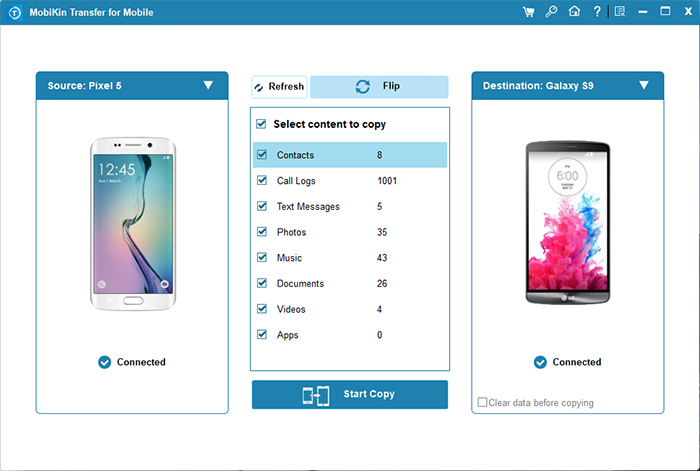
- After downloading and installing the software, launch it directly on your desktop computer. The main interface will appear as shown below.
- Connect your Samsung and OnePlus smartphones to the PC using two USB cables.
- Make sure they are properly placed in the designated source and destination areas, following the on-screen instructions for detection.
- If they are not positioned correctly, click 'Flip'.
- Select the items you wish to transfer from the options available in the center of the panel.
- Click 'Start Copy' to initiate the data transfer from Samsung to OnePlus.


Video Directions:
My Personal Take:
- MobiKin Transfer for Mobile felt the most effortless during my transfer from Samsung to OnePlus because everything moved in one connection step. The contacts appeared complete on the new phone without me checking or fixing duplicates afterward.
Option 2: Transfer Contacts from Galaxy to OnePlus via OnePlus Clone Phone
A built-in migration option on OnePlus devices offers a convenient setup experience through OnePlus Clone Phone. It allows the OnePlus device to pull contacts and other data directly from the Samsung phone during initial setup or later use. The connection is typically made through a QR scan or wireless link between both devices. This approach is useful when switching to a new OnePlus phone without relying on cloud services.
User Manual:
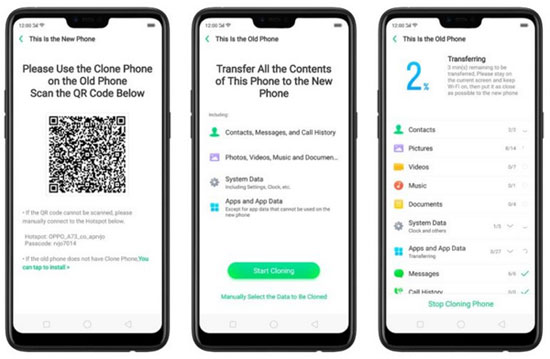
- Install and open OnePlus Clone Phone on both Galaxy and OnePlus devices.
- On OnePlus, select "This is the new device" and choose Android; a QR code will appear.
- On Galaxy, select "This is the old device" and scan the QR code.
- Connect both phones (preferably via the same Wi-Fi network).
- Select Contacts from the data list.
- Tap Start Cloning to transfer contacts from Galaxy to OnePlus.
My Personal Take:
- Using Google Account Sync was more of a background approach since the contacts showed up after signing in. It worked fine, but I had to wait for sync to finish and make sure the settings were enabled properly.
You Might Also Like: OnePlus/OPPO Clone Phone Not Working? Let's Fix It in 9 Easy Ways
Option 3: Copy Contacts from Samsung to OnePlus via Google Account Sync
Contact syncing through a Google account is another practical route that relies on cloud storage rather than direct transfer. With Google Account Sync, contacts saved on Samsung automatically appear on the OnePlus device once the same account is added. It works quietly in the background and keeps updates aligned across devices. However, it depends heavily on internet access and proper sync settings being enabled.
User Manual:
- On your Samsung phone, go to Settings > Accounts and backup > Manage accounts.
- Log in before selecting your Google account and make sure Contacts sync is turned ON.
- Open the Contacts app, go to Manage contacts > Sync contacts, and tap Sync now to upload contacts to Google.
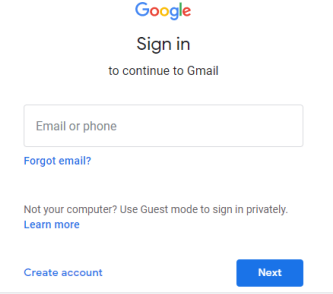
- On your OnePlus phone, sign in with the same Google account during setup or in Settings.
- Enable Contacts sync for that Google account.
- Wait a few moments—your Samsung contacts will automatically appear on the OnePlus device once syncing completes.
My Personal Take:
- OnePlus Clone Phone gave a guided transfer experience that felt easy to follow during setup. The process was smooth, though it took a bit longer when transferring a larger contact list over Wi-Fi.
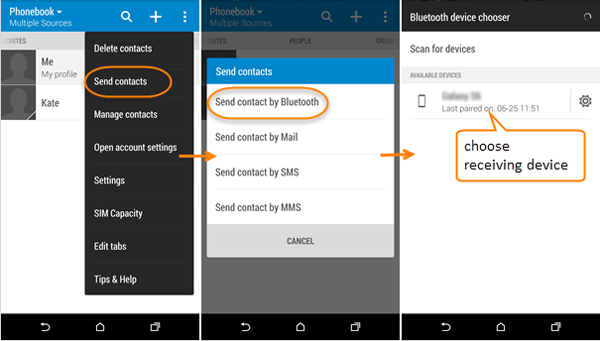
Option 4: Send Contacts from Samsung to OnePlus by Bluetooth
A simpler but more limited method involves using short-range sharing with Bluetooth. Contacts can be sent individually or in small groups after pairing both phones. The speed is slower compared to other methods, especially with larger lists. It is often used for quick transfers when only a few contacts need to be moved.
User Manual:
- Turn on Bluetooth on both Samsung and OnePlus devices via Settings.
- Make both phones visible/discoverable and pair them together by confirming the pairing code.
- On the Samsung phone, open the Contacts app and select the contacts you want to transfer.
- Tap Share > Bluetooth, then choose the paired OnePlus device.
- On the OnePlus phone, tap Accept to receive the contact files (usually sent as vCard).
- Wait for the transfer to complete and check the Contacts app on OnePlus.
My Personal Take:
- With Bluetooth, the transfer felt the most manual and slow since contacts had to be shared in small batches. It worked for a few entries, but it wasn’t practical for moving everything at once.
See More: All the Essential Information on Bluetooth File Transfer for Android
FAQs for Transferring Contacts from Samsung to OnePlus
Q1. Will my contacts transfer automatically to OnePlus?
Yes, if contact sync is enabled on your Samsung and you log into the same Google account on OnePlus, the contacts will sync automatically.
Q2. Does OnePlus Clone Phone transfer contacts only?
No. It can transfer multiple data types, including contacts, messages, photos, videos, and apps from Samsung to OnePlus.
Q3. What format are contacts transferred in via Bluetooth?
Contacts are usually sent as a .vcf (vCard) file, which can be imported directly into the OnePlus Contacts app.
Q4. Why are some contacts missing after transfer?
Missing contacts are often stored locally on the SIM or device storage instead of the Google account, so they are not synced.
Q5. Can I transfer contacts using a SIM card?
Yes, but SIM cards have limited storage and may not support full contact details like multiple numbers or emails.
Q6. What is the easiest way to transfer contacts from Samsung to OnePlus?
Google account sync is the simplest method. Once contacts are synced to your Google account, they automatically appear on your OnePlus phone after sign-in.
Q7. What is the most desirable way to transfer contacts from Galaxy to OnePlus?
The most effective way is to rely on a direct transfer solution designed for cross-device migration. While options like SIM transfer or Google account syncing are available, they can be time-consuming and may not always keep everything perfectly organized. MobiKin Transfer for Mobile stands out as the most admirable option because it transfers contacts quickly between phones with a simple process and no risk of data loss.
Related Articles:
How to Back Up OnePlus to PC/Computer? 5 Creative Solutions
10 Best Samsung Data Recovery Software/Apps [2026 Latest]
5 Easy Tactics to Delete Everything on Your Phone Samsung Galaxy
OnePlus Screen Mirroring: 4 Easy Ways to Mirror OnePlus to PC/TV
