
How to Transfer Photos from OnePlus Phone to USB Flash Drive Easily?
TL;DR:
Each of the four techniques covered here offers a reliable path to offload your photos and reclaim device storage. Whether you're on the go, at home, or working across multiple devices, there's a solution that fits your needs. No matter which method you try, you'll gain more control over your device's storage while keeping your cherished memories safely in your hands.
Large photo libraries can quickly consume internal storage on a OnePlus phone, especially when high-resolution pictures and videos continue to pile up over time. Many users therefore search for practical ways to back up memorable images, free up device space, or prepare files for sharing and editing on other devices.
This guide covers how to transfer photos from OnePlus phone to USB flash drive, walking through 4 ingenious ways that work for different situations, whether you prefer using OTG, cloud services, built-in apps, or a computer utility.
- #1: Transfer Photos from OnePlus Phone to USB Flash Drive with One Touch
- #2: Send Photos from OnePlus to USB Drive via USB OTG Directly
- #3: Transfer Pictures from OnePlus to USB Flash Drive via Photos App
- #4: Copy Photos from OnePlus Phone to USB Flash Drive via Google Photos
- FAQs about Transferring Photos from OnePlus to USB Flash Drive
For a visual walkthrough of this topic, simply watch the video below.
#1: Transfer Photos from OnePlus Phone to USB Flash Drive with One Touch
Managing large photo collections becomes easier with MobiKin Assistant for Android (Windows/Mac) when moving pictures from a OnePlus phone to a USB flash drive. The program allows users to organize images on a computer before exporting them to external storage. It also supports selective transfer, which helps avoid copying unnecessary files. Many people prefer it when they want a clearer view of their media during the transfer process.
|
MobiKin Assistant for Android - Characteristics
|
Further Explanation
|
|
Photo Transfer |
Export photos/videos from OnePlus to USB flash drive directly; supports exporting by album. |
|
One-Click Backup & Restore |
Back up various phone data to PC or restore from backup with one click |
|
Selective Data Transfer |
Choose specific files to transfer instead of full backup |
|
Data Management |
Manage contacts, SMS, call logs, photos, other media, apps, and more. |
|
File Preview |
Preview files before transferring or exporting |
|
Screen Capture |
Capture phone screen and save screenshot to computer (USB connection only) |
|
Connection Options |
USB cable or Wi-Fi connection. Supports almost all OnePlus models, including Number Series, Nord Series, and Ace (R) Series models. |
Best photo transfer software free and secure download:


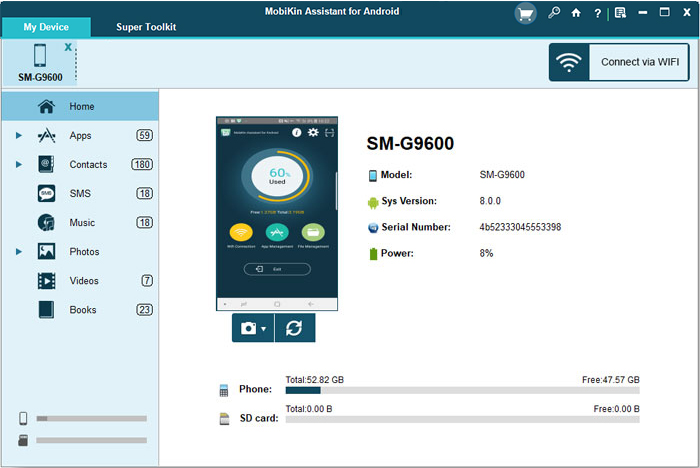
How to transfer photos from OnePlus to a USB flash drive with MobiKin Assistant for Android?
- Connect your OnePlus smartphone and USB flash drive to your computer using a USB cable.
- Launch the software and adhere to the on-screen prompts to confirm that the software recognizes the connected device.
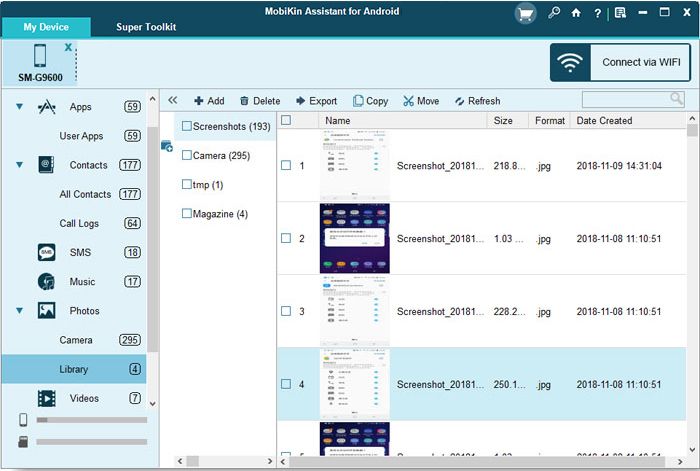
- In the left-hand panel, click on "Photos" and select either "Camera" or "Library".
- This action will reveal all the images stored on your OnePlus phone in the right-hand panel.
- Choose the photos you wish to transfer.
- Finally, press the "Export" button to copy the selected images from your OnePlus phone and save them directly onto the USB flash drive. (You can select a whole folder, such as the DCIM or Camera folder, and transfer it directly to the USB storage.)
#2: Send Photos from OnePlus to USB Drive via USB OTG Directly
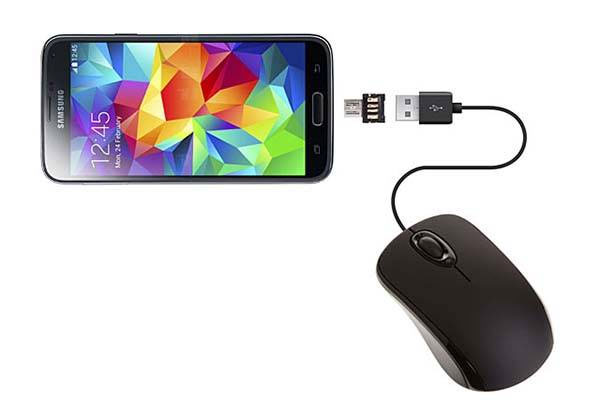
A quick way to move pictures without a computer is through USB OTG directly on a OnePlus device. After connecting the flash drive with an OTG adapter, files can be copied through the built-in file manager in minutes. This method works well for travel, backup tasks, or freeing up phone storage. It also reduces the need for extra software or cloud services.
How to Use?
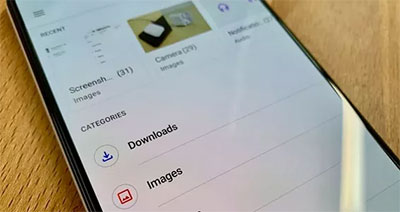
- Connect the USB flash drive to your OnePlus 15/13/12/11/10/9 using a USB-C OTG adapter if necessary.
- Open the Files app or tap the OTG notification to access the connected USB storage.
- Select the photos you want to transfer, tap Copy or Move, choose the USB drive as the destination, and paste the files.
- After the transfer is complete, verify the photos on the flash drive and safely eject the USB device before disconnecting it.
#3: Transfer Pictures from OnePlus to USB Flash Drive via Photos App
Built into the phone itself, the Photos App offers a convenient path for sending images to a USB flash drive. Users can select multiple pictures, choose the share or export option, and save the files to connected USB storage. The process feels simple for those who prefer handling everything on the phone screen. It is especially practical for transferring recent camera shots quickly.
How to Use?
- Attach the USB flash drive to your OnePlus phone using a USB OTG adapter if needed.
- Launch the built-in Photos or Gallery app and browse to the pictures you want to transfer.
- Tap and hold a photo to enter selection mode, then choose the images you wish to copy.
- Press Share, Save to device, or Move to, depending on your OnePlus model.
- Select the connected USB flash drive as the storage location and start the transfer.
- Once the process is complete, check the USB drive to make sure the pictures were transferred correctly, then safely eject the drive before disconnecting it.
#4: Copy Photos from OnePlus Phone to USB Flash Drive via Google Photos
For cloud-based access, Google Photos can help transfer pictures from a OnePlus phone to a USB flash drive with fewer storage concerns on the device. Photos synced to the Google account can first be downloaded and then copied to the external drive. This option is useful when images are spread across multiple devices or backed up online. It also provides an additional layer of protection against accidental photo loss.
How to Use?
- Connect the USB flash drive to your OnePlus phone using a USB OTG adapter or a dual USB-C flash drive.
- Make sure OTG access is enabled on the phone.
- Open the built-in Google Photos app and sign in to the Google account that stores your pictures.
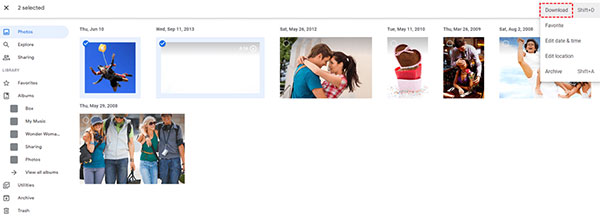
- Locate the photos you want to copy. If some images are cloud-only, download them to the phone first by opening the picture and tapping Download.
- Press and hold the desired photos, tap Share or the three-dot menu, and choose Save to Files or Copy to.
- Select the connected USB flash drive from the storage list, choose a folder, and tap Save, Copy, or Paste to begin the transfer.
FAQs about Transferring Photos from OnePlus to USB Flash Drive
Q1. Why is my USB flash drive not detected on my OnePlus phone?
The issue may occur because OTG is disabled, the flash drive format is unsupported, or the adapter is faulty. Try enabling OTG in Settings and reconnect the device. (OnePlus doesn't connect to PC?)
Q2. What file formats are supported when copying photos to a USB drive?
Most OnePlus phones support common image formats such as JPG, JPEG, PNG, HEIC, and GIF during transfer.
Q3. Why does the transfer process stop halfway?
This can happen because of insufficient USB storage space, unstable OTG connections, unsupported file systems, or damaged files.
Q4. Which file system should a USB flash drive use for OnePlus phones?
FAT32 and exFAT are commonly supported by Android devices, including many OnePlus models.
Q5. Can I use a dual USB-C flash drive with a OnePlus phone?
Yes. A dual-drive USB flash drive with a USB-C connector can plug directly into newer OnePlus devices without a separate OTG adapter.
Q6. How can I safely remove the USB flash drive after transferring photos?
Open the storage settings or notification panel, tap the eject option for the USB device, and then unplug the flash drive to avoid file corruption.
In a Nutshell
A USB flash drive can serve as a simple yet reliable place to keep treasured photos from a OnePlus device. After learning how to transfer images from OnePlus to a USB stick, you can manage storage more comfortably while keeping important memories within reach. A few minutes spent on regular photo backups today may save countless valuable images in the future.
Before copying a large number of photos, format the USB flash drive to exFAT if possible. This file system usually handles large image collections and high-capacity drives more smoothly on modern OnePlus phones.
Related Articles:
How to Transfer Photos from Flash Drive or USB to iPhone [Way 1 Is the Best]
How to Transfer Photos from iCloud to USB Flash Drive: 4 Easy Ways
5 Ingenious Methods to Recover Deleted Photos from OnePlus
6 Most Desirable Ways to Transfer Data from OnePlus to OnePlus
