
7 Scientific Ways to Fix Android Stuck in Download Mode
Are you experiencing Android Stuck in Download Mode, especially when the screen won't change, no matter what you try? In many cases, users may have pressed and held buttons (like Power + Volume Down/Up) unintentionally, triggering Download Mode and not knowing how to exit. There are also situations where a system update or custom ROM flash fails or is interrupted, leaving the phone unusable until the issue is resolved.
This post will walk you through 6 quick solutions and 1 expert fix to help you confidently tackle the problem and get your device working normally again.
- Part 1: Why Is Android Stuck in Download Mode
- Part 2: Android Stuck in Download Mode? 6 Smart Ways to Fix It
> Solution 1: Restart the Phone
> Solution 2: Reinsert the Battery
> Solution 3: Use Button Combinations
> Solution 4: Utilize Smart Switch
> Solution 5: Flash Stock Firmware via Odin
> Solution 6: Try Fastboot Commands - Part 3: Resolve Android Stuck in Download Mode Precisely
Part 1: Why Is Android Stuck in Download Mode
Accidental key presses, system glitches, failed firmware updates, corrupted or incompatible firmware, hardware malfunctions, and third-party app conflicts can cause Android to get stuck in Download Mode. These issues interfere with normal booting and keep the device frozen in that mode. Here are the detailed explanations:
- Accidental Key Presses - Pressing certain button combinations (like Volume Down + Power) can trigger Download Mode unintentionally.
- System Glitches or Bugs - Temporary software issues can cause the device to freeze in Download Mode.
- Failed Firmware or OTA Updates - Interruptions during system updates can leave the phone stuck.
- Corrupted or Incompatible Firmware - Installing the wrong firmware can prevent normal booting
- Hardware Malfunctions - Faulty buttons, battery issues, or motherboard problems can keep the phone in Download Mode.
- Third-Party App Conflicts - Some apps or custom ROMs may interfere with the boot process.
You May Also Need: 4 Feasible Ways to Get Out of Android Recovery Mode [2026]
Part 2: Android Stuck in Download Mode? 6 Smart Ways to Fix It
> Solution 1: Restart the Phone
Simply restarting your device can resolve temporary glitches that cause it to get stuck in Download Mode. Press and hold the Power button for 10-20 seconds until the device vibrates and the screen turns off. Some models may require Power + Volume Down instead. Once the phone restarts, it should boot normally.
If restarting your Android phone doesn't get it out of Download Mode, a regular reboot may not be enough to resolve the issue. In this case, try performing a force restart by holding down the Power button (and Volume Down on some models) for 10–20 seconds. This can help the device break free from Download Mode and reboot normally.
> Solution 2: Reinsert the Battery
For devices with removable batteries, physically removing and reinserting the battery can reset the hardware state. Turn off the phone if possible, remove the battery, wait 30-60 seconds, then put it back in and power the device on. This often clears Download Mode without needing software intervention.
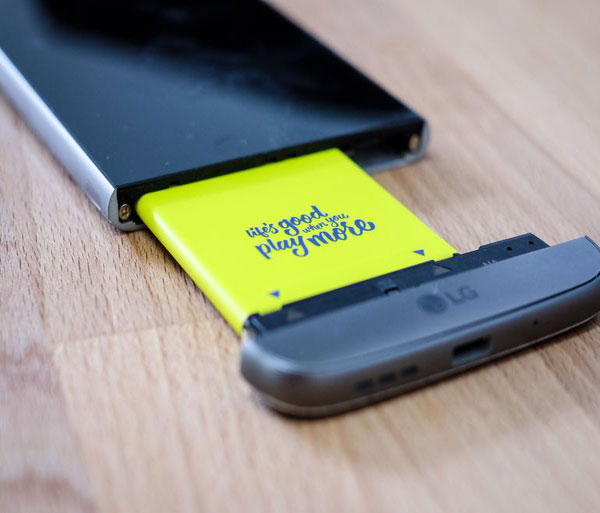
Note: When removing and reinserting the battery doesn't resolve the phone being stuck in Download Mode, the issue may persist due to residual power. In this situation, let the battery drain completely by leaving the device powered on until it shuts down on its own. Once the battery is fully depleted, recharge and power on the phone, which can help it exit Download Mode.
> Solution 3: Use Button Combinations
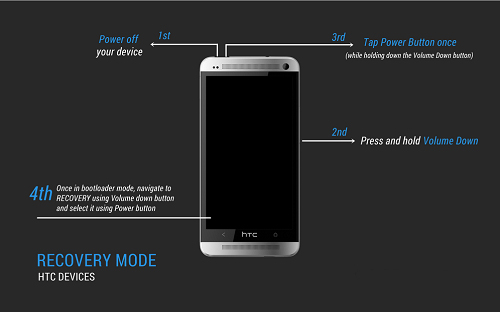
Using specific button combinations can potentially force an Android device to exit Download Mode. These combinations manipulate the phone's hardware signals to trigger a reboot into normal mode. Below is the user manual:
- Press Volume Down + Power until the screen turns black, then release.
- If that doesn't work, try Volume Up + Power or Volume Down + Volume Up + Power for 10-20 seconds.
- The device should reboot into normal mode if the combination is correct.
- Different manufacturers may use slightly different combos, so check your model's specific instructions.
> Solution 4: Utilize Smart Switch
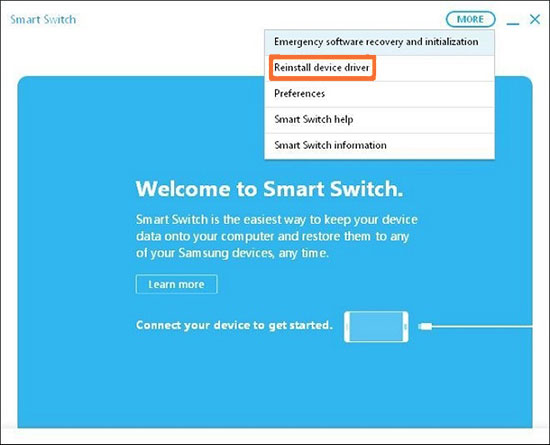
Samsung Smart Switch can repair system files and help a device exit Download Mode safely. Install the software on your PC and connect your phone via USB. Next, follow these steps:
- Download and install a previous version of Samsung Smart Switch (for example, version 4.1) on your computer.
- Navigate to More > Emergency Software Recovery and Initialization and follow the prompts.
- Input your device's model and serial number, which can be found on the phone or its box.
- Keep the phone in Download Mode, and once the device is detected, click OK to begin the recovery process.
> Solution 5: Flash Stock Firmware via Odin
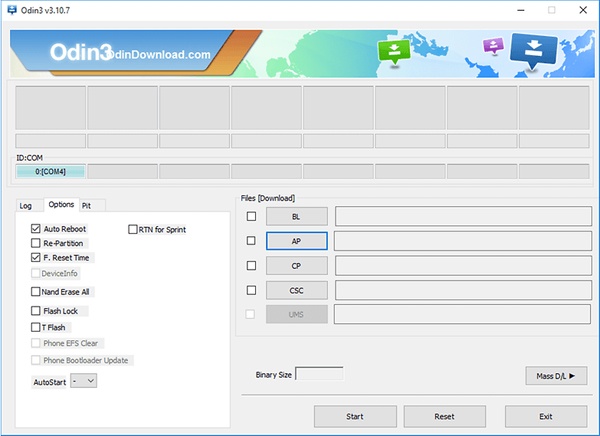
- Open Odin on your computer and connect your phone using a reliable USB cable.
- Since the device is already in Download Mode, wait for Odin to recognize it - you should see an "Added!" message in the log.
- Click the BL button and choose the correct file from your firmware package.
- Repeat the process for AP, CP, and CSC, making sure each file matches your device model.
- Once all firmware files are loaded, click Start to flash the operating system. Wait until Odin shows a PASS! message indicating the process is complete.
- Unplug the phone from the computer and allow it to boot up. The device should exit Download Mode and start with the newly installed firmware.
> Solution 6: Try Fastboot Commands
If your Android is still stuck in Download Mode, using Fastboot commands can force it to reboot safely. This method works well for non-Samsung devices and doesn't require wiping your data.
- Install ADB & Fastboot on your PC.
- Connect your phone in Fastboot/Download Mode via USB.
- Open a command prompt on your PC.
- Type fastboot reboot and press Enter to restart the device.
- If that fails, type fastboot oem reboot and press Enter.
- The phone should exit Download Mode without wiping data.
Part 3: Resolve Android Stuck in Download Mode Precisely
With expert tools like Android Repair, users can resolve issues like Android devices getting stuck in Download Mode quickly and safely. The software works by repairing core system glitches that prevent the device from booting normally. A user-friendly interface makes the entire process simple, even for beginners. This tool also helps restore stability to the system without requiring complicated technical steps.
What Makes Android Repair Impeccable?
- Fixes multiple Android system problems, including black screen of death, boot loops, and similar issues.
- Allows free access to Download Mode (Odin Mode) on Samsung for easier recovery.
- Repairs Samsung, Xiaomi, Redmi, and POCO phones and tablets, restoring them to normal operation.
- Beginner-friendly with no technical skills or root access required, making it suitable for all users.
- Guarantees 100% no data loss for Xiaomi, Redmi, and POCO.
- Provides clear on-screen instructions, guiding users step-by-step through the repair process
- Ensures high repair success rates by using official-type firmware packages tailored to each device model.

So, how do I fix Android phone stuck in download mode with Android Repair?
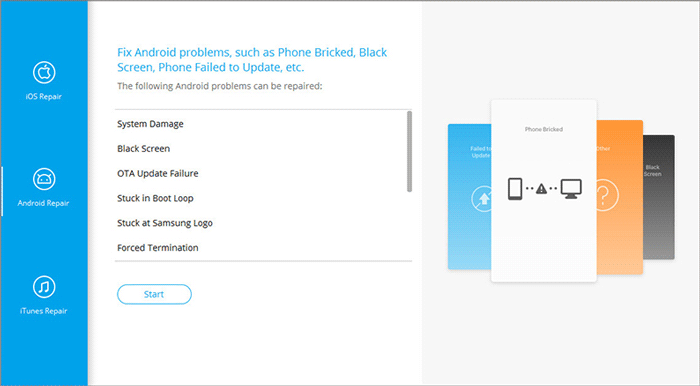
- Launch the installed software on your computer and open the System Repair section from the main screen.
- Connect your Android device to the computer via USB, choose Android Repair, review the details shown, and click Start.
- Enter your device information, click Next, then type 000000 and press Confirm.
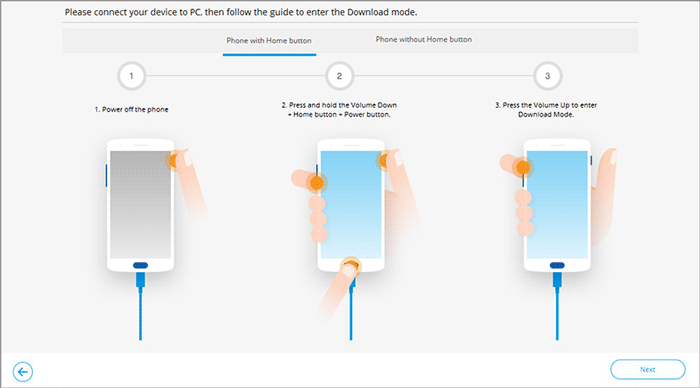
- Follow the on-screen instructions to place your device into Download Mode.
- Once the phone is successfully in Download Mode, the software will automatically detect and download the appropriate firmware package.
- When the download is complete, select Fix Now, re-enter 000000, and tap Confirm to allow the repair process to continue automatically.
Conclusion
Fixing Android Stuck in Download Mode can often be achieved using standard troubleshooting methods, but some cases require a more reliable and professional tool. That's where Android Repair catches attention, as it offers a higher success rate, a safer repair process, and a user-friendly interface compared to manual fixes or risky flashing tools.
If you want the quickest and safest way to restore your device, don't hesitate to download and try this program.
Related Articles:
How to Recover Data after Factory Reset Android? 5 Ingenious Ways
iPhone Stuck on Loading Screen? 7 Tested Ways to Fix It [2026 Latest]
10 Ingenious Solutions to Android Phone Stuck on Logo Screen
[Top 11 Lists] Want the Best Android Data Recovery Software? See Here!
