
Downloading Do Not Turn Off Target? 7 Quick Ways & 1 Expert Solution
- How Long Will the "Downloading, Do Not Turn Off Target" Screen Stay On?
The "Downloading... Do not turn off target!" process typically lasts between 5 and 30 minutes, depending on the update size and device model. During this time, you must keep the device powered on and connected to a computer if applicable. The device will restart automatically once the update is complete.
If your device performs abnormally, please continue reading to find out the potential cause and 8 reliable solutions in this passage.
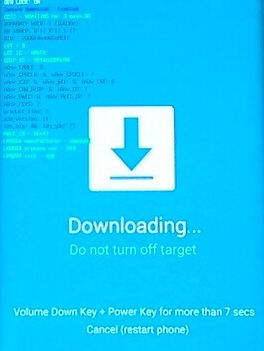
- Part 1: Why Does Downloading Do Not Turn Off Target Happens
- Part 2: How to Fix Downloading Do Not Turn Off Target in 7 Quick Ways
> Fix 1: Conduct a soft reset
> Fix 2: Force restart your phone
> Fix 3: Enter safe mode
> Fix 4: Clean cache partition
> Fix 5: Reflash firmware
> Fix 6: Factory/master reset your phone
> Fix 7: Turn to a trusted 3rd-party repair - Part 3: How to Fix Downloading Do Not Turn Off Target Professionally
- Part 4: FAQs about Downloading Do Not Turn Off Target
Part 1: Why Does Downloading Do Not Turn Off Target Happens
The "Downloading, Do Not Turn Off Target" screen usually appears when the phone encounters software or hardware issues that prevent it from booting normally. Understanding the common causes can help you choose the most effective method to fix the problem.
- Accidental Entry into Download Mode - Pressing the key combination (Volume Down + Power + Home) unintentionally can trigger Download Mode.
- Interrupted Firmware Update - A failed system update can leave the device stuck in Download Mode.
- Corrupt or Incompatible Firmware - Flashing the wrong firmware or corrupted files may trigger this screen.
- Malfunctioning Third-Party Apps - Certain apps can interfere with system processes, causing the device to freeze in Download Mode.
- Software Glitches or System Errors - Bugs in the Android OS or corrupted cache can prevent normal booting.
- Hardware Issues - Faulty buttons, battery, or internal components may inadvertently trigger or trap the device in Download Mode.
- Rooting or Custom ROM Attempts - Failed attempts to root the phone or install custom ROMs can lead to this problem.
Part 2: How to Fix Downloading Do Not Turn Off Target in 7 Quick Ways
Fix 1: Conduct a soft reset
A soft reset helps your phone safely exit Download (Odin) Mode without erasing any data. Since Download Mode can be entered and exited using hardware keys, the process is straightforward.
- On the "Downloading, do not turn off" screen, press and hold Volume Up + Power + Home together.
- The screen should go blank, and the phone will restart.
- If it doesn't reboot automatically, hold the Power button to turn it on manually.
Fix 2: Force restart your phone
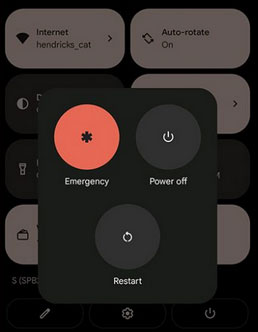
To force restart your phone when it is stuck on Downloading, Do Not Turn Off Target, press and hold Volume Down + Power at the same time for about 10-15 seconds. Keep holding the buttons until the screen turns black and the device restarts. (Android phone black screen of death?) Once it reboots, the phone should exit Download Mode and load the Android system normally.
Forcing a clean restart cuts power to the device, helping it exit Download Mode and clear temporary system freezes without advanced steps. Power off the phone, remove the battery if possible (or hold Power or Volume Down + Power for 10-20 seconds on non-removable models), then turn it back on. If a force restart doesn't work, try performing a clean restart by removing the battery, SIM, and SD card, discharging residual power, and rebooting the device.
Fix 3: Enter safe mode
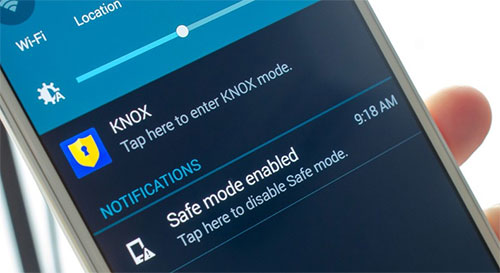
Safe Mode disables all third-party apps, helping you identify and remove apps that may cause the phone to get stuck on the Downloading, Do Not Turn Off Target screen. Power off the device, turn it on, and hold Volume Down when the logo appears to boot into Safe Mode. Back up your data, uninstall suspicious apps, then reboot normally; if the issue persists, try the next fix. (You cannot exit safe mode?)
Fix 4: Clean cache partition
- Power off your Android phone completely.
- Press and hold Volume Up + Power + Home (or Volume Up + Power on newer models) until the recovery screen appears.
- Use the Volume keys to highlight Wipe cache partition.
- Press the Power button to confirm the selection.
- Wait for the cache to be cleared; this will not delete personal data.
- Select Reboot system now and press Power to restart the device.
Fix 5: Reflash firmware
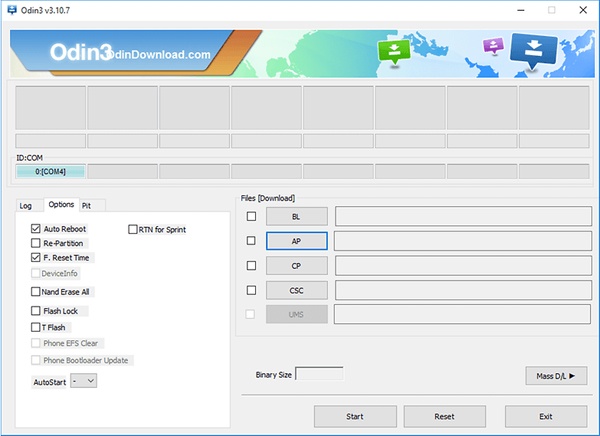
When a phone remains stuck on the Downloading, Do Not Turn Off Target screen, the system firmware may be corrupted or incomplete. In such cases, reflashing the official firmware with Odin is a reliable way to restore the device to a normal working state.
- Download the correct firmware for your Samsung model and region, then extract the files on your PC.
- Install Samsung USB drivers on the computer and launch Odin as an administrator.
- Boot the phone into Download Mode (Power off > press Volume Down + Power + Home or Volume Down + Power, then confirm).
- Connect the phone to the PC with a USB cable; Odin should show a blue ID:COM port.
- Load firmware files into Odin (AP, BL, CP, CSC) according to their labels.
- Make sure Auto Reboot and F. Reset Time are checked, then click Start.
- Wait for the PASS message; the phone will reboot, and the issue should be resolved.
Fix 6: Factory/master reset your phone
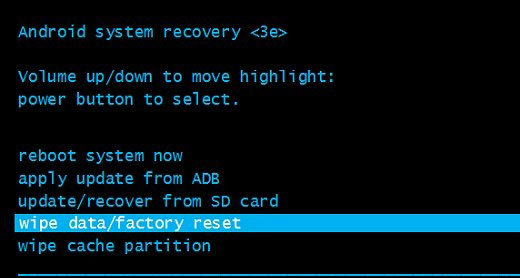
A factory or master reset can fix the Downloading, Do Not Turn Off Target issue by removing corrupted system data that prevents normal startup. Power off the phone, then press and hold Volume Up + Power + Home (or Volume Up + Power on newer models) to enter Recovery Mode and select wipe data/factory reset. After the reset completes, choose Reboot system now and check if the device starts normally.
Fix 7: Turn to a trusted 3rd-party repair
If all DIY methods fail, turning to a trusted third-party repair service can safely fix the Downloading, Do Not Turn Off Target issue. Professional technicians can diagnose hardware or firmware problems and perform advanced solutions like firmware reflashing or system recovery. Always choose a reputable repair center to ensure your device is handled properly and data is protected.
Part 3: How to Fix Downloading Do Not Turn Off Target Professionally
When to Seek Professional Help to Fix Downloading Do Not Turn Off Target?
You should seek professional help when your phone remains stuck on Downloading, Do Not Turn Off Target, despite trying soft resets, Safe Mode, or cache clearing. At this point, advanced tools are needed to safely repair the system without risking data loss.
Android Repair is a professional and reliable solution that can fix the issue efficiently and securely. Using this tool ensures your device is restored expertly, giving you peace of mind during the repair process.
Key Features of Android Repair:
- Fixes download mode issues, black screen, boot loops, and other Android errors.
- Provides free Download Mode (Odin Mode) access for Samsung.
- Supports Samsung, Xiaomi, Redmi, and POCO devices.
- Beginner-friendly, no root or technical skills needed.
- No data loss for Xiaomi, Redmi, and POCO.
- Step-by-step on-screen instructions.
- Uses official firmware for high success rates.
- Works with major carriers like AT&T, Verizon, T-Mobile, etc.
How to Get Rid of Downloading Do Not Turn Off Target with Android Repair?
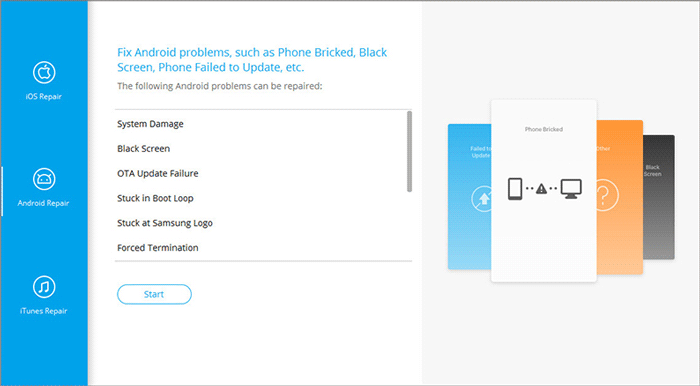
- Launch the Android Repair tool on your computer after free download, connect your Android device via USB, and select "Android Repair" from the left-hand menu.
- The program will display the types of Android issues it can fix; review them and click "Start."
- Enter your device details in the interface that appears and click "Next" to proceed.
- Type "000000" into the provided field and press "Confirm" to continue.
- Keep in mind that performing the repair may erase all data on your device if it isn't a Samsung/POCO/Xiaomi/Redmi phone.
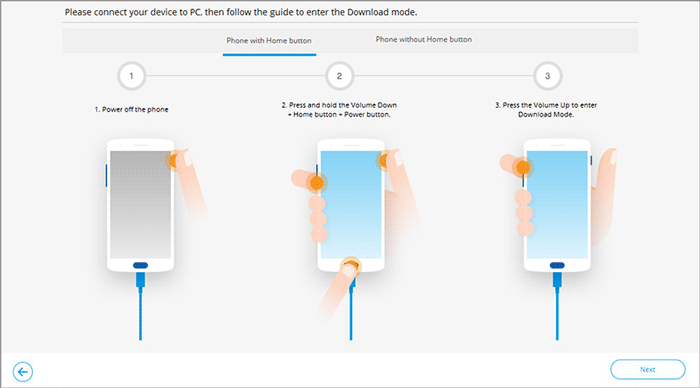
- Follow the on-screen instructions to boot your Android phone into Download Mode.
- Once the phone is in Download Mode, click "Next" to download the correct firmware for your device.
- After the download is complete, tap "Fix Now" to remove the "Downloading, Do Not Turn Off Target" screen immediately.

Part 4: FAQs about Downloading Do Not Turn Off Target
Q1. What does "Downloading, Do Not Turn Off Target" mean?
It indicates the phone is in Download Mode, a special state for firmware flashing and system updates.
Q2. Can this happen after rooting or installing a custom ROM?
Yes, failed rooting or custom firmware attempts are a common reason phones get stuck on the Download Mode screen.
Q3. Will this delete my personal data?
Most exit methods, like soft reset, force restart, or Safe Mode, do not delete data, but actions like factory reset or Odin flashing may erase it.
Q4. Why did my phone enter Download Mode by itself?
Accidental key presses, system glitches, or failed updates can trigger Download Mode without user intent.
Q5. Can removing the battery help exit Download Mode?
Yes, for phones with removable batteries, taking out the battery and reinserting it can force the device to reboot.
Q6. Is Download Mode the same as Recovery Mode?
No, Download Mode is for firmware flashing, while Recovery Mode is for system repair, cache clearing, or factory reset.
Q7. Can software updates prevent this issue in the future?
Keeping your system updated reduces glitches and incompatible apps, lowering the chances of getting stuck in Download Mode again.
Q8. Is it safe to use third-party repair services to fix this issue?
Yes, it is generally safe to use trusted third-party repair services to fix the Downloading, Do Not Turn Off Target issue, especially when DIY methods fail. Among software solutions, Android Repair is completely safe and efficiently restores your device without data loss.
It skillfully fixes system glitches, firmware errors, and other causes that trap your phone in Download Mode. Using this tool ensures the repair is handled expertly, giving your device a smooth and reliable reboot.
Related Articles:
How to Take a Full Backup of Android Phone? 7 Tested Methods
5 Tactics to Recover Formatted Data from Android Phone with/without Backup
How to Fix Android Recovery Mode Not Working in Minutes? 9 Solutions
Top 11 Android Flashing Software for PC/Mac You Wish You'd Known Sooner
