
How to Factory Reset ZTE Phone Safely? 5 Tried-and-true Techniques
TL;DR:
Performing a factory reset is an effective solution for resolving performance issues or preparing your ZTE phone for a new user, but it's crucial to back up your data first. For the most secure and permanent data removal - especially before selling or giving away your device - using a specialized tool like MobiKin Eraser for Android is highly recommended over other methods.
If you're experiencing slow performance, frequent crashes, or glitches on your ZTE phone, you may be considering a factory reset as a solution. Whether you're preparing to give away your phone or want to free up space and restore it to its original settings, figuring out how to factory reset your ZTE phone can be invaluable.
This article guides you through five proven methods to perform a factory reset on your device, ensuring that you can choose the best option for your needs.
- Part 1: What to Do before Factory Reset ZTE Phone
- Part 2: How to Reset ZTE Settings Directly
- Part 3: How Do I Force a Factory Reset via Master Code
- Part 4: How Do I Hard Factory Reset My Phone via Recovery Mode
- Part 5: How to Factory Reset ZTE Phone with a Specialized Tool
- Part 6: How to Factory Reset ZTE Remotely
- FAQs about Factory Resetting ZTE Phone
Refer to the following video for a visual breakdown of this concept:
Part 1: What to Do before Factory Reset ZTE Phone
- Back Up Data: Save important ZTE files, contacts, and photos to the cloud or a computer.
- Remove External Storage: Take out the microSD card for safety.
- Sign Out of Accounts: Log out of linked accounts to avoid verification issues.
- Disable Lock Screen Security: Turn off any PIN or password.
- Check for Updates: Ensure your phone is up to date.
- Note Important Settings: Record Wi-Fi passwords and app settings.
- Have a Recovery Plan: Know how to restore your data after the reset.
Part 2: How to Reset ZTE Settings Directly
To perform a factory reset on your ZTE Phone, ensure that the device is powered on and unlocked. Navigate to the Settings menu and select the factory reset option. This process is straightforward and will remove your Google account and other data, and you will need to enter your password when requested.
Reference Guide:
- Access the "Apps" section. Proceed to select "Settings."
- Scroll down to locate and choose the "System" option.
- Touch the "Advanced" feature to reveal additional settings.
- From the available drop-down menu, select "Reset Options."
- Tap on "Erase all data (factory reset).
- When prompted with a confirmation message indicating that all data will be erased, select "RESET PHONE" to continue.
- When the second confirmation message appears, tap "ERASE EVERYTHING."
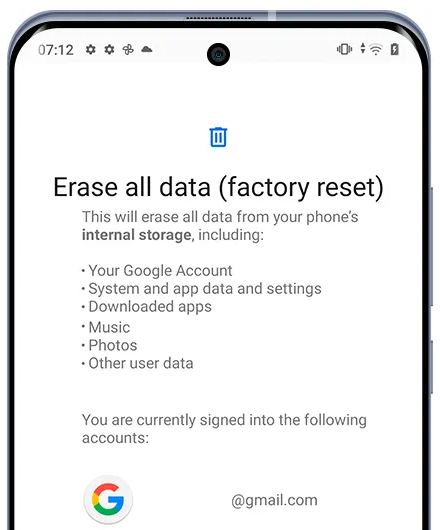
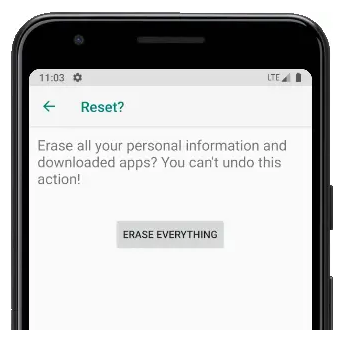
* You may be required to input your screen unlock password or PIN. Plus, if you encounter issues, try restarting your phone and attempting the reset again.
Drawbacks:
- The process may take time, especially if there are many apps and data to reinstall afterward.
- A password is required to get the job done.
Part 3: How Do I Force a Factory Reset via Master Code
The Master Code is a unique code for resetting or unlocking a ZTE Axon/Blade/Nubia/Voyage. It allows users to perform a factory reset, erasing all data and restoring the device to its original settings. While useful for bypassing forgotten passwords, it will delete all personal data, so backing up important information is advised.
Reference Guide:
- Verify that you possess access to the phone's administrator account by dialing #4636#.
- Navigate to the "Settings" menu on your phone and locate the "Admin Account" section.
- Input your Username and Password.
- After successfully logging in, proceed to delete all your data following the established procedure.
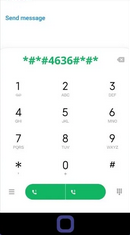
If the steps above don't work, adhere to the following: 1. Turn off the device by holding the "Power" button. 2. Reboot the phone using the "Power" button. 3. Tap "Emergency dial" and enter 98322387#. 4. Select "Erase Everything" and restart the phone to reset it.
Drawbacks:
- Entering the wrong code can cause issues or damage the phone's software.
- Not all users have access to a master code, making it less accessible.
- Using unauthorized codes may void the warranty.
Part 4: How Do I Hard Factory Reset My Phone via Recovery Mode
The Recovery mode works when the phone is powered off, stuck on a black screen, locked, etc. Follow the steps below to hard reset your ZTE phone via this mode.
Reference Guide:
- Ensure your ZTE phone is at least 50% charged and power it off.
- Press and hold the "Power and Volume Up" buttons until it vibrates, and the ZTE logo appears.
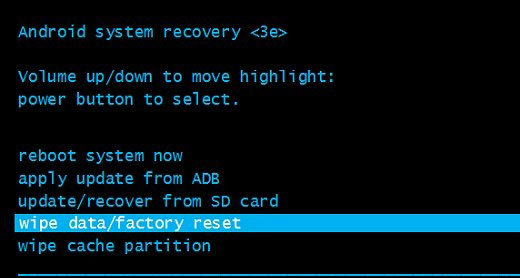
- Release the "Power" button when the logo shows, but keep holding "Volume Up" until the 'Android Recovery' menu appears.
- Select "wipe data/factory reset" using the Volume buttons and confirm with the "Power" button.
- Choose "Yes", then select "reboot system now" when the reset is complete.
- Allow a few minutes for rebooting and set up your device if needed.
Drawbacks:
- Requires knowledge of hardware button combinations, which may be confusing for some users.
- Incorrect use of recovery mode can lead to bricking the device. (Here are the tips for unbricking your phone.)
Part 5: How to Factory Reset ZTE Phone with a Specialized Tool
Are you looking to perform a comprehensive and secure factory reset without the need for a password or master code? Do you want to ensure that your device is erased in a manner that prevents any possibility of recovery? Consider trying the MobiKin Eraser for Android (Windows/Mac).
This PC-based software enables users to efficiently hard reset or factory reset nearly all Android smartphones and tablets, making it particularly beneficial for individuals preparing to transfer their devices to new owners.
Let's now get to know MobiKin Eraser for Android:
- Factory reset ZTE phone by wiping out everything. (Complete)
- Erase your device safely, and no possibility of the data being recovered. (Permanently)
- Low, Medium, and High levels are available. (Flexible)
- Easy to use and no privacy leakage. (Easy and Secure)
- Get on well with almost all ZTE and other Android devices, including ZTE Neo 5 series, AI M153 & Z80 Ultra, foldable Flip 2, and three budget Plus models, etc. (Generally applicable)


Reference Guide:
Step 1. Launch the Utility - Begin by downloading and installing the software on your computer to ensure the complete and permanent deletion of all data from your ZTE phone. Connect your device to the computer using a USB cable, and if necessary, enable USB debugging as guided.
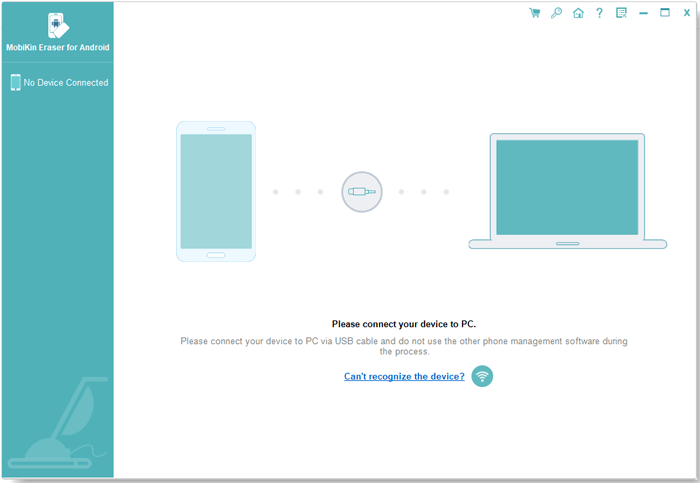
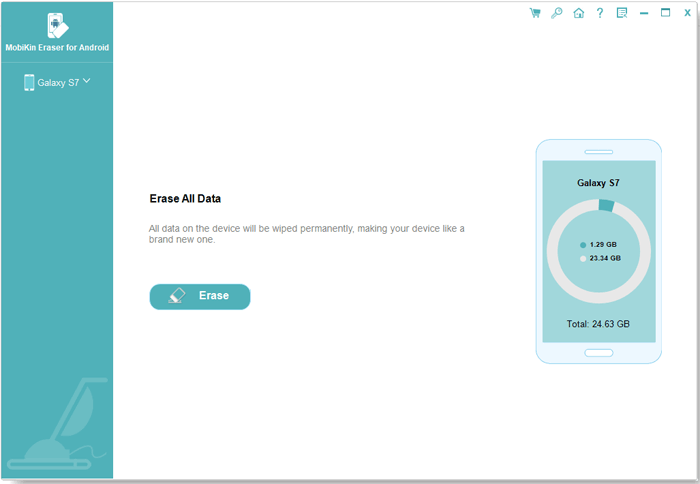
Step 2. Identify ZTE - Open the program and follow the on-screen instructions to recognize your ZTE device. Next, select "Erase" from the main interface.
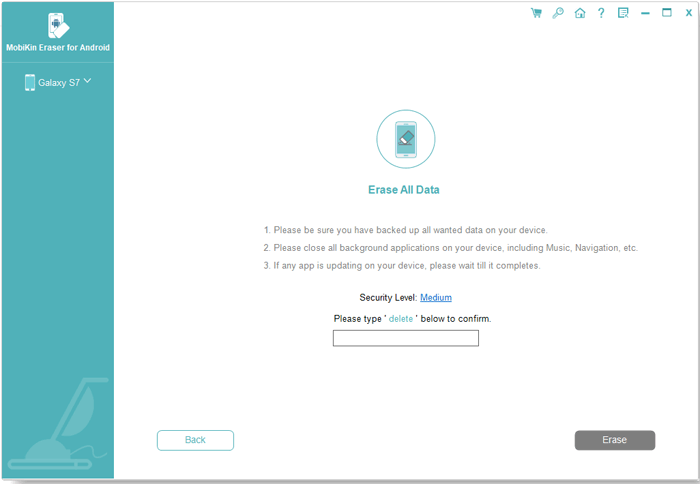
Step 3. Pick Security Level - Determine the desired security level and confirm your choice by entering "delete". Click "Erase" once more. Select "Low Level" for strong data recovery prevention, "Medium Level" for media files, and "High Level" for the protection of sensitive data.
Step 4. Factory Reset - The utility will conduct a scan and commence the erasure according to the selected security level. To remove system data and settings, perform a factory reset on the phone. Simply follow the prompts and click "Continue".
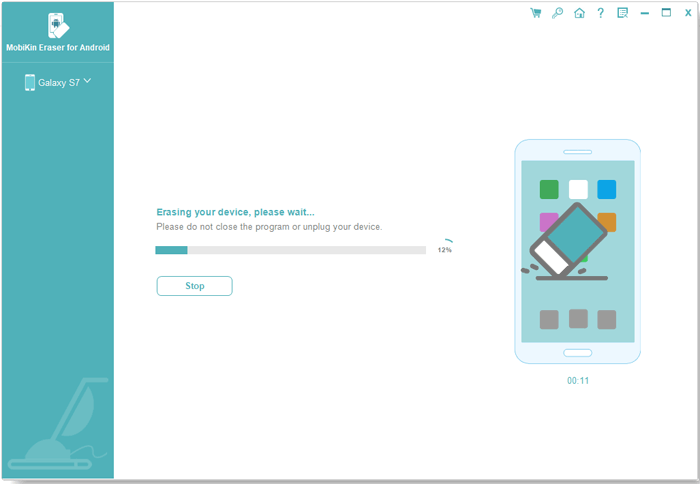
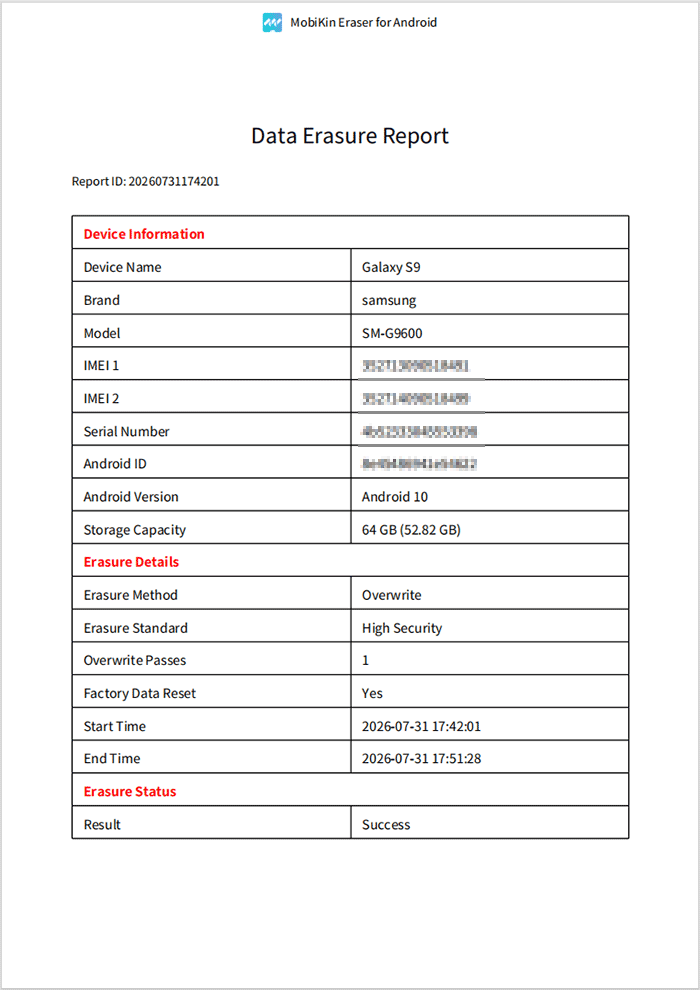
* Once the erasure process is complete, you can click the "Save Report" button to generate and store a detailed erasure report. This saved document allows you to later review the specifics of exactly which data entries were erased.
Video Tutorial: For a vivid guide, please check out the video below.
Drawbacks:
- Once erased, data cannot be recovered.
- Not free.
Part 6: How to Factory Reset ZTE Remotely
You can factory reset your ZTE phone without a password remotely using Google Find My Device, which helps secure your information if the phone is lost or stolen. However, be cautious, as this will wipe all data and settings. Hence, only do this if you suspect unauthorized access or if you've lost the device.
Reference Guide:
- Utilize a different phone that you can access.
- Launch the Find My Device application or navigate to the web portal to utilize the service.
- Enter your Google account credentials to log into your account.
- From the available list, select the device you wish to reset remotely and click on the "Erase Device" option.
- If prompted, sign back into your Google account.
- Click on the "Erase" button.
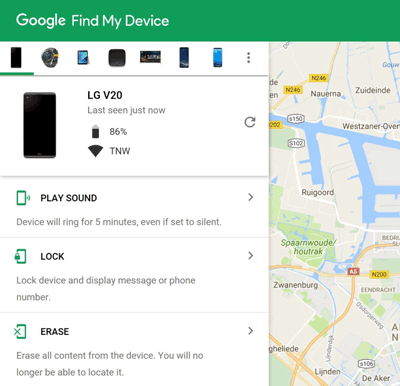
Note: Location services should be enabled on the device to allow it to be located by Google Find My Device. Further, if you have a screen lock, you may need to enter the PIN or password when prompted after the reset.
Drawbacks:
- Requires that the device is linked to a Google account, limiting access for some users.
- This method may not allow for a selective reset.
- If the device is turned off or not connected to the internet, the reset cannot be performed.
FAQs about Factory Resetting ZTE Phone
Q1. Why is my ZTE phone stuck during a factory reset?
A low battery, system error, or damaged software can cause the reset process to freeze. Try charging the phone and performing a forced restart; if the issue continues, Recovery Mode may help.
Q2. Does a factory reset remove the Google account from my ZTE phone?
The reset erases the account information stored locally on the device, but it does not necessarily remove the device from your Google account online. If FRP is enabled, you may need to enter the previously used Google account credentials after resetting.
Q3. Can I recover data after factory resetting a ZTE phone?
Recovery is difficult because a factory reset erases the phone's internal data. If you have a Google, cloud, computer, or other backup, you may be able to restore your information after the reset.
Q4. How long does a ZTE factory reset take?
Most factory resets take several minutes, although the first restart may take longer. Avoid interrupting the phone while it is erasing and rebooting.
Q5. Should I remove my SIM card before factory resetting my ZTE phone?
It is not normally necessary to remove the SIM card, but taking it out can prevent accidental changes or interruptions while resetting. An SD card may also need separate attention because a factory reset does not always erase its contents.
Q6. Can I cancel a factory reset once it starts?
It is generally not recommended to interrupt the process once data erasure has begun. Doing so may cause software problems or leave the phone in an unstable state.
Q7. Why does my ZTE phone ask for the previous Google account after a reset?
This is caused by Factory Reset Protection (FRP), a security feature that helps prevent unauthorized use of a reset device. You normally need to sign in with a Google account that was previously synced with the phone.
Q8. Does factory resetting fix a locked ZTE phone?
A factory reset can remove the screen lock and locally stored settings, but it does not necessarily bypass FRP. After resetting, the phone may still require the previously linked Google account.
Q9. What if my ZTE phone won't enter Recovery Mode?
Make sure the phone is powered off completely, then try the appropriate hardware-button combination for your model. If that does not work, check the specific ZTE model's recovery instructions or seek professional assistance.
Summing Up
Performing a factory reset on ZTE can be a great way to enhance its functionality and resolve various issues. Whether you opt for a reset through settings, recovery mode, or the rest method, the key is to choose the one that ensures a hassle-free procedure. You can do this by comparing their user guides and disadvantages.
Personally, for a comprehensive and permanent reset, just go for the MobiKin Eraser for Android. This powerful tool ensures that your data is completely wiped and unrecoverable, ideal for those who wish to start fresh or giving away their ZTE phones.
Related Articles:
ZTE Recovery Software - Recover Deleted Contacts/Messages/Photos on ZTE Phones
How Do I Transfer Contacts from My ZTE Phone to My Computer? The Answer Lies Here!
ZTE FRP Bypass: 5 Easy Options to Bypass FRP on ZTE Securely
How to Transfer Data from ZTE to Android? 4 Time-tested Methods
