
How to Fix Black Screen on Redmi Phone? 8 Basic Ways & 1 Expert Fix
"My Redmi is giving me a serious headache, my screen goes blank anytime I answer a call or try to make one. Please what do I do?" -- from facebook.com
When the Redmi shows no display, is unresponsive, or remains stuck on a blank screen even after pressing the Power button, it can be both confusing and frustrating for users. Knowing how to fix black screen on Redmi phone issues helps you quickly bring your device back to normal. This guide covers 9 practical methods and step-by-step solutions to get your Redmi functioning properly again.
- Part 1: Why Does My Redmi Phone Go Black
- Part 2: How to Fix Black Screen on Redmi Phone? 7 Basic Solutions
> Solution 1: Force Restart the Redmi Phone
> Solution 2: Charge the Phone
> Solution 3: Try Hardware Key Combinations
> Solution 4: Boot into Recovery Mode
> Solution 5: Remove SIM Card and SD Card
> Solution 6: Reset the Phone from Recovery
> Solution 7: Reinstall or Update MIUI Firmware
> Solution 8: Check for Hardware Issues - Part 3: What If Redmi Screen Is Still Black? [Ultimate Fix]
Part 1: Why Does My Redmi Phone Go Black
A Redmi phone going black can happen unexpectedly and may leave you unsure whether the issue is minor or serious. Before trying any fixes, it helps to understand the common causes behind this problem so you can choose the right solution:
- System crashes or software glitches that freeze the operating system.
- Battery depletion or charging issues preventing the phone from powering on properly.
- Failed system updates that corrupt the MIUI operating system.
- App conflicts or malware causing the device to become unresponsive.
- Hardware problems, such as a damaged display, loose screen connector, or faulty battery.
- Overheating or physical damage, which may affect internal components.
Part 2: How to Fix Black Screen on Redmi Phone? 7 Basic Solutions
Solution 1: Force Restart the Redmi Phone
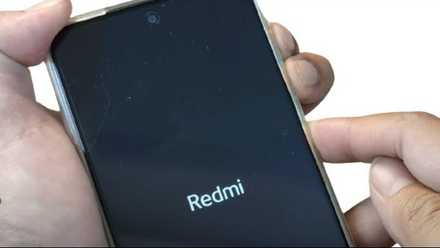
A force restart can resolve temporary system crashes that may cause the screen to remain black. Press and hold the Power button for about 10-20 seconds until the Mi logo appears. If the phone does not respond, try holding Power + Volume Up for several seconds until the device reboots.
Solution 2: Charge the Phone
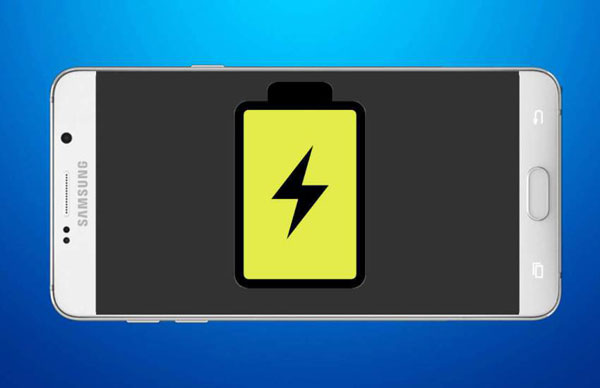
Sometimes a Redmi Note 13/12/11/14C/13C/12C/K/A/Turbo, etc., shows a black screen simply because the battery is completely drained. Connect the device to a charger and leave it for about 15–30 minutes before attempting to power it on again. After charging for a while, press and hold the Power button to see if the phone starts normally.
Solution 3: Try Hardware Key Combinations
You can also attempt a hard reboot using different button combinations:
- Power + Volume Up.
- Power + Volume Down.
- Power + Volume Up + Volume Down.
Hold the buttons for around 10–15 seconds until the Mi logo appears.
Solution 4: Boot into Recovery Mode
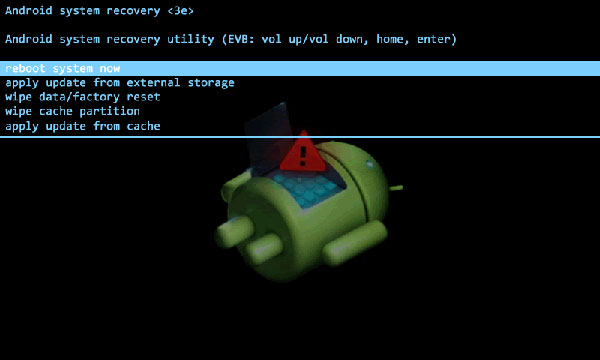
If the screen problem is caused by a system glitch, entering recovery mode may help fix it. Turn off the device first, then press and hold Power + Volume Up until the recovery screen appears. From there, choose the Reboot option and select Reboot to System to restart the phone.
Solution 5: Remove SIM Card and SD Card
External components can sometimes interfere with the phone's startup process. Remove the SIM card and SD card, then hold the Power button to restart the device. Once the phone boots normally, you can insert the cards again.
Solution 6: Reset the Phone from Recovery
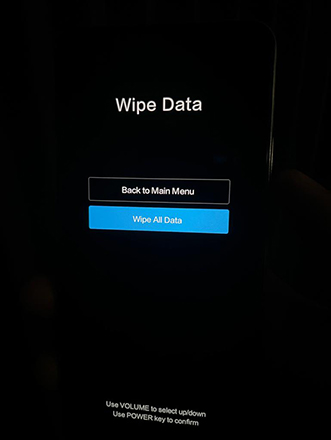
If the black screen persists, you may need to reset the device through recovery mode by selecting Wipe Cache, Factory Reset, Wipe All Data, or Reboot to System. These options can help fix deeper system errors, although a factory reset will erase all data on the phone.
Solution 7: Reinstall or Update MIUI Firmware
If the issue is caused by system corruption or a failed update, reinstalling the firmware can help:
- Boot the phone into Fastboot mode (Power + Volume Down).
- Connect the device to a computer.
- Use the phone flashing tool to install the official MIUI ROM.
- Wait for the flashing process to complete and reboot the phone.

Solution 8: Check for Hardware Issues
If none of the software fixes work, the problem may be hardware-related:
- Inspect for a damaged or loose display.
- Check if the battery is faulty or not charging properly.
- Look for signs of water or physical damage.
- Visit an authorized Xiaomi service center for professional repair.
Part 3: What If Redmi Screen Is Still Black? [Ultimate Fix]
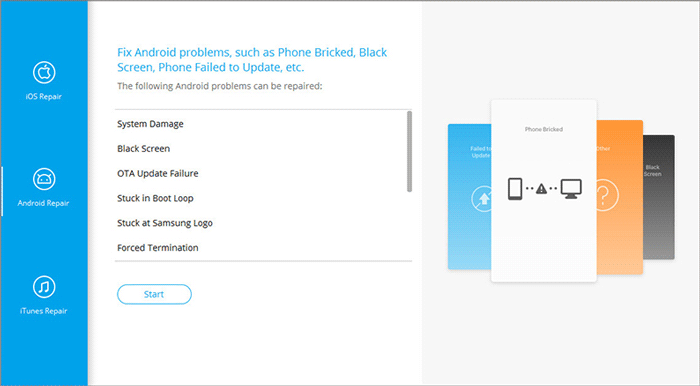
Experiencing a black screen on a Redmi phone can be frustrating, but Android Repair handles this issue with ease. The software repairs Android system problems quickly without needing root access or advanced technical skills. It also protects your data, ensuring Xiaomi, Redmi, and POCO devices are restored safely while keeping files intact.
Main Features of Android Repair:
> Fix Android issues like black screen, boot loop, and crashes.
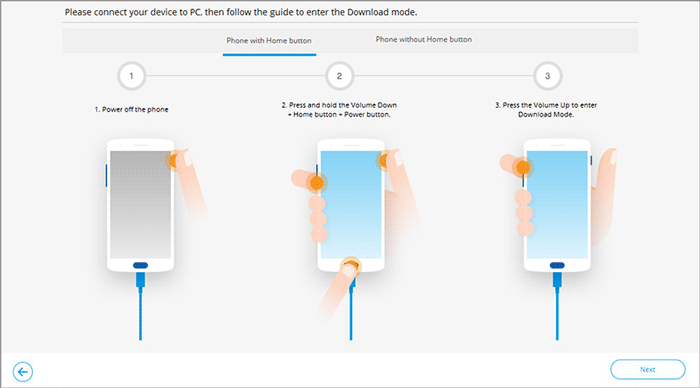
> Free Download Mode (Odin) access for Samsung devices.
> Supports Xiaomi, Redmi, POCO, and Samsung phones/tablets.
> No skills or root required, easy for anyone to use.
> No data loss for Xiaomi, Redmi, and POCO repairs.
> High repair success rate for quick restoration.
> Step-by-step instructions for simple operation.
> Compatible with most Android versions, including Redmi Note Series (Note 13/13 Pro/13 Pro+ 5G, Note 12/12 Pro/12 Pro+ 5G, etc.), Redmi Series (Redmi 14C/14R, 13/13C/13x 5G, 12/12C/12R, 11 Prime 5G, etc.), plus Redmi K, A, and Turbo Series.
How to fix black screen of death on Redmi with Android Repair?
- Download and install Android Repair on your computer. Connect your Redmi phone to the PC using a USB cable.
- Open the software and select System Repair > Android > Android Repair. This will initiate the process for repairing your device.
- When prompted, choose Redmi from the list. Click Start.
- This tool will automatically locate firmware packages that correspond to your Redmi model and current system. Review the available options, select the appropriate firmware, and click Download.
- Once the firmware is prepared, it will present detailed information about the device and firmware. Verify that all details are accurate, then click Fix Now.
- The tool will commence the repair of your device. After the repair process is finished, it will display a success message.
- Your Redmi will automatically restart, and the screen should now function normally.

Words in the End
Addressing a black screen on a Redmi phone doesn't have to be complicated. From simple restarts to recovery mode and firmware updates, each method offers a clear path to restoring your device. By understanding the reasons behind the problem and applying the appropriate fixes, you can ensure your Redmi returns to normal use safely and efficiently.
Related Articles:
5 Smart Tactics to Unlock Redmi Phone without Difficulty
6 Most Feasible Xiaomi Broken Screen Data Recovery Methods
Redmi Backup & Restore: 4 Ways to Back Up & Restore Redmi without Difficulty
iPhone Black Screen of Death? 9 Fixes Help You Resolve This Issue Easily
