
How to Recover Deleted Contacts on POCO? 4 Tried-and-true Approaches
Accidental contact loss on a POCO phone can be stressful, especially when switching SIM cards or encountering syncing errors with Google/MI Cloud. This guide explains how to recover deleted contacts POCO, ensuring sensitive contact information can be safely restored. It covers 4 productive and dependable ways to accomplish this, providing clear solutions to retrieve lost contacts efficiently.
- Option 1: Recover Deleted Contacts on POCO Phone via Google Contacts
- Option 2: Retrieve Deleted Contacts on POCO via Facebook App
- Option 3: Restore Deleted Contacts on POCO via SIM Card Import
- Option 4: Recover Deleted Contacts on POCO via MobiKin Program (Highest Success Rate)
- FAQs about Recovering Deleted Contacts on POCO
Option 1: Recover Deleted Contacts on POCO Phone via Google Contacts
Prerequistes:
- Contacts were previously synced with your Google account.
- Access to the Google account linked to your POCO phone.
Considerations:
- Deleted contacts stay in Trash for up to 30 days.
- Undo Changes can restore contacts beyond the Trash period, but will also undo recent edits.
- Requires internet connection for syncing restored contacts.
Quick User Guide:
- Open a web browser and visit contacts.google.com, then sign in to the Google account used on your POCO phone.
- Click "Bin" to view contacts deleted within the last 30 days.
- Find and select the contact(s) you want to restore.
- Click "Recover" to restore the selected contacts to your Google account.
- On your POCO phone, go to Settings > Accounts > Google > [Your Account] > Account Sync, and turn on Contacts sync.
- Open the Contacts app and wait for the restored contacts to sync and appear on your device.
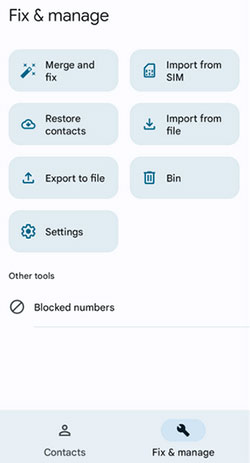
If you can't find your deleted contacts in the Google Contacts Trash or bin on your POCO phone, you can try the Undo Changes feature to restore your contacts to an earlier state within the last 30 days. This option allows you to roll back your contact list to a previous time, which may bring back contacts that are no longer in the trash. Keep in mind that using this feature will also undo any contact changes made after the selected time.
You May Also Like: 5 Practical Techniques to Transfer Contacts from POCO to POCO
Option 2: Retrieve Deleted Contacts on POCO via Facebook App
Prerequistes:
- Contacts were previously uploaded or synced to Facebook.
- Access to your Facebook account.
Considerations:
- Only contacts uploaded to Facebook can be restored.
- Recovery is manual, usually requiring re-saving contacts to the phone.
- Does not recover contacts that were never synced with Facebook.
Quick User Guide:
- Open the Facebook app on your POCO C, M, X, and F series.
- Tap the menu icon and go to Settings.
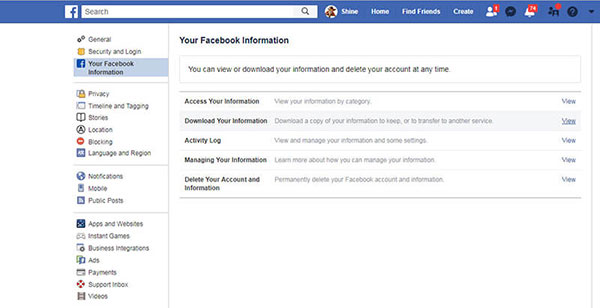
- Navigate to Account Center > Your Facebook Information > Access Your Information.
- Select Personal Information > Your Address Books to view the contacts previously uploaded from your phone.
- Browse the list and manually save the contacts back to your Contacts app.
Option 3: Restore Deleted Contacts on POCO via SIM Card Import
Prerequistes:
- Contacts were saved or synced to the SIM card before deletion.
Considerations:
- Only contacts stored on the SIM can be restored.
- Imported contacts may lack extra details (email, notes) not stored on the SIM.
- Works without internet and is simple to use.
Quick User Guide:
- Make sure the contacts you want to restore were previously saved or synced to your SIM card.
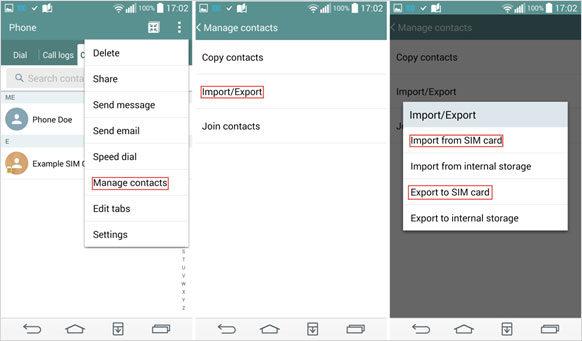
- Open Settings and go to System Applications > Manage Contacts/Contacts.
- Tap Import or Export and choose Import from SIM card.
- Alternatively, open the Contacts app, long-press the task key, enter Contact Settings, and select Import or Export Contacts.
- Select the contacts you want to restore and tap Import to save them back to your POCO phone.
Option 4: Recover Deleted Contacts on POCO via MobiKin Program (Highest Success Rate)
Prerequistes:
- A PC or laptop to run MobiKin Doctor for Android (Windows/Mac).
- USB debugging enabled on the POCO phone.
Phone must be recognized by MobiKin Doctor.
Considerations:
- Can recover contacts even without a prior backup.
- Some features may require the paid version.
- Recovery success may depend on whether the deleted contacts have been overwritten.
Core Features:
- Recover deleted contacts on POCO and other Android devices, including names, phone numbers, and emails.
- Retrieve multiple file types, such as messages, call logs, photos, videos, audio, music, documents, etc.
- Preview recoverable data before restoring to select only what you need.
- Flexible recovery options for selective file restoration.
- High compatibility with a wide range of Android devices and POCO models, such as POCO C, M, X, and F Series (e.g., C75/C71, M7 Pro/M6+, X7 Pro/X6 Neo, F7 Ultra/F7 Pro, etc.)
- User-friendly interface, simple enough for beginners with no technical skills required.
- Safe, read-only process that does not overwrite existing data.
- Fast scanning and recovery for efficient retrieval of deleted files.
Quick User Guide:
- Begin by downloading and installing MobiKin Doctor for Android on your PC.
- Launch the program, then connect your POCO phone via USB cable and follow the on-screen instructions.
- If prompted, enable USB debugging to establish the connection.
- Once your POCO is detected, all supported file categories will be displayed on the main interface.
- To recover deleted contacts, choose "Contacts" and click "Next" in the bottom-right corner.
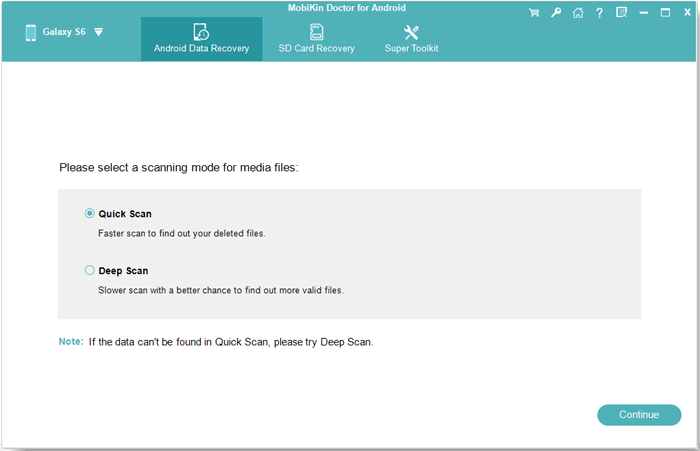
- Consider following the on-screen guidance to root your device - this allows for a more thorough scan.
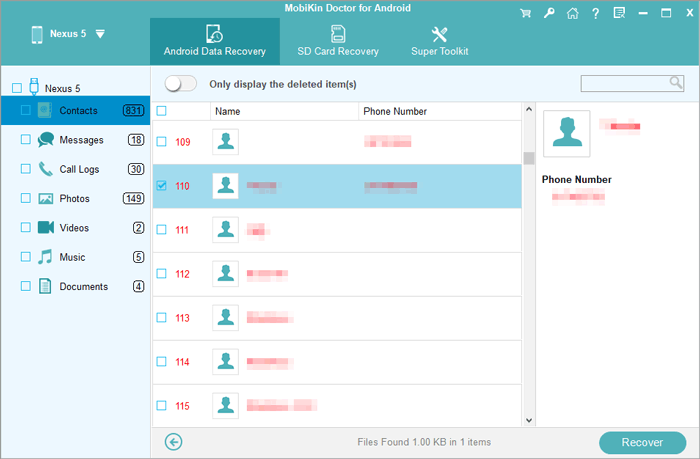
- After the scan completes, preview the recovered contact info, select the content you wish to restore.
- Finally, click "Recover" to save the stuff directly from your phone to your computer.


Video Tutorial:
FAQs about Recovering Deleted Contacts on POCO
Q1. How can I accidentally delete contacts on my POCO phone?
Contacts can be deleted by mistake through manual deletion, factory reset, SIM card removal, app errors, or sync issues with Google/MI Cloud.
Q2. Does MI Cloud backup help restore deleted contacts?
Absolutely. If your contacts were synced with MI Cloud, you can log in and restore them easily to your POCO phone.
Q3. Is it possible to recover contacts after uninstalling apps that saved them?
Yes. Some apps may temporarily store contact data. Using recovery software can help retrieve contacts even if the app was removed.
Q4. How long after deletion can contacts be recovered?
The sooner you attempt recovery, the better. Overwriting new data may make deleted contacts unrecoverable. Ideally, try recovery immediately after deletion.
Q5. Are free recovery apps reliable for POCO contacts?
Some are helpful, but free apps often have limited features. Professional tools may offer higher recovery rates and support more file types.
Q6. Can contacts deleted from WhatsApp or other apps be restored?
Yes, but these contacts need to be recovered from the app's backup or synced account, not directly from the POCO phone's contact list.
Q7. How can I prevent future contact loss on POCO phones?
Enable automatic backups to Google Contacts or MI Cloud, export contacts regularly, and avoid accidental deletions or factory resets without backup.
Q8. What is the most reliable way to recover deleted contacts on POCO?
Using a professional Android recovery tool like MobiKin Doctor for Android, combined with MI Cloud or Google backups, offers the safest and fastest recovery method.
Related Articles:
POCO Phone Frozen? Let's Fix It with 12 Clever Methods [2026]
4 Hassle-free Ways to Transfer Contacts from Computer to POCO
5 Simple Solutions to POCO Contact Backup & Restore [Verified]
