
5 Practical Techniques to Transfer Contacts from POCO to POCO
Upgrading to a new POCO device brings excitement, yet preserving your contact list often causes worry. Knowing how to transfer contacts from POCO to POCO ensures important personal or professional contact information isn't lost during the switch. This post outlines five smart strategies to make the process seamless, ranging from cloud syncing to direct device transfers.
- Option 1: Transfer Contacts from POCO to POCO via Transfer for Mobile [Seamless]
- Option 2: Sync Contacts with Another POCO Phone via Mi Cloud
- Option 3: Transfer Contacts from One POCO to Another via Share Contacts Feature
- Option 4: Transfer Contact List to Another POCO VCF via SIM Card
- Option 5: Transfer Contacts from POCO to POCO via Sync Phone Contacts
Option 1: Transfer Contacts from POCO to POCO via Transfer for Mobile [Seamless]
Moving contacts between two POCO phones can be done efficiently using MobiKin Transfer for Mobile (Windows/Mac). This tool enables direct device-to-device transfer without the need for exporting files manually. Users can select specific contacts or move all entries in one batch, which saves time.
It works smoothly across Android versions, ensuring that no data is lost during the process. Overall, it provides a reliable solution for quickly migrating contacts without extra steps.
|
Feature
|
Description
|
Relevance to POCO-to-POCO Transfer
|
|
One-Click Device-to-Device Transfer
|
Move data directly between two devices without intermediate storage. |
Allows transferring contacts from one POCO to another in a single click. |
|
Selective Data Transfer
|
Choose specific data types (contacts, messages, photos, etc.) for transfer. |
Users can transfer only contacts without moving unnecessary files. |
|
Cross-Android Compatibility
|
Supports a wide range of Android devices and versions. |
Ensures smooth transfer between different POCO models or Android versions. |
|
Fast and Secure Transfer
|
Data is moved quickly without risk of loss or corruption. |
Contacts are preserved accurately when moving to the new POCO. |
|
User-Friendly Interface
|
Simple steps with clear instructions for easy operation. |
Makes transferring contacts between POCO C, M, X, and F Series straightforward, even for beginners. |
Simple Guide:
- Download - Start by downloading and installing the free trial of Transfer for Mobile on your computer.
- After installation, launch the program to get ready for the transfer.
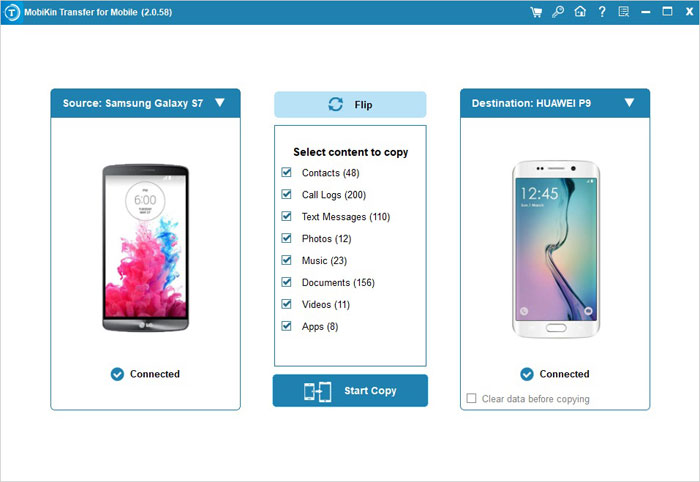
- Connect - Use USB cables to link both POCO phones to your computer. The software will detect the devices automatically, displaying all transferable data in the central panel. (If they are wrongly placed, click "Flip" on the screen)
- Select the types of data you want to move and click the "Start Copy" button in the middle of the interface. The transfer process will begin immediately and run smoothly.


Video Guide:
You Might Also Enjoy: Want to back up your POCO contacts before or after the transfer? Here are 5 easy techniques.
Option 2: Sync Contacts with Another POCO Phone via Mi Cloud
Backing up contacts to the cloud offers convenience, and Mi Cloud excels at this for POCO users. By syncing contacts to Mi Cloud, they can be accessed immediately on a new device signed into the same account. The process is automatic once enabled, reducing the need for manual intervention. It also keeps the contact list updated in real time across multiple devices. (Mi Cloud doesn't work?)
Simple Guide:
- On the old POCO, go to Settings > Mi Account > Mi Cloud.
- Enable Contacts sync and tap Sync now.
- On the new POCO, sign in with the same Mi Account.
- Go to Settings > Mi Account > Mi Cloud on the new phone.
- Enable Contacts sync and tap Sync now.
- Wait for the contacts to be restored on the new POCO.
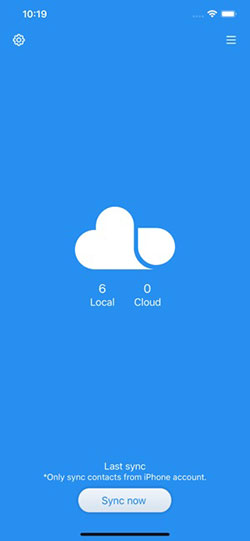
What should I do if my contacts don't appear on the new POCO phone? First, ensure you're signed into the same Mi Account and contact sync is enabled. Then, tap Sync now to force a refresh. If contacts still don't appear, check your internet connection and restart the phone.
Option 3: Transfer Contacts from One POCO to Another via Share Contacts Feature
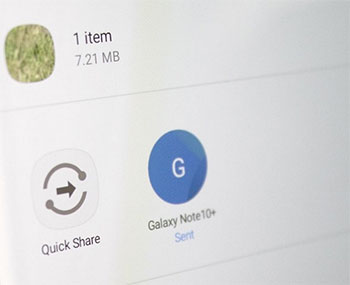
Nearby sharing features make transferring contacts simple, and the Share Contacts Feature leverages this for quick movement. After selecting contacts on the old phone, users can send them via Quick Share or compatible apps like ShareMe. The new device receives the contacts instantly without requiring cables. This method is especially practical when the two phones are physically close to each other.
Simple Guide:
- Open Contacts on the old POCO.
- Tap three dots > Settings (or Fix & manage) > Import/Export.
- Select Share contacts (or Export to .vcf file).
- Choose contacts or Select all, then tap Share/Export.
- Send via Quick Share, ShareMe, Google Drive, or Email. (Quick Share doesn't work?)
- On the new POCO, open Contacts > Import/Export.
- Choose Import from Storage (or .vcf file).
- Select the shared file and tap Import.
- Wait for contacts to appear on the new phone.
Option 4: Transfer Contact List to Another POCO via SIM Card
Physical storage on a SIM card remains a classic approach for moving contacts between POCO C75/C71/M7 Pro/M6+/X7 Pro/X6 Neo/F7 Ultra. Using the SIM Card, users export selected contacts to the card on the old device and import them on the new POCO. It avoids network dependency and works even in areas with limited internet connectivity. While slightly slower for large lists, it is a dependable offline method.
Simple Guide:
- On the old POCO, open Contacts.
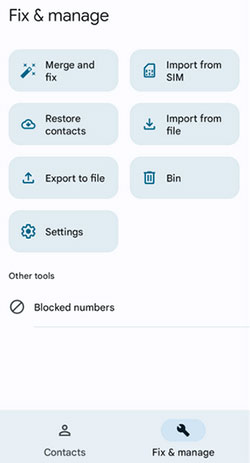
- Tap Fix & manage > Export to SIM (or similar option).
- Select the contacts you want to copy to the SIM and confirm Export.
- Remove the SIM from the old phone and insert it into the new POCO.
- On the new phone, open Contacts > Fix & manage > Import from SIM.
- Choose to import contacts to Device or Google account.
- Wait until all contacts are imported and appear on the new POCO.
Option 5: Transfer Contacts from POCO to POCO via Sync Phone Contacts
Synchronizing contacts directly with the phone's account ensures that entries are consistently updated, and Sync Phone Contacts takes advantage of this. By linking the contacts to a Google or Mi account, users can restore them on the new phone automatically. Any additions or edits are reflected across devices when the sync is active. This approach simplifies ongoing management while reducing the risk of missing contacts during transfers.
Simple Guide:
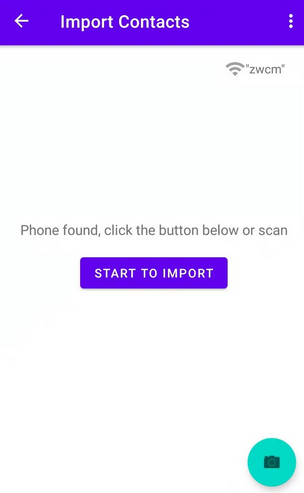
- Install Sync Phone Contacts on both POCO phones from Google Play.
- Connect both phones to the same Wi-Fi network.
- Open the app on both phones.
- On the old phone, tap Share/Send to generate a QR code of your contacts.
- On the new phone, tap Start to Import/Scan and scan the QR code from the old phone.
- Wait for the transfer to complete and check your Contacts app on the new phone.
- Keep phones close together and on the same Wi-Fi; restart the app if scanning fails.
In Closing
The modern smartphone experience isn't just about apps or cameras - it's also about keeping your network alive, intact, and ready. So, treat this transfer not as a chore, but as a small ritual that ensures your digital life stays uninterrupted. Before starting the transfer, double-check that all contacts are backed up in at least one location - cloud, SIM, or computer - to avoid accidental loss during the process.
Related Articles:
How to Transfer WhatsApp from POCO to POCO? 4 Trustworthy Ways
POCO Phone Frozen? Let's Fix It with 12 Clever Methods [2026]
How to Delete Contacts from POCO in 4 Easy & Secure Ways? [SOLVED]
4 Hassle-free Ways to Transfer Contacts from Computer to POCO
