
Fix WhatsApp Voice Messages Not Working on Android/iPhone in 11 Ways
TL;DR:
- WhatsApp voice messages failed to work and fixes range from granting permissions and restarting the app or phone to clearing cache and reinstalling.
- Sending or playback failures usually point to connectivity, Bluetooth, or server outages, while recording failures suggest permission or microphone conflicts.
- Back up your chats before reinstalling, and match the fix to whether you can't record, send, or hear voice messages.
"When I press and hold the voice message (voice note) function in WhatsApp it appears to be recording and sends a message but it's empty. There's no sound and the image of the sound volume is all a flat line." -- from forum.fairphone.com
Why Is WhatsApp voice message not working?
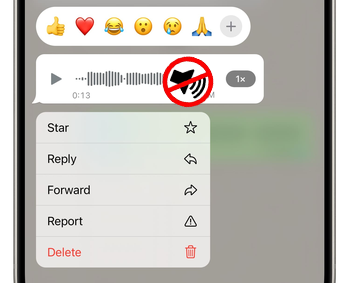
WhatsApp voice messages may fail to record, send, or play for several reasons, including microphone permission problems, network interruptions, insufficient storage, conflicts with other apps, etc. To fix this WhatsApp issue, check out the following 11 fixes for both Android and iPhone, starting with simple checks before moving on to more involved solutions.
Part 1: Fix WhatsApp Voice Messages Not Working in 11 Basic Ways
Fix 1. Grant WhatsApp the Required Permissions
If WhatsApp cannot access your microphone, you may be unable to record voice messages. Check its permissions in your phone's settings and allow microphone access.
- On Android: Open Settings > Apps > WhatsApp > Permissions > Microphone, then select Allow only while using the app. Menu names may vary by phone.
- On iPhone: Go to Settings > Apps > WhatsApp and turn on Microphone. On some iOS versions, you can find WhatsApp directly in Settings.
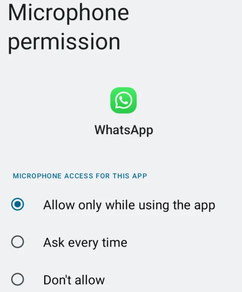
Return to WhatsApp and try recording a short voice message. If the microphone option is missing or access remains blocked, check whether a device-wide privacy setting is preventing microphone use.
You Might Enjoy: Android Phone Stuck in Headphone Mode? Reasons & 10 Time-tested Ways
Fix 2. Force Stop WhatsApp and Open It Again
Temporary app glitches can interrupt voice recording or playback. Closing and reopening WhatsApp may resolve the issue without changing your data. Close WhatsApp and remove it from your recent apps list.
- On Android, open Settings > Apps > WhatsApp and tap Force stop if the option is available. Launch WhatsApp again and test a voice message in a chat.
- On iPhone, swipe up from the bottom of the screen and pause to open the app switcher, then swipe WhatsApp away. Open it again and check whether the problem has disappeared.
Fix 3. Restart Your Phone
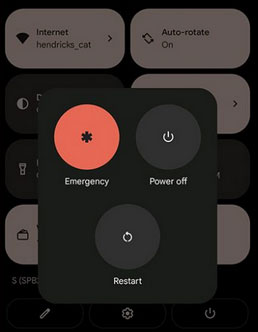
A temporary system glitch may prevent WhatsApp from accessing the microphone or playing audio properly. Restart your phone to refresh its system processes, then open WhatsApp and try recording or playing a voice message again.
- Android: Press and hold the power button, then select Restart. On some models, you may need to press the power and volume buttons together.
- iPhone: Open the power-off screen, turn off the phone, wait a few seconds, and turn it back on.
If the problem remains, move on to the next fix rather than repeatedly restarting the device.
Fix 4. Remove the Screen Protector or Phone Case
A screen protector or phone case that covers the proximity sensor can cause WhatsApp to switch audio playback to the earpiece unexpectedly. You might notice the screen going black or the voice message becoming difficult to hear when you hold the phone.
- Remove the screen protector or case temporarily, especially if it covers the sensor area near the front camera.
- Play a WhatsApp voice message while holding the phone normally.
- Check whether the screen stays on and the audio comes through the expected speaker.
- If the issue disappears, consider replacing the accessory with one that fits your phone properly.
Fix 5. Close Other Apps That Use the Microphone
Voice recorders, call-recording utilities, screen recorders, and active calls may compete with WhatsApp for microphone access. Close these apps before recording another voice message.
ing instead of transfe
- End any ongoing phone, WhatsApp, or third-party calling sessions.
- Stop active screen recordings and close voice-recording apps.
- Close communication tools that may be using the microphone.
- Reopen WhatsApp and record a short voice message.
Note: If the microphone still fails, test it with your phone's built-in Voice Recorder app. If recording also fails there, the issue may involve system permissions or the microphone hardware rather than WhatsApp alone.
Click to Learn: How to Fix iPhone Stuck in Headphone Mode? 18 Tips You Must Know
Fix 6. Check Your Internet Connection and Airplane Mode
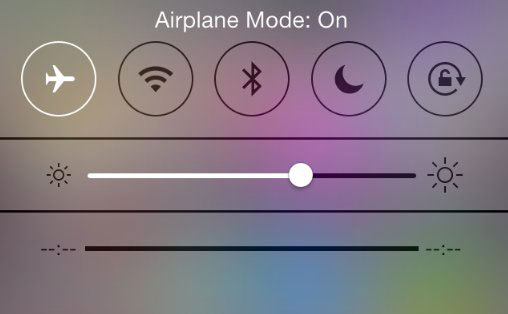
A weak or interrupted connection can prevent voice messages from uploading or downloading, even when recording works normally. Switch between Wi-Fi and mobile data to determine whether the current network is responsible.
- Open a webpage to check whether your internet connection is working.
- Switch from Wi-Fi to mobile data, or the other way around, and retry the voice message.
- Turn Airplane Mode on for about 10 seconds, then turn it off to reconnect to the network.
- If you're using mobile data, make sure WhatsApp is allowed to use it in your phone's settings.
- If messages remain stuck while sending or downloading, try another network. If you cannot record audio at all, check microphone access and other recording-related settings as well.
Fix 7. Check Your Phone's Available Storage
Insufficient storage may prevent WhatsApp from recording, saving, or downloading voice messages. Check how much space remains before deleting anything.
- Android: Open Settings > Storage. The exact menu name varies by manufacturer.
- iPhone: Go to Settings > General > iPhone Storage.
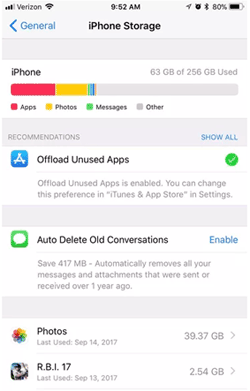
If storage is nearly full, remove unwanted downloads, duplicate files, or large videos you have already backed up. You can also review large WhatsApp media files under Settings > Storage and data > Manage storage, then delete items you no longer need. Avoid deleting important chats or media before backing them up.
Fix 8. Disconnect Bluetooth Devices
WhatsApp may send playback audio to connected wireless earbuds, headphones, a car stereo, or another Bluetooth device instead of your phone's speaker. This can make a voice message seem silent even when it is playing.
Turn Bluetooth off temporarily in your phone's quick settings or Settings app. Play the same voice message again and adjust the media volume. If the sound returns to the phone speaker, reconnect your Bluetooth device and check whether it is working properly.
Fix 9. Clear WhatsApp Cache on Android
Corrupted temporary files can sometimes interfere with WhatsApp features. On Android, clearing the app cache is a reasonable troubleshooting step that does not normally remove your chats or account data. (Can I retrieve lost cache files?)
- Open Settings on your Android phone.
- Tap Apps or Apps & notifications, then select WhatsApp.
- Choose Storage or Storage & cache.
- Tap Clear cache.
- Open WhatsApp and test your voice messages again.
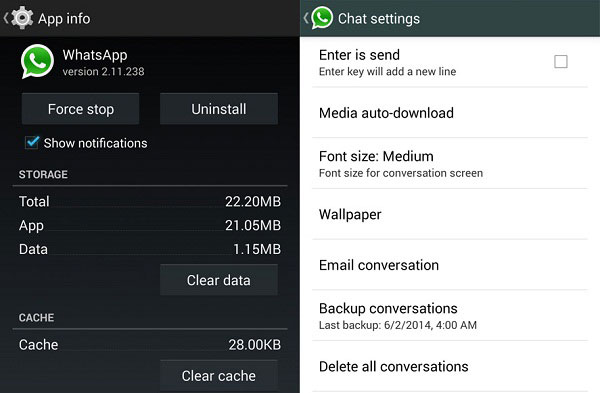
Important: Do not confuse Clear cache with Clear storage or Clear data. The latter options can remove local app data and may require you to set up WhatsApp again. iPhone does not offer the same per-app cache-clearing option, so skip this step if you use iOS.
Fix 10. Check Whether WhatsApp Is Experiencing an Outage
Sometimes voice messages stop working because of a server-side problem rather than anything on your phone. If you can record audio but cannot send or receive it, check whether other WhatsApp features are also affected.
- Check a service-status website to see whether other users have reported problems.
- Ask a friend whether WhatsApp messages are working normally for them.
- Try again after some time if reports suggest a widespread outage.
- Third-party status reports are based largely on user reports and do not confirm an outage by themselves. If WhatsApp is experiencing a service disruption, changing your phone's settings is unlikely to help; wait for the service to recover.
Fix 11. Update or Reinstall WhatsApp
An outdated app version may contain bugs that affect voice recording or playback. Start by installing the latest available update; reinstall the app only if the other fixes fail. Update WhatsApp first:
- Android: Open Google Play Store, search for WhatsApp, and tap Update if available.
- iPhone: Open the App Store, search for WhatsApp, and tap Update if available.
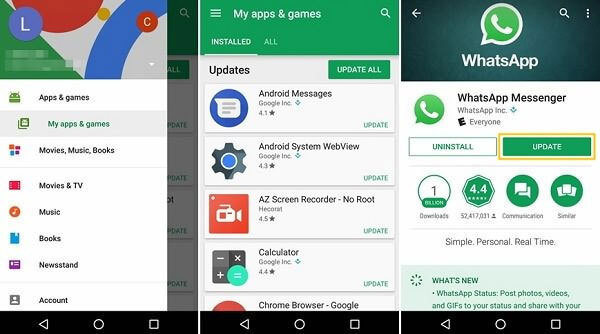
Important: If updating does not resolve the issue, back up your chats through WhatsApp's chat backup settings and confirm that the backup has completed before uninstalling the app. Then reinstall WhatsApp from the official app store and restore your chat history when prompted.
Part 2: Back Up WhatsApp to PC Before Reinstalling the App
Uninstalling WhatsApp without a usable backup may cause you to lose chat history that is not otherwise recoverable, so back up your conversations before reinstalling the app.
MobiKin WhatsApp Recovery for Android lets you back up WhatsApp conversations and related data from an Android phone to a computer, helping you keep a copy of important chats before troubleshooting. It provides a convenient way to preserve WhatsApp data locally, reducing the risk of losing valuable conversations during app maintenance.
This product supports over 8,000 Android devices, making it suitable for users with a wide range of phone models. It also prioritizes user privacy, with no collection of users' private information during the recovery process.
Safe Download (No ads, no bundles, & no background uploads):


Here's how to use this tool to back up Android WhatsApp locally:
- Download and install MobiKin WhatsApp Recovery for Android on your computer.
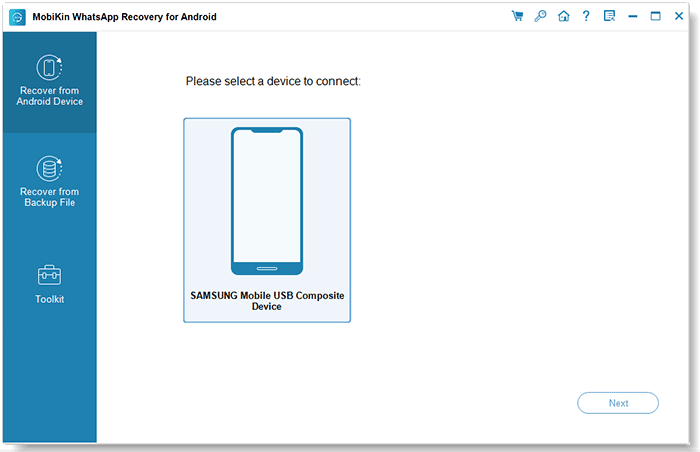
- Next, launch the program and select "Recover from Android Device" from the left panel.
- Connect your Android phone or tablet to the computer via a USB cable and enable USB debugging.
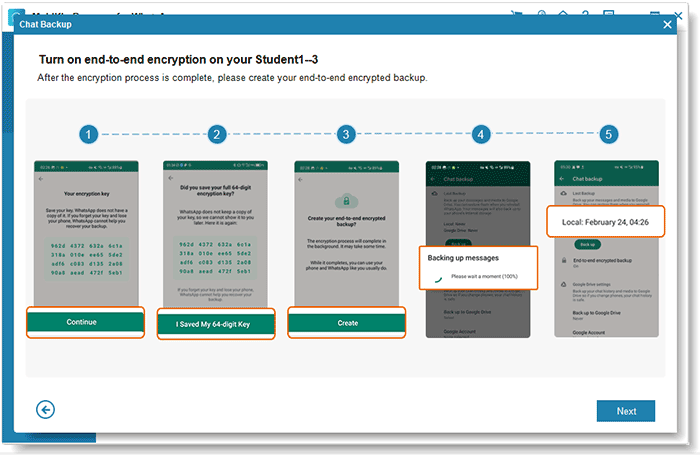
- Follow the on-screen instructions to turn off end-to-end encrypted backups, after which the software will automatically begin creating a backup.
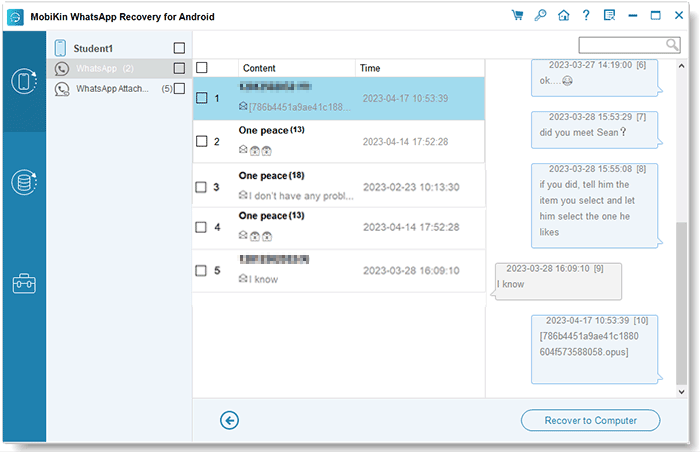
- Once the backup process is complete, you can view your WhatsApp chats and attachments directly on your computer.
- Use the preview feature to select the conversations or files you want to recover.
- Finally, click "Recover to Computer" to export the chosen WhatsApp data in your preferred format.
Video Tutorial:
Tips: MobiKin WhatsApp Recovery for iOS allows iPhone users to back up their WhatsApp chats and related data to a computer for safekeeping. Before reinstalling WhatsApp to fix voice messages that are not working, you can use this tool to preserve important conversations and reduce the risk of losing chat history. After confirming that your backup is accessible, reinstall WhatsApp and restore your chats if the available backup method supports it.
Conclusion - What Scenarios Does Each of the Above Fixes Apply to?
Not every WhatsApp voice message problem has the same cause, so choosing the right fix depends on whether you cannot record, send, or play audio. Refer to the table below to identify the most suitable solution for your situation and avoid trying unnecessary troubleshooting steps.
|
Fix
|
Applicable Scenario
|
|
1. Grant Permissions |
WhatsApp cannot record voice messages or access the microphone. |
|
2. Force Stop WhatsApp |
Voice recording or playback suddenly stops due to a temporary app glitch. |
|
3. Restart Your Phone |
WhatsApp audio features malfunction because of a temporary system issue. |
|
4. Remove Screen Protector |
The screen turns black or audio switches to the earpiece unexpectedly during playback. |
|
5. Close Other Recording Apps |
Voice messages cannot be recorded while other apps or calls are using the microphone. |
|
6. Check Network Connection |
Voice messages fail to send or download, or remain stuck during transmission. |
|
7. Check Phone Storage |
WhatsApp cannot record, save, or download audio because storage is nearly full. |
|
8. Disconnect Bluetooth |
Voice messages play silently or sound comes through the wrong audio device. |
|
9. Clear WhatsApp Cache |
Temporary cached files may be causing WhatsApp problems on Android. |
|
10. Check WhatsApp Servers |
Voice messages fail alongside other WhatsApp features, suggesting a possible service outage. |
|
11. Update or Reinstall WhatsApp |
The problem persists after basic troubleshooting, possibly due to an outdated or faulty app installation. |
Related Articles:
How to See Deleted Messages on WhatsApp in 7 Ways? [Android/iOS]
4 Time-tested Approaches to Transfer WhatsApp Business to a New Phone
Where Is WhatsApp Backup Stored on Different Platforms? [Exact Locations]
How to Fix Chat Lock Not Showing in WhatsApp? 7 Effective Ways Here
