
Is a Second-Hand iPhone as Secure as a New One? Everything You Should Know
TL;DR:
A second-hand iPhone can be as secure as a new one if it still receives security updates, has no unauthorized modifications or hardware issues, and is properly erased.
- Before buying, check its iOS version, Activation Lock, IMEI, battery health, hardware condition, and proof of ownership to avoid stolen or problematic devices.
- After purchase, factory reset the iPhone, update iOS, sign in with your own Apple Account, and strengthen its privacy settings
- If preparing it for resale or adding additional security, try MobiKin Eraser for iOS now.
NOTE: Always buy a second-hand iPhone from a reputable retailer or seller who can provide proof of ownership, such as an original receipt or purchase record. Avoid devices reported as lost or stolen, and verify the IMEI and Activation Lock status before paying to ensure the phone is legally transferable.
Buying a second-hand iPhone can save money, but it may also raise concerns about outdated software, leftover personal data, unauthorized modifications, and hidden damage. (Can I update iPhone firmware without WiFi?)
Fortunately, a used iPhone isn't automatically less secure than a new one. Its safety depends on its software support, previous usage, and condition. This guide is all about 'is second-hand iPhone as secure as new one', explaining the risks, checks to perform before buying, and ways to protect your privacy.
- Part 1. Is a Second-Hand iPhone as Secure as a New One?
- Part 2. What Are the Security Risks of Buying a Second-Hand iPhone?
- Part 3. How to Check Whether a Second-Hand iPhone Is Safe Before Buying
- Part 4. How to Make a Second-Hand iPhone as Secure as a New One
- Part 5. How to Permanently Erase Data from a Second-Hand iPhone
- Part 6. Is Buying a Second-Hand iPhone Worth It?
- FAQs About Second-Hand iPhone Security
Part 1. Is a Second-Hand iPhone as Secure as a New One?
A second-hand iPhone can be just as secure as a new one if it receives security updates, runs standard iOS, and has been properly erased. Its previous ownership alone doesn't make it unsafe.
However, outdated software, unknown configuration profiles, or unauthorized modifications can increase security risks. Always check the device's actual condition rather than judging it by age or ownership history.
You May Like: [Solved] How to Remove Apple ID from a Stolen iPhone Without Password?
1.1 Second-Hand iPhone vs. New iPhone: Security Comparison
Both new and used iPhones benefit from Apple's security features, but their starting conditions differ.
|
Security aspect
|
Second-hand iPhone
|
New iPhone
|
|
iOS updates
|
Depends on model support |
Eligible for updates |
|
Previous data
|
Requires proper erasure |
No previous-owner data |
|
Software
|
May have modifications |
Standard iOS |
|
Activation Lock
|
Must be checked |
No previous-owner lock |
|
Hardware
|
May have damage or repairs |
Unused |
|
Battery
|
May be degraded |
New |
|
Warranty
|
May be limited |
Usually includes new-device coverage |
A new iPhone offers a cleaner starting point, but a properly inspected, reset, and updated used model can provide comparable everyday security.
Part 2. What Are the Security Risks of Buying a Second-Hand iPhone?
A pre-owned iPhone may have problems caused by outdated software, previous usage, improper repairs, or incomplete refurbishment. Knowing these risks can help you avoid a poor purchase.
|
Security risk
|
Potential problems
|
What to check
|
|
Outdated iOS
|
Unsupported iPhones may miss security patches and remain vulnerable to newly discovered flaws. |
Check whether the model still receives iOS security updates. |
|
Leftover personal data
|
Photos, messages, contacts, and saved accounts may remain on the device. |
Ask the seller to erase all content and settings. |
|
Jailbreaking and unauthorized modifications
|
Jailbreaking may weaken iOS protections, while unknown profiles may introduce unwanted restrictions or settings. |
Check for unfamiliar apps and profiles under Settings > General > VPN & Device Management. |
|
Activation Lock and stolen devices
|
You may be unable to activate an iPhone linked to the previous owner's Apple Account. |
Confirm that the previous owner has signed out and removed Activation Lock. |
|
Hardware damage and unauthorized repairs
|
Drops, water exposure, or poor-quality replacement parts may affect the screen, battery, camera, Face ID, or Touch ID. |
Inspect the hardware and check Settings > General > About > Parts and Service History, if available. |
|
Poor battery health
|
An aging battery may drain quickly, cause unexpected shutdowns, or reduce performance. |
Check Settings > Battery > Battery Health and ask about previous replacements. |
Part 3. How to Check Whether a Second-Hand iPhone Is Safe Before Buying
Before purchasing a used iPhone, check its software, account status, hardware, and seller. Use the following table as a quick inspection checklist.
|
What to check
|
How to check
|
Warning signs
|
|
iPhone model and iOS version
|
Go to Settings > General > About and check the model and iOS version. Visit Apple's website to verify update support. |
The model no longer receives security updates. |
|
Activation Lock
|
Ask the seller to sign out of their Apple Account, disable Find My, and erase the device. Try the initial setup. |
The iPhone requests the previous owner's Apple Account credentials. |
|
IMEI and serial number
|
Find them under Settings > General > About. You can also dial *#06# to display the IMEI on many models. Compare the details with purchase documents or check with the carrier. |
The device is reported lost, stolen, or blocked. An IMEI check alone cannot prove ownership or confirm Activation Lock status. |
|
Battery and hardware
|
Check Settings > Battery > Battery Health. Test the screen, cameras, speakers, buttons, charging port, Wi-Fi, Bluetooth, Face ID, and Touch ID. |
Poor battery health, malfunctioning components, or questionable repair history. Check Parts and Service History if available. |
|
Jailbreaks and configuration profiles
|
Look for unfamiliar apps and visit Settings > General > VPN & Device Management to inspect profiles. |
Unknown apps, unexplained profiles, or unauthorized modifications. These checks cannot confirm whether the phone was previously jailbroken. |
|
Seller reputation and warranty
|
Check seller reviews, warranty coverage, return policies, and proof of ownership. Ask about the device's repair history. |
No proof of ownership, refused inspections, unclear warranty terms, or pressure to pay immediately. |
Part 4. How to Make a Second-Hand iPhone as Secure as a New One
After confirming that the iPhone has no obvious ownership or hardware issues, secure it before storing personal information. These five steps provide a good starting point.
4.1 Perform a Complete Factory Reset
A factory reset removes the previous owner's locally stored data, settings, and apps. First, make sure their Apple Account and Activation Lock have been removed.
- Go to Settings > General > Transfer or Reset iPhone > Erase All Content and Settings.
- Follow the instructions and choose whether to erase the eSIM, depending on your needs.
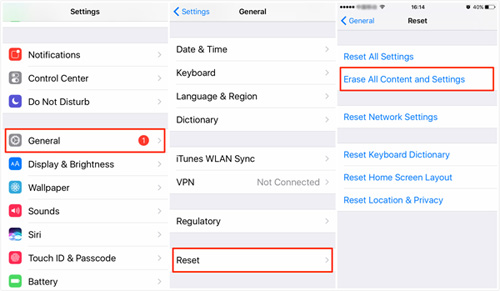
Afterward, the iPhone should restart and display the Hello screen. See Apple's erasing instructions for details.
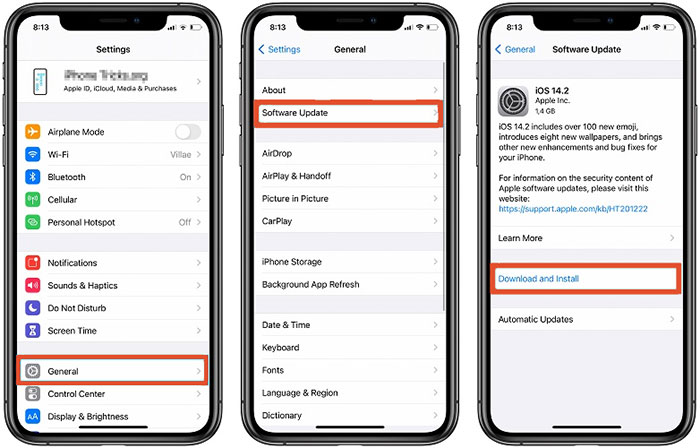
4.2 Update iOS to the Latest Available Version
iOS updates fix known vulnerabilities and improve system stability.
- Connect to Wi-Fi, then open Settings > General > Software Update.
- Install available updates and consider enabling automatic updates. (What if the update failed?)
- If your model no longer supports the latest major iOS version, check whether it still receives security patches.
4.3 Set Up a New Apple Account or Sign In Securely
Sign in with your own Apple Account rather than using the previous owner's account.
Use a strong, unique password and enable two-factor authentication. Also check your trusted devices and remove any you don't recognize.
4.4 Strengthen Your iPhone's Privacy Settings
- Set a strong passcode and enable Face ID or Touch ID. These features help prevent unauthorized access if your phone is lost or stolen.
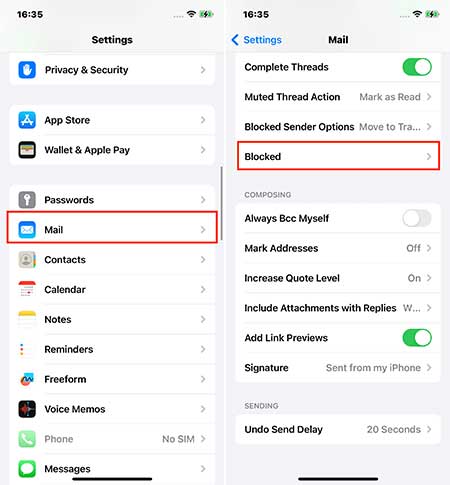
- Then visit Settings > Privacy & Security to review app access to your location, photos, contacts, camera, and microphone. Enable Find My iPhone and Stolen Device Protection where available.
4.5 Monitor the Device for Unusual Activity
Watch for unfamiliar apps, unexpected pop-ups, unusual account notifications, or settings changes. These signs don't necessarily indicate a compromise, but they should be investigated.
You can also review battery and mobile data usage for unusual app activity. Back up important information regularly using iCloud or a trusted computer.
Part 5. How to Permanently Erase Data from a Second-Hand iPhone
MobiKin Eraser for iOS is a Windows and Mac program that helps erase personal information from iPhones, iPads, and iPods. Supported data types include contacts, messages, call history, calendars, notes, photos, and videos. It offers three erasure levels: Low, Medium, and High. Its main functions include:
- Erase personal data: Remove supported contacts, messages, photos, videos, and other files.
- Offer three security levels: Choose Low, Medium, or High.
- Overwrite data: Medium and High modes include additional overwriting operations.
- Prepare devices for resale: Help erase personal information before transferring ownership.
- Won't collect users' private data.
These features may be useful when preparing your own device for resale. Visit the official MobiKin Eraser for iOS (Windows/Mac) page for more information.
Safe Download: No ads, bundled software, or background uploads.


What Can't MobiKin Eraser for iOS Do?
MobiKin Eraser for iOS is a data-erasure tool, not a complete iPhone security or repair solution. It:
- Cannot bypass Activation Lock.
- Cannot remove another person's Apple Account without their cooperation.
- Cannot repair physical damage or improve battery health.
- Cannot make unsupported iPhones eligible for new iOS updates.
Important: This tool is more relevant when preparing an iPhone you own for resale. Buyers should ask sellers to complete Apple's official sign-out and erase process first.
5.2 How to Use MobiKin Eraser for iOS to Wipe an iPhone
Follow these steps to erase personal information before transferring your iPhone:
Step 1. Connect Your iPhone to the Computer - Download, install, and launch MobiKin Eraser for iOS. Connect your iPhone or iPad using a USB cable. Unlock the device and tap Trust This Computer if prompted, then click Continue in the program.
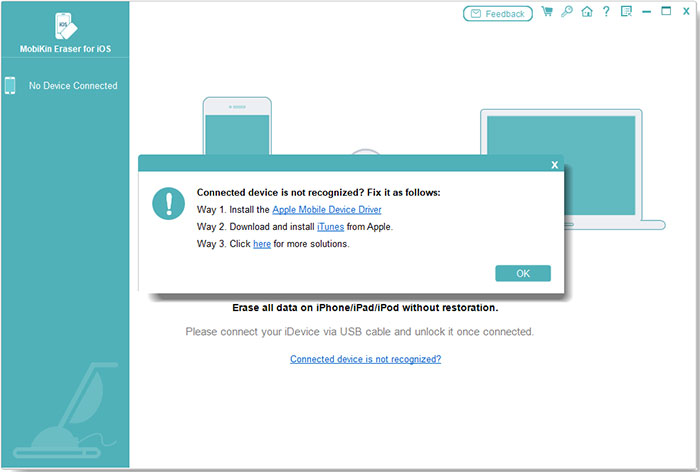
- If the device isn't recognized, try reinstalling the Apple Mobile Device Driver or installing the desktop version of iTunes.
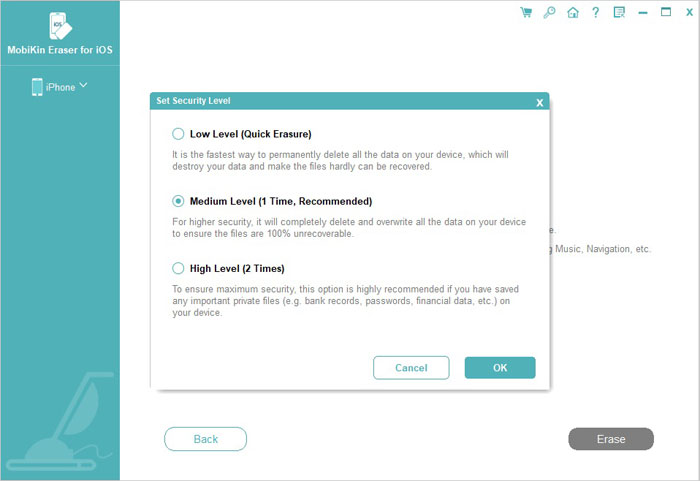
Step 2. Select an Erasure Level - Click Erase in the main interface. Close iTunes if prompted and turn off Find My iPhone if the program requests it. Next, choose Low, Medium, or High security level and click OK. Type delete in the confirmation box and click Erase to continue.
Step 3. Reset Your iPhone - The program will ask whether your device has already been reset.
- If not: Select No, the device has not been reset and follow the on-screen instructions to choose Settings > General > Transfer or Reset iPhone > Erase All Content and Settings. After restarting and completing setup, reconnect your device to the software.
- If already reset: Select Yes, the device has been reset and follow the confirmation prompts.
- Once your device is detected again, select the erasure level, enter delete, and click Next to proceed.

Step 4. Erase and Overwrite iPhone Data - MobiKin Eraser for iOS will begin erasing and overwriting your device data according to the selected security level. Based on the supplied instructions, Medium performs one overwrite, while High performs two. Low does not include these additional overwrite operations.
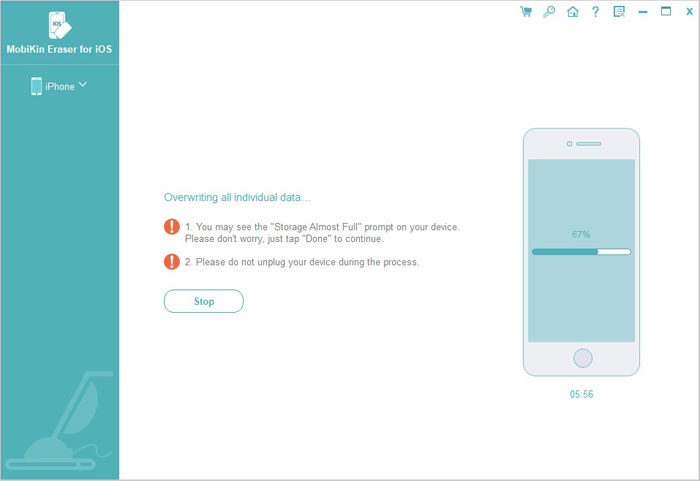
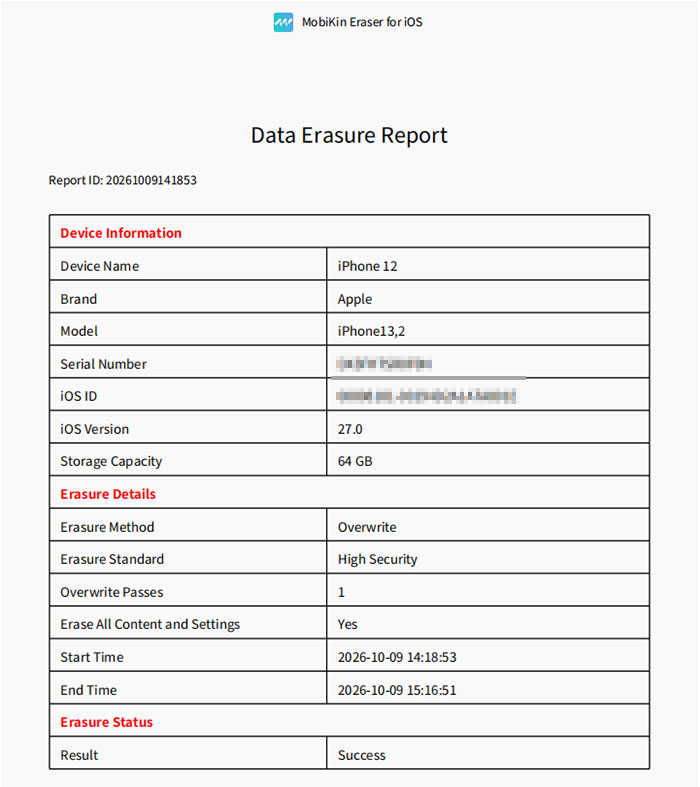
- Wait for the process to finish without disconnecting your device. You can also click Save Report to export the erasure details, including the selected security level and operation status.
Learn how to use this tool visually:
Part 6. Is Buying a Second-Hand iPhone Worth It?
Overall, a second-hand iPhone is worth buying if it has a reasonable price, good hardware condition, and ongoing security support. Here are more details:
|
Worth buying if...
|
Not worth buying if...
|
|
You want an iPhone at a lower price. |
The price is close to that of a new model. |
|
It still receives iOS security updates. |
It no longer receives security patches. |
|
Battery health is satisfactory. |
The battery drains quickly or needs replacement. |
|
The previous owner's Apple Account is still linked. |
|
|
Hardware works properly. |
It has hidden damage or questionable repairs. |
|
The seller offers a return policy or warranty. |
The seller refuses inspection or proof of ownership. |
FAQs About Second-Hand iPhone Security
Q1. Can a second-hand iPhone contain malware?
Yes. Jailbreaking or unauthorized modifications may weaken iOS protections and expose the device to malicious apps. Check for suspicious profiles, factory reset the phone, and install available updates.
Q2. Can the previous owner access my data on a second-hand iPhone?
Generally, no, once their Apple Account has been removed and the device properly erased. Sign in with your own account, enable two-factor authentication, and review your trusted devices.
Q3. Is it safe to buy a second-hand iPhone without a receipt?
It can be, but verifying ownership is harder. Ask for other proof of purchase, check the IMEI with the carrier, and confirm Activation Lock is disabled. Avoid sellers who refuse inspection.
Q4. Does factory resetting a second-hand iPhone remove viruses?
A factory reset generally removes ordinary malicious apps, user data, and settings. However, it cannot guarantee protection against every possible compromise. Install the latest supported iOS version afterward.
Q5. How do I know if a second-hand iPhone has been jailbroken?
Look for unfamiliar apps, unusual system behavior, and unknown profiles under Settings > General > VPN & Device Management. These checks aren't conclusive, so buy from a reputable seller and reset the device.
Q6. Can deleted data be recovered from a second-hand iPhone?
It depends on how the data was deleted and whether the device was properly erased. Apple's Erase All Content and Settings removes the encryption keys protecting locally stored user data, making ordinary recovery impractical. For an additional erasure option when preparing your own iPhone for resale, consider MobiKin Eraser for iOS.
Related Articles:
[8 Tips] What to Do before Getting a New iPhone 18/17/17 Pro/Air
How to Set Up New iPhone from Old iPhone? 4 Methods & FAQs
What to Do with Old iPhone after Transfer [7 Tips to Follow]
How to Unlock A Disabled iPhone without iTunes or iCloud: 3 Easy Ways