
LG to LG Transfer: How to Transfer Data from LG to LG in 4 Ways
TL;DR:
This page presents four practical solutions for moving data from one LG phone to another, covering MobiKin Transfer for Mobile, MobiKin Assistant for Android, LG PC Suite, and LG's built-in Local Backup.
- Each option varies in compatibility, supported data types, and whether it relies on a computer or works directly between phones.
- Review the cons of each method to pick the safest and most convenient way to complete your LG to LG transfer.
Cellphones are a basic necessity for daily communication. For LG users, the satisfaction derived from LG makes it necessary to upgrade to a new LG phone, with expectations of new, impressive sense of design and high camera pixels. At this point, you may want to send corporate contacts to the new LG, or simply move all the contacts, SMS, photos, etc., from the old LG to the new. Now, it's time to think about how to transfer data from LG to LG.
Want to find an easy and safe approach to accomplish the LG to LG data migration? OK, this easy guide will get you up and running.
- Solution 1: How to Transfer Data from LG to LG Using Transfer for Mobile [Worth a Shot]
- Solution 2: How to Perform LG to LG Transfer with Assistant for Android
- Solution 3: How to Transfer Data from One LG Phone to Another LG via LG PC Suite
- Solution 4: How to Transfer Data from LG to LG via Local Backup
Solution 1: How to Transfer Data from LG to LG Using Transfer for Mobile [Worth a Shot]
Just imagine if there is a utility that performs secure and stable data transfer. It is not limited to mobile platforms, copies stuff without limitation, and also provides a trial version. Would you like to know more about it? OK, this software is MobiKin Transfer for Mobile (Windows and Mac).
This full-fledged software is quickly becoming a go-to solution for both Android and iOS users. It is comparatively easier to do LG to LG transfer. So you don't need to be an Android whiz, and can conduct the data transfer without any trouble.
Brief overview of MobiKin Transfer for Mobile:
1. Transfer data from one LG phone to another LG flawlessly with simple mouse clicks.
2. Migrate content between two Android devices, two iOS devices, and even transfer from Android to iOS, or vice versa.
3. Move such data as contacts, call logs, SMS, music, videos, images, documents, apps, notes, bookmarks, etc. between two devices.
4. One-touch to copy files in a jiffy.
5. Do a lot better than LG official tools for LG to LG transfer, as this program is absolutely safe with a clean interface and a stable transfer procedure.
6. Work well with almost all Android devices.
7. Won't track users' private data.
Safe Download (Clean):


How do I make LG transfer to new phone using MobiKin Transfer for Mobile?
Step 1. Install and run Transfer for Mobile
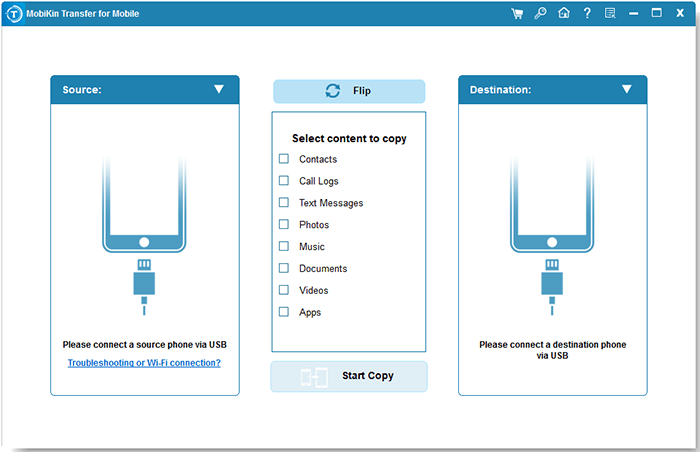
Ensure that the LG transfer tool is installed on a computer. Then start the software and you will see its initial interface. Now you'll be asked to connect both LG devices to the PC via USB cables.
Step 2. Get the main interface of the program
After the connection, you should make your phones identified by the utility. Just follow the simple on-screen hints to do that. Soon, the main interface of this tool will take on as below.
Step 3. Initiate LG to LG data transfer
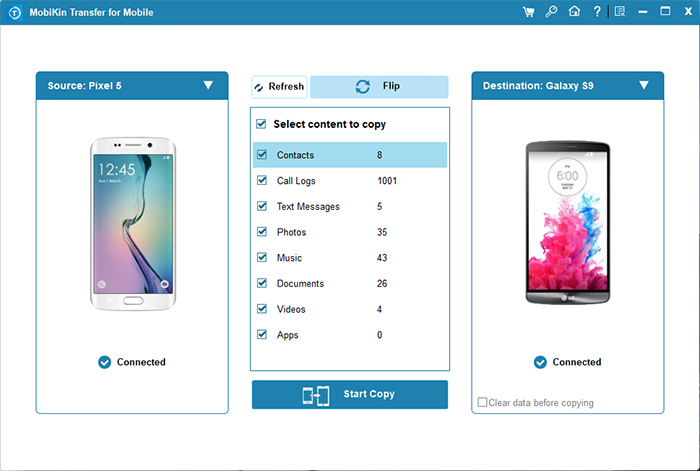
Make sure the destination device is the target LG (otherwise, simply click "Flip" to switch their positions). Then mark the data that you need to transfer from the file list and hit "Start Copy" to proceed. Your phone data will be transferred soon, and there will be a prompt at the end when the transfer is finished.
Note: After LG data is moved, if you want to donate/resell your old LG, we advise you to erase your LG phone permanently at first.
Cons:
- Requires a computer and USB connections.
- Won't work for Android 6.0 or older versions.
You May Be Interested in:
Solution 2: How to Perform LG to LG Transfer with Assistant for Android
Here's another program - MobiKin Assistant for Android (for both PC and Mac users). With performing countless infallible tasks, it can be made full use of without scruple. It lets you back up files from an LG to computer with its "Backup" feature.
And then move the files from backup to another Android using its "Restore" function. And of course, it can do that through its "Export" and "Import" features. Again, it does more jobs for you on advanced management for contacts, music, apps, etc.
Safe Download (Clean):
How do I transfer data from LG to LG with MobiKin Assistant for Android?
Step 1. Click either of the buttons as required to download it on computer. Then install and run it. Next, get your source LG attached to computer via a USB cord.
Step 2. Now you can see some clear instructions on the screen. Just follow them to let the program recognize your phone. After that, you should tap "Super Toolkit" from the top menu of the main window. This click will bring you about "Backup" and "Restore" below "Essential".
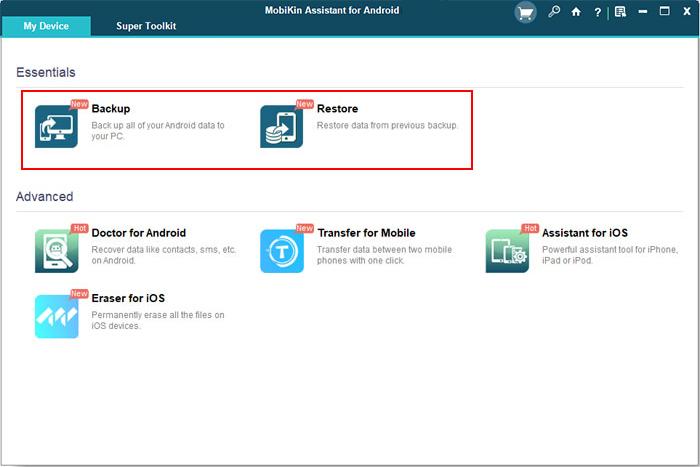
Step 3. Tap "Backup", and you'll see the data list for backup. Just choose your wanted data type(s) and locate a folder on computer to save them. Then click "Back Up" to put data to computer. Once done, unplug the linked LG phone.
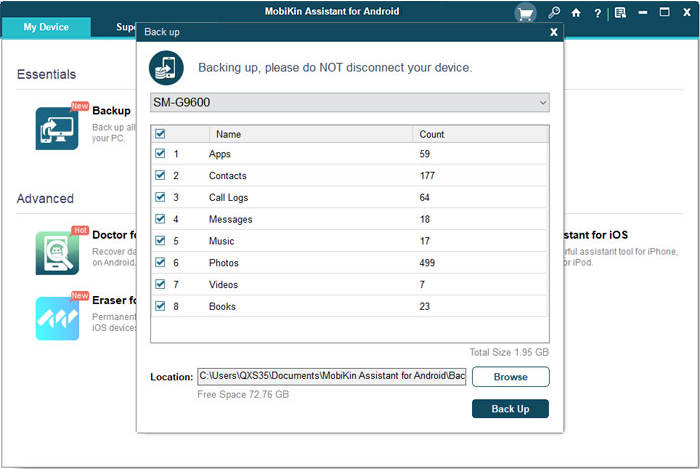
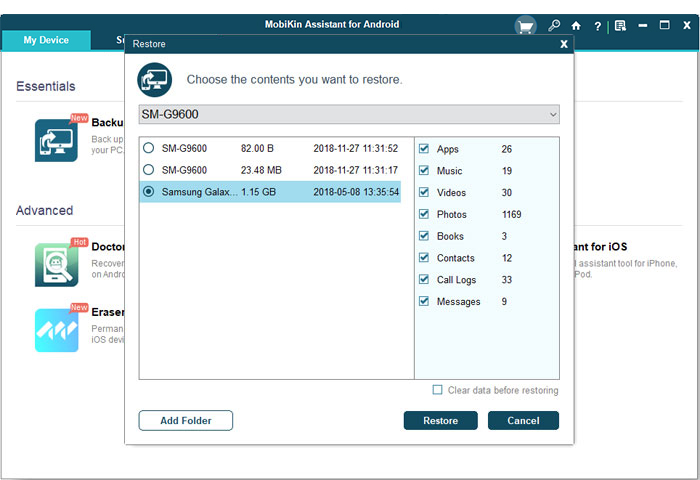
Step 4. Connect the destination LG to the same computer. After recognition, go to "Super Toolkit" > "Restore" to see the backup records. Then choose what you need, and click "Restore" again to transfer them to the connected LG.
Cons:
- Requires a computer and USB debugging for full device access.
- Direct phone-to-phone migration may be less straightforward than with dedicated transfer software.
More Related:
Solution 3: How to Transfer Data from One LG Phone to Another LG via LG PC Suite
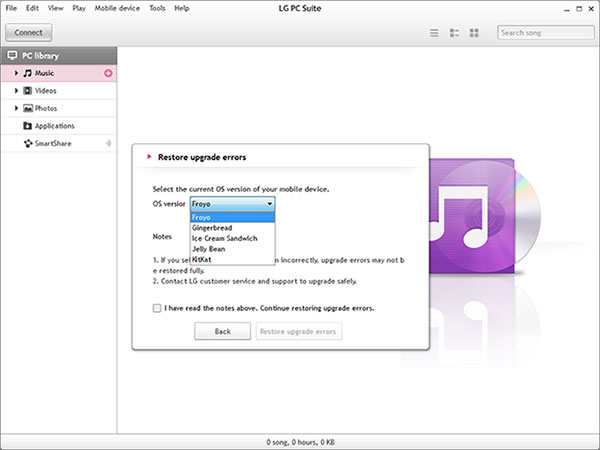
You can transfer data from one LG phone to another through LG PC Suite's backup and restore functions, provided both devices are compatible with the software and the backup format. One important limitation: LG PC Suite does not support every LG model or Android version, and a backup created from one phone may not be fully restorable to another. Check compatibility before starting.
Below is how to transfer files from one LG phone to another via LG PC Suite:
- Install a version of LG PC Suite compatible with your old LG phone on your Windows computer. Prepare a working USB cable and charge both phones sufficiently.
- Connect the source phone to the computer using USB. If prompted, select PC Suite as the USB connection mode and wait for the software to recognize your device.
- In LG PC Suite, open Back up/Restore device (or the equivalent Backup menu), select Backup, choose the available data categories, and click Start Backup. Wait until the process finishes.
- Safely disconnect the old phone and connect the destination phone. Confirm that LG PC Suite recognizes it and that the phone supports the software's restore function.
- Open Back up/Restore device, choose Restore, select the backup created just now, and click Start Restore. If prompted, select the data categories you want to restore and wait for completion.
Cons:
- Supports only compatible older LG phone models.
- Cross-model backup restoration may be limited.
- Some data types may require manual transfer.
Solution 4: How to Transfer Data from LG to LG via Local Backup
LG Backup lets you take a backup for your call reject lists, messages, photos, videos, user apps, etc. You can back up your old LG phone and restore what you want to the new handset. Besides, there is no need to download this LG to LG transfer app to the devices in advance, since it is a built-in feature of LG mobiles.
How can I perform LG transfer to new LG phone via LG Backup?
Step 1. On your old LG phone (sender), head to "Settings" > "General" > "Backup & Reset" > "LG Backup". Here, you should first perform a backup for this phone. You're allowed to insert an SD card, and back up data on it, or just sync files to LG cloud as you like.
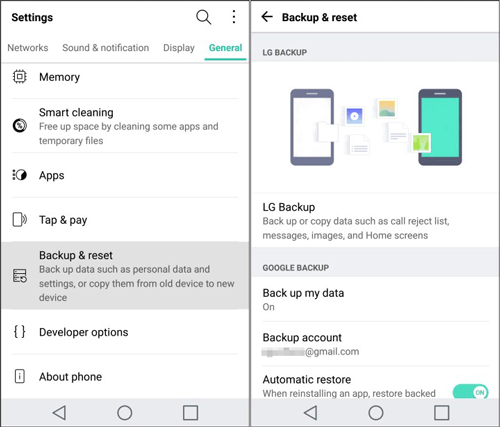
Step 2. If you choose to back up data on an SD card, do remember to power off your mobile before inserting the card. While running a backup on LG cloud, you should sign up for a cloud account. Then wait for the backup to complete.
Step 3. Plug the SD card into the target LG, or choose to restore backup files with the same cloud account. Also, go to "Settings" > "General" > "Backup & Reset" > "LG Backup".
Step 4. Tap "Backup & restore" > "Restore from backup", and select whatever you need from the backup list. Finally, hit "Next" > "OK" to send data to the target LG.
Cons:
- Availability depends on the LG phone model and software version.
- Restoring to another phone may not be supported for every backup.
- Some app data, settings, or other content may not be included in the backup.
Note: The two LG devices should run on the same Android OS. Otherwise, the backup may not be restored to the new LG phone.
Verdict
Of the above 4 LG transfer tools, which one is your favorite? Well, if you pick up a brand new LG, it's wise to choose a highly resourceful program without going awry. Here I believe you've made the right decision based on the above. Next, the ball is in your court now!
Lastly, here's a tip for LG users. With a removable battery (fan-favorite feature) for most LG models, LG batteris can be arranged reasonably. For instance, you can keep it as a spare battery for the new LG, or replace it with a new one to prolong the phone's lifeaspan.
Related Articles:
[2026] LG Phone Won't Turn on? 5 Possible Solutions Here
LG Mobile Switch Not Working? Solutions Are Here!
How to Print Text Messages from LG Phone [5 Tested Methods]
Top 7 Solutions to Unlock LG Phone Forgot Password, Pattern, & PIN
