
4 Handy Methods to Transfer Contacts from Infinix to Infinix
A change to a new phone often brings the concern of keeping important contact details safe, especially when personal and work numbers have built up over time. Many users want to avoid gaps in communication after moving to another device. The goal is to keep their communication list intact and maintain continuity when switching Infinix devices.
This guide explains how to transfer contacts from Infinix to Infinix in 4 safe and error-free ways, helping ensure that all important numbers remain available on the new phone without disruption.
- Part 1: Transfer Contacts from Infinix to Infinix with MobiKin Software [Error-free]
- Part 2: Transfer Whole Contact List to Another Infinix via Mobile Cloner
- Part 3: Transfer Contacts from One Infinix Phone to Another via Infinix xShare
- Part 4: Transfer Contacts from Old Infinix Phone to New Infinix by Bluetooth
- FAQs for Transferring Contacts from Infinix to Infinix
Part 1: Transfer Contacts from Infinix to Infinix with MobiKin Software [Error-free]
Moving contacts between two Infinix phones becomes simple when using MobiKin Transfer for Mobile (Windows/Mac), a desktop-based tool that links devices through USB. The software can copy an entire contact list in one operation, which helps when switching to a new phone without missing entries.
It also supports cross-device migration, so Infinix-to-Infinix transfers are handled smoothly alongside other Android devices. Since the process runs on a computer, it provides a stable option for large or heavily filled contact databases.
Core Features of MobiKin Transfer for Mobile:
> One-click contact transfer that moves the full Infinix contact list in a single action without manual picking.
> Direct phone-to-phone migration through a stable USB connection via a computer.
> Cross-Android/iOS support that works smoothly for Infinix-to-Infinix as well as other Android/iOS devices.
> Option to transfer only contacts or include other data based on user needs.
> No internet required since the transfer works completely offline through USB.
> Preserves full contact details such as names, numbers, and additional fields accurately.
> PC-assisted process that improves stability during large contact migrations.
> Fast bulk transfer suitable for thousands of contacts without lag or interruption.
> Safe transfer handling to reduce duplication or accidental data loss.


User Guide: Set up this software on your computer and discover how to carry out Infinix contact transfers smoothly and without difficulty:
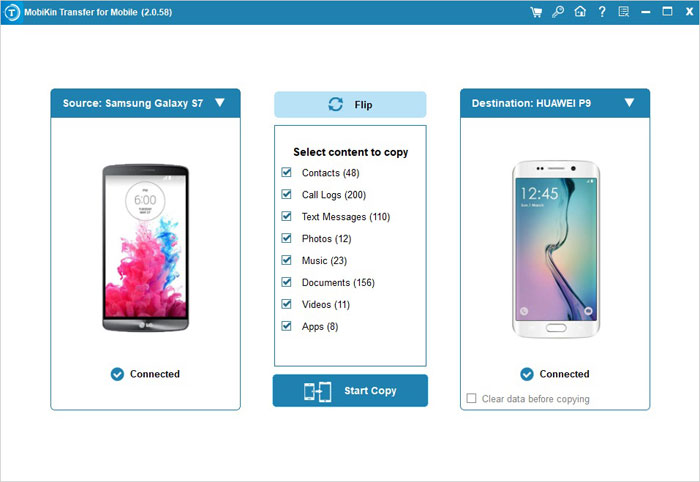
- Launch - Ensure that this program is downloaded and installed. Then, launch it on your computer. You'll be prompted to get both Infinix phones connected to your computer.
- Connect - When having your Infinix phones linked to the machine, enable USB debugging to allow the software to recognize both devices. If you accidentally misplaced the source and destination devices, click the "Flip" button directly.
- Transfer - After that, select the specific data types you want to clone, and then click the "Start Copy" button to commence.

Video Guide:
You Might Also Enjoy: 5 Solutions to Transfer Files from Infinix to PC/Laptop/Computer
Part 2: Transfer Whole Contact List to Another Infinix via Mobile Cloner
A direct phone-to-phone solution is available through Mobile Cloner, which is built into many Infinix devices for quick migration tasks. After pairing both phones, it allows users to move contacts in bulk without needing external storage or cloud services.
The transfer happens over a local connection, which keeps the process fast and self-contained. This makes it a practical choice when setting up a new Infinix device with an existing contact list.
User Guide:
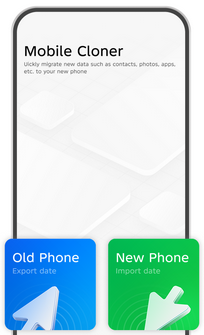
- Install & open Mobile Cloner on both Infinix phones.
- Set roles - tap "Old Phone" on the source device and "New Phone" on the target device.
- Connect the two devices by scanning the QR code shown on the new phone.
- Choose "Contacts" (or select all data if needed) from the data selection screen.
- Tap "Start Migration" to transfer the entire contact list at once.
- Wait until completion and keep both phones close to avoid interruption.
- Open Contacts on the new Infinix to verify all entries transferred successfully.
Part 3: Transfer Contacts from One Infinix Phone to Another via Infinix xShare
Another wireless method is offered by Infinix xShare, which relies on a hotspot-style connection between devices. Contacts are usually exported as a VCF file and then shared between phones through the app interface. Once received, the new device can import the file directly into the Contacts app. It works well in situations where users prefer a lightweight sharing tool without cables or accounts.
User Guide:
- Open xShare on both Infinix phones after the download and installation.
- Tap Send on the old phone and Receive on the new phone.
- Connect both devices using QR code or hotspot connection.
- On the old phone, open the Contacts app and export contacts as a VCF file.
- Go back to xShare and select the VCF contact file.
- Tap Send to transfer the file to the new Infinix phone.
- Open the received file on the new phone and tap Import Contacts.
- Check the Contacts app to confirm all contacts have been successfully transferred. (What if xShare doesn't work?)
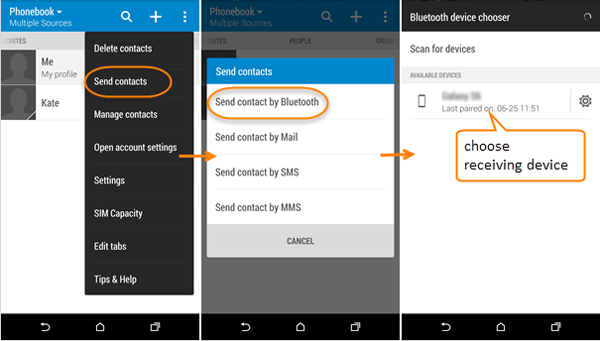
Part 4: Transfer Contacts from Old Infinix Phone to New Infinix by Bluetooth
A simpler fallback option is Bluetooth, which can also move contacts between two Infinix phones using a paired connection. The contact list is first saved as a VCF file and then sent through Bluetooth file sharing. Although the speed is slower compared to newer tools, it does not require internet or additional apps. This makes it useful when only basic transfer capability is available.
User Guide:
- Turn on Bluetooth on both Infinix phones and pair them from the Bluetooth settings.
- On the old Infinix phone, open the Contacts app.
- Tap Settings/Manage contacts and choose Import/Export contacts.
- Select Export contacts to storage (this creates a VCF file).
- Open the File Manager and locate the saved .VCF contact file.
- Tap Share and choose Bluetooth as the transfer method.
- Select the new Infinix phone from the paired devices list and send the file.
- On the new phone, accept the Bluetooth transfer and wait for completion.
- Open the received VCF file and tap Import contacts to save them to the phone.
- Check the Contacts app to confirm all contacts have been successfully transferred.
You Might Also Need: App Share via Bluetooth: 5 Ways to Transfer Apps from Android to Android by Bluetooth
FAQs for Transferring Contacts from Infinix to Infinix
Q1. Can I transfer all contacts at once?
Yes, you can select and transfer the entire contact list in one batch.
Q2. Will contact details like names and numbers be fully preserved?
Yes, all saved contact information such as names, numbers, and notes will be transferred.
Q3. What file format is used when transferring contacts manually?
Contacts are usually exported as a VCF (vCard) file.
Q4. Is Bluetooth a reliable method for contact transfer?
Yes, Bluetooth works, but it is slower compared to Mobile Cloner or xShare.
Q5. Do I need a SIM card to move contacts?
No, contacts can be transferred without a SIM card using apps or file export methods.
Q6. Why are some contacts missing after transfer?
This usually happens if some contacts were stored on the SIM card or Google account instead of phone storage.
Q7. Can I transfer contacts without installing any app?
Yes, you can use VCF export + Bluetooth or file sharing without extra apps.
Q8. Which method is easiest, safest, and fastest for Infinix-to-Infinix contact transfer?
For Infinix-to-Infinix contact transfers, the easiest, safest, and fastest method is using a dedicated desktop tool like MobiKin Transfer for Mobile. It allows you to connect both phones to a computer via USB cables and transfer contacts directly with one click, ensuring no data leaks since it works offline. Compared to Bluetooth or cloud backups, MobiKin offers superior speed and security, making it the most recommended solution.
Related Articles:
Infinix FRP Bypass: 5 Easy Solutions to Remove Infinix FRP
4 Latest Ways to Recover Deleted WhatsApp Data from Infinix
4 Feasible Ways to Retrieve Deleted Text Messages on Infinix
Infinix Screen Mirroring: 4 Ways to Screen Mirror Infinix to PC/TV
