
4 Verified Methods to Transfer Contacts from Samsung to Infinix
Upgrading from a Samsung phone to an Infinix device can be exciting. After that, many users want all contacts moved without manually retyping them, especially when switching between two different interfaces, as Samsung and Infinix run different interfaces that may not sync automatically.
This article offers four practical ways to transfer contacts from Samsung to Infinix, helping users retain all important personal and professional numbers during the transition.
Method 1: How to Transfer Contacts from Samsung to Infinix in One Tap
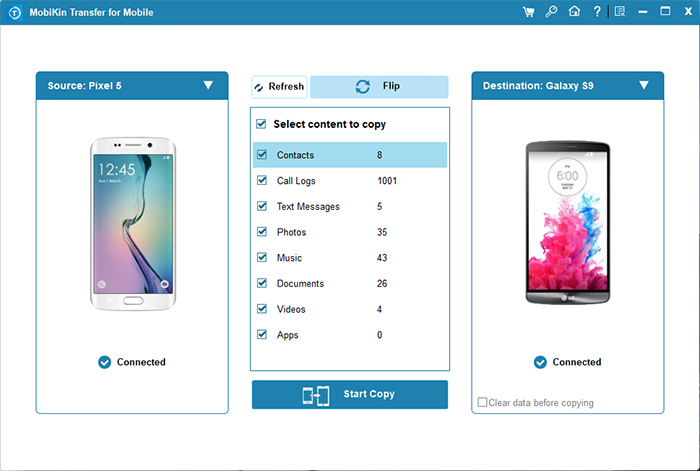
Smooth and fast transfers between phones can be achieved using MobiKin Transfer for Mobile (Windows/Mac). Contacts, messages, photos, and more can be moved in just a few clicks. Samsung devices can easily send all contacts to an Infinix phone without worrying about data loss. The intuitive interface guides users through each step, making the process seamless even for beginners.
What Makes MobiKin Transfer for Mobile Outstanding?
> One-Tap Transfer - Move contacts and other data from Galaxy to Infinix in one click.
> Multiple Data Types - Supports contacts, SMS, call logs, photos, videos, music, and more.
> Wide Compatibility - Works with Samsung, Infinix, and 8,000+ Android/iOS devices, covering the latest Galaxy S25 and GT 30 Pro.
> Fast & Stable - USB-based transfer ensures high speed and no interruptions.
> No Data Loss - Transfers data safely without overwriting or corrupting files.
> Simple Interface - Easy 3-step process: Connect > Select > Start Copy.
> Secure - Direct device-to-device transfer avoids cloud risks.
> Free Trial Available - Try it for free, with a limit on transferable contacts.


User Manual:
- Download and install Transfer for Mobile on your computer.
- Launch the program to access its main interface.
- Connect both your Samsung and Infinix phones to the computer using USB cables.
- Follow the on-screen prompts to let the software recognize your devices. (What if the MobiKin software does not recognize my device?)
- The program will display your phones as source and destination; if they are swapped, click "Flip".
- Select Contacts by checking its box as the data to transfer.
- Click Start Copy to begin transferring your contacts.

Video Instructions:
My Trial Experience: Fast and straightforward. The one-click transfer feature made it simple to move my entire contact list without any confusion. All contacts appeared on the Infinix exactly as they were on Samsung, including phone numbers and email addresses. On the downside, the free trial only allowed a limited number of contacts to be transferred, so I had to purchase the full version for a complete transfer.
You May Also Like: 5 Easy Tactics to Delete Everything on Your Phone Samsung Galaxy
Method 2: Export All Contacts from Samsung to Infinix Using Android Switch
Seamless migration of contacts is possible when using Android Switch (formerly Pre Switch to Android). A connection via USB allows Samsung contacts to be exported directly to an Infinix device. Selection options provide the ability to choose only contacts or other data types for transfer. High compatibility ensures that most Android models can be connected without complicated setup.
User Manual:
- Install Android Switch on your computer and launch it.
- Connect both your Samsung (source) and Infinix (destination) phones to the computer using USB cables.
- Enable USB debugging on both devices when prompted.
- Make sure Samsung is set as Source and Infinix as Destination (use Flip if they are reversed).
- On the data-type selection screen, check Contacts (or All Contacts if available).
- Click Start Transfer (or Start Copy) to export all contacts from Samsung to Infinix.
- Wait for the process to complete and keep both phones connected until it reaches 100%.
- When finished, disconnect both devices and check the Contacts app on the Infinix to confirm the transfer.
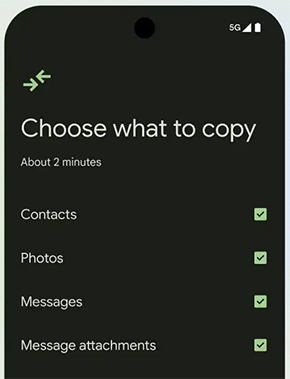
My Trial Experience: Connecting both devices via USB allowed me to select only contacts, which saved time compared to moving all data. It worked smoothly, and the phones were recognized immediately by the software. However, setting up USB debugging on both devices was a bit confusing at first, and the interface wasn't as intuitive as I had hoped.
Method 3: How to Copy Contacts from Samsung to Infinix via PhoneCopy
Account-based synchronization simplifies contact sharing through the PhoneCopy app. Uploading contacts from a Samsung device to the PhoneCopy cloud allows retrieval on the Infinix phone. Each synchronization ensures that contacts remain intact and organized. Logging in on the new device immediately provides access to the uploaded contact list.
User Manual:
- Install PhoneCopy on both the Samsung and Infinix phones from the Google Play Store.
- Open PhoneCopy on the Samsung and create a PhoneCopy account (or log in if you already have one).
- Grant PhoneCopy the required permissions (Contacts, Storage, etc.).
- On the Samsung, tap Synchronize to upload all contacts to the PhoneCopy cloud.
- Open PhoneCopy on the Infinix and log in using the same account used on the Samsung.
- Tap Synchronize on the Infinix to download the contacts from the cloud.
- The contacts will now be added to the Infinix Contacts app.
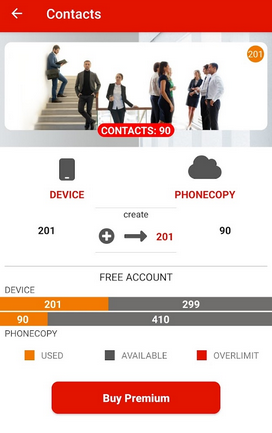
My Trial Experience: The synchronization feature kept all my contacts intact, and I didn't have to worry about losing any data. Logging into the same account on both devices made it easy to start the transfer quickly. The downside was that the process relied on an internet connection, so it felt slower than a direct USB transfer and could be frustrating if the connection was weak.
Learn More: 5 Best Infinix Sync Software/Tools That Draw Your Focus
Method 4: How to Transfer Contacts from Galaxy to Infinix with KDE Connect
Local network transfer can be handled efficiently with the KDE Connect app. Exported contact files, such as .VCF, can be sent from Samsung to Infinix over Wi-Fi. Security is maintained since data does not go through any cloud server. Pairing the two phones and sending the file ensures contacts are transferred quickly and safely.
User Manual:
- On your Samsung, open Contacts > Menu > Manage contacts > Export.
- Choose Export as .VCF file and save it to internal storage.
- Install KDE Connect on both Samsung and Infinix.
- Connect both phones to the same Wi-Fi network.
- Open KDE Connect on both phones and pair the devices.
- On your Samsung, tap Send Files in KDE Connect.
- Select the exported contacts.vcf file and send it to the Infinix.
- On your Infinix, open Contacts > Settings > Import.
- Choose Import from .VCF file.
- Select the received contacts.vcf file to finish the transfer.
My Trial Experience: KDE Connect allowed me to send my exported .VCF contact file over Wi-Fi. The transfer was secure and didn't require any cloud service, which I appreciated for privacy reasons. Pairing the devices was simple, and the contacts imported perfectly into Infinix. The limitation was that contacts had to be manually exported first, and the app doesn't provide a one-click transfer for the entire contact list.
Round Off
By following any of the four methods outlined, you can ensure that all contacts are safely moved without manual entry, regardless of interface differences. These solutions save time, reduce errors, and make switching to a new device seamless. With the right approach, your new Infinix phone will be ready with all your essential contacts at your fingertips.
Related Articles:
6 Options to Recover Deleted Photos from Samsung [Most People Don't Know]
4 Latest Ways to Recover Deleted WhatsApp Data from Infinix
How to Unlock Infinix Phone in Different Situations? 4 Simple Tactics
Top 8 Samsung Device Managers You Wish You Knew Sooner [Latest]
