
Can I Transfer Contacts from Samsung to Pixel Easily? 5 Options
"OK, I gifted my brother a brand new (but initialized) Pixel 10 Pro, and was using a Samsung Galaxy Note 20 Plus. Anyone have any thoughts on how to transfer the data over?" -- from forums.androidcentral.com
Many users are moving to a new Pixel phone but want to keep their important personal connections and information intact. One of the first challenges they face is how to transfer contacts from Samsung to Pixel efficiently and without losing any crucial details. This task can feel complicated, especially with different platforms and syncing methods.
This post offers five clever strategies that make moving contacts simple, secure, and organized for anyone upgrading to a Pixel device.
- Way 1: Transfer Samsung Contacts to Google Pixel during Setup
- Way 2: Transfer Contacts from Samsung to Pixel via Transfer for Mobile [Worth a Shot]
- Way 3: Import Contacts in Google Pixel from Samsung Using VCF File
- Way 4: Transfer Samsung Contacts to Pixel via Google Account
- Way 5: Transfer Contacts from Galaxy to Pixel via Transfer Contacts
Way 1: Transfer Samsung Contacts to Google Pixel during Setup
Transferring contacts can be handled smoothly while setting up a new Pixel, with during Setup being one of the most direct approaches. A cable or wireless link connects the Samsung and Pixel as the setup wizard runs. Contacts can be selected alongside apps and other personal items. Once the process finishes, entries appear in the Pixel Contacts app without extra steps.
How-to Guide:
- Turn on your new Pixel and start following the on-screen setup prompts.
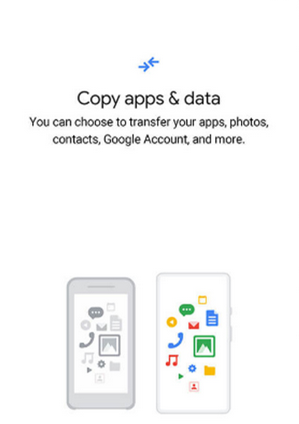
- When you see "Copy apps and data", choose to copy data from another Android phone.
- Connect your Samsung and Pixel using a USB-C cable (recommended for stability), or select the wireless transfer option if prompted.
- Unlock your Samsung phone and approve the connection when asked.
- On the Pixel screen, choose the data you want to transfer and check "Contacts" (you can also select apps, messages, photos, etc.).
- Follow the remaining prompts and wait while the contacts are copied to your Pixel.
- Finish the setup, then open the Contacts app on your Pixel to confirm everything transferred successfully.
You May Also Like: Want to erase your Samsung contacts after the transfer? Here are the solutions.
Way 2: Transfer Contacts from Samsung to Pixel via Transfer for Mobile [Worth a Shot]
For users who prefer a desktop-based approach, MobiKin Transfer for Mobile (Win and Mac) offers a more controlled experience. Both phones should be connected to a computer, and contacts can be moved in one batch. The interface focuses on data categories, which keeps the process organized. This option suits people who want stability and clear progress feedback.
What Can MobiKin Transfer for Mobile do?
- Transfers contacts directly from Samsung to Pixel without files or cloud.
- Lets you move only contacts with selective options.
- Completes the transfer with one click after USB connection.
- Supports Samsung, Pixel, and other Android brands, covering the most recent Pixel 10, 10 Pro (XL)/(Fold), 9, 8a, etc.
- Keeps contact details intact and unchanged.
- Ensures secure, fast and stable transfer via cable.
- Works without factory reset or setup mode.
- Uses a simple, guided interface.


How-to Guide:
- Launch the software on your computer - Download, install, and open MobiKin Transfer for Mobile on your computer to access its main interface.
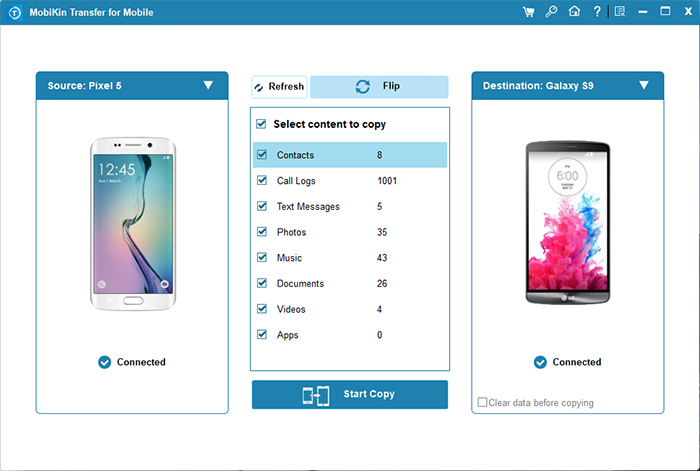
- Connect and detect both phones - Attach the Samsung and Pixel to the computer using two USB cables. Once detected, confirm the Pixel is set as the target device, or click "Flip" to switch their positions if needed.
- Transfer data from Samsung to Pixel - Select the data types you want to move from the center panel, then click "Start Copy" to begin transferring the data from the Samsung phone to the Pixel.

Video Tutorial:
Way 3: Import Contacts in Google Pixel from Samsung Using VCF File
Another practical route relies on exporting a VCF File from the Samsung phone. Contacts are saved into a single file and then shared through cloud storage, email, or a USB cable. Importing that file on the Pixel adds the contacts instantly. It works well when devices are not available at the same time.
How-to Guide:
- On the Samsung phone, open the Contacts app and tap Manage contacts.
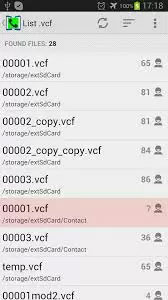
- Select Export, choose Internal storage, and save the contacts as a VCF (.vcf) file.
- Transfer the VCF file to your Pixel using Google Drive, email, USB cable, or Quick Share.
- On the Pixel, locate the received VCF file using Files or Downloads.
- Tap the VCF file and choose Import contacts when prompted.
- Select the Google account or device storage where you want the contacts saved.
- Open the Contacts app on the Pixel to confirm the contacts have been imported successfully.
You Might Also Enjoy: 6 Most Reliable Google Pixel Backup and Restore Solutions 2026
What should I do if some contacts don’t appear after importing the VCF file? Make sure the VCF file was fully exported and not corrupted. Try re-exporting from Samsung or check if the file is saved in the correct format. Also, confirm that the import destination (Google account or phone storage) is properly selected.
Way 4: Transfer Samsung Contacts to Pixel via Google Account
Cloud-based syncing through a Google Account remains one of the simplest choices. Contacts stored on the Samsung sync online once account syncing is active. Signing into the same account on the Pixel brings those contacts back automatically. This approach keeps contacts consistent across devices going forward.
How-to Guide:
- On the Samsung phone, open Settings and go to Google.
- Tap Google Contacts sync and make sure it is enabled.
- Turn on Automatically sync so all contacts are uploaded to your Google account.
- Wait a few minutes to ensure the syncing process completes.
- On the Pixel, sign in with the same Google account during setup or from Settings > Passwords & accounts.
- Enable Contacts sync for that Google account if it isn't already on.
- Open the Contacts app on the Pixel and check that all Samsung contacts are now available.
Way 5: Transfer Contacts from Galaxy to Pixel via Transfer Contacts
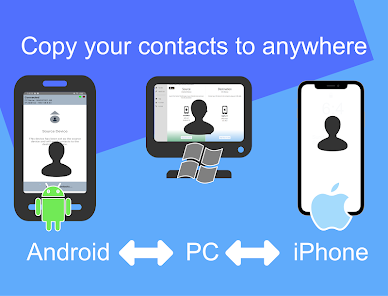
Some users prefer a direct phone-to-phone exchange using the Transfer Contacts app from Google Play Store. Both phones run the app and pair over Wi-Fi with a short verification step. Selected contacts move across without involving a computer or cloud storage. It's a handy option for quick transfers between nearby devices.
How-to Guide:
- Install the Transfer Contacts app from Google Play on both the Samsung and the Pixel phones.
- Open the app on each device and choose Send on the Samsung and Receive on the Pixel.
- Allow the required permissions so the app can access contacts on both phones.
- Pair the two devices using the on-screen PIN or QR code, depending on the app's instructions.
- Select the contacts you want to transfer, or choose Select all to move everything at once.
- Tap Send on the Samsung phone to start the transfer process.
- Wait until the app confirms the transfer is complete.
- Open the Contacts app on the Pixel to verify that all contacts have been successfully transferred.
Concluding Thoughts
Migrating from a Samsung to a Pixel doesn't need to feel like juggling fire with your contacts. Out of all the approaches we explored, MobiKin Transfer for Mobile emerges as the steady lifeline. Its smart layout makes sending contacts a breeze, preserves every detail, and tackles even hefty contact lists without a hitch.
Pro Tip: Before making the leap, back up your Samsung first, then let MobiKin Transfer for Mobile whisk your contacts over in just a handful of clicks.
Related Articles:
10 Tried-and-true Ways to Fix Copy My Data App Not Working
Contacts Didn't Transfer to New Pixel? 9 Fixes & 1 Ultimate Way
How to Edit Samsung Contacts on PC? 3 Tactics Most People Don't Know
5 Verified Ways: How to Recover Data after Factory Reset on Samsung
