
How to Transfer Data from Old Phone to Redmi? 4 Practical Ways
TL;DR:
Of the four options, MobiKin Transfer for Mobile takes the lead - it handles any phone brand, transfers almost all data types with a single click, and bypasses frozen transfers or cloud limits. For a smooth, worry-free switch to your new Redmi, this tool delivers a level of reliability the other methods simply cannot offer.
"I bought the Redmi Note 15 Pro, easiest way to transfer the data (apps) from my old phone?" -- from Reddit
A new Redmi phone in your hand feels great, but the question of how to bring over your old contacts, photos, and messages quickly follows. Many people face practical challenges such as choosing the right method among many, avoiding technical hiccups like stalled transfers, and worrying about incomplete results.
This page presents how to transfer data from old phone to Redmi in 4 error-free ways - each method explained simply.
Way 1: Transfer All Data from Old Phone to Redmi with MobiKin Tool
Transferring data with MobiKin Transfer for Mobile (Windows/Mac) requires connecting both phones to a computer. This tool copies contacts, messages, photos, and apps from the old device straight to the Redmi phone. The process keeps all information intact without needing an internet connection. Users just pick the files they want and click "Start Copy."
Main Features of MobiKin Transfer for Mobile:
- Supports transfer of contacts, messages, call logs, photos, videos, music, apps, and documents.
- One-click, computer-based transfer with a simple interface.
- Direct phone-to-phone transfer (no cloud needed).
- Secure process with no data loss or quality degradation.
- Does not overwrite existing data on the destination phone.
- Requires USB debugging for Android phones (including Redmi) during transfer.
- Works across Android, iOS, and between different manufacturers (e.g., Redmi Note 15/14/13/12/11, K, A, Turbo/POCO/Xiaomi, Samsung, Huawei, Google, OnePlus).


Here's how MobiKin Transfer for Mobile works:
Step 1: After downloading and installing the software, launch it on your computer. You'll see the main interface appear as shown below.
Step 2: Use two USB cables to connect both Redmi/Android/iOS phones to the computer. Make sure each phone is placed correctly as the source or destination according to the on-screen instructions. If the positions are reversed, click 'Flip' to switch them.
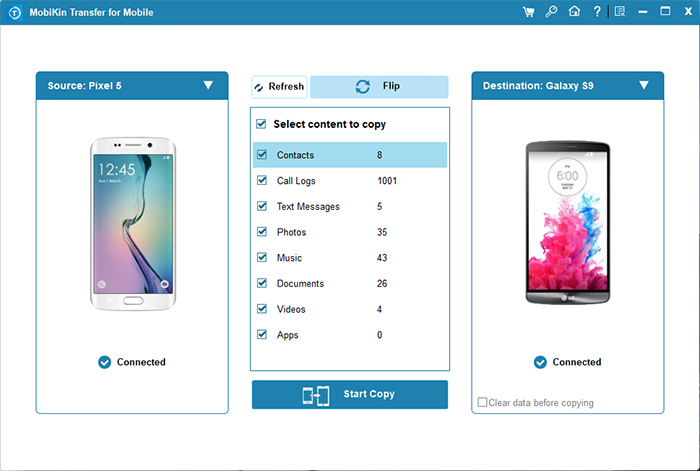
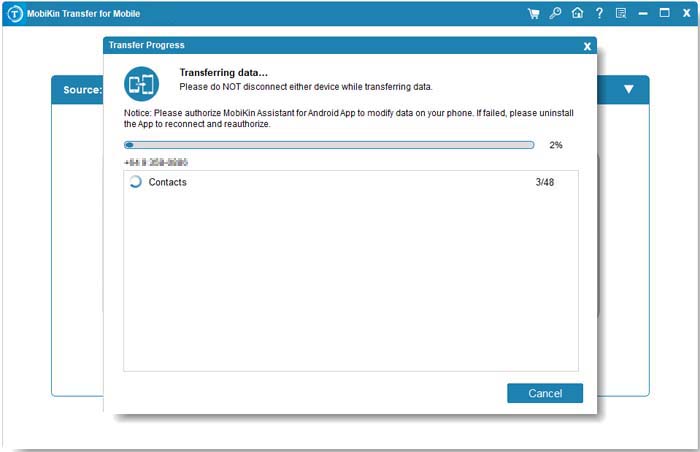
Step 3: Select the data types you want to transfer from the middle panel, then click 'Start Copy' to begin moving the data between the two cell phones. Wait for the process to finish.
Video Guide:
You Might Need: Redmi Backup & Restore: 4 Ways to Back Up & Restore Redmi without Difficulty
Way 2: Transfer Data from Old Phone to Redmi Phone via Mi Cloud
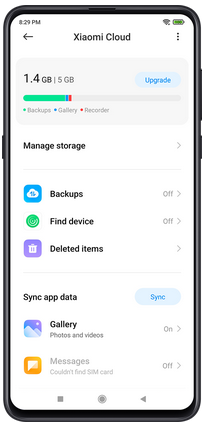
For those with a Xiaomi account, Mi Cloud offers a wireless backup method. On the old phone, upload pictures, contacts, and call logs to the cloud storage. Later on the Redmi phone, sign into the same account and download those files. The free space limits larger backups, but the basic data moves over without extra steps. Here's how Mi Cloud works:
- Go to Settings > Mi Account > Mi Cloud > Backups on your old phone and create a full backup while connected to Wi-Fi.
- Sign in to the same Mi Account on your new Redmi phone during setup or in Settings.
- Select "Restore from Mi Cloud Backup" or go to Mi Cloud > Restore to download your saved data.
- Wait for the sync process to finish so contacts, photos, messages, and settings are restored to the new device. (What if Mi Cloud doesn't work?)
Click to Explore: How to Recover Deleted Contacts on Redmi? 4 Trustworthy Options
Way 3: Move Data from Old Phone to Redmi Using Mi Mover
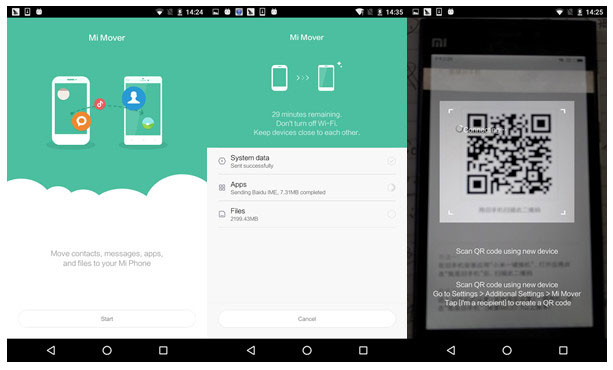
When both phones run MIUI, Mi Mover establishes a direct Wi-Fi connection between them. On the old device, choose "Send" and on the Redmi phone, choose "Receive." A QR code appears on the Redmi screen for the old phone to scan. After that, files like music, videos, and installed apps transfer quickly without any cables. Here's how Mi Mover works:
- Install Mi Mover on both the old phone (download from Play Store if needed) and the new Redmi phone.
- Open Mi Mover on both devices and select roles: "I'm the sender" on the old phone and "I'm the receiver" on the Redmi phone.
- The Redmi phone will show a QR code or connection hotspot, which you scan or connect to using the old phone.
- Once connected, choose the data types you want to transfer, such as contacts, photos, videos, messages, apps, and files.
- Tap Start Transfer and keep both phones close until the process is completed via Wi-Fi Direct. (Mi Mover won't work?)
Way 4: Share Files from Old Phone to Redmi with Quick Share
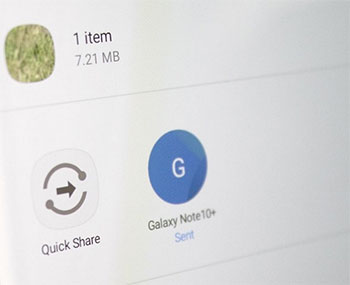
For Android devices including Redmi, Quick Share sends files over short-range wireless. Turn on the feature on both phones - the old one as sender, the Redmi as receiver. Pick photos, documents, or videos on the old phone and tap the share icon, then select Quick Share. The Redmi phone must be visible to nearby devices, and the transfer finishes in seconds for small files. Here's how Quick Share works:
- Turn on Quick Share on both phones by opening Quick Settings and enabling Bluetooth and Wi-Fi.
- On the old phone, open the file (photo, video, or document) you want to send and tap Share.
- Select Quick Share from the sharing options.
- Choose the nearby Redmi phone from the list of available devices.
- On the Redmi phone, tap Accept to start receiving the files. (Quick Share doesn't work?)
FAQs for Transferring Data from Old Phone to Redmi
Q1: Can I transfer data from an iPhone to Redmi?
Yes. During Redmi setup, choose "Transfer from iPhone". You can also use Mi Mover or Google Drive.
Q2: Do I need an internet connection for Mi Mover?
No. Mi Mover creates a direct Wi-Fi connection between phones. No mobile data or Wi-Fi needed.
Q3: How do I transfer my WhatsApp or WeChat chat history?
Use the app's own backup feature. For WeChat: go to Settings > Chats > Backup & Migrate. For WhatsApp: use Google Drive backup.
Q4: Will my apps and their logins be transferred?
Most apps will be reinstalled, but login details and in-app data (like game progress) may not transfer due to security. Banking apps usually require re-login.
Q5: Why is my transfer stuck or failing?
Make sure both phones have enough battery (>50%), stay close to each other, and have Mi Mover updated. Restart both phones and try again.
Q6: Can I transfer data if my old phone is broken or won't turn on?
Only if you had previously backed up to Google Drive or Mi Cloud. Otherwise, data recovery is difficult. Contact a repair shop for help.
Q7: How do I transfer photos and videos only?
Use Mi Share (or Xiaomi Share) to send files quickly. Or connect your old phone to a computer, copy the media, then copy to the Redmi.
Q8: What should I do after transferring data to my Redmi?
Check all important data (contacts, photos, messages). Re-login to apps like banking and social media. Then factory reset your old phone before selling or giving it away.
Ending Words
And there you have it - four paths, all leading to the same destination: your old phone's life now lives safely on your Redmi. No data left behind, no mid-way freeze, no second-guessing. Your old phone's data deserves a clean move, and now it has one. Go enjoy your Redmi.
Finally, a side note here - Use the original USB cable that came with your old phone (or a high-quality data cable) for wired transfers. Cheap charging cables often cause stalled transfers or unrecognized device errors.
Related Articles:
How to Fix Black Screen on Redmi Phone? 8 Basic Ways & 1 Expert Fix
4 Practical Techniques to Export Redmi Contacts to Excel [2026]
4 Effective Practices: Transfer Text Messages from Redmi to Redmi
How to Factory Reset Redmi Phone with Minimum Effort? [4 Tactics]
