
4 Practical Techniques to Export Redmi Contacts to Excel [2026]
TL;DR:
A structured export of Redmi contacts into Excel helps keep names, numbers, and emails well organized for easier management and backup. MobiKin Assistant for Android offers a more straightforward way to save contacts in CSV or Excel-compatible format with fewer steps and better stability. Google Contacts and vCard conversion remain useful alternatives depending on the user’s workflow and preferred setup.
Effective contact organization is essential for both personal and professional purposes. Excel provides a clear structure to manage large contact lists, edit details quickly, and maintain a reliable backup of names, phone numbers, and emails.
Many Redmi users choose to export Redmi contacts to Excel, which makes it possible to sort, filter, and categorize contacts for personal or professional purposes efficiently. Now, focus on this post to find the productive ways.
- Part 1: Export Redmi Contacts to Excel via MobiKin Software [Error-free]
- Part 2: Export Redmi Phone Contacts to Excel via Google Account
- Part 3: Export Contacts in Redmi to Excel via Export Phone Contacts to Excel
- Part 4: Export Contacts from Redmi Phone with vCard to CSV Converter
- FAQs about Exporting Redmi Contacts to Excel
Part 1: Export Redmi Contacts to Excel via MobiKin Software [Error-free]
Managing contact data from a Redmi phone becomes simpler when using MobiKin Assistant for Android (Windows/Mac) to export information into Excel-friendly formats. This desktop program allows users to scan and display all contacts stored on the device before exporting them.
With a few clicks, the contacts can be saved as CSV or other spreadsheet-compatible files that open easily in Excel. It also keeps names, phone numbers, and email details organized during the export process.
Core Features of MobiKin Assistant for Android:
> Export Contacts - Save Redmi contacts to Excel or CSV.
> Manage Contacts - Add, delete, or modify contacts on PC.
> Messages/Calls/Media Management - Manage SMS/Call logs/Media easily
> File Transfer - Move photos, videos, music, and documents.
> Backup & Restore - One-click full device backup and restore.
> App Management - Install, uninstall, or export apps.
> Device Support - Compatible with most Android phones and tablets, covering Note, K, A, Turbo, and standard series.
> Safe & Reliable - Transfer and export without data loss.
How-to Guide:
- Utilize a USB cable to link your Redmi phone to the computer.
- Launch the software, and once it is open, activate USB debugging on your Redmi to ensure it can be recognized.
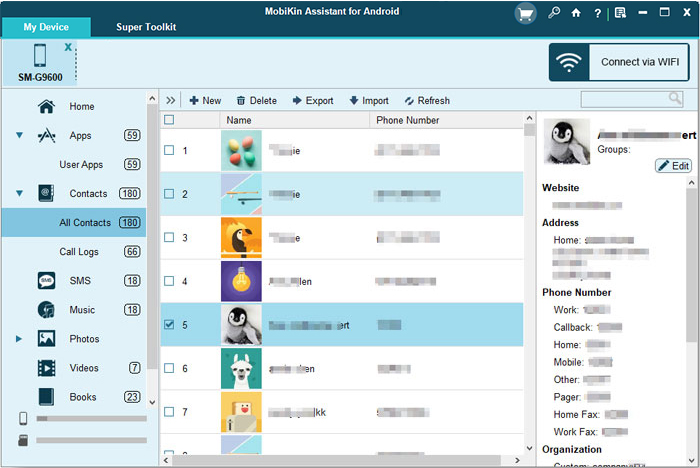
- Once your Redmi is detected, all file categories from your phone will be displayed on the left panel.
- Click on "Contacts > All Contacts" to access your contact list on the right side.
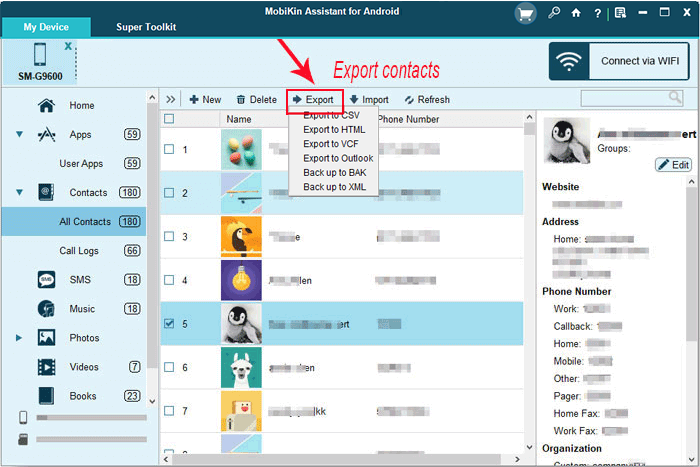
- Select the contacts you wish to back up, then click "Export > Export to CSV" to save them to your PC or Mac. (B.T.W, you can manage your contacts directly from the main interface of the program.)


Video Instructions:
You Might Also Enjoy: How to Transfer Data from Old Phone to Redmi? 4 Practical Ways
Part 2: Export Redmi Phone Contacts to Excel via Google Account
Backing up contacts through a Google Account offers a convenient path for transferring Redmi contact information into Excel. Once synchronization is enabled, all contacts saved on the phone are automatically uploaded to Google Contacts. Users can then sign in to the web interface and download the contact list in CSV format. The exported file can be opened directly in Excel for editing or archiving.
How-to Guide:
- Sync Redmi contacts to your Google account: Go to Settings > Accounts > Google, select your Gmail account, and enable Contacts Sync so all phone contacts are uploaded to Google Contacts.
- Open Google Contacts on a computer: Visit contacts.google.com and sign in with the same Google account used on the Redmi phone.
- Select contacts to export: Tick a single contact, multiple contacts, or choose All contacts from the selection menu.
- Export contacts: Click More actions > Export and choose Google CSV format.
- Open the file in Excel: Download the CSV file and open it with Microsoft Excel or another spreadsheet program to view or edit the contacts.
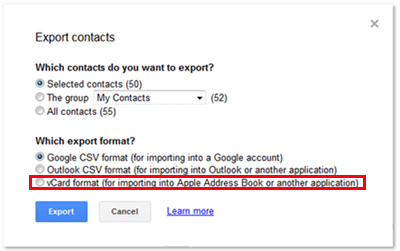
Syncing and exporting through a Google Account is secure, but ensure you download the CSV file on a trusted computer to avoid data exposure. Further, the CSV file preserves names, phone numbers, and email addresses, but notes, profile photos, or custom fields may not transfer.
Part 3: Export Contacts in Redmi to Excel via Export Phone Contacts to Excel
Creating spreadsheet-ready files is possible with Export Phone Contacts to Excel, a utility designed for converting mobile contact lists into Excel documents. It reads the contact database and transforms it into a structured table with clearly separated fields.
The generated file keeps phone numbers, names, and additional notes properly aligned in columns. This makes it easier to manage or analyze Redmi contacts within Microsoft Excel.
How-to Guide:
- Install the app: Download and install Export Phone Contacts to Excel from the Google Play Store on your Redmi phone.
- Open the app and allow permissions: Launch the app and grant access to your phone contacts so it can read the phonebook data.
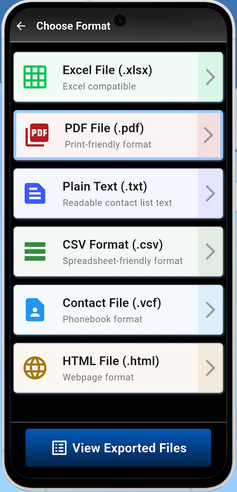
- Tap the export button: Use the single-tap export option to convert all phonebook contacts into an Excel file.
- Choose the export location: Save the Excel file to internal storage, SD card, or send it to your email directly from the app.
- Open the file in Excel: Download the generated XLS/XLSX file and open it in Microsoft Excel on a computer to view or edit the contacts.
Part 4: Export Contacts from Redmi Phone with vCard to CSV Converter
Converting contact files is another practical approach when using vCard to CSV Converter for Redmi data. After exporting contacts from the phone as VCF files, the converter processes them into CSV format. The converted CSV file can then be opened in Excel without formatting issues. This method is useful for handling large batches of contacts while keeping the information readable and organized.
How-to Guide:
- Export contacts from Redmi as a vCard file: Open the Contacts app on your Redmi phone, go to Settings or Manage Contacts > Export, and save the contacts as a .vcf (vCard) file to your device storage.
- Download and install a vCard to CSV Converter tool on your computer.
- Add the VCF file to the converter: Launch the software and click Add File/Add Folder to import the exported vCard contacts.
- Preview and select contacts: Check the contact details in the preview panel and choose the contacts you want to convert.
- Choose CSV as the output format and start conversion: Set the destination folder and click Convert to export the contacts into a CSV file, which can be opened in Microsoft Excel.
Note: vCard (VCF) files store contact details in a digital contact-card format, while CSV files organize the data in a spreadsheet-friendly structure, making them easier to open and edit in Excel.
FAQs about Exporting Redmi Contacts to Excel
Q1. Why are some contact fields missing after exporting to Excel?
This usually happens when the contact information was not fully saved in the original phonebook fields. Some apps or converters may also only export basic details like name, phone number, and email.
Q2. What should I do if the exported CSV file doesn't open properly in Excel?
Try importing the file using Data > From Text/CSV in Microsoft Excel, or open it with another spreadsheet program and adjust the delimiter settings if the data appears misaligned.
Q3. What file format is best for opening contacts in Excel?
The CSV (Comma-Separated Values) format works best because it is fully compatible with Microsoft Excel and keeps contact details arranged in rows and columns.
Q4. Will exporting contacts to Excel delete them from my Redmi phone?
No. Exporting only creates a copy of your contacts as a file. The original contacts will remain stored in your phone or synced account such as Google Contacts.
Q5. Can I edit the exported contacts in Excel and import them back to my phone?
Yes. After editing the CSV file in Microsoft Excel, you can upload the updated file to Google Contacts and sync it back to your Redmi device.
Q6. Why are duplicate contacts appearing after exporting and importing?
Duplicates may occur if contacts exist in multiple accounts (such as phone storage and Google). You can merge or remove duplicates in Google Contacts using its built-in Merge & Fix feature.
Q7. Is it safe to use third-party apps to export contacts to Excel?
Most reputable apps are safe, but you should always download them from trusted sources like Google Play Store and review the permissions requested before allowing access to your contacts.
Q8. What is the easiest way to export Redmi contacts to Excel?
The easiest way to export Redmi contacts to Excel is by using MobiKin Assistant for Android, which provides a smooth and reliable process. It allows users to select all contacts and export them directly into an Excel-compatible format without errors. Compared to manual or cloud-based methods, it is the most convenient and error-free solution for managing Redmi contacts.
Related Articles:
5 Best Redmi Data Eraser Software [Option 1 Is the Most Desirable]
How to Recover Deleted Contacts on Redmi? 4 Trustworthy Options
5 Simple Tactics to Transfer Contacts from Redmi to Redmi
How to Transfer Data from realme to Redmi? 5 Dependable Strategies
