
Top 4 Picks: Mirror Pixel Phone to PC/TV without Difficulty
Using a Pixel phone on a larger screen makes daily tasks easier and more flexible for work, study, and entertainment. With screen mirroring, you can type faster with a keyboard, drag files more easily, and multitask between phone apps and desktop tools, improving overall efficiency. This passage explores how to screen mirror Pixel phone to PC/TV with 4 workable methods to help users connect their devices more effectively.
Part 1: Screen Mirror Pixel Phone to PC
1.1: Using Built-in Feature
A built-in casting system on Pixel phones allows wireless display of the entire screen onto compatible PCs, mainly through Google Cast support. It works best when both devices are on the same Wi-Fi network, offering quick access without extra installation. However, compatibility limits can appear because many computers do not natively accept the signal. In those cases, users often notice connection gaps or missing device detection.
Steps for Screen Mirroring Pixel to PC via Built-in Feature:
- Make sure your PC supports wireless display (e.g., Windows Connect app or a receiver like AirServer/Reflector).
- Connect your Pixel phone and PC to the same Wi-Fi network (required for casting).
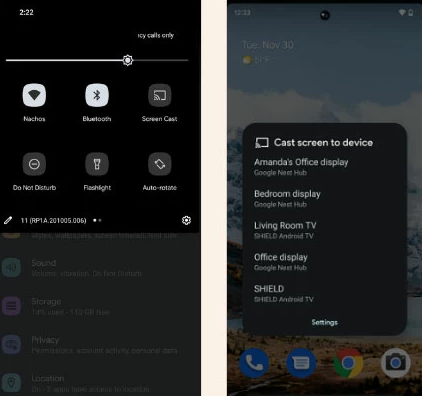
- On your Pixel, swipe down to open the Quick Settings panel.
- Tap "Screen Cast" (or go to Settings > Connected devices > Cast).
- Wait for your PC name to appear in the list of available devices.
- Tap your PC name to start mirroring.
- Confirm the connection on your PC if prompted. (Your PC doesn't recognize your Pixel/Android phone?)
- Your Pixel screen will now display on your PC in real time.
My Trial Experience:
- Pixel's built-in feature gave a quick way to send my screen to a PC, but it only worked when both devices were perfectly on the same Wi-Fi. In my trial, the connection sometimes failed or didn't even detect the computer, which made it feel a bit inconsistent for longer use.
You May Also Like: How to Fix Screen Mirroring Not Working? 16 Smart Strategies Here
1.2: Using Screen Mirror [Always Fluent]
A more controlled experience is offered by Screen Mirror, which enables Pixel screen display on a PC through both USB and wireless modes. The setup is designed to keep the connection steady, even during long sessions like gaming or presentations. It also reduces interruptions by maintaining a more stable link between devices. Many users prefer it when built-in casting fails or feels unreliable. Here are its Core Features:
- Pixel screen mirroring to PC/Mac: Displays your Pixel phone screen on a computer in real time.
- Low-latency HD display: Ensures smooth, near-instant screen response with clear quality.
- USB & Wi-Fi connection: Offers both wired stability and wireless convenience.
- PC control support: Lets you operate your Pixel using keyboard and mouse.
- Screen recording & screenshots: Captures phone activity directly from your computer.
- Multiple device support: Allows you to mirror various Android or iOS devices, covering Pro Series (Pixel 10 Pro - 3 Pro); Standard (Pixel 10 - 3); A Series (Pixel 10a - 5a); Foldables (Pixel Fold series); Legacy (Pixel 4 XL - Pixel 2).
- Game-friendly mode: Optimizes performance for smoother mobile gaming on a larger screen with reduced lag.
Steps for Screen Mirroring Pixel to PC via the Best Pixel-to-PC Screen-mirroring App - Screen Mirror?
- Begin by installing the Screen Mirror software on your computer and then launch it.
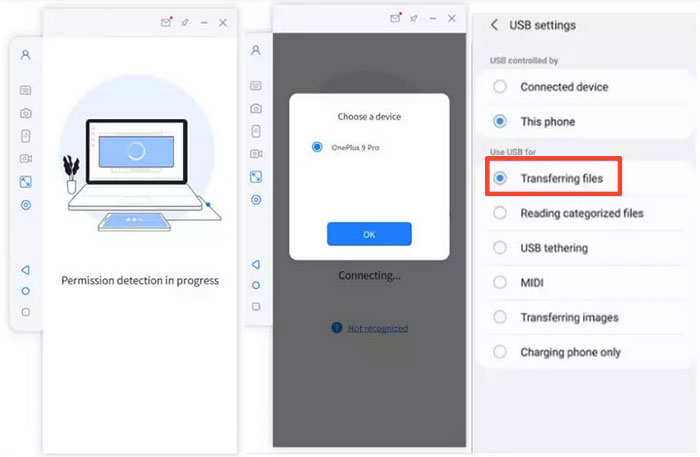
- Connect your Pixel device to the Windows PC using a USB cable.
- When prompted, select your Pixel and opt for "Transfer files" to establish the connection.
- On your Pixel phone, navigate to Settings > About phone > Software information and tap on Build number several times to activate Developer options. Subsequently, enable USB debugging on your device. If the prompt "Always allow USB debugging from this computer" appears, tap OK to facilitate future connections.
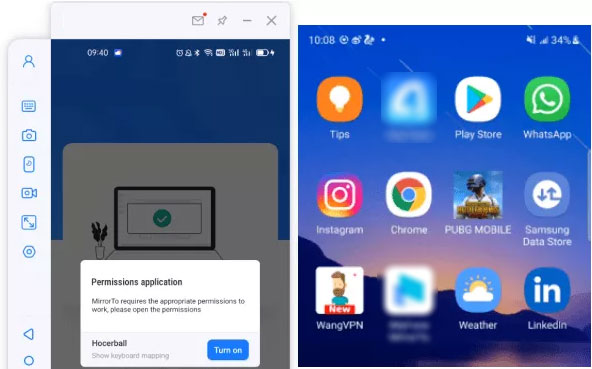
- Provide the necessary permissions to the software to enable it to access your device.
- After that, click Turn on to permit your Pixel to automatically install the Android Screen Mirror APK.
- The software will display all available items once permissions have been granted.
- Once the installation is complete, your device screen will be successfully mirrored on the Windows PC.


My Trial Experience:
- Screen Mirror delivered a much smoother experience when I tested it for screen mirroring. The connection stayed stable with almost no delay, and it handled both gaming and video display without sudden drops or interruptions.
Learn More: How to Transfer Contacts from Pixel to Pixel in 4 Safe Ways
1.3: Vysor
Another option is Vysor, which connects Pixel phones to a computer mainly through USB for a direct mirror view. Once the phone is detected, the screen appears in a desktop window that can be controlled with keyboard and mouse. The experience is straightforward, though free usage may come with limited display quality. It is often chosen for quick debugging or light control tasks.
Steps for Screen Mirroring Google Pixel to PC via Vysor?
- Download and install Vysor on your PC from its official website.
- On your Pixel phone, go to Settings > About phone, tap Build number 7 times to enable Developer Options.
- Open Developer options and turn on USB debugging.
- Connect your Pixel phone to your PC using a USB cable.
- Tap "Allow USB debugging" on your phone when prompted.
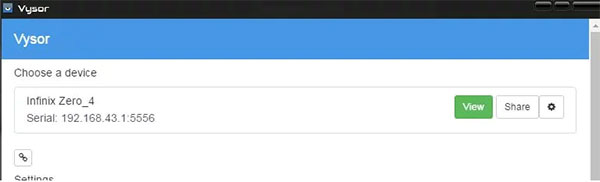
- Launch Vysor on your PC and wait for your device to appear.
- Click your Pixel device name and select "Mirror" (or "View").
- Your Pixel screen will now display on your PC, and you can control it with your mouse and keyboard.
My Trial Experience:
- Vysor worked mainly through USB and was easy to set up once debugging was enabled. During my trial, it was responsive for basic control, but the display quality and performance felt more limited compared to other tools.
Part 2: Mirror Pixel Phone to TV via LetsView
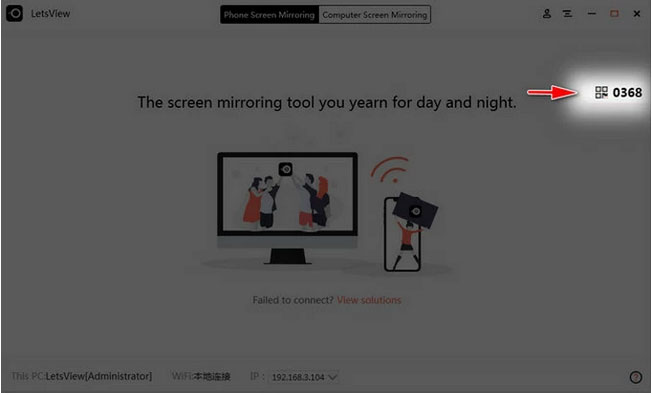
A different approach is provided by LetsView, which focuses on wireless mirroring between Pixel and PC or TV. Both devices need to be on the same network, after which pairing happens through detection or code input. It allows smooth media sharing and screen display without cables. While convenient, performance may depend heavily on Wi-Fi strength and stability.
Steps for Screen Mirroring Google Pixel to TV via LetsView?
- Download and install LetsView on both your Pixel phone and your TV (or TV box).
- Connect your phone and TV to the same Wi-Fi network (required for wireless mirroring).
- Open the LetsView app on both devices.
- On your TV, note the PIN code or QR code displayed on the screen.
- On your Pixel phone, either:
- Enter the PIN code, or scan the QR code to connect.
- Select your TV device name if it appears automatically in the app.
- Tap "Start Now" to begin screen mirroring.
- Your Pixel screen will instantly display on your TV.
My Trial Experience:
- Using LetsView to mirror my Pixel phone to the TV felt smooth and straightforward, as the connection was established quickly over the same Wi-Fi network. The screen mirrored in real time with minimal lag, making it easy for me to stream videos and display photos on a larger screen comfortably.
Part 3: FAQs about Screen Mirroring Pixel Phone to PC/TV
Q1. What is the difference between casting and screen mirroring?
Casting streams specific content (like videos), while screen mirroring duplicates your entire phone screen in real time.
Q2. Why is my Pixel not connecting to my TV?
This may happen if both devices aren't on the same Wi-Fi network, the TV doesn't support Chromecast, or there are network issues.
Q3. Does Pixel support Miracast?
No, Pixel devices do not support Miracast, which limits compatibility with some smart TVs.
Q4. Is USB mirroring better than wireless mirroring?
Yes. USB mirroring is usually more stable and has lower latency compared to wireless connections.
Q5. Why is my screen mirroring lagging?
Lag can be caused by weak Wi-Fi, network congestion, or hardware limitations.
Q6. Do I need the same Wi-Fi network for mirroring?
Yes, most wireless mirroring methods require both devices to be on the same network.
Q7. What if I can't mirror Pixel to PC via traditional methods?
If you can't mirror your Pixel to a PC using traditional methods like built-in casting or USB debugging, it is usually due to compatibility limits, network issues, or unsupported protocols on the PC. In such cases, a dedicated third-party tool can provide a more stable and seamless connection.
As said above, Screen Mirror is the most admirable tool for this situation, as it enables smooth Pixel-to-PC mirroring with minimal lag and a very low chance of connection failure.
Related Articles:
5 Smart Ways for Google Pixel FRP Bypass [Based on Our Tests]
Top 4 Best Google Pixel Contacts Erasers [With Trial Experience]
How to Recover Deleted Contacts on Google Pixel? 4 Reliable Options
6 Ways to Add Music to Google Pixel 10/9/8/7/6/5/4/3 from Computer
