
How to Transfer Photos from Huawei to iPhone [4 Methods]
Even though Huawei and iPhone run on different operating systems, transferring photos between them has become surprisingly simple thanks to various tools and apps. Every year, many users decide to switch from Huawei to iPhone, particularly as Google Play services are no longer available on newer Huawei devices. If you're planning to make the switch, you're probably curious about how to transfer photos from Huawei to iPhone and whether your photos can be moved safely.
In this guide, we'll explore the top tools for transferring photos from Huawei to iPhone without losing quality. You'll learn step-by-step methods that make the process smooth and reliable.
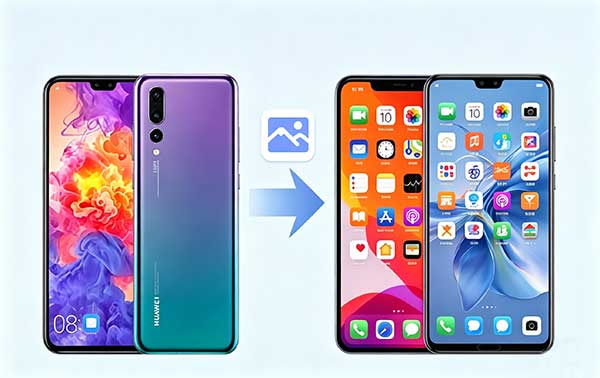
Part 1: Transfer Photos from Huawei to iPhone via Phone Transfer
When it comes to moving photos from a Huawei phone to an iPhone, many apps and tools claim to help - but not all are convenient or safe. A computer-based solution can be much easier, as it doesn't occupy your phone's storage and often works faster than mobile apps.
Phone Transfer is a reliable and user-friendly program designed for this purpose. It supports a wide range of data types, including photos, contacts, messages, and more. The software allows you to transfer only the files you need or move multiple types of data at once. Importantly, it ensures that your original data remains intact, with no risk of being overwritten or corrupted, making the process simple and worry-free.
Key Features of Phone Transfer:
- Transfer data from Huawei to iPhone effortlessly with just one click.
- Supports cross-platform transfers: Android to iOS, iOS to Android, iPhone to iPhone, and Android to Android.
- Compatible with a wide range of data types, including contacts, messages, call logs, photos, videos, music, and eBooks.
- Ensures fast and secure transfer, with zero risk of data loss.
- Works smoothly with almost all devices, including the latest Huawei models (e.g., Huawei P90, Mate 80) and iPhones (e.g., iPhone 17, iPhone 17 Pro).


How to Transfer Photos from Huawei to iPhone Using Phone Transfer:
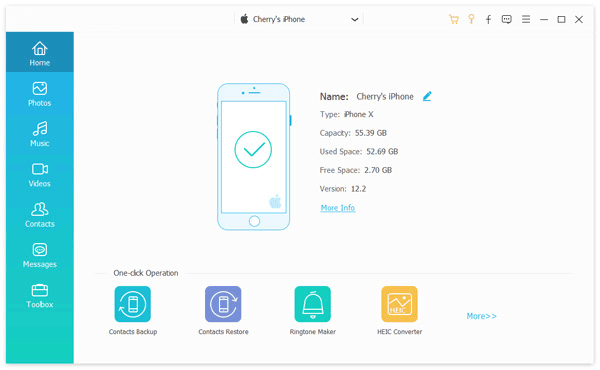
Step 1: Connect both devices to your computer
Start by installing and opening the software on your computer. Then, connect your Huawei phone and iPhone via USB cables. Follow the on-screen instructions to make sure the program recognizes both devices properly.
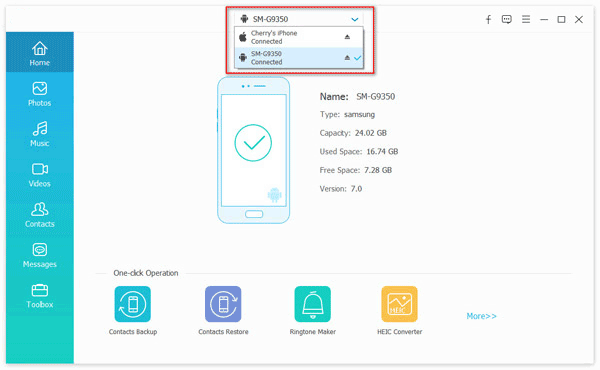
Step 2: Select the photos you want to move
Once your Huawei phone appears on the interface, confirm it is set as the source device. If not, use the dropdown menu to choose the correct device. Then select "Photos" and pick the images you wish to transfer.
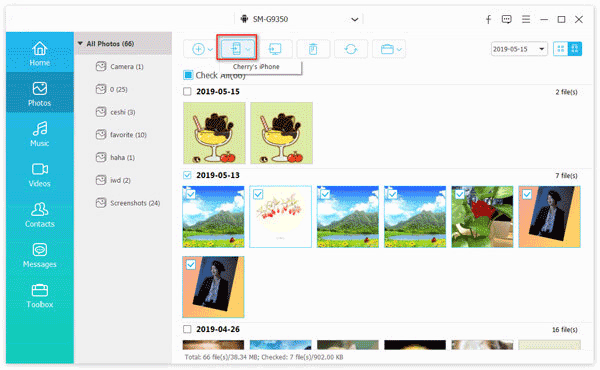
Step 3: Start transferring your photos
Click the "Export to Device" button to begin the transfer. A progress bar will show the status, so you can track the process until all selected photos are moved safely to your iPhone.
You May Need:
Part 2: Copy Photos from Huawei to iPhone Using Move to iOS App
Move to iOS is an Apple-developed application designed to make switching from Android to iPhone simple. It's particularly effective for transferring photos, along with other types of data, from any Huawei device directly to an iPhone.
Apple states that the app is compatible with all Android phones and tablets running version 4.0 or above, which includes nearly all recent Huawei models. Like many mobile transfer tools, Move to iOS uses a secure, private Wi-Fi connection to move data safely between devices.
Important: This method only works with new or reset iPhones because it requires the device to be in its initial setup mode. If your iPhone is already in use, you'll need to choose a different transfer method.
Steps to Use Move to iOS to Copy Photos from Huawei ito iPhone:
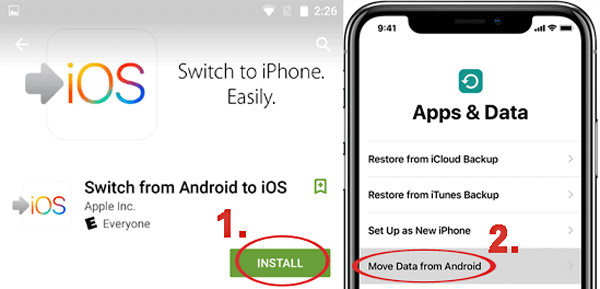
- On your Huawei phone, download and launch "Move to iOS" from Apple's official website.
- You don't need to install anything on the iPhone. During setup, go to "Apps & Data" and select "Move Data from Android".
- Tap "Continue" on both devices, then accept the terms and press "Next".
- A security code will appear on your iPhone - enter this code on your Huawei device.
- Select "Photos" as the content to transfer, tap "Next", and wait for the transfer to finish. Your selected photos will then appear on your iPhone.
Part 3: Transfer Photos from Huawei to iPhone Using Google Photos
Google Photos is a popular photo storage and sharing service developed by Google in 2015. It allows you to back up, organize, and access your photos across multiple devices, including both Android phones and iPhones. This makes it a convenient option for transferring photos from a Huawei phone to an iPhone.
Unlike dedicated transfer apps, Google Photos functions more like a cloud storage platform. You can upload your photos to the cloud and then access or download them on any device. (Google Photos Not Showing All Photos?)
Google Photos provides free and unlimited storage for photos up to 16 megapixels. Images larger than 16 megapixels will count against your Google Drive storage, and a Google account is required.
Steps to Transfer Photos via Google Photos:
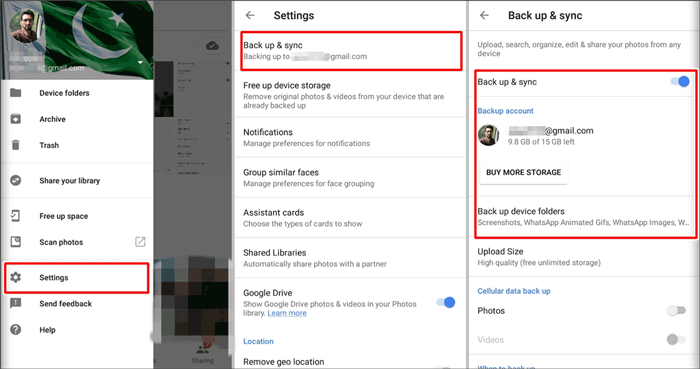
- Many new Huawei phones come with Google Photos pre-installed. If not, download it from the app store. Install Google Photos on your iPhone as well.
- On your Huawei phone, open Google Photos and sign in with your Google account. Tap "Backup" to upload all your photos to the cloud.
- Once the backup is complete, open Google Photos on your iPhone and log in with the same account. Your Huawei photos will appear instantly, allowing you to view or download them to your iPhone.
You May Want to Know:
Part 4: Transfer Pictures from Huawei to iPhone with SHAREit
SHAREit is a popular mobile transfer app that makes moving photos from a Huawei phone to an iPhone quick and easy. Known for its fast transfer speed - up to around 20MB per second - it's one of the most efficient tools for cross-platform transfers.
The app works with nearly all Huawei models and iPhones and allows data to be shared between almost any mobile device using a direct Wi-Fi connection. Its simple interface makes the process straightforward, even for beginners.
Steps to Transfer Photos via SHAREit:
- Install SHAREit on both your Huawei phone and iPhone.
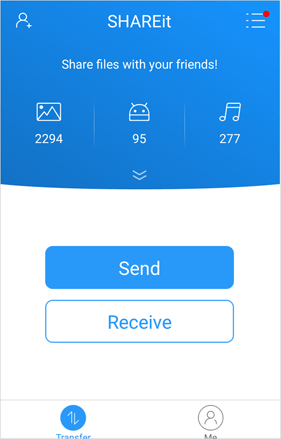
- Launch the app on the Huawei and select "Send", then open SHAREit on the iPhone and tap "Receive".
- On the Huawei phone, choose the photos you want to transfer and tap "Next", then select "Connect to iOS/WP".
- Connect to the private Wi-Fi network named after your iPhone. The transfer will start automatically - simply wait until all selected photos are successfully sent.
Final Thoughts
Transferring photos from a Huawei phone to an iPhone is easier than ever thanks to a variety of tools and apps. Whether you prefer a computer-based solution like Phone Transfer, a cloud service like Google Photos, or mobile apps such as Move to iOS and SHAREit, there's a method to suit every need. Each option ensures your photos are safely moved, with minimal effort and no loss of quality. By choosing the method that best fits your devices and situation, you can quickly and efficiently enjoy all your cherished memories on your new iPhone.
Related Articles:
3 Ways to Transfer Text Messages from Huawei to iPhone
How to Transfer Data from Android to iPhone after Setup
