
4 Easy Fixes to HONOR FRP Bypass 2026 [For Both MagicOS & EMUI]
TL;DR:
HONOR FRP bypass remains a complex subject because of the dual systems. While Huawei FRP Tool, D&G Unlocker Tool, and QuickShortcutMaker can still help with legacy EMUI phones, they are far less effective on MagicOS where most loopholes have been patched. If you are seeking a reliable and updated solution across both systems, Android Lock Wiper is the most dependable option, offering guided steps and broad compatibility.
HONOR FRP bypass is a topic that attracts attention from users who face lockouts after resetting their phones. Newer MagicOS builds patch older loopholes, so updated bypass solutions are required when traditional methods no longer work.
Four specific HONOR FRP bypass solutions with essential tips are often highlighted: Huawei FRP Tool, D&G Unlocker Tool, QuickShortcutMaker, and Android Lock Wiper. Each option varies in compatibility, requirements, and effectiveness depending on whether the device runs EMUI or MagicOS.
NOTE: The information provided in this article is intended strictly for educational and research purposes. Any attempt to bypass Factory Reset Protection (FRP) on HONOR or other devices may violate laws, terms of service, or void warranties. Users are solely responsible for ensuring compliance with applicable regulations and should proceed with caution.
- Part 1: What Makes HONOR FRP Harder Compared to Most Brands
- Part 2: How to Tell If Your HONOR Phone Is Running MagicOS or EMUI
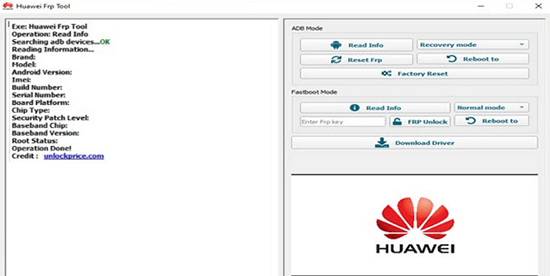
- Part 3: Bypass HONOR FRP Lock with Huawei FRP Tool
- Part 4: Bypass Google FRP on HONOR via D&G Unlocker Tool
- Part 5: Bypass HONOR FRP Lock with QuickShortcutMaker
- Part 6: Perform HONOR FRP Bypass with Android Lock Wiper [Widely-compatible]
Part 1: What Makes HONOR FRP Harder Compared to Most Brands
HONOR's FRP lock is harder to bypass than most brands because it uses two distinct operating systems (EMUI on older devices and MagicOS on newer ones), each requiring different methods, and newer models have stronger security and bootloader protections.
Comparison Table: HONOR vs Other Brands
|
Brand
|
OS/Platform
|
FRP Bypass Difficulty
|
|
HONOR
|
EMUI or MagicOS |
High - dual systems, patched exploits, strict bootloader locks |
|
Samsung
|
One UI (Android) |
Medium - many guides exist, but updates block common tricks |
|
Xiaomi/Redmi
|
MIUI |
Medium-Low - firmware flashing easier, bypasses more accessible |
|
Oppo/realme
|
ColorOS |
Medium - PC tools often required, less fragmented than HONOR |
|
Generic Android
|
Stock Android |
Low-Medium - standard Google recovery usually sufficient |
You Might Also Like: Can You Unlock HONOR Phones Proficiently? Try the 4 Easy Means Now
Part 2: How to Tell If Your Honor Phone Is Running MagicOS or EMUI
You can tell if your HONOR phone is running MagicOS or EMUI by checking the boot screen and setup interface: MagicOS shows a modern colorful HONOR logo with rounded UI, while EMUI displays "HONOR Powered by Android" or a blue/purple Huawei-style setup wizard.
|
Identifier
|
MagicOS (Modern HONOR)
|
EMUI (Legacy HONOR)
|
|
Boot Screen
|
Colorful HONOR logo |
HONOR Powered by Android/EMUI logo |
|
Setup Screen
|
Rounded, modern UI |
Blue-themed wizard, Huawei ID |
|
Example Models
|
Magic 6, 90, X9b, X8a |
8X, 10 Lite, 9, View 20 |
Key Takeaway: Restart your HONOR phone - if you see a colorful HONOR logo, it's MagicOS; if you see "Powered by Android" or EMUI branding, it's EMUI. Correct identification ensures you use the right FRP bypass method.
Part 3: Bypass HONOR FRP Lock with Huawei FRP Tool
On older HONOR devices, the Huawei FRP Tool is often used because it was built around EMUI's system architecture. It requires a Windows PC, a USB connection, and correct drivers installed to communicate with the phone. While effective on legacy models, its limitation is that it does not support MagicOS, leaving newer HONOR phones outside its scope.
Compatibility: Primarily designed for EMUI devices (legacy HONOR phones before the MagicOS transition).
Quick Steps:
- Activate your mobile device and establish an internet connection.
- Do not replicate the applications and data while attempting to circumvent FRP.
- When prompted for your lock screen password, select the option 'Use My Google Account Instead.'
- Power off your mobile device when it requests the Google Account.
- Simultaneously press and hold the power button along with the volume up button to initiate Recovery Mode on Honor.
- Choose the wipe data > factory reset option.
- After the reset is finalized, reboot your phone into Recovery mode once more and select Update Mode.
- Download the Huawei FRP Tool onto your computer.
- Press and hold the power and volume down buttons to switch off your device. Connect it to your computer.
- Launch the Huawei FRP tool, input the FRP key 4YHZE951944G4LUK into the tool, and select the FRP unlock option.
- Power on your HONOR and configure your device.
Part 4: Bypass Google FRP on HONOR via D&G Unlocker Tool
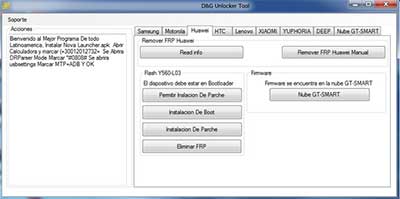
For many EMUI-based phones, the D&G Unlocker Tool provides a straightforward bypass option. It works by connecting the device to a computer and running commands that disable the FRP lock. The tool is relatively simple to use but depends heavily on compatibility with specific firmware versions. Its main drawback is that most MagicOS builds have patched the vulnerabilities it exploits, reducing its usefulness on modern HONOR devices.
Compatibility: Works mainly on EMUI phones; compatibility with MagicOS is limited since newer builds patch its exploits.
Quick Steps:
- Download D&G Tool: Install the latest version of the D&G Unlocker Tool on your Windows PC.
- Connect HONOR Device: Use a USB cable to connect your locked HONOR phone to the computer.
- Launch Tool: Open the D&G Unlocker Tool and select your device brand (HONOR/Huawei).
- Choose FRP Option: From the tool's menu, select the FRP bypass option.
- Wait for Process: The tool will communicate with your phone and remove the FRP lock.
- Restart Device: Once complete, reboot your HONOR phone and set it up with a new Google account.
Part 5: Bypass HONOR FRP Lock with QuickShortcutMaker
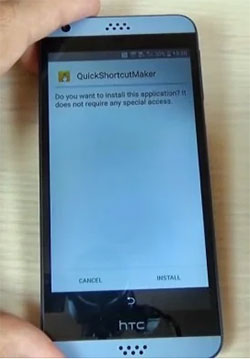
A popular APK-based method involves QuickShortcutMaker, which allows users to create shortcuts to hidden settings and bypass FRP. This approach requires sideloading the app, often through TalkBack or emergency call tricks, and then navigating to Google Account Manager.
It is lightweight and doesn't need a PC, but it only works reliably on EMUI devices where those loopholes remain open. On MagicOS, most of these tricks are blocked, making QuickShortcutMaker largely ineffective.
Compatibility: Effective on EMUI devices, especially older models, but blocked on most MagicOS versions.
Quick Steps:
- Connect to Wi-Fi: Turn on your HONOR phone and connect it to a stable Wi-Fi network.
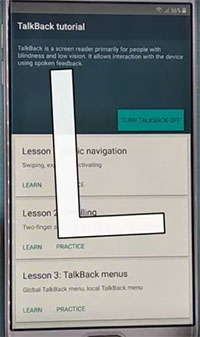
- Enable TalkBack: Use the accessibility shortcut to activate TalkBack, then draw an "L" gesture to open the TalkBack menu.
- Access Settings: From the TalkBack menu, navigate to Settings and disable TalkBack to regain normal control.
- Install QuickShortcutMaker: Download and install the QuickShortcutMaker APK via browser or file transfer.
- Launch QuickShortcutMaker: Open the app and search for "Google Account Manager" or "Settings."
- Create Shortcut: Use QuickShortcutMaker to launch the Google Account Manager screen.
- Add New Account: Sign in with a new Google account to replace the locked one.
- Restart Device: Reboot your HONOR phone; the FRP lock should now be removed.
Part 6: Perform HONOR FRP Bypass with Android Lock Wiper [Widely-compatible]
More advanced support comes from Android Lock Wiper, which is a professional PC tool updated to handle both EMUI and MagicOS. It requires installation on a computer, a USB connection, and sometimes additional drivers, but it offers guided steps that simplify the process.
Unlike older tools, it is regularly updated to keep pace with HONOR's firmware changes. Its limitation is that it is a paid solution, and improper use may still risk data loss or device instability.
Compatibility: Supports both EMUI and MagicOS, since it's a professional PC tool updated to handle newer HONOR firmware.
Core Functions of Android Lock Wiper:
- FRP Bypass: Removes Google FRP lock from HONOR and other Android devices, allowing setup with a new Google account.
- Screen Unlock: Unlocks various screen locks including PIN, password, pattern, and fingerprint.
- Account Removal: Deletes Google account or Samsung account from the device without needing credentials.
- Multi-Device Support: Works across different Android brands and versions, including EMUI and MagicOS.
- Guided Process: Provides step-by-step instructions with on-screen guidance to simplify unlocking.
- Data Management: Offers options to unlock while retaining or erasing data depending on the lock type.
Free Download:

Quick Steps:
- Download and Install: Begin by setting up the software on your computer.
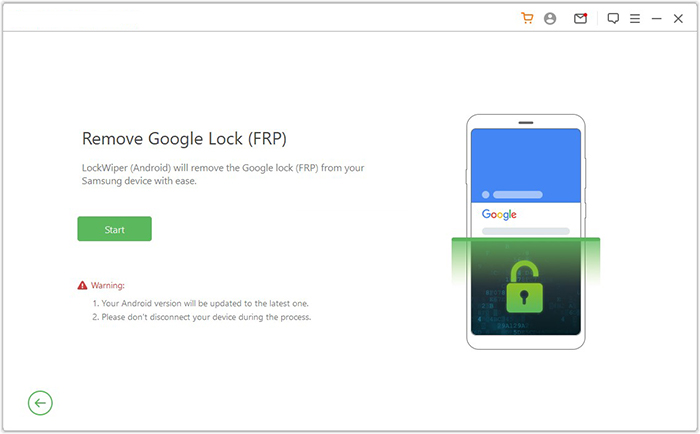
- Select FRP Option: After installation, choose "Remove Google Lock (FRP)" and switch to Advanced Mode.
- Connect Device: Attach your HONOR phone via USB and click "Start," backing up data if needed.
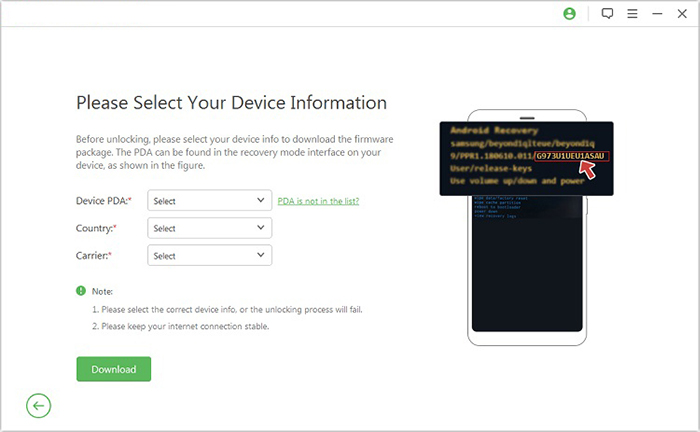
- Provide Device Info: Enter the required details about your phone and press "Next."
- Enter Recovery Mode: Follow on-screen prompts to boot into recovery mode.
- Download Data Package: Select PDA, country, and carrier, then download the necessary files.
- Extract and Configure: Start extraction, put the phone into Download Mode, enable USB debugging and OEM unlock.
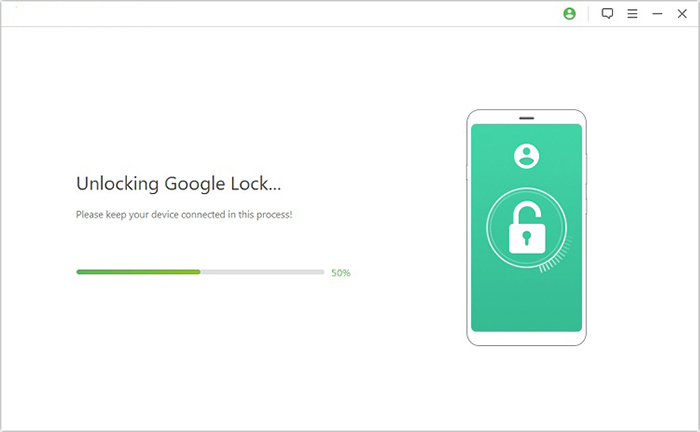
- Complete Unlock: The tool will process the firmware and finalize the FRP removal.
The Bottom Line
HONOR FRP bypass remains a challenging task because of the dual systems (EMUI and MagicOS) and frequent security patches. While older tools still work on legacy devices, newer MagicOS builds demand updated solutions, with Android Lock Wiper standing out as the most versatile option. The landscape of FRP bypass is constantly shifting, and users must match the right tool to the right system for success.
Before attempting any bypass, always confirm whether your HONOR phone runs EMUI or MagicOS - this single step saves time, prevents errors, and ensures you choose the correct solution.
Related Articles:
HONOR Device Clone Review: Is This App Worth Entrusting? [Informative]
HONOR Backup & Restore: 5 Clever Ways to Back Up & Restore HONOR
4 Stress-relief Methods to Transfer Data from HONOR to HONOR
