
Can TSM Tool Truly Bypass FRP & Screen Locks on Android Phones?
TL;DR:
- Overall, TSM Tool offers a range of Android servicing functions, including FRP bypass, screen-lock removal, and firmware repair, but its compatibility limitations, technical requirements, and paid features may not suit every user.
- If you prefer a simpler unlocking process, Android Lock Wiper offers a more guided interface, while Android Unlock provides broad device support and data-preserving options for selected Samsung models.
- Compare their supported devices, features, and more before making your choice, and always verify compatibility to avoid unnecessary risks.
NOTE: Before attempting any Android FRP removal or screen lock bypass solution, please confirm that you are the lawful owner of the phone or that you have obtained proper authorization to unlock it.
TSM Tool has attracted attention among Android users for its FRP bypass, screen lock removal, etc. However, is it reliable, safe, and worth paying for? In this TSM Tool review, we'll examine its main features, supported devices, pricing, pros and cons, and potential risks.
You'll also find step-by-step guidance on downloading, installing, activating, and operating the software, along with some key considerations to help you assess whether it is worth using.
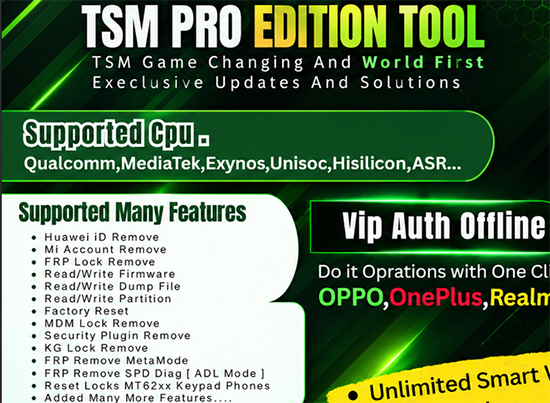
Part 1: What Is TSM Tool
TSM Tool is a Windows-based Android servicing and unlocking utility developed by Cheetah Tool, designed to help users and technicians manage, repair, and maintain Android devices. It offers various functions, including FRP lock removal, screen lock unlocking, firmware flashing, IMEI repair, ADB operations, and system troubleshooting.
Key Features
|
Feature
|
Description
|
|
FRP Lock Removal |
Bypasses Google Factory Reset Protection (FRP) on supported Android devices. |
|
Screen Lock Removal |
Removes supported PIN, pattern, and password locks. |
|
Firmware Flashing |
Flashes firmware and helps repair software-related issues. |
|
IMEI Repair |
Provides tools for repairing IMEI and network-related errors. |
|
ADB Operations |
Enables ADB and diagnostic modes for device servicing. |
| KG/MDM Removal |
Offers functions for handling supported KG and MDM restrictions. |
|
Factory Reset |
Resets compatible devices to their factory settings. |
|
Rooting Support |
Provides rooting-related functions on supported devices. |
|
Device Diagnostics |
Helps identify device information and system-related problems. |
|
Backup and Restore |
Offers data backup and restoration functions, depending on the version. |
Supported Devices
|
Brand Supported
|
Illustraton
|
|
Samsung |
Galaxy A05s, Galaxy A06, Galaxy A15, Galaxy A23 5G, Galaxy A30s, Galaxy S21 FE 5G, Galaxy S22 Ultra, Galaxy Tab A9 |
|
Xiaomi |
Redmi A3, POCO C61, POCO C50 |
|
TCL |
TCL 30+, TCL 40 SE, TCL 60R, TCL 406 |
|
ZTE |
nubia Neo 2 5G, nubia V80 Pro, Blade A36, Blade A55, Blade A56 |
|
OPPO |
OPPO A17K, Reno 5F, Reno 12 F 4G |
|
Realme |
Realme 1, Realme 3, Realme 12 4G, Realme C67 4G |
|
Motorola |
Moto E15, Moto G15, Edge 60, Edge 60 Fusion |
|
Huawei |
Huawei Y7 Prime 2018 |
|
Tecno |
Tecno Spark Go, Tecno Pova 3 |
|
Infinix |
Infinix Hot 30 5G |
|
Lenovo |
Lenovo Tab M11 |
|
Nothing |
Nothing 4B |
Note: Compatibility varies by device model, chipset, Android version, and TSM Tool edition. The listed brands do not mean that every model is supported. Check the official TSM Tool website for the latest compatibility information before using any unlocking or repair function.
Part 2: TSM Tool - Pricing & Safety
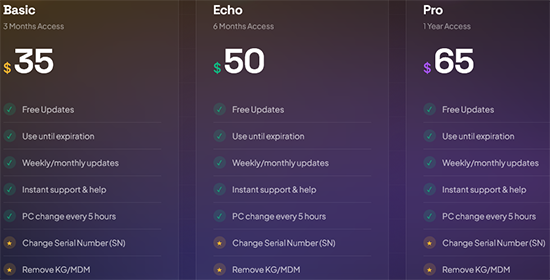
TSM Tool offers different activation periods for users who need its advanced Android unlocking, flashing, and repair functions. According to a distributor's published pricing, TSM Tool PRO has the subscription options as shown in the image below.
Is TSM Tool Safe?
- Download security: Download the software from the developer's official website rather than unknown third-party websites to reduce the risk of modified or bundled installers.
- Device safety: Flashing firmware, modifying partitions, and removing security restrictions can cause data loss, boot loops, or even device damage if performed incorrectly.
- Privacy concerns: Some operations require connecting your phone to a computer and enabling debugging or specialized service modes. Only use trusted computers and protect your device information.
- Compatibility risks: Not every model or firmware version is supported. Using an incompatible operation may cause unexpected problems.
- Antivirus checks: Scan the downloaded installer with reputable security software before installation. Do not disable antivirus protection simply because the program requests it.
Part 3: How to Download & Use TSM Tool
How to Download & Install TSM Tool
- Visit the Official Website: Open a secure browser and navigate to the official TSM Tool website.
- Download the Tool: Locate the Download section on the webpage and click the download icon to get the installation package.
- Extract the Archive: Once the download is complete, locate the ZIP or compressed file and extract its contents.
- Run the Installer: Open the extracted folder and launch the installer. If Windows displays a security warning, click More info and select Run anyway only if you have verified the installer is trustworthy.
- Choose the Installation Location: Select your preferred destination folder and click Next to continue.
- Complete Installation: Wait for the installation process to finish, then click Finish to close the setup wizard.
If you want to install TSM Tool PRO, follow these additional steps: 1. Locate and open the TSM Tool PRO application from your desktop. 2. Follow the setup instructions and click Next to proceed. 3. Click Install to begin installing the PRO version. 4. Wait for the installation to complete, then click Close to exit the setup wizard.
How to Use TSM Tool to Bypass FRP?
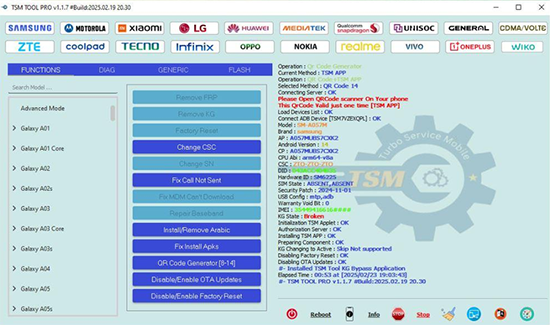
TSM Tool provides an FRP removal feature that can help users remove Google Factory Reset Protection from supported Android devices. If you want to try this function, follow the general steps below.
- Launch TSM Tool: Open the installed TSM software on your Windows computer and sign in to your account using your registered credentials.
- Connect Your Android Device: Use a compatible USB cable to connect your Android phone to the computer. Make sure the device has sufficient battery power (What if your phone is losing battery?).
- Select Remove FRP: Once the software detects your phone, locate and select the Remove FRP option from the main menu.
- Start the Process: Click Start and follow the on-screen instructions. Depending on your phone model, the program may require you to enter a specific service or connection mode.
- Complete FRP Removal: Wait for the operation to finish. If successful, your Android device may restart automatically, allowing you to proceed with its initial setup.
NOTE: Some online forums, such as community.nxp.com, may contain posts from newly registered accounts promoting tools with titles like "Unlock Tool," "All Android Devices," or "Bundle Download," sometimes accompanied by download links. Such links may pose security risks, so exercise caution when downloading files from these sources. To minimize potential threats, it is recommended that you obtain TSM Tool directly from its official website.
Part 4: What If TSM Tool Doesn't Work
Sometimes, TSM Tool may fail to remove FRP due to device compatibility issues, outdated software, connection problems, or Android security updates. If you encounter this problem, try the following troubleshooting tips:
- Check Device Compatibility: Ensure your phone model, chipset, and Android version are supported.
- Check USB Connection: Use a reliable USB cable and try another USB port if the device isn't detected.
- Update TSM Tool: Install the latest version to improve compatibility with newer Android devices.
- Check USB Drivers: Install or update the necessary USB drivers to ensure proper device recognition.
- Verify Login and License: Make sure your account is active and your license or required credits are valid.
- Restart Both Devices: Restart your computer and phone, then reconnect them to TSM Tool.
- Contact Official Support: Provide your device model and error message to the TSM Tool support team.
- Use Official Account Recovery: If FRP removal fails, recover the Google account or ask the previous owner to remove their account.
Part 5: TSM Tool - Pros & Cons
Advantages:
- Supports multiple Android brands and device models.
- Offers various functions, including FRP removal and screen lock unlocking.
- Provides firmware flashing and software repair features.
- Supports ADB and other advanced servicing operations.
- Offers different license plans to suit users' needs.
- Provides an integrated solution for Android repair technicians.
Disadvantages:
- Some advanced features require a paid license.
- Compatibility varies depending on the device model and Android version.
- The interface may be challenging for beginners.
- Certain operations may result in data loss or device malfunction.
- Some functions require technical knowledge and additional setup.
- Official support and documentation may be limited for certain operations.
Part 6: What Could Be Better than TSM Tool
Option 1: Using Android Lock Wiper
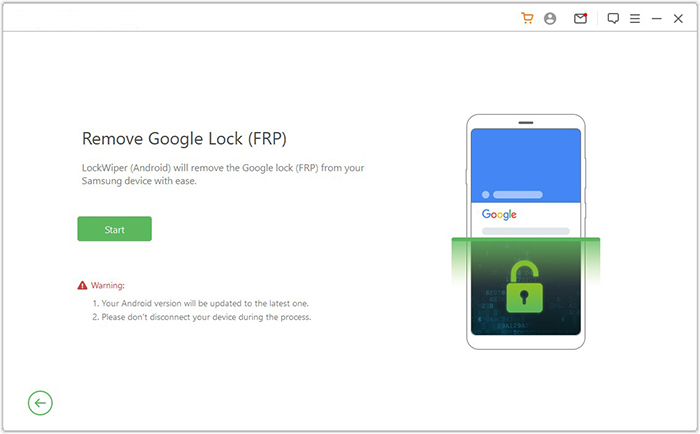
Designed for convenient Android unlocking, Android Lock Wiper provides FRP bypass and screen-lock removal capabilities for compatible devices. It can handle forgotten PINs, passwords, patterns, fingerprints, and face locks, while supporting selected Samsung, Xiaomi, Redmi, and other Android models.
Compared with TSM Tool, its guided interface and dedicated unlocking options make it a more accessible choice for users who want to resolve common Android lock issues.
Ad-Free Download: (with no extra software or background uploads).

How to Use?
- Begin by downloading and installing the software on your computer - this step is mandatory.
- Once installation is complete, select "Remove Google Lock (FRP)" and then choose "Advanced Mode."
- Connect your Android device to the computer using a USB cable, then click "Start."
- Back up your Android device first - this is critical to prevent any data loss during the FRP bypass.
- Enter the required Android device information as instructed, then click "Next."
- Follow the on-screen prompts to boot your Android device into Recovery Mode.
- On the next screen, select the correct PDA, country, and carrier, then click "Download" to obtain the required data package.
- Lastly, click "Start to Extract" and follow the on-screen instructions to put your device into Download Mode, enable USB debugging, activate OEM unlock, and extract the firmware and other essential components for FRP bypass.
Option 2: Using Android Unlock
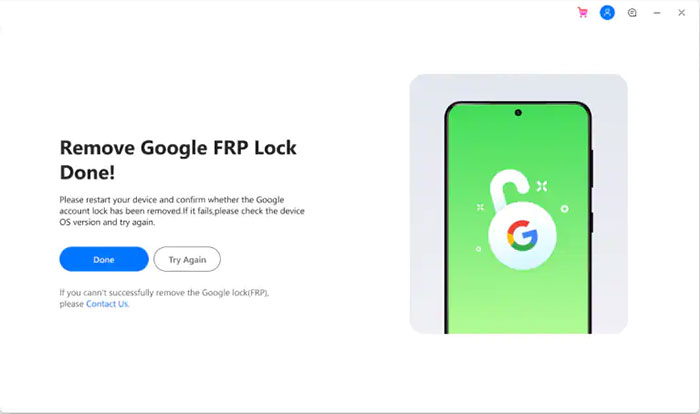
With a range of Android unlocking functions, Android Unlock helps users deal with Google FRP restrictions and various screen-lock problems. It supports the removal of PINs, passwords, patterns, fingerprints, and face locks, as well as FRP bypass on selected Samsung, Xiaomi, OPPO, Motorola, and other Android devices.
Its user-friendly workflow, wide device coverage, and data-preserving options for certain Samsung models make it a worthwhile alternative to TSM Tool.
FAQs about TSM Tool
Q1. Why can't TSM Tool detect my phone?
This may happen because of faulty USB cables, missing drivers, incorrect connection modes, or device compatibility issues.
Q2. Does TSM Tool require an internet connection?
An internet connection may be necessary for account login, license verification, updates, and certain online operations.
Q3. Does TSM Tool require root access?
No. Basic functions, such as FRP removal, generally do not require root access. However, some advanced repair and system modification operations may need additional permissions.
Q4. Which chipsets does TSM Tool support?
TSM Tool supports several chipsets, including Qualcomm Snapdragon, MediaTek, Unisoc, and Kirin (Hisilicon).
Q5. Is there a cracked version of TSM Tool?
There is no need to rely on unofficial cracked versions. They may contain malware, compromise your computer, or cause software problems. Use the official download source instead.
Q6. Does TSM Tool receive regular updates?
Yes. The developer publishes software updates that introduce new device support, additional functions, and bug fixes. Check the official website for the latest releases.
Q7. Can I use TSM Tool on multiple computers?
This depends on your license plan and activation restrictions. Check the applicable license terms before changing computers or attempting another activation.
Q8. Is TSM Tool suitable for beginners?
It can handle basic servicing tasks, but some advanced features, such as EDL flashing and firmware repair, require technical knowledge. Beginners should start with simple functions and follow the official instructions carefully.
Related Articles:
Chimera Tool Review: Features, Updates, User Guide, FAQs, & 1 Alternative
Top 3 Methods to Recover Android Data without USB Debugging
Hard Reset vs.Factory Reset Android: Head-to-head Comparison
How to Root Android Device Easily? 6 Options & Some Helpful Tips