
AirDroid Personal vs. Apeaksoft Phone Mirror: Which Is Smoother
Many users need stable, real-time screen mirroring for presentations, streaming, gaming, or demos. AirDroid Personal vs Apeaksoft Phone Mirror often comes up in searches because while AirDroid Personal offers extensive device-management features like file transfer and remote control, Apeaksoft Phone Mirror focuses on straightforward, reliable screen mirroring and basic control.
In this review, we compare these two tools, helping users determine which solution best fits their workflow.
- Part 1: AirDroid Personal vs. Apeaksoft Phone Mirror: Overview & Features
- Part 2: AirDroid Personal vs. Apeaksoft Phone Mirror: Audience & Support
- Part 3: AirDroid Personal vs. Apeaksoft Phone Mirror: Pricing & Ratings
- Part 4: AirDroid Personal vs. Apeaksoft Phone Mirror: User Guide
- Part 5: AirDroid Personal vs. Apeaksoft Phone Mirror: Pros & Cons
- Part 6: What Could Be Better Than AirDroid Personal & Apeaksoft Phone Mirror
Part 1: AirDroid Personal vs. Apeaksoft Phone Mirror: Overview & Features
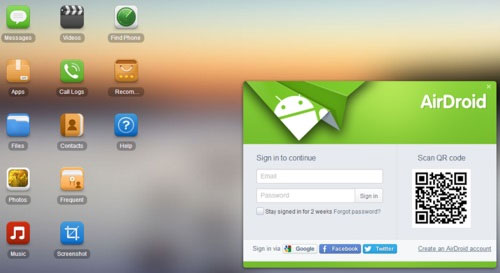
AirDroid Personal is a convenient cross-platform tool that lets you manage, transfer files, and remotely control your Android devices without using cables. (Want to copy data from PC to Android wirelessly?)
Its wide feature set-from file transfer to screen mirroring and remote camera-makes device management easier, though some advanced functions require a Premium plan. Overall, it's a powerful choice if you want seamless Android-to-PC connectivity and remote access.
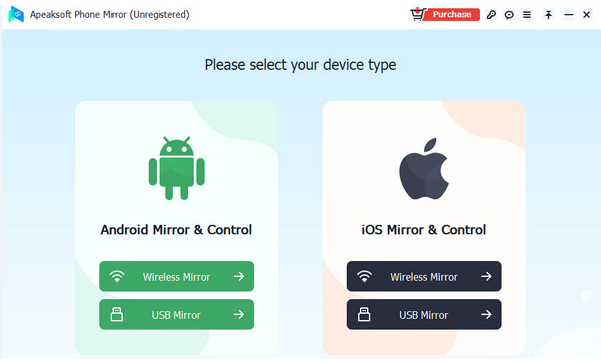
Apeaksoft Phone Mirror is a desktop app that lets you mirror your iPhone or Android phone screen to a Windows (or macOS) computer - showing the phone display in real time on a larger screen. It also allows you to record your phone's screen, take screenshots and save them on the computer, which can free up storage on your iPhone/Android. Additionally, if you use an Android device, the software supports controlling the phone from your PC.
Key Features:
|
Capability
|
AirDroid Personal
|
Apeaksoft Phone Mirror
|
|
Screen Mirroring
|
Yes - mirrors Android (and limited iOS) screens to PC or Mac via desktop client or web. |
Yes - mirrors Android and iPhone screens to Windows PC in real time. |
|
Remote Control (mouse/keyboard control)
|
Yes - full remote control of Android devices, allowing app operation, typing, and file actions. |
Yes - allows controlling Android devices from PC using a mouse and keyboard. |
|
File Transfer & Management
|
Yes - supports wireless transfer and management of files, folders, and media across devices. |
No - does not include file transfer or file management features. |
|
Screen Recording & Screenshots
|
Possible, though not a primary emphasis; depends on mirroring tools used. |
Yes - built-in screen recording and screenshot capture on the PC. |
|
Notification/SMS/Call Management
|
Yes - manages SMS, notifications, contacts, and call logs from the computer. |
No - does not include message, notification, or contact management. |
|
Remote Camera/Device Locator
|
Yes - includes remote camera, "Find Phone," and remote data-wipe functions. |
No - does not support remote camera or device location features. |
|
Cross-Platform Support
|
Broad - supports Android, limited iOS, Windows, macOS, and web access. |
Focused - mirrors Android/iOS to Windows PC only. |
Part 2: AirDroid Personal vs. Apeaksoft Phone Mirror: Audience & Support
AirDroid Personal - Audience
- Users needing full Android device management on PC/web.
- People who want remote control, remote camera, or device-locator features.
- Those managing multiple devices under one account.
- Cross-platform users working across Windows, macOS, Android, and web.
AirDroid Personal - Support
- Desktop, mobile, and web clients available.
- Remote control, remote camera, and screen-mirroring features
- Multi-device management support.
- Sync for notifications, SMS, calls, and contacts.
Apeaksoft Phone Mirror - Audience
- Users mainly needing phone-to-PC screen mirroring.
- People wanting to record or screenshot phone screens.
- Android users wanting simple mouse/keyboard phone control.
- Those who prefer a lightweight, easy mirroring tool.
Apeaksoft Phone Mirror - Support
- Supports Android and iOS mirroring to Windows PC.
- Multiple connection options (WiFi, USB, PIN/QR).
- Built-in screen recording and screenshot tools.
- Stable real-time display for demos, gaming, or presentations.
Part 3: AirDroid Personal vs. Apeaksoft Phone Mirror: Pricing & Ratings
AirDroid Personal offers both a free tier and a reasonably priced premium plan, making it accessible while unlocking advanced features for device management. Apeaksoft Phone Mirror uses a license-based model with limited public reviews, focusing mainly on screen mirroring and recording rather than full device management. Below is the full reference:
|
Software
|
Pricing/License Options
|
Known Ratings/Reviews
|
|
AirDroid Personal
|
- Free tier available (basic features) |
Generally well-received; reviews note strong features but limitations in the free plan. |
|
Apeaksoft Phone Mirror
|
- Quarterly license: US $24.96 |
Very few public reviews; some platforms show no rating due to lack of user submissions. |
Part 4: AirDroid Personal vs. Apeaksoft Phone Mirror: User Guide
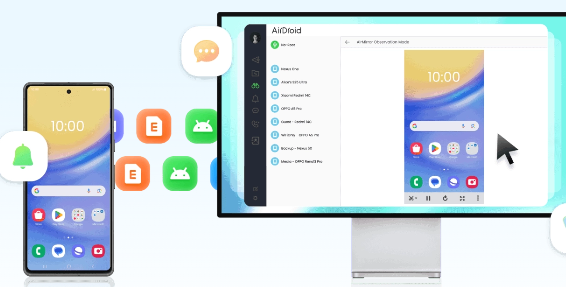
One-List Guide - How to Use AirDroid Personal?
- Install the App on Your Phone - Download and install the AirDroid Personal app on your Android or iOS device, then sign in to your AirDroid Personal account.
- Install the Desktop Client - Download and install the AirDroid Personal desktop client on your computer, and sign in with the same AirDroid account.
- Open the Desktop Client - Launch the AirDroid Personal desktop client, then click the telescope icon on the left menu bar.
- Start Screen Mirroring - Select your device from the list, then click Screen Mirroring to establish a connection and view/control your phone from the computer.
One-List Guide - How to Use Apeaksoft Phone Mirror?
- Install and Register - After installing Apeaksoft Phone Mirror on your computer, click the Register this product icon. Enter your email address and registration code in the pop-up window, then click Activate to complete registration.
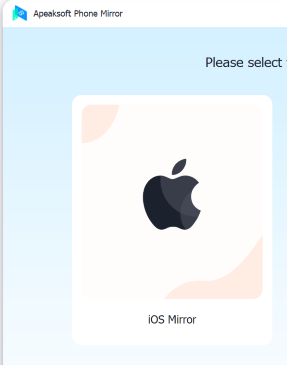
- Launch and Select Mirror Mode - Open the software and choose the iOS Mirror function for iPhones or other iOS devices.
- Connect Your Device - Ensure your iPhone and computer are on the same Wi-Fi network. For screen mirroring, open Control Center on your iPhone, tap Screen Mirroring, and select Apeaksoft Phone Mirror.
- Audio Mirroring (Optional) - If you want to mirror audio only, select Audio Mirroring in the software.
- Then, in your iPhone's Control Center, open the music playback menu and choose Apeaksoft Phone Mirror to send audio to your computer.
Part 5: AirDroid Personal vs. Apeaksoft Phone Mirror: Pros & Cons
AirDroid Personal excels as an all-in-one device management tool with features like file transfer, remote control, and multi-device support, though its free version has limitations and some performance or privacy concerns. Apeaksoft Phone Mirror focuses on simple and reliable screen mirroring, recording, and control, but lacks full device-management features and may face occasional connection issues.
|
Software
|
The Good
|
The Bad
|
|
AirDroid Personal
|
1. Rich features: file transfer/management, SMS/notification/call/contacts handling, remote control, screen mirroring, remote camera, "Find Phone"/remote wipe, cross-device & cross-platform support. |
1. Free version has limitations (data quota for remote, fewer features, file-size limits, ads) unless upgraded to Premium. |
|
Apeaksoft Phone Mirror
|
1. Simple and focused: good for screen mirroring (iOS & Android > PC), real-time mirroring, recording screen or screenshots, and controlling via PC. |
1. Free/trial version may offer limited functionality compared to full version - some features require purchase. |
Part 6: What Could Be Better Than AirDroid Personal & Apeaksoft Phone Mirror
Screen Mirror offers smooth, high-resolution screen mirroring for both iOS and Android with minimal lag, outperforming many competing tools, including AirDroid Personal and Apeaksoft Phone Mirror. This product allows full device control from a PC using a mouse and keyboard, including keyboard mapping for games, and supports features like screen recording, audio mirroring, and multi-device casting.
Overall, it provides a more powerful and flexible mirroring and control experience compared with the two tools mentioned in this article.
Why Choose Screen Mirror?
|
Feature
|
Description
|
|
Teleport GPS |
Works on Android and iOS without root or jailbreak. |
|
Multiple Movement Modes |
Teleport, route simulation, multi-stop, and joystick control. |
|
Adjustable Speed & Routes |
Customize movement speed and create two-point or multi-point paths. |
|
Real-Time GPS Updates |
Works across apps with real-time location changes. |
|
Desktop-Based Control |
Manage GPS spoofing from PC or Mac for stability. |
|
Trial & Paid Plans |
Free trial available; full features require subscription/license. |
|
Favorite Locations |
Save frequently used locations for quick access. |
|
Route Simulation with Pause/Resume |
Allows pausing and resuming routes for more realistic movement. |
One-List Guide - How to Use the most reliable alternative to AirDroid Personal vs Apeaksoft Phone Mirror? (Suppose you want to do this on an Android phone.)
- First, install the Screen Mirror application on your computer after the free download.
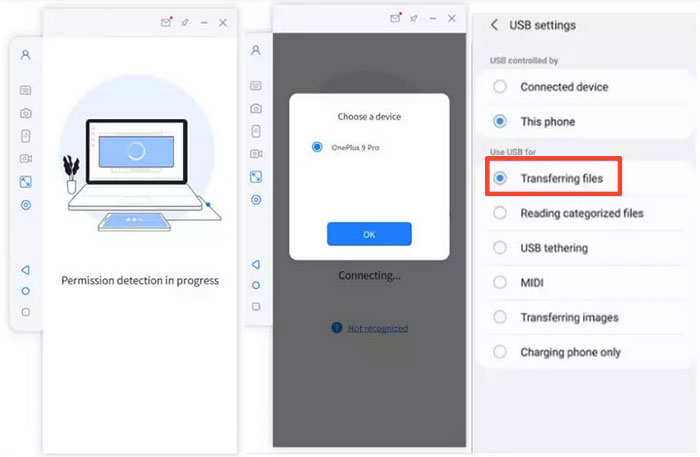
- Launch the program and connect your device using a USB cable. (If you prefer, you can also connect your phone via Wi-Fi.)
- From the pop-up menu, select your device and choose "Transfer files."
- On your Android phone, go to Settings > About phone > Software information and tap Build number to enable Developer options.
- Then, turn on USB debugging. When prompted with "Always allow USB debugging from this computer," tap OK to simplify future connections.
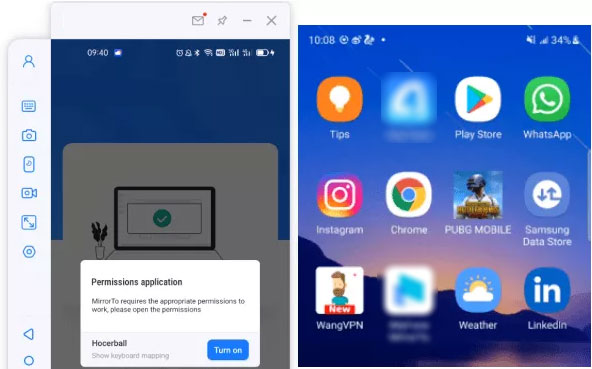
- Grant the required permissions to the software and allow it to appear on top of other apps.
- Next, tap Turn on to let your Android automatically download the Android Screen Mirror APK.
- Once the setup is complete, your device screen will be mirrored to your Windows PC.
- You can now use your keyboard and mouse to interact with apps and enjoy social activities on the larger screen.


Wrapping Up
While both AirDroid Personal and Apeaksoft Phone Mirror serve important purposes, Screen Mirror surpasses them in terms of flexibility, performance, and user experience.
It combines smooth, high-quality screen mirroring with full device control, file transfer, audio mirroring, and streaming capabilities, making it a more powerful and versatile choice. Users can enjoy the benefits of both AirDroid's management features and Apeaksoft's reliable mirroring in a single tool.
Related Articles:
AirDroid Personal Review: Is It a Worthwhile Tool? [SOLVED]
Apeaksoft Android Data Recovery Review: Is It Advisable? [Fixed]
[Latest Reviews] 13 Best AirDroid Alternatives You Can't Miss
Apeaksoft iPhone Data Recovery Review: Is Apeaksoft Worth Buying?
