
TeamViewer Review 2026: Does It Offer Real Value? [Full Analysis]
In a world where distance rarely slows down work, finding the right remote access tool can feel like navigating a labyrinth. This TeamViewer review dives beyond glossy features, offering raw, firsthand perspectives and insights into its performance, reliability, and usability from people who have actually used it.
Readers will discover not just what the software promises, but how it behaves under the pressures of real tasks and unexpected glitches. By exploring these authentic experiences, we uncover whether TeamViewer truly earns its reputation or if hidden pitfalls lurk beneath the interface.
- Part 1: TeamViewer - Brief Intro & Features
- Part 2: TeamViewer - Pricing & Security
- Part 3: TeamViewer - Support, Ratings, & Reviews
- Part 4: TeamViewer - Q&A
- Part 5: TeamViewer - Strengths & Shortcomings
- Part 6: TeamViewer - What Could Be Better (2 Alternatives)
- Part 7: TeamViewer - My Personal Take
Part 1: TeamViewer - Brief Intro & Features
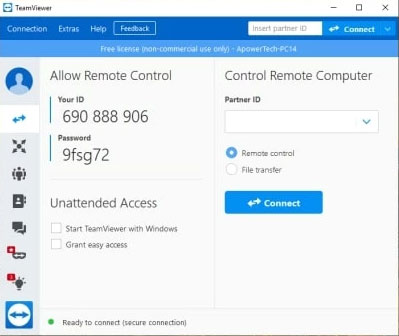
Providing seamless remote access and control over computers and mobile devices, TeamViewer enables users to troubleshoot, collaborate, and manage system files from virtually anywhere. With support for cross-platform connections and secure file transfers, it serves both personal users and enterprise teams. Its intuitive interface, combined with advanced features, ensures efficient remote operations without unnecessary complexity.
|
Feature
|
Description
|
|
Cross-Platform Compatibility |
Connect across Windows, macOS, Linux, iOS, Android, and Chrome OS. |
|
File Transfer |
Drag-and-drop files or folders between connected devices easily. |
|
Multi-Device Access |
Control multiple devices simultaneously from a single account. |
|
Unattended Access |
Access devices without requiring someone on the other end. |
|
Session Recording |
Record remote sessions for training, auditing, or documentation purposes. |
|
Wake-on-LAN |
Power on devices remotely if they are in sleep mode. |
|
Remote Printing |
Print documents from a remote device to a local printer. |
|
Collaboration Tools |
Chat, video calls, and screen sharing for team collaboration. |
|
Custom Branding |
Personalize the interface with company logos and colors for business use. |
Part 2: TeamViewer - Pricing & Security
TeamViewer offers flexible options for both personal and commercial use, with different license plans to suit varying needs. Its robust security measures, including end-to-end encryption and two-factor authentication, ensure that remote connections remain safe and reliable. For a visual reference, check out the table:
|
Category
|
Details
|
|
Pricing |
Free version for personal use. Commercial licenses include: Single User, Multi-User, and For Teams plans with monthly or annual fees. Exact pricing varies by region and features. |
|
Security |
End-to-end encryption, two-factor authentication, device authorization, and session logging. Regular security updates and compliance with major standards ensure safe remote connections. |
Part 3: TeamViewer - Support & Ratings
Support:
- Email: Contact method available, but no detailed information is provided.
- Phone: Direct support at (800) 638-0253 for inquiries and assistance.
- Chat: Real-time messaging support for quick help.
- FAQ: Frequently asked questions covering common issues.
- Forum: Community discussions where users share solutions and tips.
- Help Desk: Structured support for troubleshooting and guidance.
- Knowledge Base: Detailed articles, guides, and tutorials for self-help.
- Tickets: Submit requests for support online; requires a licensed account.
- Training: Access via support forum, service center, and security handbook to learn how to use TeamViewer effectively.
- 24/7 Live Support: Round-the-clock assistance for urgent issues.
- Suite Support: Comprehensive support for TeamViewer’s full suite of products.
Ratings:
- Software Advice, Inc: 4.6/5 (11,581 reviews).
- G2.com, Inc: 4.5/5 (3,584 reviews).
- Gartner, Inc: 4.5/5 (1,630 reviews).
- TrustRadius: 4.2/5 (2,706 reviews).
Part 4: TeamViewer - Q&A
Q1: How can I get support for TeamViewer?
A1: Support is available via phone, chat, tickets, FAQ, forum, knowledge base, 24/7 live support, and training resources. Some services require a licensed account.
Q2: Can TeamViewer handle multiple remote sessions at once?
A2: Yes, but the number of simultaneous sessions depends on your license type, and session freezes may occur occasionally.
Q3: Do I need an account to use TeamViewer?
A3: You can use TeamViewer without an account for one-time connections, but creating a free or licensed account gives access to additional features like session history, contacts, and ticket support.
Q4: How do I prevent session freezes in TeamViewer?
A4: While occasional freezes may occur, using a stable internet connection, updating to the latest version, and limiting simultaneous high-bandwidth sessions can reduce issues.
Q5: Can TeamViewer be used for business or enterprise purposes?
A5: Yes, TeamViewer offers commercial licenses with advanced features like mass deployment, multi-user management, and 24/7 support tailored for business use.
Part 5: TeamViewer - Strengths & Shortcomings
Pros:
- Reliable remote access and control across multiple devices.
- Cross-platform support including Windows, macOS, Linux, iOS, and Android.
- Unattended access allows remote management without someone on the other end.
- File transfer and remote printing simplify workflow and collaboration.
- Session recording and collaboration tools enhance training and teamwork.
- Custom branding options for business and enterprise use.
Cons:
- Inflexible license model can be limiting for occasional or varied users.
- Remote sessions may freeze occasionally, affecting workflow.
- Some advanced features require a paid license.
- Can be complex for first-time users unfamiliar with remote software.
- Free version is only for personal use; commercial use requires a subscription.
Part 6: TeamViewer - What Could Be Better (2 Alternatives)
Alternative 1 - Screen Mirror:
Remote control and screen mirroring have never been smoother thanks to Screen Mirror, which offers a highly stable connection between devices. Its intuitive interface allows users to mirror their phone screens to a PC without complicated setup, making it ideal for presentations or remote troubleshooting.
Unlike TeamViewer, it avoids sudden session freezes and provides a more flexible license model that suits occasional and frequent users alike. Advanced features like real-time screen control and keyboard mapping enhance productivity and gameplay, positioning it as a superior alternative for seamless device management.


How can I mirror my phone to my computer using Screen Mirror?
- Begin by downloading and installing Screen Mirror on your computer.
- Once the installation is complete, connect your Android device to the computer using a USB cable.
- When prompted, select your smartphone and choose the "Transfer files" option.
- Access your phone's "Settings," then proceed to "About phone," and select "Software information."
- To activate the "Developer options," tap on "Build number" seven times.
- After this, return to "Settings" to enable USB debugging on your Android device while it remains connected via USB.
- Provide the application with permission to access your device, which will allow it to display items in its main window.
- Next, click on "Turn on" to install the Screen Mirror .apk on your phone or tablet.
- Once the mirroring process is finished, you can easily view and control Android data on your computer.
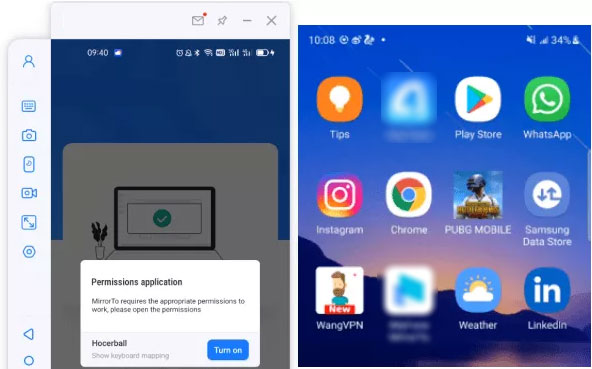
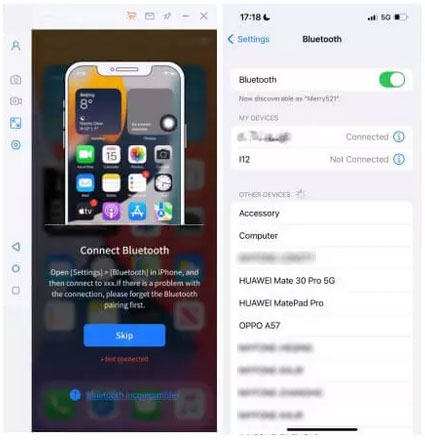
For iPhone users, try these steps: Download and launch Screen Mirror on your PC, then connect your iPhone and PC to the same Wi-Fi network and select "iOS" on the app. Open the iPhone's Control Center and choose "Screen Mirroring" to start the connection. Finally, pair the devices via Bluetooth in "Settings" > "Bluetooth" to control your iPhone from the computer instantly.
Limitations:
- Advanced features like keyboard mapping may not support all apps or games.
- Free version has limited functionality; full access requires a paid license.
Alternative 2 - LetsView:
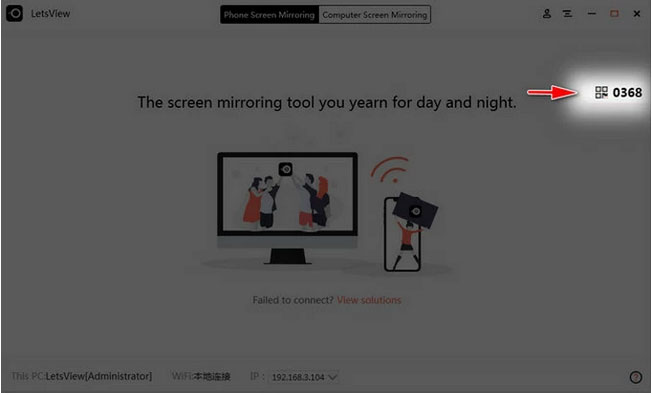
Casting a spotlight on effortless connectivity, LetsView enables wireless screen mirroring across multiple platforms with minimal latency. Users can share screens in real time, annotate, and record sessions, making collaboration and demonstrations straightforward.
Compared to TeamViewer, LetsView does not restrict features behind rigid licensing, offering a more accessible experience for both personal and professional use. Its lightweight setup and responsive interface ensure smooth operation even on lower-end devices, making it a practical and versatile solution for remote tasks.
Limitations:
- Relies heavily on Wi-Fi for wireless mirroring, which can cause lag or connection drops.
- Screen control capabilities are limited compared to dedicated remote desktop software.
- Occasional latency may occur during high-resolution streaming or rapid interactions.
- Lacks advanced enterprise features like unattended access, session recording, and licensing options for commercial use.
You May Also Like: LetsView Review 2026: Is It Worth Trusting? [SOLVED]
Part 7: TeamViewer - My Personal Take
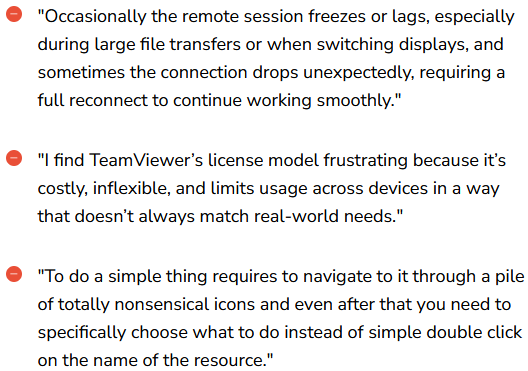
From my tests, TeamViewer works well for basic remote access, but its inflexible license model can be limiting, especially for users who need occasional or varied usage. I also experienced occasional remote session freezes, which aligns with some feedback on the Software Advice page.
While it remains a solid tool, these issues can be frustrating for a consistent workflow. For a smoother and more flexible experience, I would recommend using iMyFone MirrorTo as a more reliable alternative.
Related Articles:
How to Control iPhone with Broken Screen [Ultimate Guide]
How to Find/View Hidden Files on Android? 7 Solutions for You
3 Proven Methods to Open & Preview Backup File with .bak Format
Top 8 iPhone to Android Transfer Apps/Software You Should Bookmark
