
5 Most Dependable Methods to Back Up POCO Apps [Latest Info]
TL;DR:
Data loss on a POCO phone can cause inconvenience, especially when apps, app data, settings, and progress vanish after a crash, deletion, or reset. Regular backups are therefore essential to keep information safe and accessible.
MobiKin Backup Manager for Android offers a straightforward way to back up apps, contacts, messages, and other files from POCO devices to a computer with reliable USB connections. It also provides easy restoration, ensuring that users can recover their data quickly without compromising quality.
Losing important information on your POCO phone can be inconvenient, especially when apps, app data, settings, and progress may disappear after a system crash, accidental deletion, or factory reset. To prevent such losses, it is essential to back up POCO apps regularly.
This passage explores 5 smart ways to make a backup, covering methods that suit different needs, whether you prefer storing data on a computer, cloud service, or external drive.
Consult the video below for a clear visual presentation of the topic.
Part 1: Back Up POCO Apps with MobiKin Software [Secure]
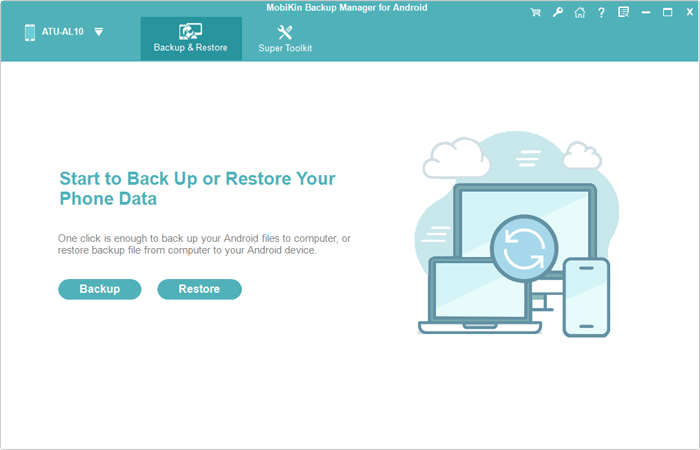
Managing POCO apps on a computer can be handled with MobiKin Backup Manager for Android. (Windows/Mac) Known as Android Backup & Restore, this software allows users to back up installed apps from a POCO device to a PC with only a few clicks.
It works through a stable USB connection and organizes backups so they can be restored later when needed. Many people rely on it when they prefer storing POCO app backups on a computer rather than keeping everything on the phone.
It allows a full backup of contacts, messages, call history, photos, music, videos, documents, and apps, and can restore them to Android devices while keeping the original quality. The tool supports over 8,000 Android models, including POCO C, M, X, and F series, and offers secure performance with reliable technical support.


Quick User Guide:
- Click the button above to download the program.
- After that, install and execute it on your computer.
- Connect your POCO phone to the computer using a USB cable.
- Once the physical connection is made, the tool will automatically detect your device.
- Shortly thereafter, the interface will show options for "Backup" and "Restore".
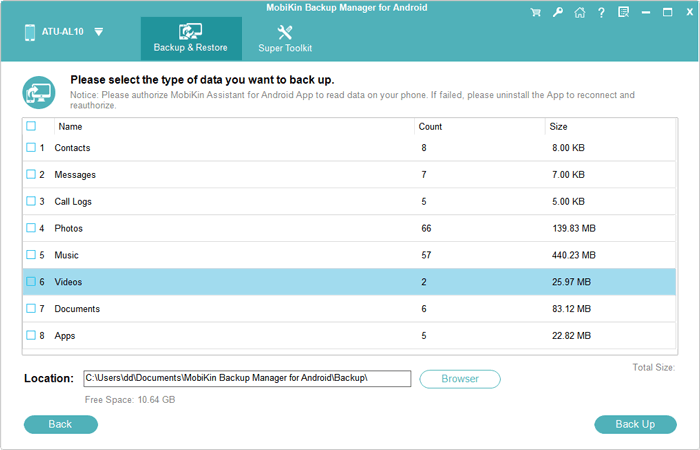
- Simply select the "Backup" option, and the interface will display various file types.
- Choose "Apps" and specify a location on your PC to save the files.
- Finally, click "Back Up" to initiate a backup of your POCO phone on your PC.
You Might Also Like: What if your POCO phone is frozen? Check out the 12 easy solutions here.
Part 2: Back Up All POCO Apps via Local Backups
Saving applications directly on the device is possible through Local backup. This built-in feature in MIUI or HyperOS lets users select apps and app data before creating a backup file in the internal storage. The generated folder can later be moved to another location or restored after resetting the phone. It offers a convenient way to keep POCO apps preserved without installing extra software.
Quick User Guide:
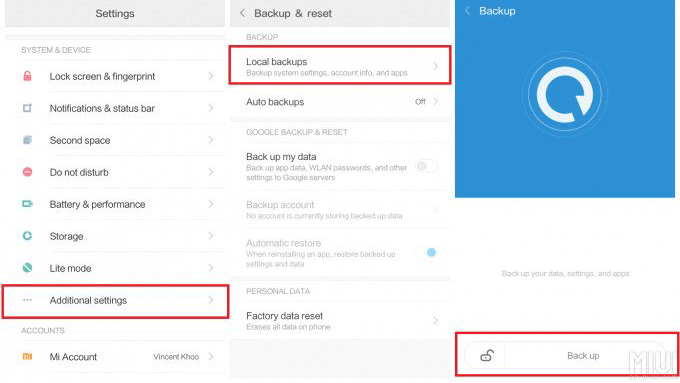
- Open Settings on your POCO phone > tap About phone or Additional settings > select Backup & restore.
- Tap Local backups and choose Create backup.
- Select Apps and app data (you can also choose SMS, call logs, and system settings if needed).
- Tap Back up/Start backup to begin the process.
- Wait for the backup to complete; the files will be saved in Internal Storage > MIUI > backup > AllBackup.
Part 3: Back Up Apps on POCO via Mi Cloud
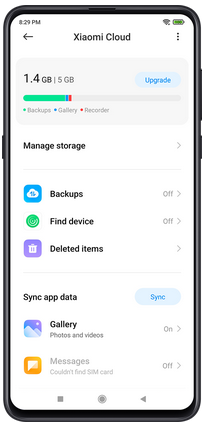
Cloud storage can also be used through Mi Cloud. After signing in with a Xiaomi account, the system can upload the list of installed apps together with certain device settings. During a device reset or when setting up another POCO phone, the saved information helps reinstall the previous apps automatically. This method mainly relies on an internet connection and Xiaomi's cloud environment.
Quick User Guide:
- Open Settings on your POCO phone and tap Mi Account (log in if you haven't already).
- Select Xiaomi Cloud/Mi Cloud from the account options.
- Tap Backups or Backup device.
- Turn on Automatic backup if you want the phone to back up regularly.
- Tap Back up now to manually start the backup to Mi Cloud
- Wait for the process to finish; the phone will upload data such as the list of installed apps, system settings, and home screen layout to Mi Cloud. (Mi Cloud doesn't work?)
Part 4: Back Up App on POCO Using Google Drive
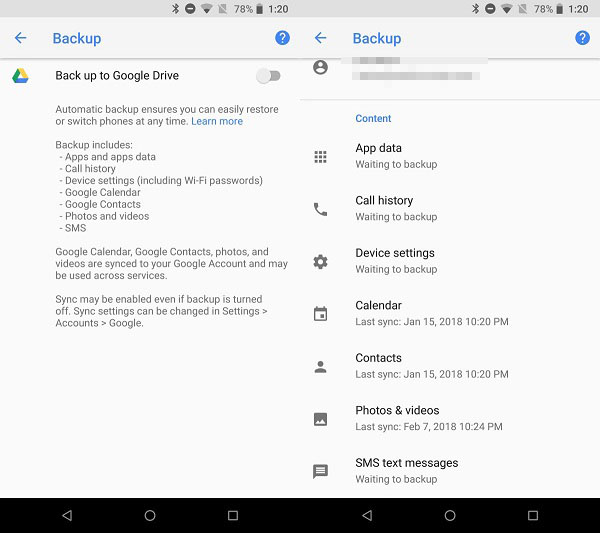
Online backup services provided by Google are another option through Google Drive. When device backup is enabled in the Google settings, the system records installed apps and some app data and sends them to the user's Google account.
If the phone is restored or replaced, the stored information helps recover those apps during setup. This approach allows POCO app backups to remain accessible from the cloud.
Quick User Guide:
- Open Settings on your POCO phone and scroll down to tap Google
- Select Backup from the Google services menu.
- Turn on Back up to Google Drive (or tap Enable).
- Tap Back up now/Start backup to upload your device data to Google Drive.
- Enter your screen lock PIN, password, or pattern to confirm the backup.
- Wait for the process to finish; your apps, app data, settings, and other device data will be stored in your Google Drive backup.
You Might Also Need: Dropbox vs. Google Drive vs. OneDrive - Which Is the Best?
Part 5: Make App Backup on POCO via Flash Drive
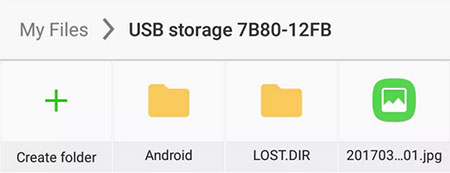
External storage devices may also help preserve applications through a Flash Drive. With the help of an OTG adapter, the phone can copy backup files that contain apps and system data to the connected drive. The stored files remain independent of the phone's internal storage and can be moved to other devices if needed. This approach is useful when users want an offline copy of their POCO app backups.
Quick User Guide:
- Insert a USB flash drive or microSD card into your POCO phone (use an OTG adapter if necessary).
- Open Settings > tap About phone > select Back up and restore.
- Tap the mobile device and enter your screen lock pattern or password to continue.
- Choose the apps or data you want to back up (such as apps, SMS, and system settings).
- Select the storage location (flash drive or external storage) and tap Back up to start the process.
- Wait for the backup to finish; the time required depends on the amount of data and storage speed.
What types of app data can be backed up to a flash drive? You can back up: 1. Installed app APK files - the app installation packages themselves. 2. App data and settings - game progress, preferences, and login info. 3. Media files within apps - for apps like WhatsApp, Telegram, or gallery-based apps.
Part 6: FAQs about Backing Up Apps on POCO
Q1: Do local backups include app settings and progress?
Yes, backups generally include app data, settings, and progress. However, local backups are stored on internal memory, so they are erased during a factory reset unless copied to external storage or a PC.
Q2: Will local backups survive a factory reset?
No, local backups stored on internal memory are erased during a factory reset. Always transfer them to a PC or cloud for safety.
Q3: How do I restore backed-up apps?
Navigate to Settings > About Phone > Backup & Restore, select the backup source (Local, Mi Cloud, Google, or PC), and follow on-screen instructions.
Q4: Which method is most secure?
PC-based backups using tools like MobiKin Backup Manager for Android are considered most secure, as they avoid cloud risks and preserve full app data with integrity.
Q5: Where is the local backup file saved, and can I move it?
It's saved in MIUI > backup > AllBackup on internal storage. Yes, copy this whole folder to a PC or USB drive—it gets erased during a factory reset.
Q6: Is Google Backup a good option for app backups?
It's a good safety net for contacts, calendar, and some app data. It auto-backs up to Google Drive with 15 GB free storage. Best for restoring when setting up a new phone.
Q7: Does my backup include photos and videos?
Local Backup: No - copy them manually. Xiaomi Cloud: Yes, if gallery sync is on. Google Backup: Yes, but watch your storage limit.
Q8: How often should I back up my POCO?
At least once a week, and always right before a system update, factory reset, or bootloader unlock.
Q9: What is the difference between Xiaomi Cloud and Google Backup?
Xiaomi Cloud is system-deep, backs up contacts/messages/settings/photos (5 GB free). Google Backup is universal across Android, backs up broader data (15 GB free, shared with Drive/Gmail), and excels at new-phone setup.
Final Thoughts
By following the methods outlined here, restoring your POCO apps becomes a simple and reliable process, even after a reset or phone upgrade. Choosing the right backup strategy not only preserves app information but also saves time when setting up a new device.
Additional Tip: For extra security, consider keeping multiple backups in different locations, such as one on a PC and another in cloud storage, so you always have access to your apps and data.
Related Articles:
POCO Data Recovery without Root: Discover 5 Optimal Tools Here
4 Effective Strategies to Unlock POCO Phone without Effort
Mi PC Suite Reviews, How-tos, Download & 3 Best Alternatives
4 Optimal Ways to Transfer Photos from POCO to POCO [Expert's Advice]
