
How to Connect POCO to MacBook in 4 Simple & Secure Ways
"Hey, I'm trying to connect my POCO phone to my Mac, but it doesn't show up in Finder. I've tried using a USB cable, and the phone is charging only." -- from Reddit
A POCO phone and a Mac do not naturally work together for file transfer or device syncing because they belong to different operating systems. Several options exist, ranging from USB connections to wireless apps and cloud services, each with different levels of reliability.
This passage explains how to connect POCO to Mac while avoiding issues like weak Wi-Fi signals, pairing failures, or transfer interruptions, so data transfer remains steady and manageable.
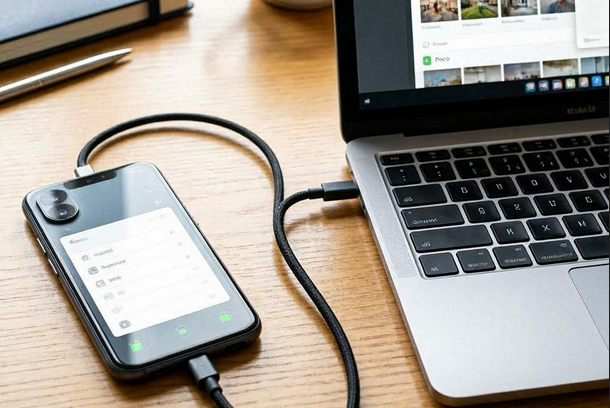
- Section 1: Connect POCO to Mac via MobiKin Assistant for Android [Stable]
- Section 2: Connect POCO Phone to MacBook via Xiaomi Interconnectivity App
- Section 3: Link POCO to MacBook with Quick Wireless File Drops
- Section 4: Pair POCO Phone with MacBook via Send Anywhere
- FAQs about Connecting POCO to MacBook
Section 1: Connect POCO to Mac via MobiKin Assistant for Android
A reliable way to manage data between a POCO phone and a Mac is through desktop-based control software, where MobiKin Assistant for Android (Mac/Windows) plays a strong role. It allows users to connect a POCO device to a Mac via USB and access files, contacts, messages, and apps in an organized interface.
This method is especially useful when handling large backups or performing selective data export. It offers a stable connection that doesn't depend on Wi-Fi strength.
Why Pick MobiKin Assistant for Android?
- Connects a POCO phone to Mac via USB for direct data access and transfer.
- Manages contacts, messages, photos, videos, music, apps, and files from one interface.
- Supports one-click backup and restore for full or selective data saving on Mac.
- Transfers files quickly between POCO (from POCO) and Mac with a stable USB connection.
- Lets you preview data before processing, helping choose only needed items.
- Offers a clean desktop interface that organizes phone content for easier navigation on Mac.
- Works with various Android deivces, inclduing POCO C81/C75, C71, C65, M8/M7 Pro, X8 Pro, X7 Pro, F7 Ultra/F7 Pro, F6 Pro, etc.
Free and safe download:


Below is how to connect POCO phone to Mac via MobiKin Assistant for Android?
Step 1. Download and install the Mac version of this tool on your Mac. Launch the software and connect your POCO phone to the Mac using a USB cable. If prompted, enable USB debugging on your device. Follow the on-screen instructions to permit the program to recognize your phone. Once connected, the main interface will be displayed.
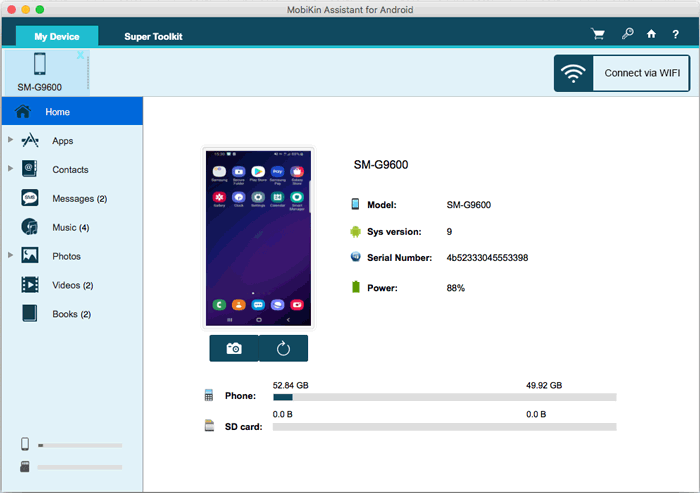
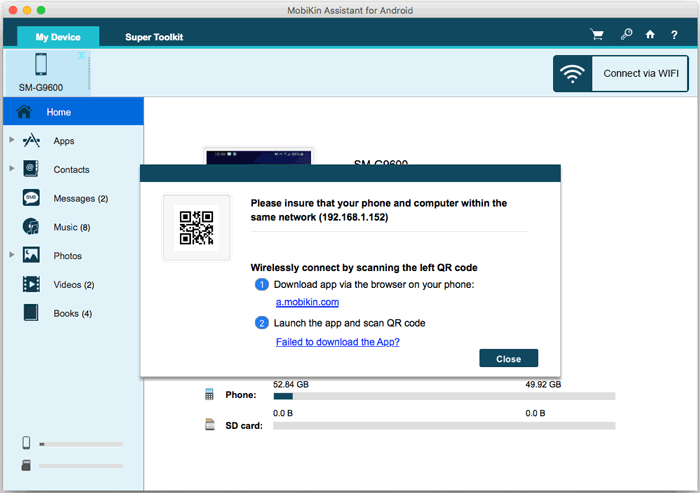
Optional: Connect your POCO to a WiFi network, then open the program on your Mac and click "Connect via WIFI". A QR code will appear on your screen. Download and install the Android version of the program on your phone using the link provided from your Mac. Launch the APK file on your phone and select "Scan QR Code" to scan the code shown on your Mac program. This will establish a connection between your device and the Mac.
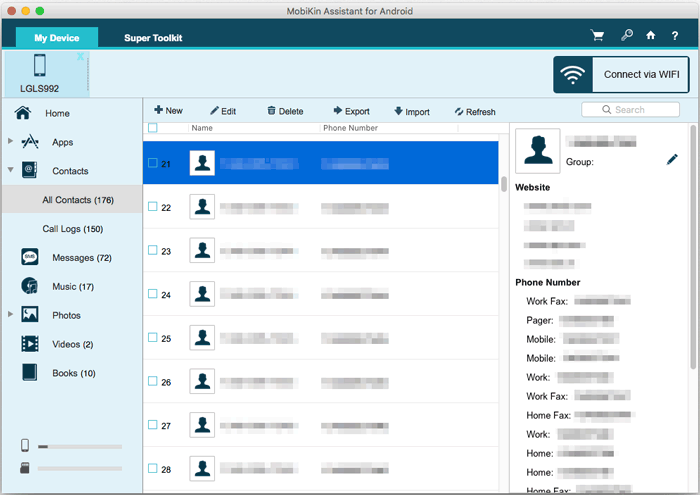
Step 2. On the left panel, browse through various file categories and allow the utility to scan and display all files present on your phone. After that, select the data you wish to process. For example, to export contacts from your POCO to your Mac, choose the desired contacts and a specific local folder on your Mac to save them.
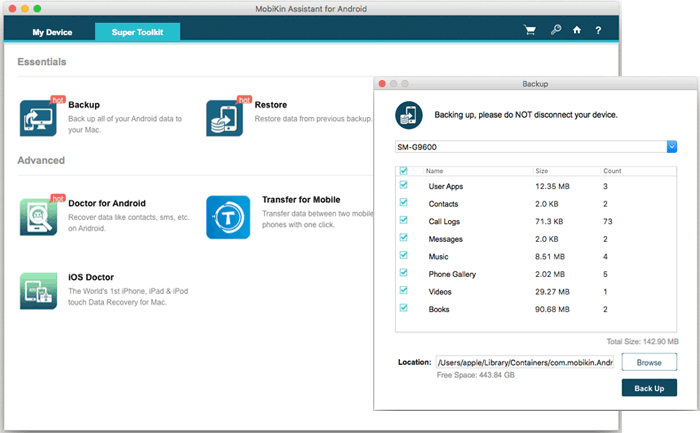
To back up your POCO data, select "Super Toolkit" from the main interface, then choose "Backup." Select the file types you want to transfer and click "Back Up" to start the process.
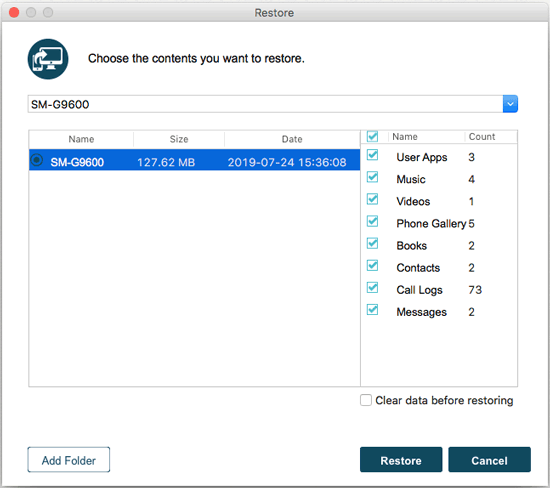
For future restoration, click "Super Toolkit" followed by "Restore" to recover the data to your POCO phone from your backup.
You Might Need: 5 Most Reliable Methods to Hard/Factory Reset POCO Phone [2026]
Section 2: Connect POCO Phone to MacBook via Xiaomi Interconnectivity App
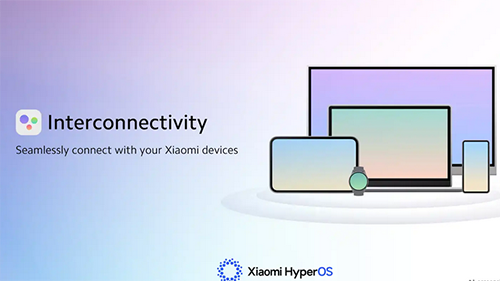
Another option comes from Xiaomi's ecosystem integration, where Xiaomi Interconnectivity App enables smoother cross-device communication with compatible POCO models. Once installed on a Mac, it can detect the phone wirelessly when both devices share the same Xiaomi account and network.
File sharing, clipboard sync, and screen-related features become available in a unified environment. Its performance depends heavily on HyperOS support and device compatibility.
How to Use?
- Install Xiaomi Interconnectivity on your MacBook and sign in with your Xiaomi account.
- Ensure your POCO phone runs HyperOS 2 or later and is logged into the same Xiaomi account.
- Connect both devices to the same Wi-Fi network.
- On the POCO, go to Settings > Interconnectivity and enable all related options (Xiaomi Interconnectivity, Xiaomi Share, device discovery).
- Open the Xiaomi Interconnectivity app on your Mac.
- Wait for your POCO device to appear in the app.
- Click the device name on Mac and confirm the connection on your phone.
- Start using features like file transfer, screen mirroring, and clipboard sync.
Section 3: Link POCO to MacBook with Quick Wireless File Drops
For quick peer-to-peer transfers, Quick Wireless File Drops provides a direct sharing method without cables or cloud storage. It works by linking a POCO phone to nearby devices through Wi-Fi Direct, allowing the MacBook to appear as a receiving target. Files move quickly once the connection is accepted on both sides. This approach is convenient for short, fast exchanges of photos or documents.
How to Use?
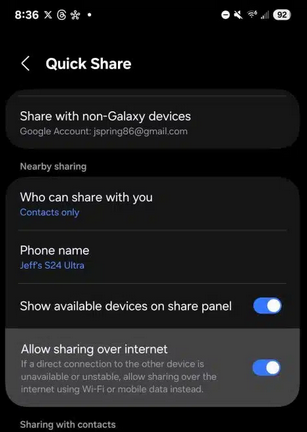
- Turn on Quick Share or Xiaomi Share on your POCO phone.
- Go to Settings > Connection & sharing > Quick Share (or Xiaomi Share) and set visibility to everyone nearby.
- Install and open Xiaomi Interconnectivity on your MacBook and sign in.
- Connect both devices to the same Wi-Fi network.
- Enable Wi-Fi and Bluetooth on both devices.
- Open the file you want to send on your POCO phone.
- Tap Share > Quick Share or Xiaomi Share.
- Select your MacBook from the nearby devices list.
- Accept the transfer on your MacBook.
- Wait for the file transfer to complete.
You Might Also Like: How to Fix Quick Share Not Working on Android/Samsung? 8 Solutions
Section 4: Pair POCO Phone with MacBook via Send Anywhere
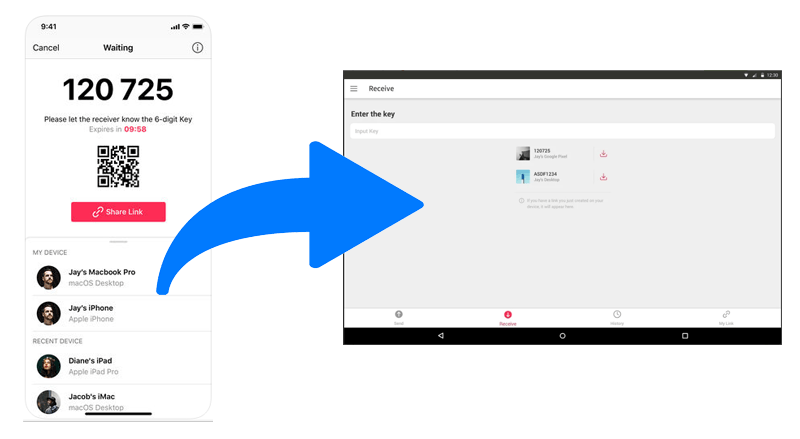
A more flexible cross-platform solution is Send Anywhere, which connects POCO and Mac using a temporary key or QR code system. After selecting files on the phone, a code is generated and entered on the Mac to establish transfer. The process works over the internet, so no same network setup is required. It remains useful when devices are in different locations but still need quick file delivery.
How to Use?
- Install Send Anywhere on your POCO phone from the Play Store.
- Open Send Anywhere and allow required permissions (storage, files).
- Go to your MacBook and open a browser, then visit the Send Anywhere web version or install the Mac app if preferred.
- Make sure both devices are connected to the internet (Wi-Fi or mobile data).
- On your POCO phone, select the files you want to transfer.
- Tap Send. And a 6-digit key, QR code, or link will be generated.
- On your MacBook, enter the 6-digit key or scan the QR code.
- Confirm the connection when prompted.
- The files will transfer directly to your MacBook instantly.
FAQs about Connecting POCO to MacBook
Q1. Can I directly connect a POCO phone to a MacBook like an iPhone?
No. POCO C/M/X/F series (Android-based) don't support native macOS integration like AirDrop, so you need tools or apps such as USB transfer apps, cloud services, or wireless sharing tools.
Q2. Can I use Bluetooth to transfer files from POCO to MacBook?
Yes, but it is very slow and not recommended for large files. It works best for small documents or images.
Q3. Why is my POCO not detected when connected to Mac via USB?
Most Mac systems don't natively support Android MTP mode. You may need apps like Android File Transfer or third-party tools such as OpenMTP.
Q4. Do I need internet to transfer files between POCO and MacBook?
Not always. USB transfer and Wi-Fi Direct tools work offline, but cloud apps like Google Drive or Send Anywhere require internet.
Q5. What should I do if file transfer keeps failing?
Check USB mode (set to File Transfer), update macOS and phone system, try another cable, or switch to a wireless method like Send Anywhere.
Q6. Can I transfer photos and videos in original quality?
Yes. USB transfer, Send Anywhere, and Mac file tools usually keep original quality. Some social apps or compression-based sharing may reduce quality.
Q7. Why does Mac not open my POCO storage after connecting?
macOS doesn't natively read Android storage. You need a helper app like Android File Transfer or OpenMTP to access files.
Q8. What is the most stable method overall?
The most stable way to connect a POCO phone to a Mac overall is through a USB-based desktop tool because it avoids Wi-Fi drops and transfer interruptions. Among available options, MobiKin Assistant for Android provides a more consistent connection, letting you access and manage POCO (from POCO) data directly on macOS with strong reliability. It is especially suitable for large backups and long file transfers where wireless methods may fail or slow down.
Related Articles:
4 Optimal Ways to Transfer Photos from POCO to POCO [Expert's Advice]
POCO Phone Frozen? Let's Fix It with 12 Clever Methods [2026]
How to Recover Deleted Contacts on POCO? 4 Tried-and-true Approaches
4 Hassle-free Ways to Transfer Contacts from Computer to POCO
