
How to Fix Huawei Cloud Backup Failed? 9 Fixes & 1 Replacement
TL;DR:
Huawei Cloud backup failures are usually fixable through practical steps like checking your network, updating software, adjusting battery settings, or clearing the cache - but if issues persist, a reliable offline alternative like MobiKin Backup Manager for Android offers a hassle-free way to safeguard your data without relying on cloud storage or internet connectivity.
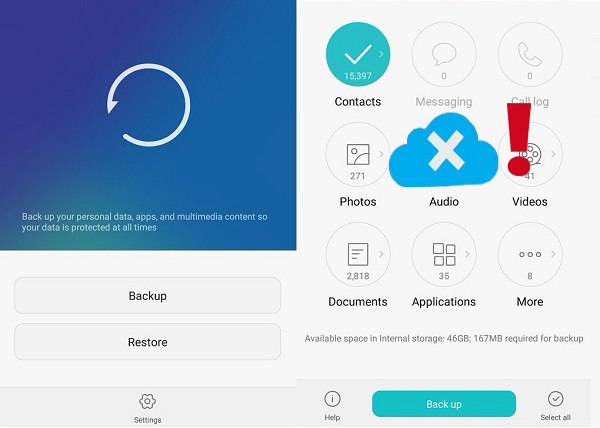
Many Huawei users rely on Huawei Cloud to keep their contacts, photos, messages, and other personal files safe. However, some encounter the notification "Huawei Cloud Backup Failed" during the backup, which immediately raises data safety concerns.
As a result, people often look for practical solutions to resolve the issue. This article will walk through several effective methods to help restore the backup function and reduce the risk of losing valuable data.
Prefer watching over reading? Hit play on the video below.
Part 1: Why Huawei Cloud Backup Fails When I Need It the Most
Huawei Cloud backups are designed to keep your important data safe, but sometimes they fail at the worst possible moment. Understanding the common reasons behind these failures can help you troubleshoot effectively and prevent future issues:
- Unstable Internet Connection - Weak or intermittent Wi-Fi can cause backups to stop unexpectedly.
- Insufficient Cloud Storage - Full Huawei Cloud storage prevents new backups from completing.
- Outdated System or App - Old firmware or Cloud app versions may have bugs that block backups.
- Incorrect Huawei ID Login - A misconfigured or inactive account can disrupt backup processes.
- Battery Optimization Restrictions - Power-saving modes may pause or terminate backup tasks running in the background.
- Large Data Size - Backing up too many files at once can result in timeouts or errors.
- Temporary System Glitches - Minor software or cache issues can interfere with the backup.
- Interference from Third-Party Apps - Security apps, VPNs, or device managers may block cloud access.
- Incomplete or Corrupted Previous Backups - Existing failed backups can prevent new attempts from succeeding.
- Server-Side Issues - Occasionally, Huawei Cloud servers may experience downtime or maintenance, causing backup failures.
Extra Tips: What to Do When Huawei Cloud Storage Is Full? If Huawei Cloud storage is full, your backups may fail or stop unexpectedly. You can free up space by deleting old backups, unnecessary files, or duplicate photos and videos. Upgrading your Huawei Cloud plan is another option to increase storage capacity for future backups. Always check your available space before starting a new backup to ensure it completes successfully.
You May Also Like: Top 9 Options to Unlock Huawei Phone without Resetting/Password
Part 2: How to Fix Huawei Cloud Backup Failed in 10 Easy Ways
Fix 1. Check Your Internet Connection
A stable internet connection is essential for Huawei Cloud backups. Wi-Fi is strongly recommended, especially for large files like photos, videos, and app data. If the backup keeps failing, try disconnecting and reconnecting to Wi-Fi, switching to a different network, or restarting your router.
Weak or unstable connections can cause the backup process to stop or timeout. Avoid using mobile data unless the backup is small.
Fix 2. Update System and Cloud App
Outdated software can prevent backups from running properly. Go to Settings > System & Updates > Software Update to make sure your device is running the latest firmware.
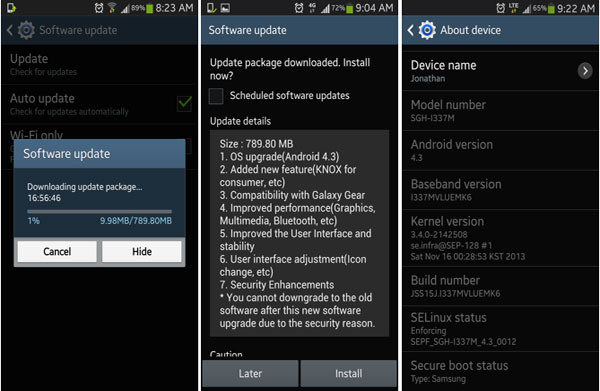
Also, check that the Huawei Cloud app is up-to-date in AppGallery. Updates often include bug fixes and performance improvements that help cloud backups work reliably.
Fix 3. Disable Battery Optimization for Cloud App
Battery-saving features can interfere with background tasks like cloud backups. Go to Settings > Battery > App Launch and select Huawei Cloud. Set it to "Manage manually" and enable all permissions to run in the background. This ensures the backup process is not interrupted by power-saving measures, which often pause or terminate long-running tasks.
Fix 4. Log in with the Correct Huawei ID
A misconfigured Huawei ID can cause backup failures. Verify you are signed in with the account linked to your cloud storage. If problems persist, try logging out of your Huawei ID and signing back in. This refreshes account permissions and resolves synchronization issues that may block the backup process.
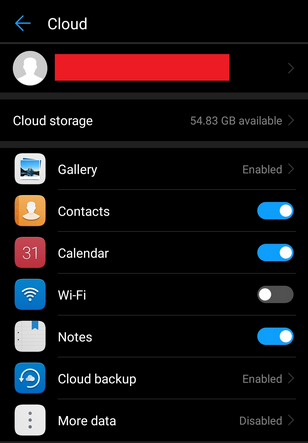
How do I check if my Huawei ID is properly synced? Go to Settings > Huawei ID and ensure you are logged in with the correct account. Sometimes signing out and signing back in refreshes account permissions and resolves backup errors.
Fix 5. Retry Backup in Smaller Batches
Backups containing a large amount of data, like thousands of photos or videos, may fail if attempted all at once. Divide the backup into smaller batches by selecting only certain types of data, such as photos first, then videos, and finally app data. This reduces the risk of timeout errors and ensures each batch completes successfully.
Fix 6. Clear Cache and Temporary Data
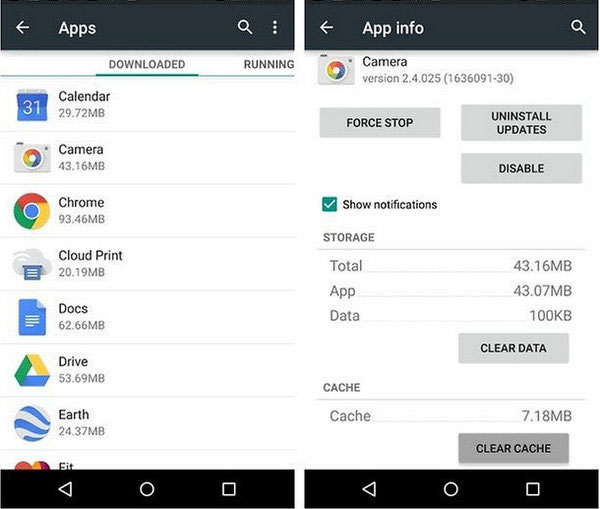
Corrupted cache or temporary files in the Cloud app can cause repeated backup failures. Navigate to Settings > Apps > Cloud > Storage, then clear the cache and temporary data. This resets the app's temporary storage without affecting your saved data and can resolve hidden errors that prevent backups from completing.
Learn More: How to Speed Up Android Phone? 20 Ways to Fix a Slow Device [Updated]
Fix 7. Restart Your Device
Temporary glitches in the operating system or Cloud app can block backups. Restarting your phone can resolve these issues by refreshing system resources and terminating any background processes that might interfere with cloud synchronization. After restarting, retry the backup from scratch to see if it succeeds.
Fix 8. Remove Failed Backups and Start Fresh
Failed or incomplete backups can sometimes cause conflicts with new attempts. Go to Huawei Cloud > Backup & Restore > Manage Backups, delete all incomplete backups, and start a fresh backup. This clears previous errors and ensures that only new data is being processed, increasing the chance of a successful backup.
Fix 9. Contact Huawei Support if the Issue Persists
If none of the above solutions work, the problem may be account-specific or server-side. Contact Huawei Support via https://consumer.Huawei.com/en/support/ or use live chat for assistance. They can provide advanced troubleshooting, reset cloud services for your account, or escalate the issue if it is caused by a temporary server problem.
Part 3: How to Use the Best Huawei Cloud Alternative for Smooth Backups
Want to avoid the inconvenience of Huawei Cloud backup failures? MobiKin Backup Manager for Android (Win and Mac), also known as Android Backup & Restore, can be a practical option for Android users. It allows you to back up your phone data to a computer and restore the files to the same device or another Android phone whenever needed.
With its simple operation, secure backup process, and wide compatibility with many Android devices, it offers a convenient way to manage and protect your mobile data.
How can I back up my Android phone without Huawei Cloud using MobiKin Backup Manager for Android?
- Launch the software once you have downloaded and installed it on your computer.
- Next, connect your Android phone to the computer using a USB cable.
- You may need to activate USB debugging mode on your Android device to ensure it is recognized.
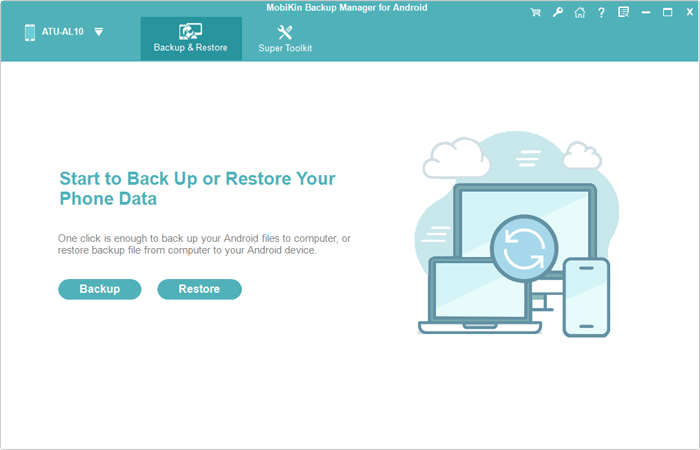
- Subsequently, the screen will show options for "Backup" and "Restore". Simply select the former option.
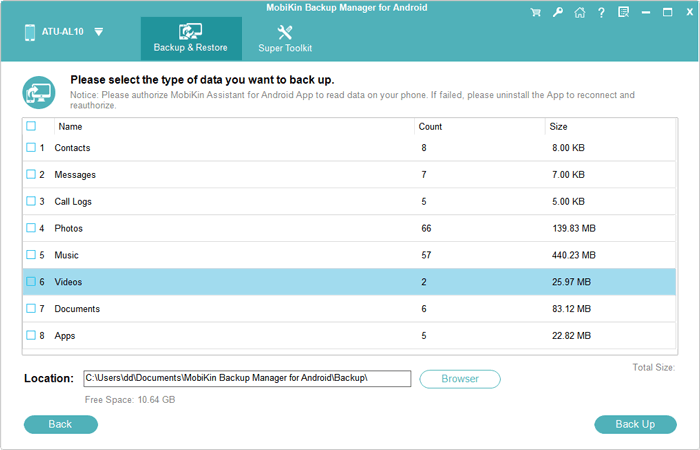
- Choose the types of data you wish to back up.
- Then, designate a location on your computer for storage.
- Finally, click on "Back Up" to transfer the Android data to your computer.


Video Tutorial:
FAQs about Huawei Cloud Backup
Q1. Why does the backup fail for large files or photos?
Large files can time out during backup, especially with a slow connection. Try breaking the backup into smaller parts or selecting only critical data for the initial backup.
Q2. Can third-party apps interfere with Huawei Cloud backups?
Yes. Security apps, VPNs, or battery optimization settings can block cloud access. Temporarily disabling these apps or adjusting battery optimization for the Cloud app may fix the problem.
Q3. How do I reset Huawei Cloud backup settings?
Open Huawei Cloud > Backup & restore > Manage backups, then remove failed backups. Restart the phone, reselect the data types, and attempt a fresh backup.
Q4. What is Cloud Backup and Recovery (CBR)?
A service using block-level incremental backups to protect cloud servers, disks, and on-premises VMware environments.
Q5. What types of resources can I back up?
ECS/HECS/BMS, EVS disks, SFS Turbo file systems, Workspace desktops, and on-premises files/directories.
Q6. What is the difference between a "one-off" backup and a "periodic" backup?
One-off = manual (e.g., before upgrades). Periodic = automatic via policy on a schedule (e.g., daily at 2 AM).
Q7. What can I do if my vault capacity is not enough?
Expand capacity, delete old backups, adjust policy (less frequency/shorter retention), or migrate resources.
Q8. Are my backups automatically deleted based on the retention rule?
Periodic ones expire/delete per policy. Manual backups stay until you delete them.
Q9. What advantages does MobiKin Backup Manager for Android have compared with Huawei Cloud?
Choosing the right backup method is important for protecting your mobile data. The table below highlights the key advantages of MobiKin Backup Manager for Android compared with Huawei Cloud Backup.
|
Aspect
|
MobiKin Backup Manager for Android
|
Huawei Cloud Backup
|
|
Storage
|
Saves backups locally on a computer. |
Stores backups in limited cloud storage. |
|
Internet Requirement
|
No internet needed after connecting to a PC. |
Requires stable internet for backup. |
|
Backup Control
|
Supports selective backup of different data types. |
Usually performs full or automatic backups. |
|
Compatibility
|
Works with many Android brands, including Huawei. |
Mainly designed for Huawei devices. |
|
Data Security
|
Local storage gives users full control of data. |
Data is stored on remo |
Best Huawei Cloud alternative free download:
Related Articles:
How to Transfer Data from Huawei to Huawei? 7 Clever Tactics
How to Back Up Contacts on HONOR Phone? 4 Wise Tactics Here
Huawei Contacts Recovery: 5 Options to Restore Lost Contacts on Huawei
