
How to Back Up Contacts on HONOR Phone? 4 Wise Tactics Here
TL;DR:
With multiple reliable methods available - from cloud sync and SIM export to dedicated software - HONOR users can easily protect their contacts and choose the approach that best matches their preferences for convenience, control, or offline access.
You're recommended to use MobiKin Backup Manager for Android to back up and restore HONOR contacts selectively and without quality loss, while also supporting one-click backup of messages, call logs, photos, and more to a computer. This software works via USB or Wi-Fi with nearly all HONOR series and offers secure one-tap restoration that does not overwrite existing data on your phone.
Keeping important phone numbers safe has become a vital part of daily life. Many HONOR users want to manage their contacts efficiently and need a smooth way to transfer all contacts without manually saving each one.
Learning how to back up contacts on HONOR ensures that no valuable information is lost when switching devices, performing resets, or handling unexpected errors. With the right methods, saving and restoring contacts can be effortless, reliable, and time-saving.
Click the video below to learn this topic visually.
Way 1: How to Back Up Contacts on HONOR via Android Backup & Restore [Safest]
Many HONOR users prefer a computer-based solution when they want full control over their contact backups, and MobiKin Backup Manager for Android (Windows/Mac) fits this need well. It allows you to preview, select, and save contacts to a PC with just a few clicks.
Termed Android Backup & Restore, the software also supports restoring data without overwriting existing information on your phone. For people who value offline storage and organized management, this method offers a practical and reliable option.
This tool allows you to selectively and easily back up and restore HONOR contacts without any quality loss, while also letting you manage them flexibly. It supports one-click backup of contacts, SMS, call logs, photos, music, videos, documents, apps, and more to a computer, and offers secure one-tap restoration that keeps original file quality.
With simple USB or Wi-Fi connections, it works smoothly with almost all Android phone brands, such as HONOR Magic, Number, X, Play, V, Note, and View series.


Quick Guide:
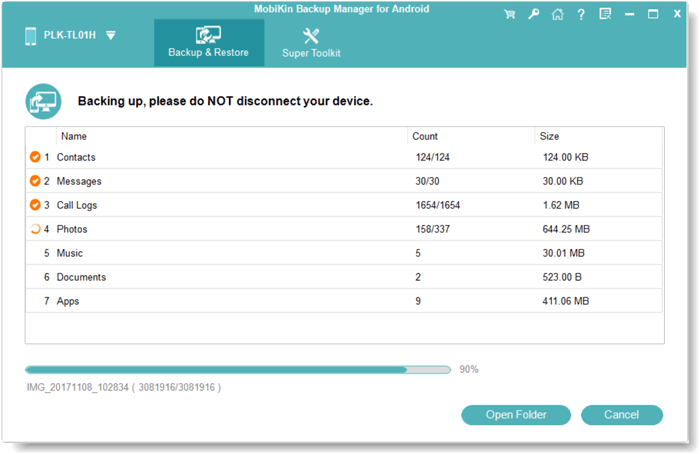
- Install the backup tool on your computer and launch the program.
- Connect your HONOR phone via USB, and once it's detected, the main interface will appear.
- Select "Contact" as the file type to back up from your phone, choose your preferences, and click "Browse" to set a destination for the backup.
- After adjusting the settings, hit "Back Up" to start the process and keep the connection stable until it finishes.
Video Guide:
You May Also Like: 5 Simple Tactics to Access Deleted Contacts from HONOR Phones
Way 2: How to Back Up Contacts on HONOR Phone via Huawei Cloud
For those who rely on built-in cloud services, Huawei Cloud provides a convenient way to keep HONOR contacts protected online. Once synchronization is enabled, contact changes are automatically updated across linked devices. This reduces the risk of losing important numbers due to accidental deletion or phone damage. (Can you recover data from a broken phone?) With stable internet access, backups can be completed quietly in the background.
Quick Guide:
- Open Settings on your HONOR phone and tap Huawei ID/HONOR ID (depending on your model).
- Select Cloud or Cloud Backup from the account options.
- Enable Contact or tap Backup Now to start backing up your contacts.
- Make sure your phone is connected to a stable Wi-Fi network, especially if you are backing up a large number of contacts. (Huawei Cloud offers free storage for contacts and other essential data. For larger backups including photos and videos, you may need additional cloud storage.)
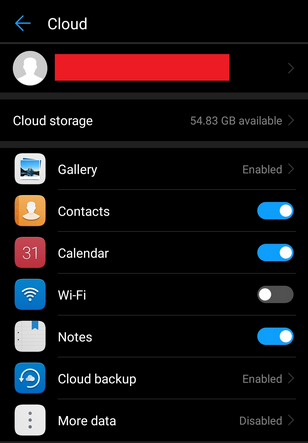
Note: If some Honor contacts are missing from Huawei Cloud after backup, it may be because those contacts are stored only on your phone or SIM card, not linked to your Huawei ID. To fix this, move or copy the missing contacts to your Huawei account and ensure Contact Sync is enabled. Then, perform the backup again to make sure all contacts are uploaded successfully.
You May Also Like: 4 Easy Fixes to HONOR FRP Bypass 2026 [For Both MagicOS & EMUI]
Way 3: How to Sync Contacts on HONOR Phone via Google Sync
If you already use a Gmail account, Google Sync offers a smooth way to store and manage contacts through your Google profile. After setup, new and edited contacts are uploaded automatically to your account. These records can be accessed anytime from another Android phone or a web browser. As long as syncing remains active, your HONOR contacts stay connected to your digital ecosystem.
Quick Guide:
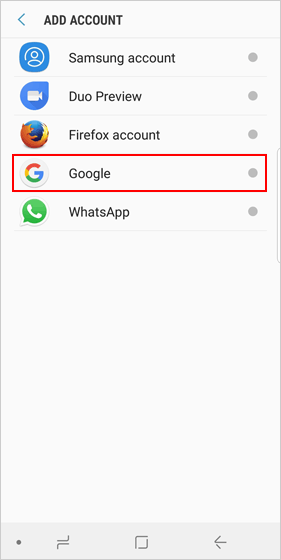
- Open Settings on your HONOR phone and go to Accounts or Users & Accounts.
- Tap Add Account > Google, then sign in with your existing Google account or create a new one.
- After adding the account, open the Contacts app and enter Settings > Manage contacts accounts.
- Set the default account to Google and make sure contact syncing is enabled.
- Return to Settings > Accounts > Google, select your account, and tap Sync Now to back up your contacts.
Way 4: How to Back Up HONOR Contacts to SIM Card
For users who prefer a simple and device-based solution, saving contacts to a SIM Card remains a classic choice. This method does not require internet access or external software. It is especially useful when switching phones quickly or keeping a small emergency backup. Although storage is limited, it still serves as a basic and dependable backup option.
Quick Guide:
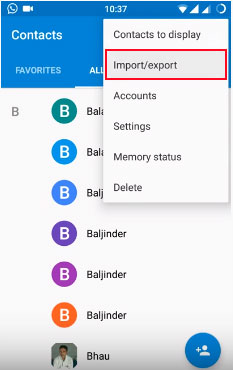
- Open the Contacts app on your HONOR phone and tap the Menu icon (three dots).
- Select Settings and choose Import/export.
- Tap Export to SIM card from the available options.
- Choose the contacts you want to back up, or select All contacts.
- Confirm the action and wait for the export process to complete.
How to import contacts to a new HONOR phone after exporting them to SIM card? Quick Look: Insert the SIM card with your saved contacts into the new HONOR phone and open the Contacts app. Tap the menu icon, go to Settings > Import/Export contacts, and choose Import from SIM card. Select the contacts and confirm to complete the import process.
FAQs for Backing Up Contacts on HONOR
Q1: Why are some contacts missing after HONOR backup?
This may happen if contacts are stored in different accounts, such as the phone's local storage, Google account, or SIM card. Check the Contacts app settings to make sure all contact sources are displayed and backed up.
Q2: Can I restore backed-up contacts to another HONOR phone?
Yes. You can restore contacts by signing in to the same Google or HONOR account, importing the saved VCF file, or using a phone transfer tool to move contacts between devices.
Q3: Are SIM card contacts backed up automatically?
Usually not. Contacts stored on the SIM card are separate from cloud or phone backups. It's recommended to import SIM contacts to your phone or Google account before creating a backup.
Q4: How often should I back up my HONOR contacts?
If you frequently add or edit contacts, backing them up once a week or enabling automatic cloud synchronization is a good practice. This helps prevent data loss caused by accidental deletion, system updates, or device damage.
Q5: What should I do if HONOR Cloud backup fails?
First, check your internet connection and available cloud storage space. Then update your phone to the latest system version, sign out and back into your HONOR account, and try the backup again.
Q6: Can deleted contacts be recovered if I forgot to back them up?
It depends. If the contacts were previously synced with Google or HONOR Cloud, you may be able to restore them from the cloud. Otherwise, a data recovery tool may help recover deleted contacts before they are overwritten by new data.
The Bottom Line
By and large, safeguarding your HONOR contacts does not have to be complicated. By exploring cloud services, Google synchronization, SIM card export, or trusted backup tools, you can choose a method that fits your needs best.
Final Tip: For a fast, flexible, and secure solution, consider using MobiKin Backup Manager for Android, which allows seamless backup and restoration of contacts without any quality loss.
Related Articles:
How to Recover Deleted Text Messages from HONOR? 6 Resourceful Ways
How to Enable Developer Options and USB Debugging on Huawei/Honor Phones?
5 Easy & Quick Ways to Transfer Photos from HONOR to Mac [2026]
4 Stress-relief Methods to Transfer Data from HONOR to HONOR
Top 4 Methods to Delete Text Messages on HONOR Phones [Latest]
