
7 Best MyBackup Alternatives & Competitors You Should Never Miss
TL;DR:
By and large, the best MyBackup replacement depends on your priorities - choose MobiKin Backup Manager for Android for fast, comprehensive desktop backups, IDrive for cloud convenience, or Neo Backup for rooted-device customization. No matter which tool you pick, always keep multiple backup copies to protect against corruption or incomplete restores.
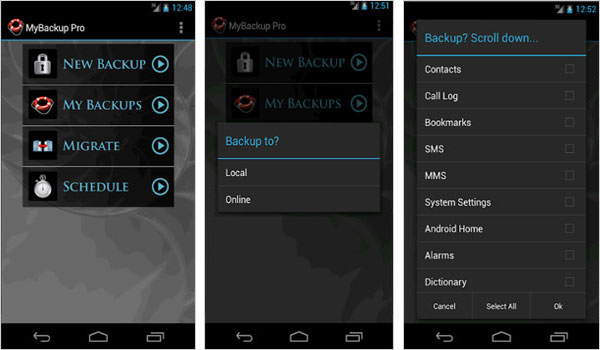
Many users need a MyBackup alternative when they realize the app lacks some newer functions like advanced app-data handling and faster transfers. Others may have experienced failed backups, incomplete restores, or compatibility issues on newer Android versions.
As backup demands grow, it becomes essential to use tools that offer smoother performance, stronger stability, and better device support. In this article, we will cover 7 powerful MyBackup replacements that provide enhanced features and a more streamlined backup experience.
Visualize this topic by watching the video below.
Top 1: Best MyBackup Alternative - MobiKin Android Backup & Restore
A wide range of data types can be saved quickly and safely with this versatile desktop utility. Users appreciate how effortless it becomes to back up and restore photos, videos, contacts, messages, apps, and more through a clean and intuitive interface.
Complete backups can be created or restored in just a few clicks, making the process suitable for both beginners and advanced users. MobiKin Backup Manager for Android (Windows/Mac) (Known as MobiKin Android Backup & Restore) is often chosen by people who value fast transfers and fully secure local storage.
Why Select MobiKin Android Backup & Restore?
> Broad data support: Backs up Android contacts, messages, call logs, photos, videos, apps, and more.
> Selective operations: Lets you choose specific data types to back up or restore.
> One-click process: Full backup and restore can be completed with one click.
> Non-destructive backups: Creates multiple backup versions without overwriting.
> Cross-device restore: Allows restoring data to the same or a different Android phone.
> Flexible connections: Works via USB or Wi-Fi QR pairing.
> Wide compatibility: Supports thousands of Android models and OS versions.
> User-friendly interface: Simple design suitable for all experience levels.


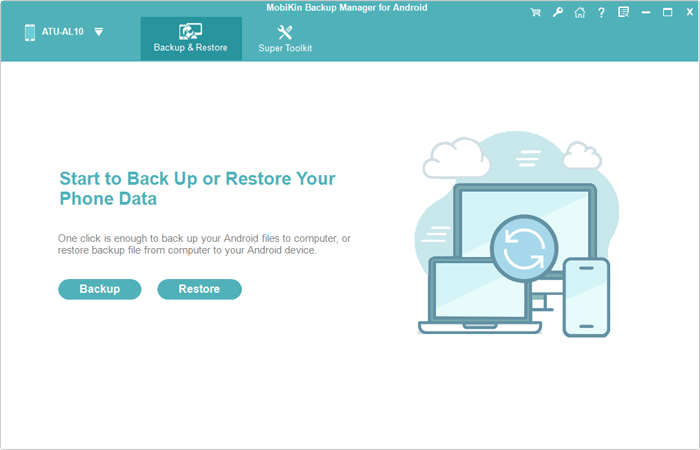
After installing the program on your computer, open it to begin. Use a USB cable to connect your Android device to the computer. If prompted, activate USB debugging on your phone so the software can detect it properly. Once recognized, you'll see the "Backup" and "Restore" options on the screen - choose "Backup" and follow the instructions to complete the process correctly.
How to use this software? Video Guide:
MobiKin Backup Manager for Android - Pros
- Supports a wide range of data types, including apps, messages, contacts, media, etc.
- Easy desktop interface suitable for beginners.
- Fast backup and restore speed.
- Local backups keep data fully under user control.
MobiKin Backup Manager for Android - Cons
- Requires a computer to operate.
- No cloud storage option.
- Free version has limited functionality.
Top 2: IDrive
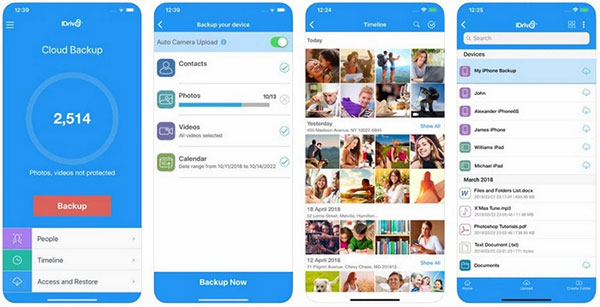
Cloud-focused users benefit greatly from this service's ability to back up phone content to secure online servers. Accessing files across devices becomes simple thanks to real-time sync and cross-platform support. Plans with generous storage make the solution ideal for long-term data protection. IDrive remains popular among those who prefer automatic online backups rather than relying on manual, local copies.
IDrive - Pros
- Offers secure cloud backups accessible from anywhere.
- Cross-platform support across phones, PCs, and Macs.
- Continuous and automatic backup options.
- Large storage plans at competitive prices.
IDrive - Cons
- Internet connection required for backup/restore.
- Slower upload speeds depending on bandwidth.
- Free storage is limited.
- More features than some users need, making the interface feel busy.
You May Also Like: 6 Best G Cloud Backup Alternatives [Most People Don't Know]
Top 3: Neo Backup
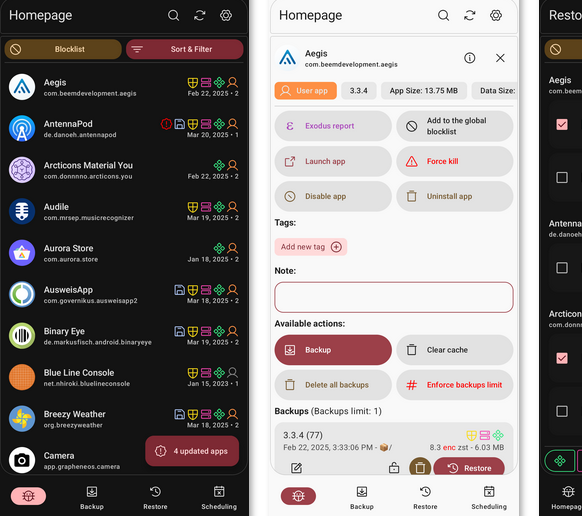
Advanced Android users often gravitate toward this open-source option due to its flexibility and customization potential. Full app and data backups are supported, giving rooted users more control than many traditional backup utilities. Scheduled operations help automate the entire workflow for consistent data protection. Neo Backup is favored by people who want a transparent, tweakable, and community-driven alternative.
Neo Backup - Pros
- Open-source and customizable.
- Ideal for rooted users who want complete app/data backup.
- Supports scheduled and automated backups.
- More transparent than commercial alternatives.
Neo Backup - Cons
- Best features require root access.
- Not suitable for users who prefer simple plug-and-play tools.
- The interface may feel technical to beginners.
- No official customer support.
Top 4: Droid Transfer
Managing phone files from a computer becomes extremely convenient with this powerful PC-based companion. Photos, messages, music, and call logs can be transferred and backed up without complex setup steps. A familiar desktop interface allows users to preview, save, and export data with a minimal learning curve. Droid Transfer appeals to those who want seamless phone-to-PC integration while replacing MyBackup.
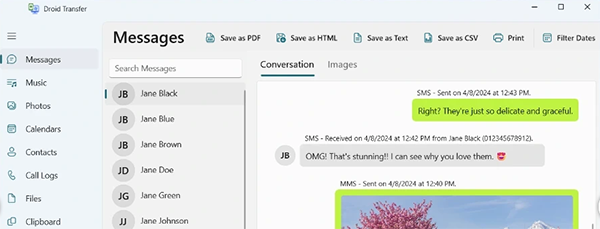
Droid Transfer - Pros
- Great for backing up Android data directly to a computer.
- Offers easy previewing and selective exporting of files.
- Provides strong SMS and call log backup capabilities.
- PC interface makes file organization simple.
Droid Transfer - Cons
- Requires a Windows PC to operate.
- Full functionality requires the paid version.
- Not designed for app-data backups.
- Depends on Wi-Fi or USB connectivity.
Top 5: Seedvault
A privacy-respecting solution is provided through this Android-integrated backup tool found in many custom ROM environments. Local encryption ensures that no third party can access sensitive app data and personal files. Backups can be stored to USB drives, SD cards, or cloud storage providers that support the Storage Access Framework. Seedvault stands out among users who prefer a built-in, secure, and open-source backup approach.
Seedvault - Pros
- Privacy-focused with strong encryption.
- Integrated into many custom ROMs and open-source projects.
- Supports backups to USB, SD card, and cloud providers via SAF.
- No ads, tracking, or unnecessary system permissions.
Seedvault - Cons
- Not available on most stock Android ROMs.
- Compatibility varies between devices.
- Backup reliability depends heavily on ROM implementation.
- Interface can feel basic and limited.
Top 6: DataBackup
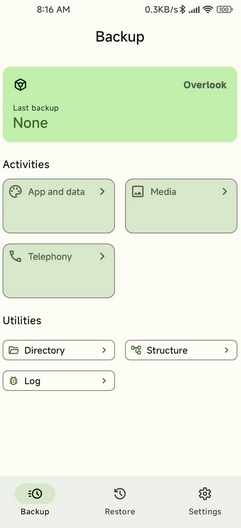
A straightforward and minimalistic interface helps users quickly perform backups without unnecessary complexity. Contacts, call logs, apps, and media files can be saved directly to local storage or external destinations. Restore operations remain equally simple, giving users confidence in recovering lost data whenever needed. DataBackup gains recognition for offering strong functionality while maintaining a lightweight design.
DataBackup - Pros
- Lightweight and easy to use.
- Backups can be stored locally or externally.
- Covers essential data types like contacts, call logs, and media.
- Quick restore process with minimal setup.
DataBackup - Cons
- Lacks advanced features like app-data backup.
- No cloud integration.
- Limited automation options.
- Interface may feel too simple for power users.
Top 7: Essential Backup
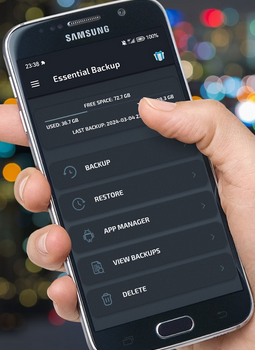
Users searching for a no-frills but dependable backup app often appreciate the clear layout and fast operation. Multiple data categories can be saved or restored without diving into confusing menus. Automated backup routines can be scheduled to keep phone information consistently protected. Essential Backup becomes an attractive pick for people who want a reliable MyBackup alternative without excessive features.
Essential Backup - Pros
- Simple layout makes backups straightforward.
- Good coverage of common data categories.
- Supports scheduled backups for convenience.
- Reliable performance with minimal system impact.
Essential Backup - Cons
- No cloud backup support.
- Fewer advanced features than other competitors.
- UI may feel outdated.
- May not back up certain complex app data.
Closing Remarks
On the whole, each of the seven alternatives discussed in this article offers its own strengths, making it easier to protect, transfer, and restore your essential Android data without frustration. For the smoothest experience, always create multiple backup versions rather than relying on just one copy - this ensures you can restore your data even if a backup becomes corrupted or incomplete.
Related Articles:
iCloud Backup vs iTunes Backup: Which One Should We Choose?
How to Back Up Calendars on Android Phone? 4 Simple Techniques
[2026] 5 Great Options to Back Up WhatsApp Chat without Google Drive
How to Recover Deleted Files on Android Device? 7 Effortless Ways
