
How to Factory/Hard Reset Lenovo Phone? Methods & Their Comparison
TL;DR:
- A Lenovo hard reset can give an old or troublesome phone a fresh start, but choosing the right method matters just as much as completing the reset.
- Whether you can access Settings, need to use Recovery Mode, or want to erase your device remotely, the methods above offer different ways to handle the situation.
- Before proceeding, remember that a factory reset removes personal data, so a backup can make the difference between a clean start and an unpleasant surprise.
NOTE: The term "hard reset" in this article is used in a broad sense and refers to the process of restoring a device to its factory settings, making it essentially equivalent to a factory reset.
A Lenovo phone may become sluggish, freeze unexpectedly, or refuse to respond to touch. System errors, app failures, boot loops, and unexpected restarts can also prompt users to perform a Lenovo phone hard reset when ordinary troubleshooting no longer works.
This article explores several Lenovo hard reset methods, including Settings, Recovery Mode, and remote erasure through Google Find Hub, along with an additional data-wiping option to help you reset your device with fewer complications.
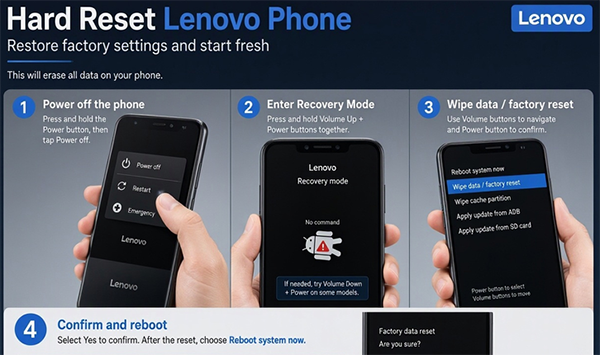
- Section 1: What Will Happen When Hard Resetting a Lenovo Phone
- Section 2: Hard Reset Lenovo Mobile Phone from Settings
- Section 3: Force Hard Reset on Lenovo Phone via Recovery Mode
- Section 4: Factory Reset Lenovo Phone Remotely with Google Find Hub
- Section 5: Permanently Factory/Hard Reset Lenovo Phone via MobiKin Program
- FAQs about Factory/Hard Reset Lenovo Phone
Lenovo itself documents two reset situations: when the system is accessible and when it is not. So, which Lenovo hard reset method should users choose? Follow the table below to learn more solutions and their application scenarios:
|
User situation
|
Recommended method
|
Why this method fits
|
|
Phone works normally
|
Settings |
Allows a reset through the built-in Android menu. |
|
Screen is frozen or Settings cannot open
|
Recovery Mode |
Uses physical buttons and the recovery interface instead of the normal system. |
|
Phone is lost or stolen
|
Google Find Hub |
Sends a remote erase request without requiring physical access. |
|
Phone is being sold or given away
|
MobiKin Eraser for Android |
Provides additional data-erasure and overwrite options. |
|
Phone cannot enter Recovery Mode
|
Lenovo Support |
Model-specific troubleshooting may be needed before attempting another reset. |
Section 1: What Will Happen When Hard Resetting a Lenovo Phone
Hard resetting a Lenovo phone restores it to its original factory settings by removing all personal data, installed apps, customized settings, and stored files. This process can help resolve persistent software problems, such as frequent system crashes, unexplained overheating, and unresolved network issues that a simple restart cannot fix.
However, since the operation permanently erases device data and may trigger Google Factory Reset Protection (FRP), you should back up important files and verify your linked Google account credentials before proceeding.
Section 2: Hard Reset Lenovo Mobile Phone from Settings
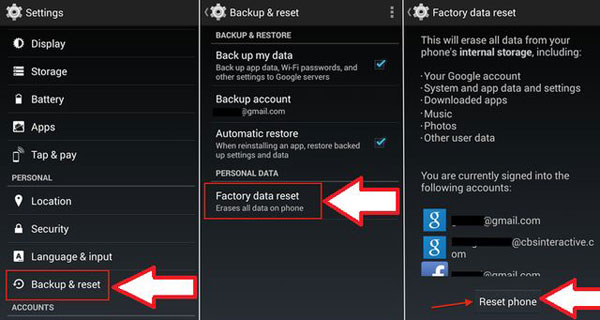
For a Lenovo phone that still responds normally, the built-in Settings menu provides a straightforward way to perform a factory reset. By navigating to Backup & reset > Factory data reset, users can erase personal files, installed apps, and customized preferences. Once confirmed, the phone clears its stored content and restarts with its original factory configuration. Here's the guide:
- Tap Settings on your Lenovo phone's Home screen to access the device configuration options.
- Scroll down and select Backup & reset.
- Tap Factory data reset to view the reset information and data deletion warning.
- Tap RESET PHONE to confirm that you want to restore the device to its factory settings.
- Finally, tap ERASE EVERYTHING to confirm the operation. Your Lenovo phone will begin erasing its data and restoring the original factory settings.
Can I reset a Lenovo tablet from Settings? Sure. For example, to reset a 64 GB Lenovo tablet, swipe inward from the right edge of the screen and navigate to Settings > Change PC settings. Next, go to Backup & reset > Factory data reset and tap Reset tablet to erase all stored data, pictures, and apps. Once the process is complete, the tablet will automatically reset and reboot with its original factory settings.
Section 3: Force Hard Reset on Lenovo Phone via Recovery Mode
If your Lenovo phone becomes unresponsive (you cannot access its system), you can perform a factory reset through Recovery Mode by following these steps (The Recovery Mode options and button combinations may vary depending on your Lenovo phone model. This process erases personal data stored on the device):
- Turn off your phone: Make sure your Lenovo phone is completely powered off and disconnected from any charger.
- Enter Recovery Mode: Press and hold the appropriate button combination to boot into Recovery Mode. Depending on your phone model, try one of the following: (Volume Up + Power, Volume Down + Power, or Volume Up + Volume Down + Power)
- Select the language: Once the Recovery Mode menu appears, choose English as the interface language.
- Wipe user data: Navigate to and select the Wipe User Data option.
- Format data: Tap Fuse Format Data and confirm the operation by selecting Yes.
- Reboot your phone: Once the Recovery menu reappears, select Reboot to restart your Lenovo phone.
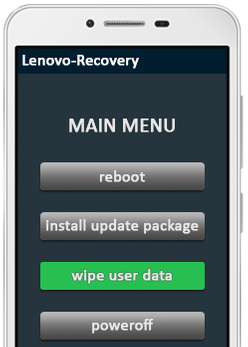
If you cannot access the screen settings on your Lenovo tablet, first power it off, then press and hold the Volume Up + Power buttons until the Lenovo logo appears, release the Power button, and continue holding Volume Up until the Android Recovery screen shows up. Use the Volume buttons to navigate to Wipe data/factory reset, press the Power button to confirm, and select Yes to start erasing the device data. Once the reset is complete, choose Reboot system now and wait for your Lenovo tablet to restart.
Section 4: Factory Reset Lenovo Phone Remotely with Google Find Hub
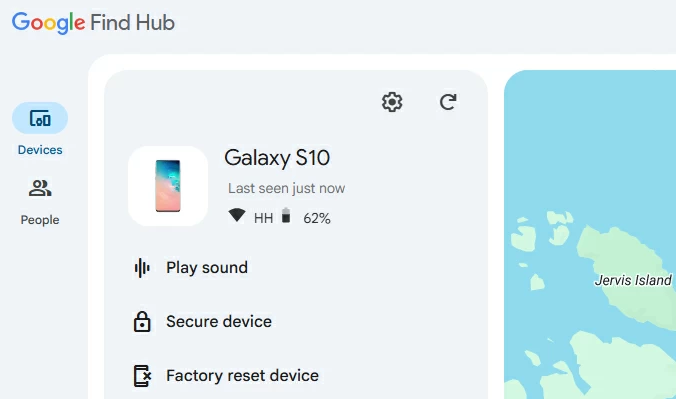
If your Lenovo phone is lost, stolen, or inaccessible, you can use Google's Find Hub (formerly Find My Device) to erase its data remotely without physically handling the device. Follow these steps:
- Open Google Find Hub: Visit Google Find Hub in a browser on another phone, tablet, or computer.
- Sign in to your Google Account: Log in using the same Google Account associated with your Lenovo phone.
- Select your Lenovo phone: Choose the target device from the list of devices linked to your account.
- Choose Factory Reset: Open the device settings or available actions and select Factory reset device (or Erase device, depending on the interface).
- Confirm the operation: Read the warning about permanent data deletion and follow the on-screen instructions to confirm.
- Wait for the reset: If your Lenovo phone is powered on and connected to the internet, Find Hub can send the erase command. If it is offline, the command may remain pending until the phone reconnects.
Important notes:
- Your Lenovo phone must have a Google Account linked to it and Find Hub enabled before you can use this method.
- It also needs power, an internet connection, and visibility on Google Play for remote erasure.
- After resetting, you may need to enter a Google Account username and password previously associated with the device to complete setup.
- A reset permanently deletes data stored on the phone, although an SD card may not be erased.
- Once erased, the phone will no longer be available for tracking through Find Hub.
Section 5: Permanently Factory/Hard Reset Lenovo Phone via MobiKin Program
When preparing a Lenovo device for resale or reuse, MobiKin Eraser for Android (Windows/Mac) provides a way to clear private information, including contacts, text messages, photos, and other files. Its data-erasing function can also be used to factory or hard reset a Lenovo phone, clearing existing content from the device.
Depending on the required level of protection, users can select from three erasure levels, each offering a different degree of data overwriting.
|
Feature
|
Description
|
|
Lenovo Phone Factory Reset |
Helps factory or hard reset a Lenovo phone by guiding users through the reset process before securely erasing its stored data. |
|
Broad Android Compatibility |
Works with various Android phones and tablets from different manufacturers, rather than being restricted to particular Lenovo models. |
|
Complete Data Erasure |
Removes contacts, text messages, call logs, photos, videos, apps, and other stored files. |
|
Deleted File Erasure |
Overwrites previously deleted files to make their recovery more difficult. |
|
Private Data Removal |
Clears sensitive information, including accounts, passwords, browsing history, and financial records. |
|
Three Security Levels |
Offers Low, Medium, and High erasure levels, with High performing three overwrite passes. |
|
USB and Wi-Fi Connection |
Supports connecting Android devices to a computer through either a USB cable or Wi-Fi. |
|
Erasure Report |
Allows users to save a report containing details of the completed data-erasure operation. |
Safe Download: No ads, bundled software, or background uploads.


How to hard/factory reset Lenovo phone with MobiKin Eraser for Android?
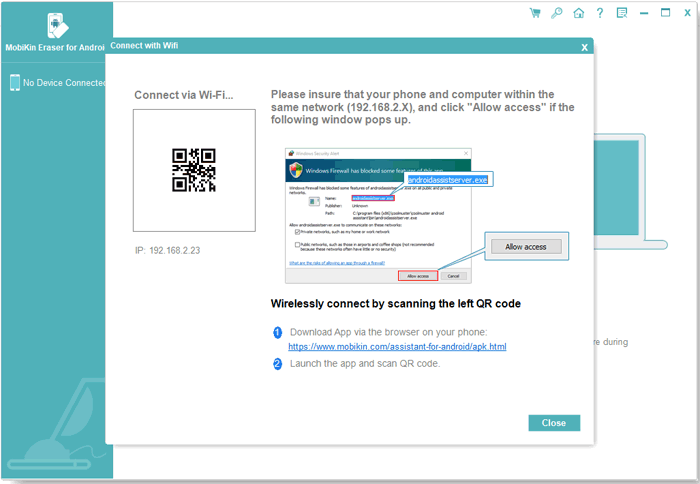
Step 1. Connect Your Lenovo Phone to the Computer: Install and launch the software, then connect your Lenovo via USB or Wi-Fi. For USB connections, enable USB debugging, install the necessary driver, and authorize the computer. For Wi-Fi, connect both devices to the same network and scan the QR code with the Android app.
Step 2. Choose a Security Level and Confirm the Reset Status: Once your phone is detected, click Continue and select Low, Medium, or High under Security Level. Confirm your choice, indicate whether the device has already been factory reset, and follow the on-screen instructions to complete any necessary setup and reconnection.
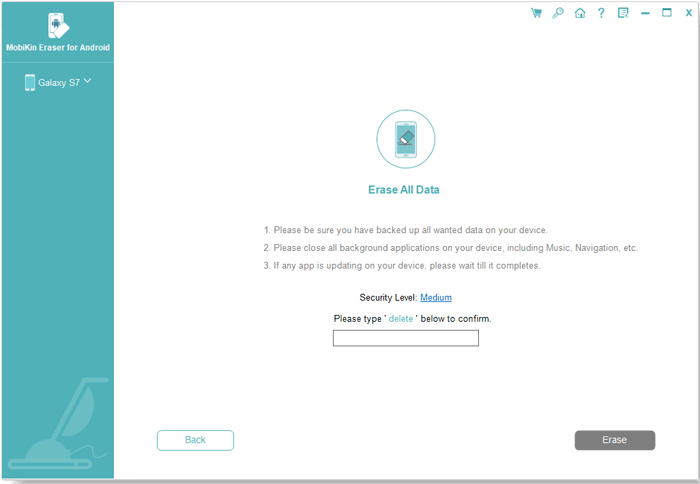
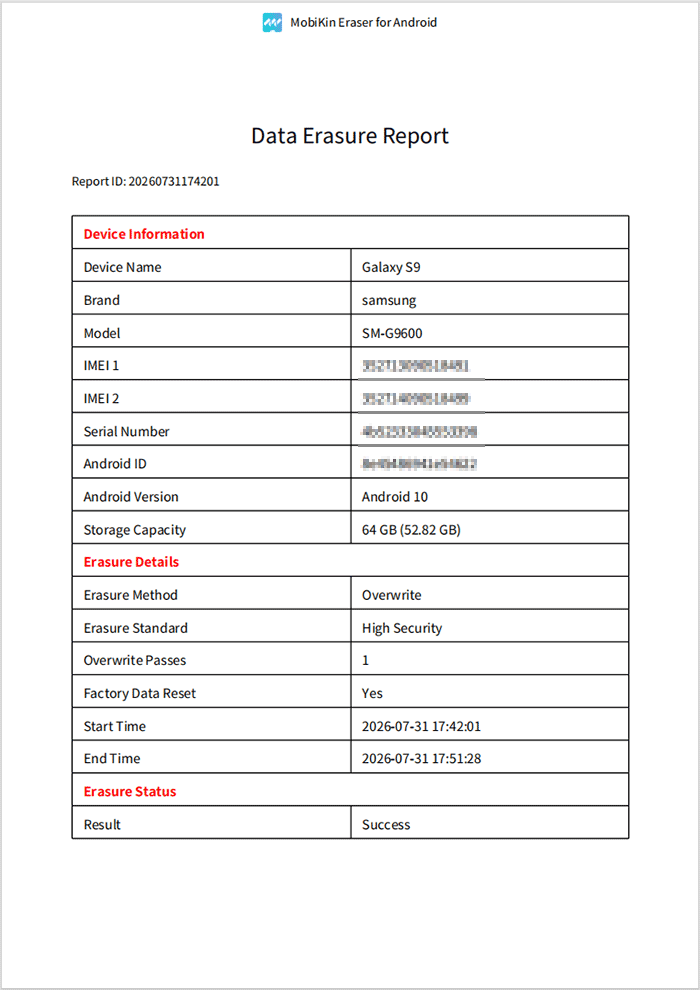
Step 3. Erase and Overwrite Your Phone Data: Reconnect your device if prompted, confirm the security level, and type delete in the confirmation field. Grant any required permissions, click Next, and let the software erase and overwrite your data. Low and Medium perform one overwrite pass, while High performs three; afterward, click Save Report to retain the erasure record.
Video Tutorial:
FAQs about Factory/Hard Reset Lenovo Phone
Q1. Does a hard reset delete everything on a Lenovo phone?
Yes. It erases personal data, including photos, videos, contacts, messages, installed apps, and customized settings stored in internal memory. Back up important files beforehand.
Q2. How long does it take to factory reset a Lenovo phone?
It usually takes several minutes, depending on the phone model, storage capacity, and amount of data. The subsequent reboot may take additional time.
Q3. Will a factory reset remove viruses from my Lenovo phone?
A factory reset can remove most malware and malicious apps stored in user data. However, threats embedded in modified firmware may require additional solutions.
Q4. Will factory resetting my Lenovo phone remove Google FRP?
No. If FRP is enabled, you may still need to enter the Google Account credentials previously associated with the phone after resetting.
Q5. Can I recover data after factory resetting a Lenovo phone?
Recovery is difficult, especially on encrypted Android devices. You can try restoring your files from an existing Google backup or other previously created backups.
Q6. Will a factory reset downgrade my Lenovo phone's Android version?
No. A factory reset removes user data and restores default settings but generally retains the currently installed Android version.
Q7. What should I do if my Lenovo phone won't reset?
Check the battery level and try the reset again. If Recovery Mode remains inaccessible or the process repeatedly fails, contact Lenovo Support or a qualified repair technician.
Related Articles:
4 Optimal Methods to Transfer Data from Samsung to Lenovo Phone
Lenovo FRP Bypass: 4 Stress-free Ways to Bypass FRP on Lenovo
4 Simple Ways to Recover Deleted Photos/Videos from Lenovo Phone
[6 Ways] How to Transfer Photos from iPhone to Lenovo Laptop?