
Samsung Phone Not Turning on after Update? Reasons & 8 Solutions
"S25 bricked (will not turn on) phone after update Android 16 Canada. Never buying anything Samsung again"!! -- from Reddit
A system update is supposed to improve performance and security, but sometimes the process does not go as expected. This unexpected situation can cause concern for users who rely on their phones for communication and daily tasks. To help address the problem, this guide explains the reasons for Samsung phone not turning on after update and how to fix it with 8 scientific ways that may restore normal operation.
- Part 1: Why Is Samsung Phone Not Turning on after Update
- Part 2: Fix Samsung Phone Not Turning on after Update in 8 Ways
> Fix 1: Charge Samsung with a proper charger
> Fix 2: Restart your phone
> Fix 3: Soft reset the device
> Fix 4: Check if the Galaxy gets stuck in Download Mode
> Fix 5: Boot the phone in safe mode
> Fix 6: Clear cache partition
> Fix 7: Contact the service center
> Fix 8: Use Android Repair [Professional Repair] - Part 3: FAQs about Samsung Galaxy Not Turning on after Update
Part 1: Why Is Samsung Phone Not Turning on after Update
After a system update, some Samsung phones may fail to turn on due to unexpected software or hardware issues that occur during or after installation. The following points highlight the most common reasons behind this problem:
- The system update may have caused a software crash or boot loop, preventing normal startup.
- The installation process might have been interrupted or incomplete, leading to corrupted system files.
- The phone could be stuck due to insufficient storage or memory conflicts after the update.
- A battery issue or sudden power drain during the update may stop the device from booting.
- Some updates may introduce compatibility bugs with certain Samsung models or apps.
- In rare cases, the device may experience firmware corruption requiring recovery or flashing tools.
- The phone may have entered Recovery Mode or Download Mode accidentally, stopping it from normal booting.
- A hardware issue exposed during or after the update (such as failing storage or motherboard problems) can also prevent the device from turning on.
You May Also Like: Android System Update Failed to Install? Causes & 10 Solutions
Part 2: Fix Samsung Phone Not Turning on after Update in 8 Ways
Fix 1: Charge Samsung with a proper charger
After a system update, the best first step is to charge your Samsung phone using a proper wall charger instead of a weak USB port or laptop connection, since low power input may prevent the device from booting.
A stable original or certified charger helps ensure the battery receives enough current to restart the system after an update-related crash. Leave the phone charging for at least 15-30 minutes before trying to power it on again, as recommended in official troubleshooting guides.
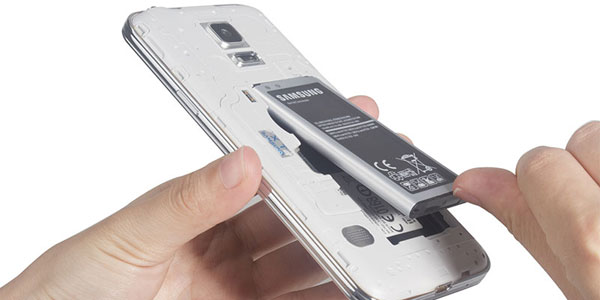
If charging does not fix it, try to check whether the battery is removable or internal. For older models with a removable battery, power off the phone, remove the back cover, take out the battery, wait a few seconds, then reinsert it firmly. For newer models with built-in batteries, you may need to visit an authorized service center to safely replace the battery if it is faulty or no longer holding power.
Fix 2: Restart your phone
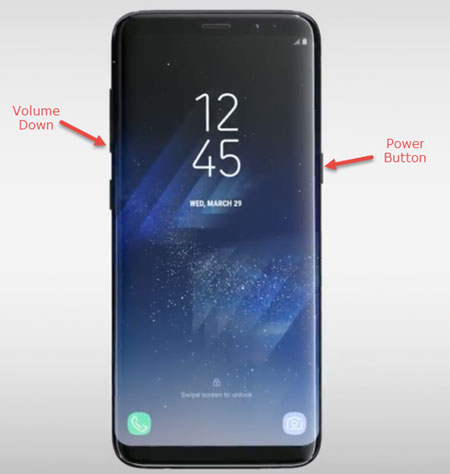
- Press and hold the Power button + Volume Down button together for about 10-20 seconds.
- Wait for the screen to go black and the device to vibrate or show the Samsung logo.
- Release the buttons once the logo appears to allow the phone to reboot normally.
- If it doesn't respond, try holding the Power button alone for up to 30 seconds.
- If the phone still won't restart, connect it to a charger and repeat the restart process.
Fix 3: Soft reset the device
If a simple restart does not fix a Samsung phone that won't turn on after an update, you can try a soft reset to refresh the system. This is done by pressing and holding the Power button + Volume Down button for about 10-20 seconds until the device restarts or the Samsung logo appears. A soft reset forces the phone to reboot without deleting any data, which can help clear temporary system glitches causing the issue.
Fix 4: Check if the Galaxy gets stuck in Download Mode
Connect the phone to a charger or PC and look for a screen showing "Download Mode" or a warning with instructions instead of a normal boot logo. If the Download Mode screen keeps appearing, the phone is likely stuck and may need a forced reboot or firmware repair to fix the issue.
Fix 5: Boot the phone in safe mode
- First, turn the Samsung phone completely off (if it is stuck, hold Power + Volume Down for about 10-15 seconds).
- Press the Power button to turn it back on and wait until the Samsung logo appears on the screen.
- Immediately press and hold the Volume Down button while the device is booting.
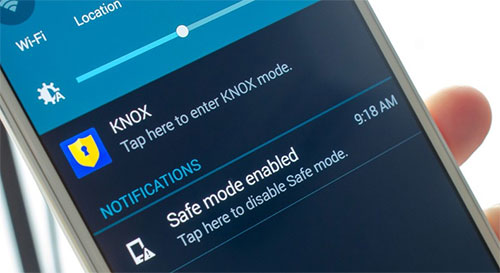
- Keep holding the Volume Down button until the phone fully starts and the words "Safe mode" appear in the lower-left corner of the screen.
- Once in Safe Mode, check if the phone can boot normally and remove any problematic apps or recent updates causing the issue. (Samsung stuck in safe mode?)
Fix 6: Clear cache partition
If a Samsung phone fails to boot after an update, clearing the cache partition can help remove corrupted temporary system files that may be blocking startup.
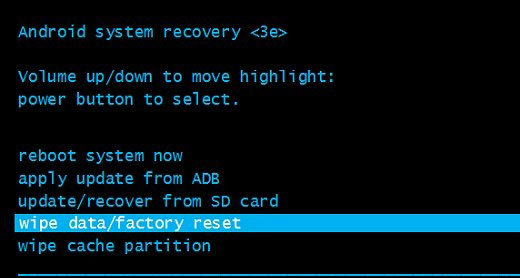
To do this, you need to enter Recovery Mode (usually by connecting the device to a PC, then pressing the correct key combination) and select "Wipe cache partition" from the menu before rebooting the system. This process does not delete personal data, and it often helps fix post-update issues like boot loops or unresponsive screens.
When clearing the cache partition does not fix the issue on a Samsung phone, the next step is to perform a factory reset from Recovery Mode by selecting "Wipe data/factory reset" and confirming the action. This will erase all data on the device but can resolve deeper system errors preventing the phone from turning on after an update.
Fix 7: Contact the service center
- Visit the official Samsung Support website or open the Samsung Members app on another device to locate the nearest authorized service center.
- Use the "Find a Service Center" option and enter your location to get nearby repair locations and contact details.
- Call or book an appointment with the service center to describe the issue (phone not turning on after update).
- Bring your device, charger, and proof of purchase to the center for diagnosis by certified technicians.
- Request repair options such as software reinstallation, firmware repair, or hardware inspection if needed.
Fix 8: Use Android Repair [Professional Repair]
Android Repair is an expert repair program that helps resolve various Android system problems without complicated manual operations. It can fix issues such as boot loops, black screens, and situations where a Samsung or other Android device fails to turn on after an update.
By reinstalling or repairing the system firmware through a computer, the tool attempts to restore the device to normal working condition.

How to fix Samsung Galaxy not turning on after update with Android Repair?
- Launch the Android Repair utility on your computer. Connect your Samsung device to this computer using a USB cable.
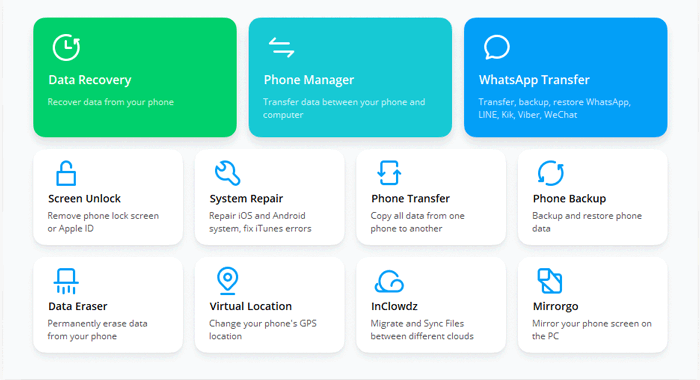
- Select "System Repair" from the left menu. You may navigate through the interface and click "Start".
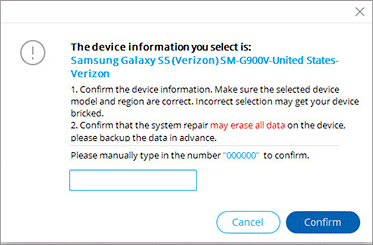
- Enter your device information in the subsequent interface and click "Next" to proceed.
- Type the number "000000" into the empty field and press "Confirm" to continue. Please be aware that the system repair process may erase all data on your Samsung device.
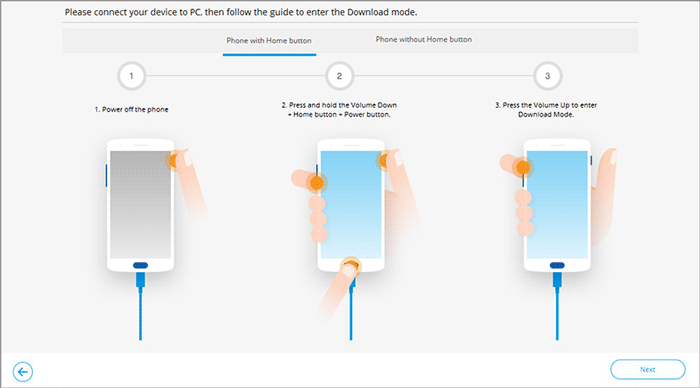
- For devices with a "Home" button, power off your device, then simultaneously press the Home, Power, and Volume Down buttons for 10 seconds. Release all buttons and then press and hold the Volume Up button to access download mode.
- For devices without a "Home" button, turn off your device, then press the Bixby, Power, and Volume Down buttons for approximately 10 seconds before releasing them. Press and hold the Volume Up button to enter download mode.
- After your phone has rebooted into download mode, click "Next" to download the firmware for your device.
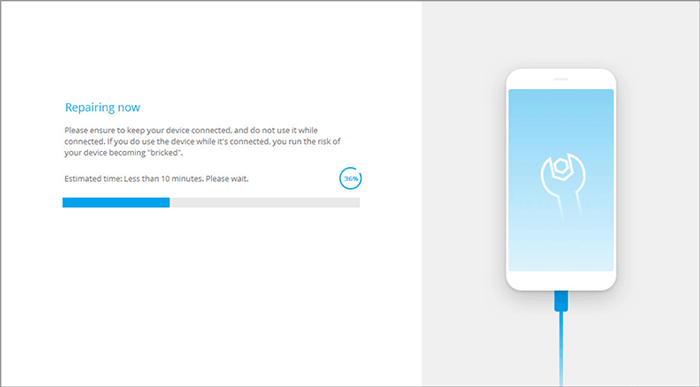
- Once the download is complete, the software will start to resolve the issue of the Samsung not turning on after an update.
Part 3: FAQs about Samsung Galaxy Not Turning on after Update
Q1: Is my phone damaged after an update failure?
Not always - many cases are caused by software glitches and can be fixed with troubleshooting.
Q2: What if the screen stays black after charging?
Try another cable, charger, or wall outlet to rule out power issues.
Q3: What is a soft reset?
It is a forced reboot that refreshes the system without deleting data.
Q4: What is Download Mode?
It is a special mode used for firmware installation or system repair.
Q5: Can SD cards cause boot failure?
Yes, a corrupted SD card can interfere with system startup.
Q6: When should I visit a service center?
If the phone still won't turn on after all software fixes, professional repair is needed.
Q7: Can future updates prevent this issue?
Yes, keeping software updated helps fix bugs that may cause boot problems.
Q8: When to pick the Android Repair for Samsung repair?
You can choose Android Repair when your Samsung phone fails to turn on after an update and basic fixes like charging, force restart, or cache clearing do not work. It is useful when the device is stuck in a boot loop, black screen, or system crash caused by a failed or corrupted update. This tool is a practical option when you want a guided software repair solution before going to a service center.
Related Articles:
Best 7 Methods for Samsung Backup and Restore [Must-read]
Samsung Contacts Disappeared? 10 Troubleshooting Tips You Wish You'd Known
How to Recover Data from Samsung Phone That Won't Turn on? 5 Tactics
12 Methods to Fix Touch Screen Not Working/Responding on Samsung
