
Samsung Galaxy Recovery: 4 Ways to Recover Data from Normal/Broken Samsung
TL;DR:
Whether you're dealing with accidental deletion or a broken screen, the right recovery tool - like MobiKin Doctor for Android for internal and SD card data, or Broken Samsung Phone Data Extraction for physical damage - can effectively retrieve your lost files. However, to truly safeguard your information, regularly backing up your device remains the most reliable strategy to prevent permanent data loss.
Samsung Galaxy is one of the widely known and used brands in different parts of the world. It is therefore common to hear about people losing data and trying to find out more information about Samsung Galaxy recovery. This tutorial covers 2 awesome programs to recover deleted Samsung files from normal & cracked Samsung, tips to recover Samsung data from backups, and 5 top Samsung data recovery apps.
You can jump to the sections to find what you need directly and select one of them to retrieve your lost files.
Part 1. What Causes Samsung Data Loss?
You know that data loss is always unpredictable. Let us check the reasons that lead to Samsung data loss.
Most people find themselves in such situations due to different reasons such as phone loss, accidental deletion, or even phone damage.
Other reasons for loss of data in Samsung Galaxy include updates, battery placement, jailbreak, and theft.
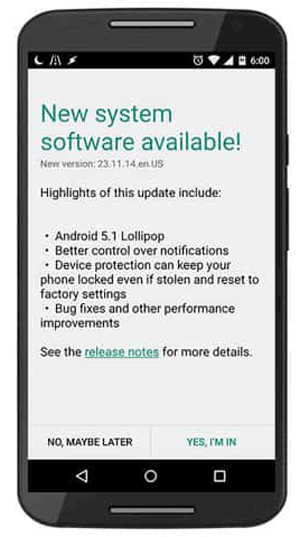
Like computers, phones also need updates to optimize their functionality. Unfortunately, this is also one of the major causes of data loss in phones.
Putting the battery back on the phone may seem like one of the easiest actions but it can cause so much damage to your phone, leading to loss of all your data.
When it comes to jailbreaking, you can discover amazing features in your phone making it a high performing and efficient gadget that can do almost everything. However, one of the major disadvantages of jailbreak is its potential to cause data loss.
Whatever the reason, you can easily recover your files to your Samsung Galaxy using any method suitable to you.
According to Google, people also want to learn:
Part 2. How to Recover Samsung Galaxy Data without Backup
Since many users lose Samsung data without backup, we would like to recommend a professional software to help you recover Samsung Galaxy data without backup. MobiKin Doctor for Android (Win/Mac) is a great Samsung Galaxy recovery tool for almost all Samsung devices on the market. The program supports contacts, call logs, text messages, documents, media files, and many others.
The software also has some amazing features such as the ability to let you preview your lost data before reinstalling it. Such data is marked differently from the rest, making identification easier.
Compatibility with multiple devices is another great feature. With this program, you can use the same tool if you own mobile devices from different brands and even operating systems. With just a few clicks, you can accomplish Samsung data recovery.
Key Features of Samsung Data Recovery - MobiKin Doctor for Android:
- Restore contacts, text messages, call logs, media files and more from internal memory (root required).
- Retrieve music, videos, photos, and documents from an SD card (without root).
- Preview the data before recovering.
- Work perfectly on almost all Samsung devices, including Samsung, vivo, Motorola, OPPO, POCO, TECNO, itel, Xiaomi, etc.
Free Download Samsung Data Recovery Software


# 1. MobiKin Doctor for Android Recovers Samsung Data from Internal Memory in 3 Steps
Private info is always stored in phone memory, like contacts, SMS, call logs, etc. If you want to restore these kinds of data from your Samsung Galaxy, you need to root your phone at first.
Step 1. Connect Samsung Galaxy to PC via a USB cable - Please plug your Samsung Galaxy to the computer via a USB cable, then activate USB debugging if prompted. After that, you need to run the program on your computer. Follow the on-screen prompts to make Samsung phone be recognized by the program, you can see the interface as below. Please click Next to activate data scan on your Samsung phone.
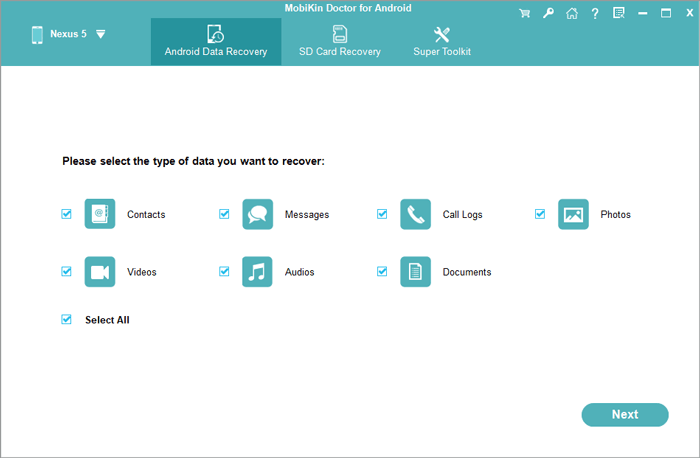
Step 2. Select the data - The program will sort all the files into different folders on the left panel. You can now open the folder that contains your wanted files, preview the detailed info on the right and tick the boxes if you want to recover them.
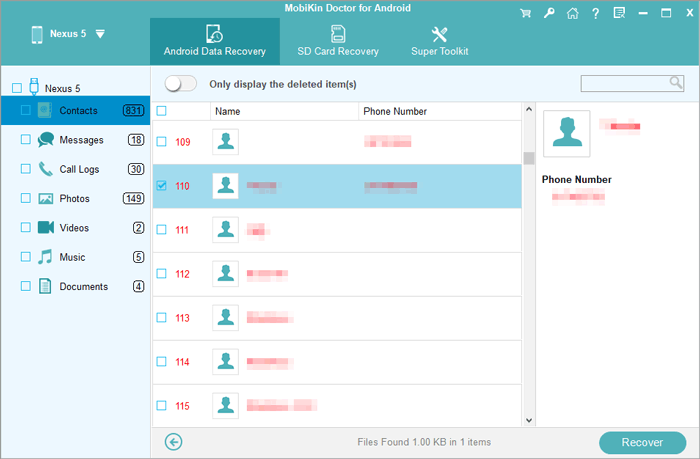
Step 3. Start to retrieve lost files to PC - After selecting files, you can now click Recover on the screen and choose a local folder to store the recovered files on your computer.
Still have problems using this Samsung Galaxy recovery tool? Please have a look at the video tutorial.
You may need:
# 2. MobiKin Doctor for Android Recovers Samsung Files from SD Card
Media files can be saved and moved to SD card. If you like to retrieve data from SD card, root is not required. Please follow the 1-2-3 steps to recover deleted media files from SD card.
Step 1. Connect Samsung SD card to PC - Please launch the program, choose Android SD Card Recovery mode from the top menu bar. Then insert your SD card to computer via an SD card reader.
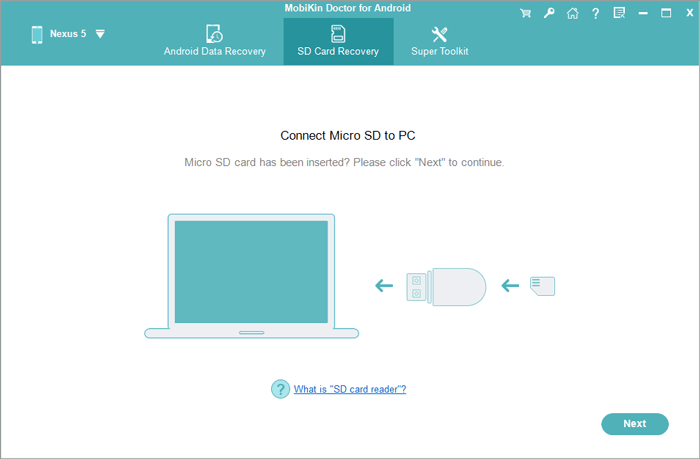
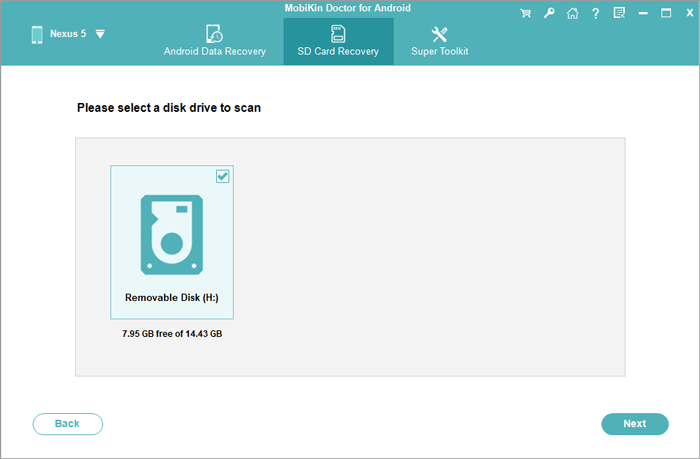
Step 2. Scan SD card - Once your SD card is detected by the program, you can see this interface. You need to select an SD card and tap on Next to scan it.
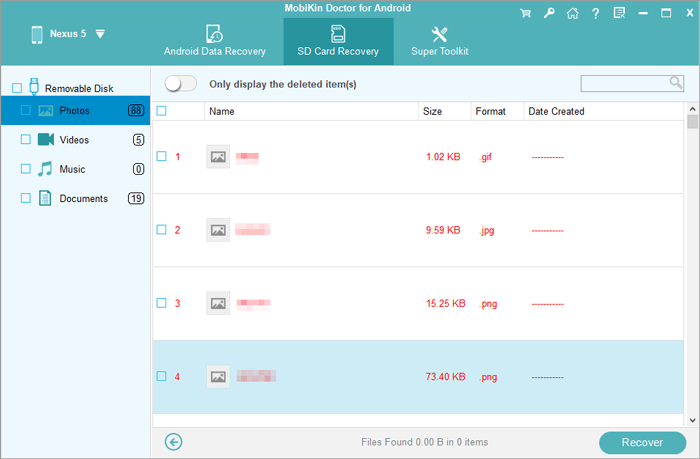
Step 3. Select and recover files - The readable data will be display in different types on the left. Please open the folder that contains your wanted lost files, preview the detailed info on the right and tick the boxes on. Then, simply click Recover to retrieve files to the computer.
Part 3. Broken Samsung Galaxy Recovery - Recover Samsung Deleted Data from Broken Screen
If you have broken/damaged your Samsung Galaxy, you can not use MobiKin Doctor for Android. So we recommend another powerful Samsung Galaxy Recovery - Broken Samsung Data Extraction.
Broken Samsung Phone Data Extraction is a fantastic software that allows you to recover deleted data from broken/damaged Samsung devices.
Key Features of Broken Samsung Phone Data Extraction:
- Recover files from broken/damaged/dead/locked Samsung screens.
- Support contacts, call logs, SMS, media files, WhatsApp and its attachments.
- Fix various Android phone issues to normal.
- Currently, it only supports most Samsung Galaxy series.
Free Download the Best Broken Samsung Recovery Tool:

When it comes to using the software, it involves simple steps that everyone can understand and follow successfully regardless of their level of expertise in technology.
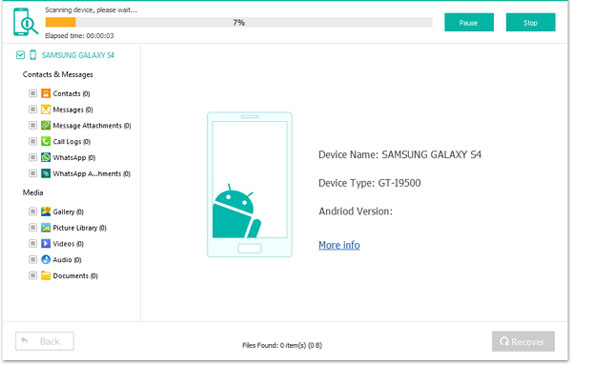
You can go to this article to learn the detailed steps in different situations like screen crack, password forgot, device brick, and system crash. << 6 ways to recover data from broken or damaged Samsung phone
Part 4. Samsung Galaxy Recovery - Recover Samsung Deleted Files from Cloud Backups
This method is undoubtedly one of the simplest restoration methods usually taking a few seconds. To use this method, you need to make sure you back up your Samsung frequently. This will allow you to restore the most recent files thereby preventing loss of your latest additions.
Google and Samsung Cloud are some of the most popular backup platforms for Samsung users. They provide users with 15 GB of free storage for backups. The best feature of Google storage is that you can easily access your account with a wide variety of devices anywhere and anytime. But Samsung Cloud, Galaxy account backup, may not be as widespread as Google account among Android devices.
When you recover deleted files on Samsung Galaxy with backups, you just need to make sure that nothing interrupts the process. You will also need a good Wi-Fi connection to ensure that the restoration happens fast.
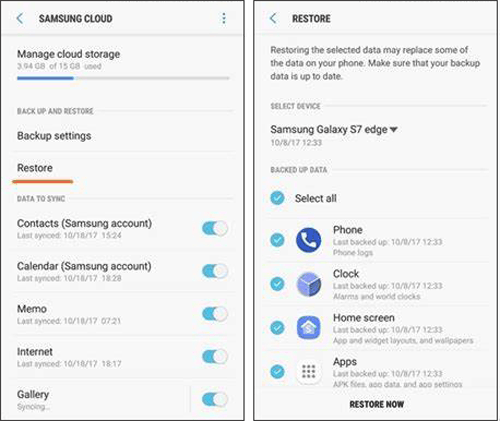
Recover Deleted Data on Samsung Galaxy from Samsung Cloud:
Please go to Settings > Backup and restore > Restore data > select your wanted content > RESTORE. You can either follow the on-screen prompts to download the backups from Samsung Cloud.
Recover Deleted Files on Samsung Galaxy from Google:
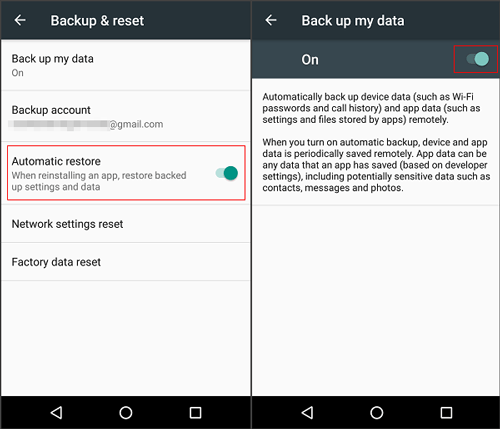
Please go to Settings > Cloud and accounts > Backup and restore > turn on Automatic restore (make sure that you have turned on Back up my data and backed up your Samsung Galaxy).
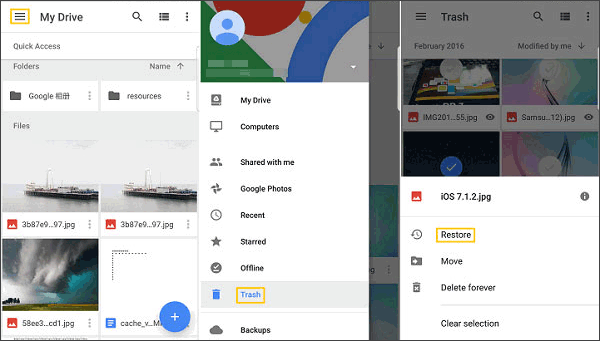
What's more, if you have downloaded Google Drive on your Samsung phone, you can recover deleted files from Google Drive Trash within 30 days (learn more about restoring Android data from Google backup).
Part 5. Retrieve Samsung Files with Samsung Data Apps
One of the reasons why Samsung Galaxy is loved by a majority of people is the fact that it comes with many apps that can perform different tasks efficiently. There are many Android data recovery programs that serve as great Samsung Galaxy recovery tool in the market but some of the most popular ones include.
Dropbox
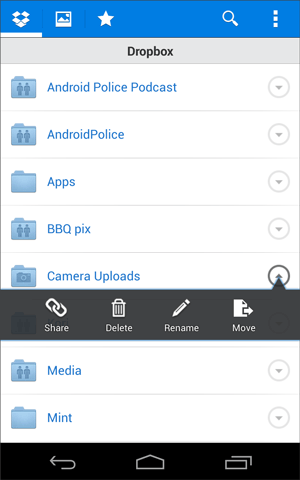
Dropbox is a widely used app that is designed for business work. It supports Word/Excel/PPT/PDF and other files that are used in work. Like Google Drive, this program provides 2 GB free cloud service for the individual to sync your Samsung phone. And it also offers larger fee-based storage spaces for teamwork. If you have backed up your documents before data loss, you can try to recover them from Dropbox.
Dumpster
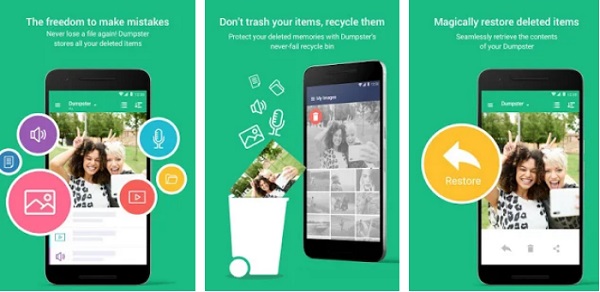
Dumpster is designed to recover Android files without root, including apps, videos, music, and photos. Once you downloaded this program, it backs up your deleted data automatically. It serves as a recycle bin, you can retrieve deleted Samsung files at once. But you can not recover the data that has been deleted before installing this app on your Galaxy.
Call History Manager
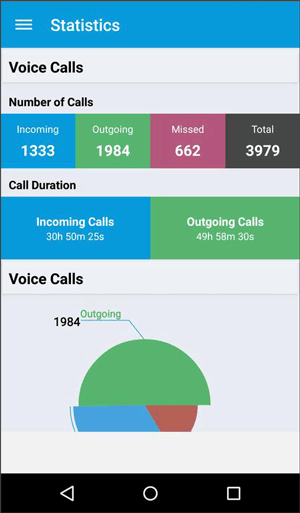
Call History Manager is a call logs recovery tool that stores your past 1,000 days of call logs. You can easily find and restore the deleted call history on Samsung from the category, including the incoming, outgoing and missed numbers.
SMS Backup & Restore
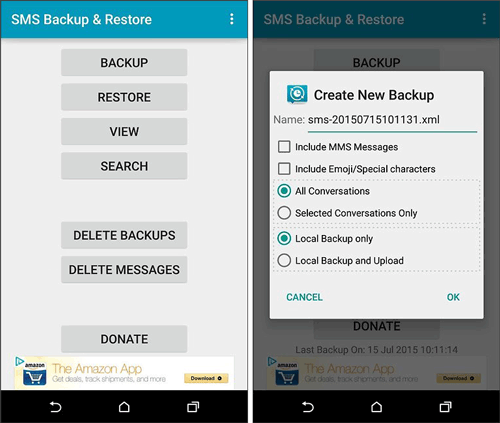
SMS Backup & Restore focuses on backup & restore Android text messages/MMS and call logs, so it can serve as Samsung Galaxy recovery. It saves backups on phone memory by default, but you can change the settings to backup files to Google could or Dropbox, so that you can access the backed-up files on other devices if you lose your Samsung Galaxy.
Deleted Contacts Recovery
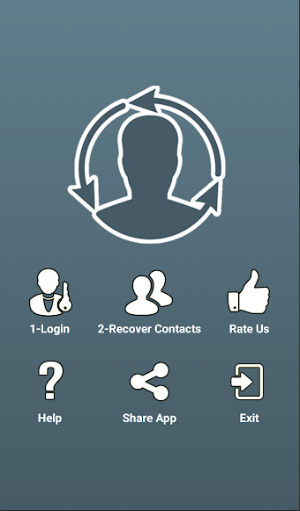
As its name says, Deleted Contacts Recovery is a special app working for recovering deleted contacts. You can use it to recover deleted contacts on Samsung after contact loss by accidental deletion and a factory reset.
In Conclusion
With these Samsung Galaxy recovery tools, you have totally a large chance to recover deleted data on Samsung Galaxy. No one is able to confirm a 100% success when recovering deleted files. So you should not rely on Samsung Galaxy recovery tools to protect your Samsung data. Instead, you should back up your Galaxy phone frequently at a daily time.
MobiKin Assistant for Android is developed for you, a one-stop Android manager and assistant, which allows you to manage everything of your Android on a computer and back up your phone with just 1 click.
Related Articles:
How to Boot into Samsung Download Mode? 4 Well-tested Strategies
Easy Samsung FRP Tool Installing Drivers Failed? Reasons & 9 Fixes
Samsung White Screen of Death? Reasons & 15 Troubleshooting Tips
4 Options: Transfer Data from realme to Samsung S26/S25/Note/Tab
4 Smart Strategies to Restore WhatsApp Messages on Samsung Galaxy
