
How to Completely Remove Contacts from itel SIM Card? 4 Approaches
I have to give away one of my SIM cards on itel P, and wonder if there is a way to remove contacts from it? Sincerely, I’m not even sure if I have some contacts on the SIM card, but I would like to clean the SIM before giving it away. -- from Sailfishos Forum
Why do you want to completely remove contacts from itel SIM card?
- Selling or giving away - Keep contacts private from new owners.
- SIM reuse - Clear old data before using it in another phone.
- Privacy protection - Prevent others from accessing contacts.
- Clean duplicates - Organize and simplify your contact list.
- Switching devices - Remove outdated contacts.
- Prevent accidental sharing - Stop contacts from syncing or sharing.
- Data security - Reduce risk if SIM is lost or stolen.
Next, let's see how to delete the contacts permanently in 4 easy and secure ways.
- Way 1: Completely Remove Contacts from itel SIM Card via MobiKin Eraser for Android [Permanent]
- Way 2: Completely Delete All Contacts from itel SIM by Replacing the SIM
- Way 3: Permanently Delete Contacts from SIM on itel Using SIM Contacts
- Way 4: Delete Call Details Permanently from itel SIM Card via SIM Contacts Manager
Way 1: Completely Remove Contacts from itel SIM Card via MobiKin Eraser for Android [Permanent]
Data on your itel phone can be securely and permanently erased using MobiKin Eraser for Android (Windows/Mac). This software allows users to wipe contacts, messages, call logs, photos, and more, making recovery nearly impossible.
While internal storage contacts can be completely deleted, SIM-card contacts are not affected by this tool. The program offers multiple security levels, letting users choose the depth of data removal for personal or sensitive information.
Why Select MobiKin Eraser for Android?
|
Category
|
Summary
|
|
Core Purpose |
Permanently erases itel/Android data so it cannot be recovered. |
|
Data Types Erased |
Contacts, messages, call logs, photos, videos, browsing data, app data, deleted files, and more. |
|
Erasure Levels |
Low, Medium, High (multi-pass overwriting for higher security). |
|
Ease of Use |
Simple computer-based operation: connect device > choose erase level > wipe. |
|
Security Advantage |
More secure than a standard factory reset due to full data overwrite. |
|
Device Support |
Compatible with 8,000+ devices, including itel S, A, City, and P Series (e.g., S25 Ultra, A90, City 100, P55 5G, etc.) |
|
Phone Contacts Erasure |
Can fully and permanently delete contacts stored in internal phone memory. |
|
What to Use for SIM Contacts |
Requires a separate SIM-contact manager app to delete or wipe SIM contacts. |
How to completely delete contacts from itel SIM card without being recovered via MobiKin Eraser for Android?
- Start by downloading and installing the erasure tool on your computer, which you'll use to permanently wipe data from your itel phone, including all contact info. (It's best to back up your itel data before erasing)
- Connect your itel to the computer using a USB cable and enable USB debugging if prompted.
- Open the software and follow the on-screen guidance to allow it to detect your device.
- Once recognized, select "Erase" from the main interface.
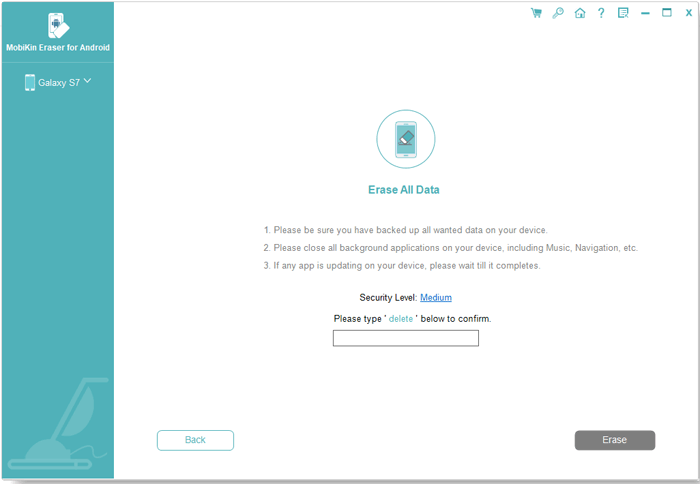
- Choose your preferred security level and confirm the operation by typing "delete" when asked.
- After confirming, click "Erase" again. Use Low Level to block basic recovery, Medium Level for erasing media files, and High Level for securely wiping sensitive data.
- The program will then scan your device and begin erasing data based on the chosen security level.
- Follow the prompts, click "Continue," and all remaining contacts and other files will be permanently wiped.


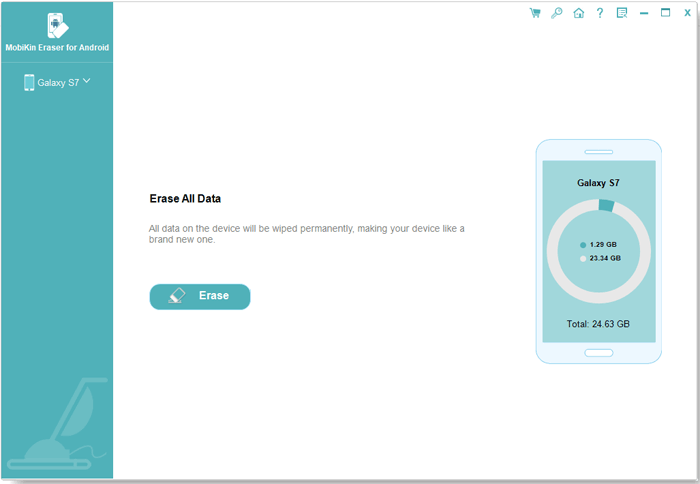
Video Guide:
Way 2: Completely Delete All Contacts from itel SIM by Replacing the SIM
Replacing the SIM is a simple way to completely remove all contacts from an Itel SIM card, as the new SIM comes without any stored data. Before swapping, it's wise to back up any important contacts to your phone or cloud account to avoid losing them permanently.
Once the old SIM is removed and the new one inserted, the SIM contacts list is automatically cleared. This method ensures that no previous numbers remain on the SIM, providing a fresh start for your contact storage.
How-to Guide:
- Back up important contacts - Before removing your old SIM, save any numbers you want to keep to your phone memory, cloud account, or another SIM card.
- Power off your Itel phone - Turn off the device to safely remove the SIM card.
- Eject the SIM card - Use the SIM eject tool or a small pin to open the SIM tray and remove your old SIM.
- Insert a new SIM card - Place the new SIM into the tray and carefully push it back into the phone.
- Power on the phone - Turn the Itel phone back on to recognize the new SIM.
- Verify SIM contacts - Open the Contacts app and check that the SIM contacts list is empty.
- Restore saved contacts if needed - Import any contacts you backed up to the phone or cloud, leaving the new SIM clean of old data.
Attention: The Contacts app only deletes contacts stored in your phone's internal memory. SIM-card contacts are stored separately on the SIM chip, so deleting them requires a dedicated tool or method mentioned in this article.
You May Also Like: 3 Most Convenient Ways to Manage Itel Phone Contacts on Computer
Way 3: Permanently Delete Contacts from SIM on itel Using SIM Contacts
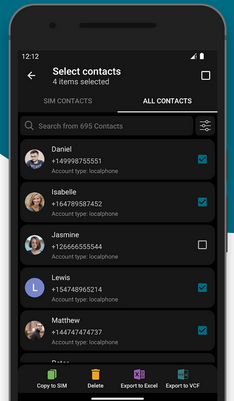
A dedicated SIM Contacts app provides focused management of contacts saved on the SIM card. Users can select individual or all contacts for deletion, effectively clearing the SIM's storage. This method ensures that data on the SIM is removed without affecting the phone's internal memory. Batch deletion and selective removal are both supported, making it convenient for different user needs.
How-to Guide:
- Install the SIM Contacts app from Google Play.
- Open the app and grant Contacts permission so it can read/write the SIM.
- Tap the SIM tab to display all contacts stored on your SIM card.
- Long-press any contact you want to remove.
- Tap Delete to permanently erase that individual SIM contact.
- To remove everything, tap the Select All box at the top right of the screen.
- Press the Delete button to wipe all SIM contacts at once.
- Confirm the pop-up asking if you want to delete permanently.
- Restart your itel S, A, City, or P series to refresh the SIM storage.
- Re-open the SIM Contacts app or Contacts app to confirm all SIM contacts are gone.
Way 4: Delete Call Details Permanently from itel SIM Card via SIM Contacts Manager
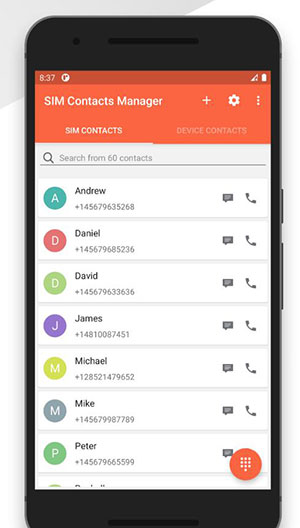
SIM Contacts Manager offers a more advanced interface for handling SIM contacts, including bulk operations and easy identification of duplicate entries. Complete deletion of all SIM contacts can be achieved in a few taps, ensuring no residual data remains.
Phone memory contacts are not impacted by this tool, maintaining separation between SIM and device storage. The app also provides options to back up or transfer contacts before performing a full wipe for added safety.
How-to Guide:
- Download SIM Contacts Manager from Google Play and install it.
- Open the app and grant all required permissions (especially Contacts permission).
- From the main menu, tap SIM Contacts/SIM Storage to view all entries stored on the SIM.
- Look for any call-related entries (e.g., last dialed numbers, received numbers, service-stored call logs).
- Long-press any entry you want to remove.
- Tap Delete to erase that specific call entry from the SIM card.
- If you want a complete wipe, tap Select All to highlight every SIM entry.
- Tap Delete > Confirm to permanently remove all call entries stored on the SIM.
- Restart your itel phone to refresh SIM storage and ensure deleted entries don't reappear.
- (Optional) Go to Phone > Recent Calls and delete phone call logs too, since the phone also stores call details separately.
Closing Remarks
In summary, completely removing contacts from your Itel SIM card is essential for maintaining privacy, organizing your contact list, and preparing your SIM for reuse or transfer. Always remember that phone memory and SIM storage are separate, so using the appropriate method for each is key.
Related Articles:
4 Ingenious Methods to Restore Deleted Contacts on itel S/P/A/City
How to Transfer Contacts from itel to itel? 4 Proven Methods
5 Easy & Secure Solutions to Connect itel to MacBook Easily
How to Enable Developer Options & USB Debugging on TECNO, Infinix, itel Devices
