
CopyTrans Manager Review – An Efficient Tool for Organizing Your iOS Data
Managing an iPhone or iPad with iTunes can often feel unnecessarily complicated, especially when all you want is a simple way to add or organize your media. If you're looking for a lighter, more straightforward alternative, CopyTrans Manager is worth your attention. This tool is designed to help users manage iOS devices with ease, cutting out the clutter and restrictions commonly associated with iTunes. It allows you to transfer and organize music, videos, and other files smoothly, without forcing you into Apple's ecosystem. In the following sections, we'll take a closer look at what this software offers and where it shines.
Part 1: What's CopyTrans Manager?
Main Features
CopyTrans Manager is a powerful tool designed to help users manage their iOS music libraries without relying on iTunes. It simplifies the process of transferring, organizing, and backing up music, making it ideal for users who want more control over their audio files. Below are some of the key features that make CopyTrans Manager a practical music management solution.
1. Seamless Music Transfer
CopyTrans Manager lets you move music freely between your computer and iOS devices like iPhone, iPad, and iPod Touch. You can import new tracks, remove unwanted songs, or modify existing files directly on your device, all without needing iTunes.
2. Flexible Playlist Organization
Managing playlists is quick and intuitive with CopyTrans Manager. You can build new playlists, edit existing ones, and reorder tracks using simple drag-and-drop actions, allowing you to customize your music library exactly the way you prefer.
3. Reliable Backup and Recovery
The software provides built-in options to back up your music collection, helping you prevent data loss. If your device crashes or files are accidentally deleted, you can restore your music library easily and continue listening without interruption. (10 Best iPhone Backup Software for Windows/Mac)
4. Multi-Format Support and Conversion
CopyTrans Manager supports popular audio formats such as MP3, AAC, WAV, and FLAC. It also allows you to convert audio files into compatible formats, ensuring your music can be played smoothly across different devices and media players.
Pros & Cons
Like most media management tools, CopyTrans Manager comes with both strengths and limitations. Understanding these can help you decide whether it fits your needs.
Pros
- Simple and approachable design: The interface is straightforward and well-organized, allowing even first-time users to manage iOS music files with minimal learning effort.
- Lightweight performance: CopyTrans Manager runs smoothly without consuming heavy system resources, offering faster transfers and a more responsive experience than iTunes.
- Direct file control without syncing: You can freely add, delete, or modify music and other media on your iOS device without triggering a full sync or losing existing data.
- Broad media format compatibility: The software supports many common audio and video formats, reducing the need for additional conversion tools.
Cons
- Apple-only device support: CopyTrans Manager works exclusively with iPhone, iPad, and iPod Touch devices on newer iOS versions, offering no support for non-Apple devices or very old systems.
- No application management features: The tool is focused on media handling only. Tasks such as installing, updating, or managing apps still require iTunes or another app-based solution.
You May Want to Know:
Part 2: How to Use CopyTrans Manager?
Getting started with CopyTrans Manager is quick and straightforward, even for beginners. Follow the steps below to manage your iOS media files efficiently without iTunes.
Step 1: Install the Software
Download CopyTrans Manager from its official website and complete the installation on your computer.
Step 2: Connect Your iOS Device
Use a USB cable to link your iPhone, iPad, or iPod touch to the computer and make sure the connection is stable.
Step 3: Detect the Device
Open CopyTrans Manager. The program will automatically recognize your connected device and display it in the side panel once the connection is successful.
Step 4: Import Media Files
To add music, videos, or photos, simply drag files from your computer and drop them into the CopyTrans Manager window.
Step 5: Create and Manage Playlists
Navigate to the playlist section and create a new playlist with one click. You can then organize tracks by dragging songs from your library into the playlist.
Step 6: Edit Song Details
If you want to change track names, artist information, or album artwork, right-click the selected item, edit the details, and save your changes.
Step 7: Delete Unwanted Files
Select any media files you no longer need and remove them directly from your device using the delete option.
Step 8: Safely Remove Your Device
Once finished, eject your device from within the software to ensure all changes are saved before unplugging the USB cable.
With these steps, CopyTrans Manager makes it easy to transfer, organize, and maintain your iOS media library in just a few clicks.
Part 3: Top 5 Alternatives to CopyTrans Manager
If you're looking for a CopyTrans Manager alternative to manage music and other media on your iPhone or iPad, you're not short on options. Some tools focus on full iOS data management, while others specialize in fast media transfers. Below are five solid alternatives, each with its own strengths.
Top 1: MobiKin Assistant for iOS
MobiKin Assistant for iOS is a powerful all-in-one iOS management tool designed for users who want more control than iTunes or CopyTrans Manager can offer. It supports not only music management but also contacts, messages, photos, videos, and more, making it ideal for both everyday use and long-term backups.
Key Features
- Transfer music, playlists, and media between iPhone and computer without iTunes.
- One-click backup and restore for iOS data.
- Manage contacts, messages, notes, and call logs on a computer.
- Export files in readable formats for easy access.
- Support for the latest iOS versions and iPhone models.
- Preview and selectively transfer files before exporting.


How to Use MobiKin Assistant for iOS
Step 1: Connect Your iPhone
Install and launch the software on your computer, then connect your iPhone using a USB cable. Unlock your device and tap "Trust" if prompted.
Step 2: Scan and Preview Data
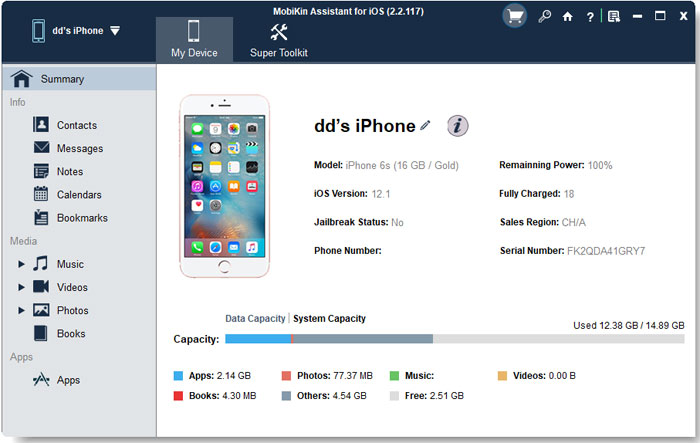
Once connected, the program scans your device and displays all data categories in the left panel, allowing you to preview all the data and files saved on your iPhone and iPad.
Step 3: Transfer or Manage Files
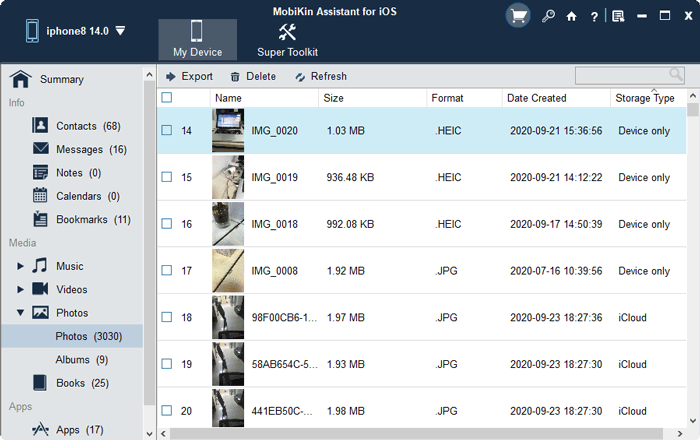
Select the files you want to transfer or manage, then choose to click "Export", "Import", "Edit" or "Delete" to transfer them between iOS device and computer or manage them on the computer directly.
Video Guide:
Top 2: iMazing
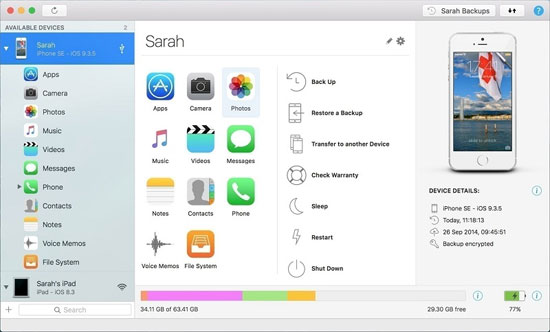
iMazing is a popular iOS management tool known for its clean interface and deep device access. It goes beyond music transfer and works well for users who want detailed backups and device monitoring.
Pros
- Supports wireless iPhone management.
- Excellent backup and restore options.
- Clean, modern user interface.
- Works well with large music libraries.
Cons
- Many advanced features require a paid license.
- Can feel overwhelming for beginners.
- Slower performance on older computers.
Top 3: WALTR 2
WALTR 2 focuses on simplicity and speed. It's best suited for users who mainly want to transfer music and videos to their iPhone without worrying about formats or manual syncing.
Pros
- Extremely easy drag-and-drop transfers.
- Automatically converts incompatible formats.
- No iTunes required.
- Very beginner-friendly.
Cons
- Limited file management features.
- No playlist editing or advanced organization.
- Paid software with no long-term free version.
Top 4: iExplorer
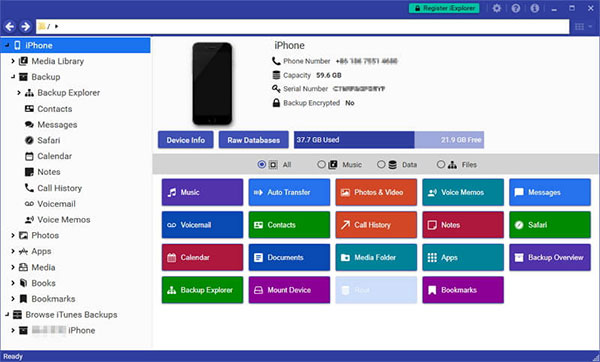
iExplorer allows users to browse iPhone data like a file system, making it useful for those who want more technical access to their device content. (11 Best iExplorer Alternatives)
Pros
- Access iPhone files directly from a computer.
- Good for exporting music and playlists.
- Works on both Windows and macOS.
- Useful for troubleshooting and advanced users.
Cons
- Interface looks outdated.
- Not beginner-friendly.
- Fewer media management features compared to all-in-one tools.
Top 5: MediaMonkey
MediaMonkey is primarily a music manager rather than a dedicated iOS tool, but it works well for users with large music libraries who also sync music to iPhones.
Pros
- Excellent music organization and tagging tools.
- Ideal for large and complex music libraries.
- Supports playlists and metadata editing.
- Works across multiple devices.
Cons
- iOS support is secondary, not its main focus.
- Setup can be complicated for new users.
- Interface may feel cluttered.
Part 4: FAQs About CopyTrans Manager
Q1: Is CopyTrans Manager completely free to use?
CopyTrans Manager can be downloaded for free, but the free version comes with limitations. To unlock full functionality—such as transferring large music libraries—you need to purchase a license, which costs around $19.99.
Q2: Does CopyTrans Manager support all iOS devices?
Yes. CopyTrans Manager works with most Apple devices, including iPhone, iPad, and iPod models that are supported by the software.
Q3: Can I use CopyTrans Manager on macOS?
No. CopyTrans Manager is designed exclusively for Windows PCs and does not offer a macOS version.
Q4: Is there a transfer limit for songs in CopyTrans Manager?
The paid version allows unlimited music transfers, as long as your iOS device has enough storage space. The free version may restrict the number of tracks you can manage.
Q5: Does CopyTrans Manager support wireless transfers?
No. CopyTrans Manager requires a USB connection to transfer music and manage files. Wi-Fi transfers are not currently supported.
Words in the End
CopyTrans Manager is a solid choice for users who want a simple way to manage music on iOS devices without iTunes. While it focuses mainly on media transfer, it remains easy to use and reliable. For broader iPhone data management needs, exploring more feature-rich alternatives like MobiKin Assistant for iOSmay be worthwhile.
Do you have more questions? You are welcome to comment on this article below.
Related Articles
Tips to Restore Deleted SMS Messages from iPhone
DiskDigger Alternative Tool for iOS
8 Solutions to Fix Contacts Disappeared from iPhone
What if iPhone Won't Restore? Here Are the Full List of Fixes
