
Enter Password to Unlock 30/30 Attempts Remaining? 9 Simple Solutions
Seeing the message enter password to unlock 30/30 attempts remaining often appears after entering the wrong password too many times, and it immediately puts users on edge. This signals a critical moment where access is still possible but mistakes can cause permanent lockout, making every next step matter. Many people pause here, unsure whether the issue comes from memory slips, system errors, or unexpected security changes.
This post breaks down the potential reasons behind this prompt, walk through 8 basic solution options, and finally reveal 1 ultimate way to regain control without risking further damage.
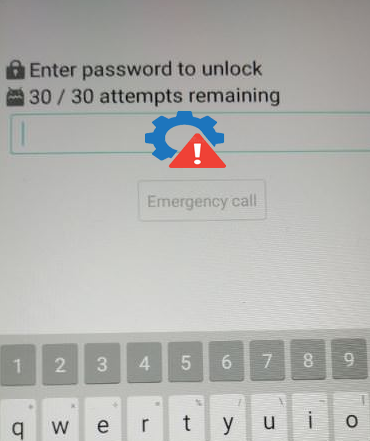
- Part 1: Why the Enter Password to Unlock 30/30 Attempts Remaining Occurs
- Part 2: Fix Enter Password to Unlock 30/30 Attempts Remaining in 8 Basic Ways
> Way 1: Wait for the timeout before retrying
> Way 2: Reopen the application
> Way 3: Utilize Google Account recovery
> Way 4: Remove FRP lock
> Way 5: Type in backup PIN or pattern
> Way 6: Try Google Find Hub
> Way 7: Factory reset (recovery mode)
> Way 8: Visit an authorized service centers - Part 3: Ultimate Way to Fix Enter Password to Unlock 30/30 Attempts Remaining [Specialist]
- Part 4: Q&A about Entering Password to Unlock 30/30 Attempts Remaining
Part 1: Why the Enter Password to Unlock 30/30 Attempts Remaining Occurs
LG/Android devices are designed with strict security measures to protect your personal data, and sometimes they temporarily lock you out when something seems unusual. The following are the most common reasons this lockout message appears, helping you understand why your phone may be preventing access:
- Multiple incorrect password attempts - Repeatedly entering the wrong PIN, pattern, or password triggers a temporary lockout to prevent unauthorized access.
- Suspicious login activity - The system may detect unusual behavior, such as someone trying to unlock the device without permission, and temporarily restrict access.
- Secure app or device settings - Some apps (like banking or privacy apps) show the attempt counter even if you haven't actually failed many times.
- Software glitches or update issues - System errors, failed updates, or corrupted data can make the device think multiple failed attempts occurred.
- Factory Reset Protection (FRP) - After a reset, Android devices require the previous Google account to unlock the phone, triggering the lock screen message if credentials aren't entered.
- Third-party lock screen apps - If a custom lock screen or security app is installed, it may miscount failed attempts and show the "30/30 attempts remaining" message.
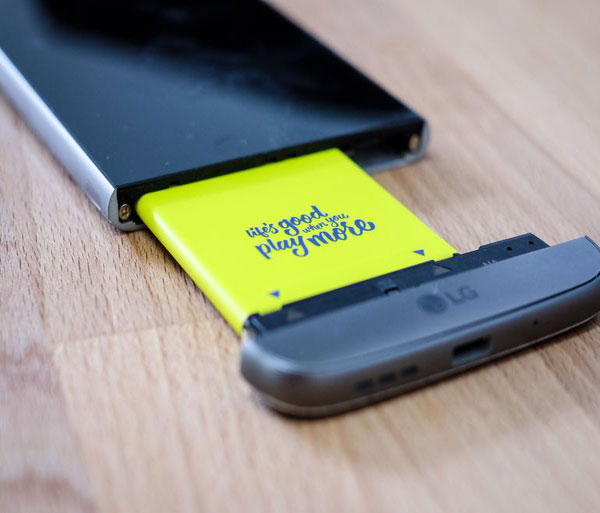
- Incorrect device time/date settings - Some devices lock or miscount attempts if the system time is incorrect, which can happen after a reset or battery removal.
- Hardware issues with buttons - Stuck or malfunctioning volume/power buttons can accidentally trigger failed unlock attempts.
Part 2: Fix Enter Password to Unlock 30/30 Attempts Remaining in 8 Basic Ways
Way 1: Wait for the timeout before retrying
After multiple wrong attempts, your LG or other Android phone temporarily locks for 30-60 seconds as a security measure. Stay calm and use this time to recall your correct password-consider special dates, familiar patterns, or capital letters. Once the timeout ends, enter the password carefully. Avoid random guesses, as repeated errors could trigger longer lockouts or permanent disablement.
Way 2: Reopen the application
Some secure apps, like banking apps, may show the attempt counter even if you haven't actually failed too many times. To fix this, close the app completely by swiping it away or ending its task. Then reopen the app and carefully enter your password again. This simple restart often clears temporary login glitches and refreshes the attempt counter, letting you log in without triggering unnecessary lockouts.
Way 3: Utilize Google Account recovery
If you cannot recall your password, your Google account can help unlock the LG/Android device. Here are the steps:
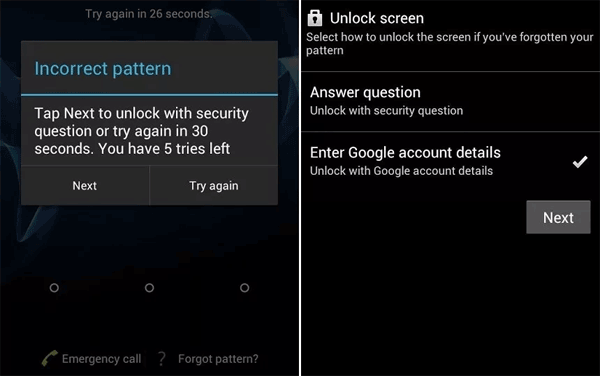
- On older Android devices (Android 9 or lower), look for a "Forgot Password"/"Forgot Pattern" option on the lock screen, or trigger it by intentionally entering a wrong PIN or pattern. Enter your Google account credentials when prompted, and the device will verify your identity and unlock without erasing data.
- For newer Android versions, this option may only appear after a factory reset. In this case, you'll need to enter your Google account credentials to bypass Factory Reset Protection (FRP), allowing you to set up and use the phone again, though data will be erased.
Way 4: Remove FRP lock
After a factory reset, many Android devices like LG/Samsung/Pixel trigger Factory Reset Protection (FRP), asking for the Google account previously linked to the phone. To unlock, enter the correct Google credentials when prompted, which will verify your identity and allow access.
If you've forgotten your account details, you can contact Google support and provide proof of purchase to have the FRP lock removed. Once verified, you can set up and use your device normally.
Way 5: Type in backup PIN or pattern
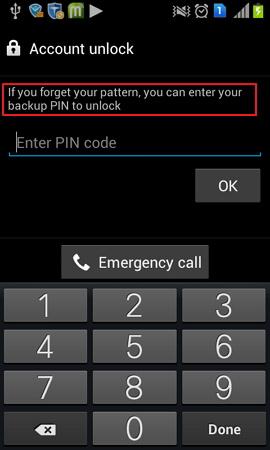
If you previously set up a backup PIN, pattern, or password, you can use it to unlock your device. After the timeout, look for the option to enter your backup credentials on the lock screen. Enter the backup PIN or pattern carefully to regain access without affecting your data. This approach is especially helpful for users who anticipated forgetting their primary password and prepared an alternate unlocking method.
Way 6: Try Google Find Hub
If your LG or other Android phone is locked and you cannot remember the password, Google Find My Device (Now called Find Hub) can help remotely unlock it:
- From another device, log in to Google Find My Device using the Google account linked to your locked phone.
- Select your phone from the device list, then choose the "Lock" option to set a new temporary password.
- After setting it, return to your locked phone and enter the new password to regain access safely without data loss.
Way 7: Factory reset (recovery mode)
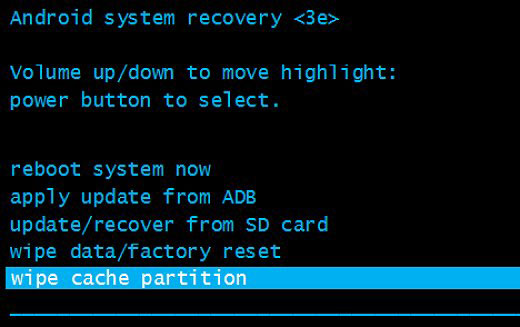
- First, power off the phone completely. Then press and hold the Power + Volume Up (or Down for some older Samsung/LG devices) buttons to enter Recovery Mode.
- Release the buttons when the brand logo or recovery menu appears.
- Use the volume keys to navigate to "Wipe data/factory reset" and confirm with the Power button.
- Select "Yes" to proceed, then optionally wipe the cache partition for a complete reset.
- After finishing, choose "Reboot system now". Your device will restart, the lock screen message will disappear, and you can set up the phone again.
- If FRP is triggered, verify your Google account to regain full access.
Way 8: Visit an authorized service center
If you are unable to unlock your phone using passwords, backup PINs, Google recovery, or factory reset, the safest option is to take the device to an authorized service center.
Make sure to bring proof of purchase or ownership, as technicians will need to verify that the phone belongs to you. Explain the issue clearly, mentioning the "30/30 attempts remaining" lock message and any steps you've already tried. The service center staff can then safely unlock the phone, repair any system issues, and help you regain access without risking further damage.
Part 3: Ultimate Way to Fix Enter Password to Unlock 30/30 Attempts Remaining [Specialist]
Struggling with a locked Android can feel like hitting a dead end, yet Android Lock Wiper offers a lifeline by letting users enter passwords with 30/30 attempts remaining. This feature ensures every opportunity to regain access is preserved without the fear of triggering a permanent lockout.
Its straightforward interface guides you step by step, making the process remarkably smooth even for those unfamiliar with advanced settings. Ultimately, it transforms a stressful lockout situation into a manageable and confident recovery experience.
What Are the Key Features of Android Lock Wiper?
- Unlock Android devices from PINs, patterns, passwords, and fingerprints without data loss in most cases.
- Fix Enter Password to Unlock - 30/30 Attempts Remaining without prerequisites, preventing accidental lockouts.
- Easily remove Factory Reset Protection on compatible devices, giving full access after a reset.
- Works with a wide range of Android brands and models, including LG, Samsung, Huawei, Xiaomi, and more.
- Step-by-step guidance ensures even beginners can navigate unlocking procedures confidently.
- Efficiently removes locks and restrictions while minimizing the risk of errors.

How to bypass the 30 attempts remaining to unlock an Android phone using Android Lock Wiper?
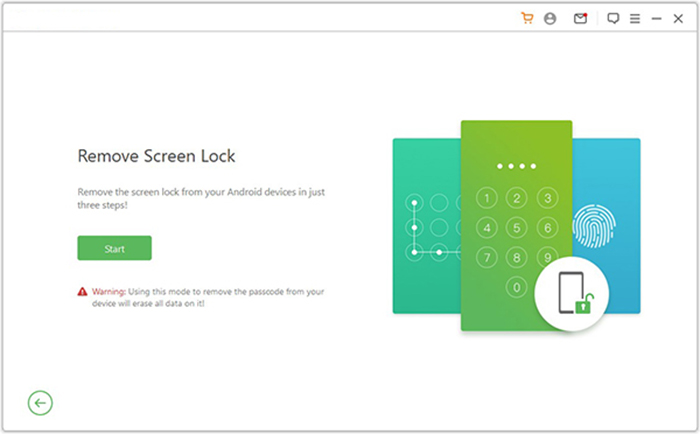
- Begin the procedure by downloading and installing Android Lock Wiper on your PC. Choose 'Remove Screen Lock' and click 'Start'.
- Please note that this application may lead to data loss on your non-Samsung phone during the unlocking process; thus, it is recommended to back up any essential data in advance for added security.
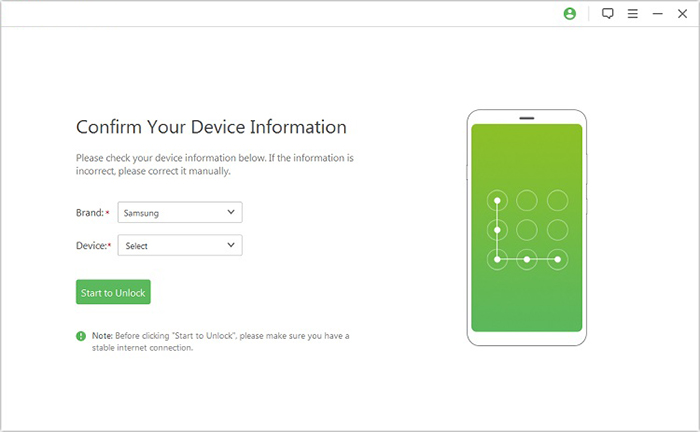
- Connect your phone to the computer using a USB cable. The software will automatically detect your device's information.
- Verify that the displayed details are correct. If there are any discrepancies, you have the option to manually adjust the information before proceeding by clicking "Start to Unlock."
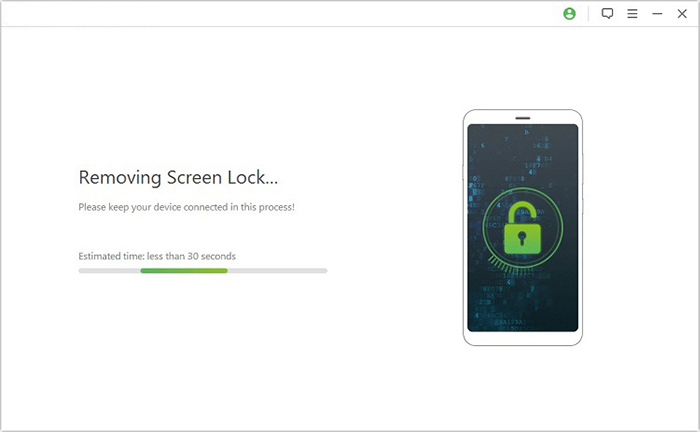
- The application will download and transfer the required data package to your device. Following this, please follow the on-screen instructions to reset your smartphone.
- The unlocking process will commence. It is vital to keep your phone connected throughout this operation. Once completed, you will successfully remove the passcode from your device.
Part 4: Q&A about Entering Password to Unlock 30/30 Attempts Remaining
Q1. What does "Enter Password to Unlock - 30/30 Attempts Remaining" mean?
This message is a security alert indicating you have a limited number of attempts to enter the correct unlock code before the device restricts access further or requires recovery actions. (How to perform data recovery for Android?)
Q2. Will using all 30 attempts permanently lock my phone?
If all 30 attempts are used without success, some devices may trigger a temporary lockout, require a factory reset, or even automatically wipe data to protect against unauthorized access.
Q3. Why does the message sometimes appear even when I know my password?
System glitches, encryption settings, or secure startup on some devices can mistakenly require decryption credentials even when the password is correct.
Q4. Can this happen on second?hand phones?
Yes - if the previous owner enabled secure startup, encryption, or left their account linked, the device may request their credentials before granting access.
Q5. Will entering the wrong password too fast damage my phone?
No, it won't physically damage the device, but rapid repeated attempts can trigger longer lockouts or force a factory reset if the maximum attempts are reached.
Q6. How long do I have to wait after reaching 30/30 attempts?
The timeout varies by device but usually lasts from 30 seconds to several minutes, depending on the phone model and Android version.
Q7. Is there a way to prevent this message from appearing again?
Yes, using a backup PIN, fingerprint, face unlock, or keeping your Google account linked can help avoid permanent lockouts in the future.
In the End
When common fixes fall short or feel too risky, choosing the right tool becomes the turning point. Android Lock Wiper is undoubtedly your best bet because it handles this sensitive stage with precision, allowing access to be restored without wasting valuable attempts.
Rather than guessing passwords or experimenting with uncertain methods, it offers a direct path that avoids escalation into total lockout. For users who value both their device and their data, it remains the most dependable answer when that 30/30 warning appears.
Related Articles:
6 Broken Android Data Recovery Methods to Extract Files from Your Phone
How to Recover Contacts from Android Phone after Factory Reset? 4 Means
Enter Android PIN to Unlock Not Working? Reasons & 8 Quick Solutions
