
How to Transfer Data from TECNO to iPhone? [With Steps & Cons]
Switching to a new iPhone often raises questions about keeping important data from a TECNO device. Contacts, photos, messages, and calendars are not easy to rebuild manually, which is why many users look for how to transfer data from TECNO to iPhone in a simple and reliable way. With several transfer methods available in this passage, users can move their files without unnecessary hassle or loss of information.
- Part 1: How to Transfer Data from TECNO to iPhone with One Touch
- Part 2: How to Transfer from TECNO to iPhone via Move to iOS
- Part 3: How to Transfer Data from TECNO Phone to iPhone via Google Account
- Part 4: How to Transfer Files from TECNO to iPhone via Email (Media Only)
- Part 5: How to Copy Data from TECNO to iPhone via SIM Card (Contacts Only)
Part 1: How to Transfer Data from TECNO to iPhone with One Touch
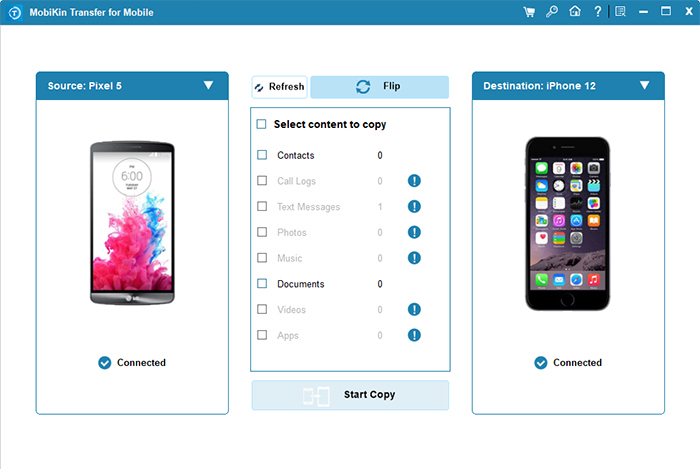
A direct phone-to-phone migration becomes much easier with MobiKin Transfer for Mobile (Windows/Mac) when moving data from TECNO to iPhone. The program allows users to transfer contacts, photos, music, videos, and other files through a computer connection.
Unlike some wireless methods, it does not require factory resetting the iPhone before the transfer. Its one-click process is suitable for people who want to move large amounts of data quickly.
|
MobiKin Transfer for Mobile - Main Features
|
Details
|
|
Main Purpose |
Transfer data directly from a TECNO phone to an iPhone with one click |
|
Supported Transfer Types |
Android to iPhone, iPhone to Android, Android to Android, and iPhone to iPhone |
|
Transferable Data |
Contacts, text messages, call logs, photos, videos, music, documents, apps, and more |
|
TECNO to iPhone Support |
Supports overall smartphones, covering almost all TECNO devices and all major iPhone models (iPhone 17e included) |
|
One-Click Transfer |
Allows users to move selected data by clicking "Start Copy" |
|
Factory Reset Requirement |
No hard reset for TECNO before transferring |
|
Internet Requirement |
No Wi-Fi connection required during transfer |
|
Data Safety |
Transfers files without overwriting or reducing original quality |
|
Ease of Use |
Features a simple interface with source and destination phone selection |
|
Extra Function |
Includes a "Flip" option to switch device positions before transfer |
User Manual:
- To start with, install and launch the program on your computer.
- Connect both the TECNO phone and iPhone to the computer using USB cables.
- Follow the prompts to let the software recognize the devices.
- Once connected, place the TECNO device in the "Source" position and the iPhone in the "Destination" position; if they are reversed, click the "Flip" button.
- Next, select the data types you want to transfer, such as contacts, photos, videos, music, or apps.
- Finally, click the "Start Copy" button to move the selected data from the TECNO phone to the iPhone in one click without resetting either device.


Video Instructions:
Limitations: A computer and two USB cables are required throughout the transfer process.
You Might Also Like: Try to retrieve your lost data from TECNO if you're unable to find them before transfer.
Part 2: How to Transfer from TECNO to iPhone via Move to iOS
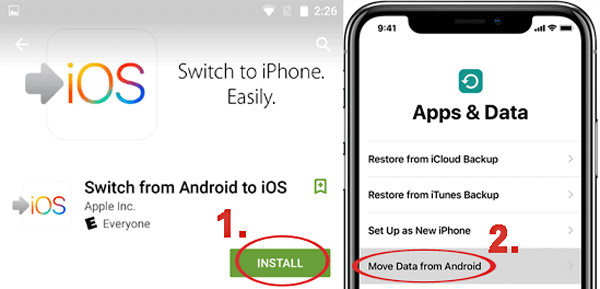
During the initial setup of a new iPhone, Move to iOS can help transfer content from a TECNO phone without using a computer. The app creates a private Wi-Fi connection between both devices and supports contacts, messages, photos, videos, and calendars. Users only need to enter the verification code displayed on the iPhone to begin the migration. However, this method generally works only when the iPhone has not been fully set up yet.
User Manual:
- Start by turning on your iPhone and selecting the option "Move Data from Android" during setup.
- On your TECNO phone, download and open the Move to iOS app from the Google Play Store, then follow the on-screen instructions.
- Enter the code displayed on your iPhone into the TECNO device to create a secure connection between both phones.
- After the devices are linked, choose the types of data you want to transfer such as contacts, messages, photos, videos, and calendars.
- Finally, keep both devices connected and powered on until the transfer process is fully completed.
Limitations: The transfer usually works only during the initial iPhone setup or after a factory reset.
Part 3: How to Transfer Data from TECNO Phone to iPhone via Google Account
For users who mainly need to sync personal information, a Google Account provides a convenient bridge between TECNO and iPhone. Contacts, calendars, and mail data stored in the Google account can appear on the iPhone after signing in with the same credentials.
This option avoids cables and additional software because the transfer is completed through cloud synchronization. Some people also combine it with Google services like Drive or Photos when moving extra files.
User Manual:
- Open Settings on your TECNO device and go to Accounts or Passwords & Accounts.
- Select your Google account and enable synchronization for important items such as Contacts, Calendars, and Mail.
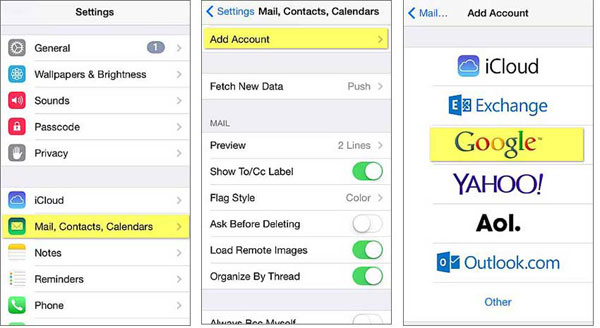
- After the sync is completed, move to your iPhone and go to Settings > Mail > Accounts > Add Account > Google.
- Sign in with the same Google account used on the TECNO phone and turn on the toggles for Contacts, Calendars, and Mail.
- Once syncing finishes, your saved contact information and other synced Google data will automatically appear on the iPhone without effort.
You can also use Google Drive or Google Photos to transfer files, photos, and videos from a TECNO phone to an iPhone. simply upload content from the TECNO device and then sign in with the same Google account on the iPhone to access or download the data. These cloud-based methods are especially helpful when the iPhone has already been set up and users only want to move selected files instead of performing a full-device migration.
Limitations: This method mainly syncs contacts, calendars, and mail instead of transferring all phone data.
Part 4: How to Transfer Files from TECNO to iPhone via Email (Media Only)
Sending files through Email remains a practical way to transfer media from a TECNO device to an iPhone, especially for smaller attachments. Photos, documents, audio clips, and short videos can be attached to a message and downloaded later on the iPhone. The setup process is minimal because both phones only need access to the same email account.
User Manual:
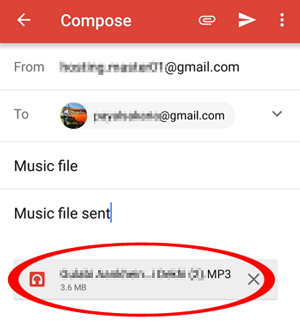
- Open the Mail or Gmail app on your TECNO device and compose a new email to yourself.
- Attach the files you want to move, such as photos, documents, videos, or audio files, and then send the email.
- Next, open the same email account on your iPhone, locate the message, and download the attachments to your device.
Limitations: This method works well for small files and does not require cables, apps, or complicated setup; large attachments may exceed the email size limit.
Part 5: How to Copy Data from TECNO to iPhone via SIM Card (Contacts Only)
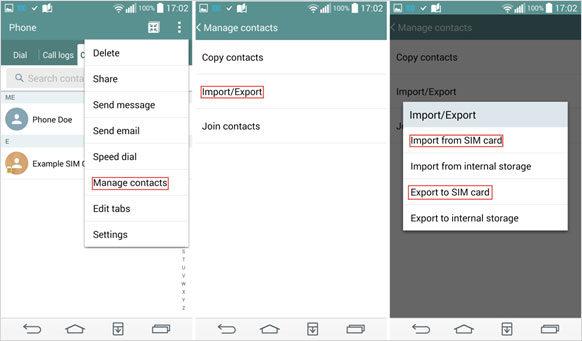
A simple contact migration can also be completed with a SIM Card when changing from TECNO to iPhone. Users can export contacts from the Android device onto the SIM and then import them through the iPhone's contact settings. This method does not rely on Wi-Fi, apps, or cloud services during the process. Still, it is limited to contact information and cannot move media files, apps, or text messages.
User Manual:
- Open the Contacts app on your TECNO device and export or move the contacts to the SIM card through the contact management settings.
- After the export is completed, remove the SIM card from the TECNO phone and insert it into the iPhone.
- On the iPhone, go to Settings > Contacts > Import SIM Contacts and wait for the import process to finish.
- Once completed, the contacts saved on the SIM card will appear in the iPhone’s Contacts app.
Limitations: This method only supports contact transfer and does not move photos, messages, apps, or other files.
Closing Remarks
A smooth transition to a new iPhone depends on choosing a suitable transfer method that fits different data needs. Each solution offers its own balance of convenience and coverage when moving files from TECNO devices. For a more complete and easier process, MobiKin Transfer for Mobile is a practical tool worth trying.
Related Articles:
How to Transfer WhatsApp from iPhone to OnePlus? 4 Established Ways
Top 4 Tactics to Edit TECNO Phone Contacts on Computer/PC
4 Easy Solutions to TECNO FRP Bypass [Technical Expertise]
[8 Tips] What to Do before Getting a New iPhone 17/17e/Pro/Air
