
How to Transfer Text Messages from Samsung to Huawei in 4 Simple Ways
A change from a Samsung phone to a Huawei device often brings up the issue of preserving important SMS conversations. Moving messages from old Samsung ensures continuity and prevents gaps in communication history on the new Huawei device, which helps maintain a smooth transition between devices.
This article focuses on transfer text messages from Samsung to Huawei in 4 efficient strategies, offering practical ways to keep SMS data safe and organized.
- Way 1: Transfer Text Messages from Samsung to Huawei via MobiKin Software [5 Mins]
- Way 2: Export SMS Messages from Samsung to Huawei via Phone Clone App
- Way 3: Transfer Text Messages from Galaxy to Huawei Using Google Service
- Way 4: Transfer SMS from Samsung to Huawei via SMS Backup & Restore App
- FAQs for Transferring Text Messages from Samsung to Huawei
Way 1: Transfer Text Messages from Samsung to Huawei via MobiKin Software [5 Mins]
Transferring text messages from Samsung to Huawei can be done smoothly with this tool in a single direct connection between devices. MobiKin Transfer for Mobile (Windows/Mac) is designed to move SMS along with other phone data without complicated setup or backup steps.
This program supports broad compatibility across Android devices, allowing smooth communication between Samsung and Huawei Pura 90/Pura 80/Pura 70/P60/P50 without system conflicts or complex setup. It performs a lossless transfer process that keeps SMS content, timestamps, and conversation order unchanged during migration.
Built with a professional data transfer structure, it enables users to transfer text messages from Samsung to Huawei efficiently while maintaining accuracy and completeness.
How do I transfer text messages from Samsung to Huawei with MobiKin Transfer for Mobile?
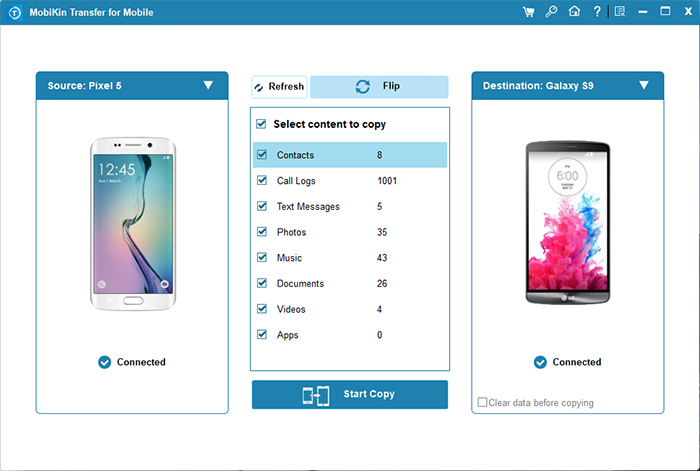
- Once you have installed and launched the Transfer for Mobile application on your computer, connect both your Samsung and Huawei smartphones to the same computer simultaneously using two USB cables.
- The application will recognize the connected devices and show them in the left and right columns, respectively.
- Simply verify that they are positioned correctly. If they are not, click on "Flip" to ensure that the Samsung device is designated as the source and the Huawei device as the target.
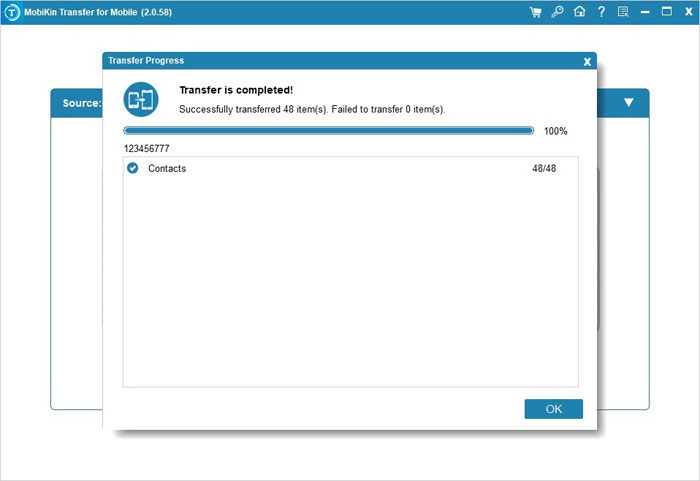
- After selecting "Text Messages," you may click the "Start Copy" button to initiate the transfer process.


Video Guide:
Click to Learn: 5 Most Popular Methods to Factory Reset Samsung Phone When Locked
Way 2: Export SMS Messages from Samsung to Huawei via Phone Clone App
A QR-based connection between two phones enables SMS migration when switching from Samsung to Huawei. Phone Clone transfers messages wirelessly by letting the devices communicate over a local network instead of using cloud storage.
Data categories can be chosen before transfer begins, which includes text messages alongside other phone content. This approach is often used when setting up a new Huawei device and moving everything at once.
How to Transfer?
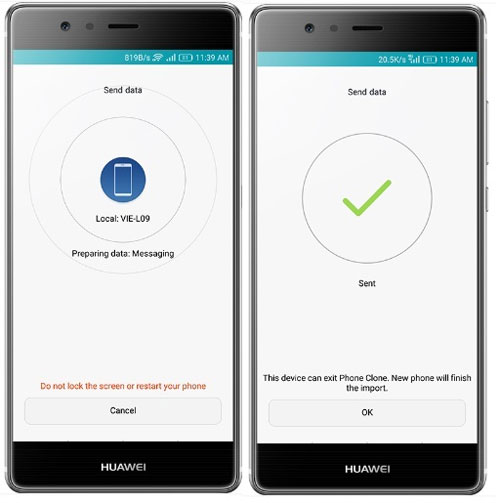
- Open Phone Clone on your Huawei phone and select "This is the new phone" > "Other Android", then install and launch the same app on your Samsung device and choose "This is the old phone."
- Use the Samsung phone to scan the QR code displayed on Huawei to establish a direct wireless connection between the two devices.
- Once connected, select "Messages (SMS)" along with any other data you want to export, then tap "Transfer" to begin moving your text messages from Samsung to Huawei, keeping both phones close together until the process finishes successfully. (Huawei Phone Clone won't work?)
Way 3: Transfer Text Messages from Galaxy to Huawei Using Google Service
According to Reddit users, this only works during initial setup or after a reset, and many report that SMS may not transfer reliably or appear afterward, especially if the phone was already set up or for MMS/group chats. Here's how:
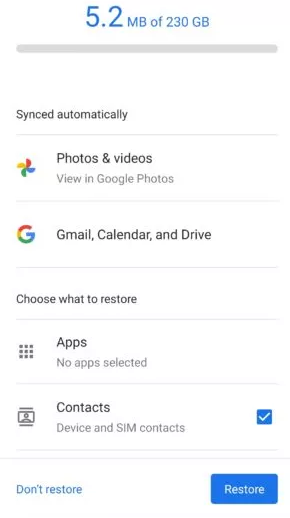
- On your Samsung phone, go to Settings > Google > Backup and enable backup (make sure SMS messages are included), then tap "Back up now".
- After that, turn on your Huawei phone and sign in with the same Google account during setup (Factory reset your destination phone if it isn't a brand-new one).
- Choose "Restore from backup" and select the Samsung backup to restore your text messages instantly.
Tips: To transfer other data types like media files selectively, try these steps:
- Open the Google Drive app on your Samsung phone and tap the "+ (New)" > Upload option to manually upload your SMS-related data or backups.
- If your messages are stored via a backup file or supported app), then tap Share and send the files to the Gmail account used on your Huawei device.
- Next, open Google Drive on your Huawei phone, sign in with the same account, locate the uploaded files under Recent, and tap Download to save them.
Way 4: Transfer SMS from Samsung to Huawei via SMS Backup & Restore App
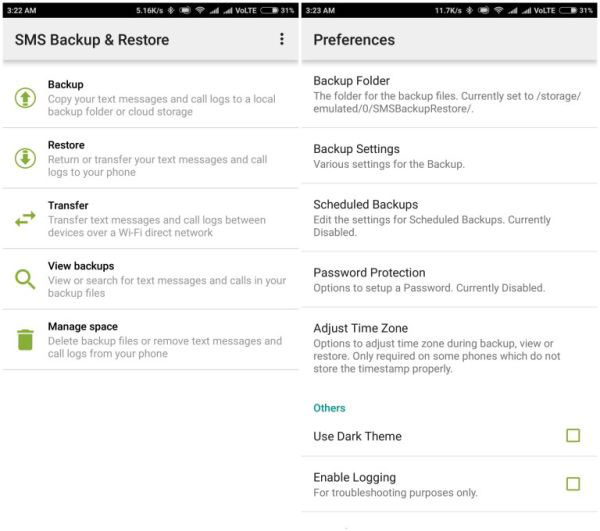
Text messages from a Samsung device can be preserved by creating a backup file that is later imported into Huawei P, Mate, Nova, Y, Enjoy, and Pocket series. SMS Backup & Restore stores conversations either on local storage or cloud services such as Google Drive for later recovery.
During restoration, the app writes messages back into the system so they appear in the default messaging interface. Flexibility comes from the ability to back up and restore messages even after the Huawei phone has already been configured.
How to Transfer?
- Install and open SMS Backup & Restore on your Samsung phone, tap "Backup" and select Messages (SMS), then choose a storage location like Google Drive, Dropbox, or local storage and complete the backup.
- Next, install and open the same app on your Huawei phone, sign in to the same cloud account (if used), tap "Restore," select the backup file, and confirm to import your messages.
- During restoration, set the app as the default SMS app temporarily if prompted, and once the process finishes, switch back to your preferred messaging app with all SMS successfully transferred.
FAQs for Transferring Text Messages from Samsung to Huawei
Q1. Why are my SMS not showing after Google restore?
Because SMS restore depends on system compatibility, and Huawei devices may not fully sync Google-backed message data after setup.
Q2. Can I transfer messages without losing existing data on Huawei?
Yes. Most tools merge messages instead of deleting existing ones, but a backup is still recommended.
Q3. Does Phone Clone transfer all SMS conversations?
It transfers most messages, but results may vary depending on device model and system version.
Q4. Why does SMS restore ask me to change the default messaging app?
Apps like SMS Backup & Restore need temporary permission to write messages into your system database.
Q5. What should I do if the SMS transfer fails?
Try another method such as switching from Google backup to Phone Clone or SMS Backup & Restore, as compatibility varies between devices.
Q6. What is the easiest and safest method to transfer SMS?
Among the available options, MobiKin Transfer for Mobile stands out because it allows one-click transfer of SMS without data loss, complicated setup, or manual backup and restore steps. It is widely considered the best tool for this purpose, since it ensures a stable, secure, and complete transfer of text messages along with other phone data.
Related Articles:
How to Retrieve Deleted WhatsApp Messages on Huawei with/without Backup? 5 Means
How to Retrieve Deleted Messages on Huawei Phone? 5 Tactics 2026
Best Samsung Galaxy Desktop Manager: Unlock the Main Features Here
10 Fixes: Samsung S8/S23/S24/S25/S26 Fails to Send & Receive Messages
